
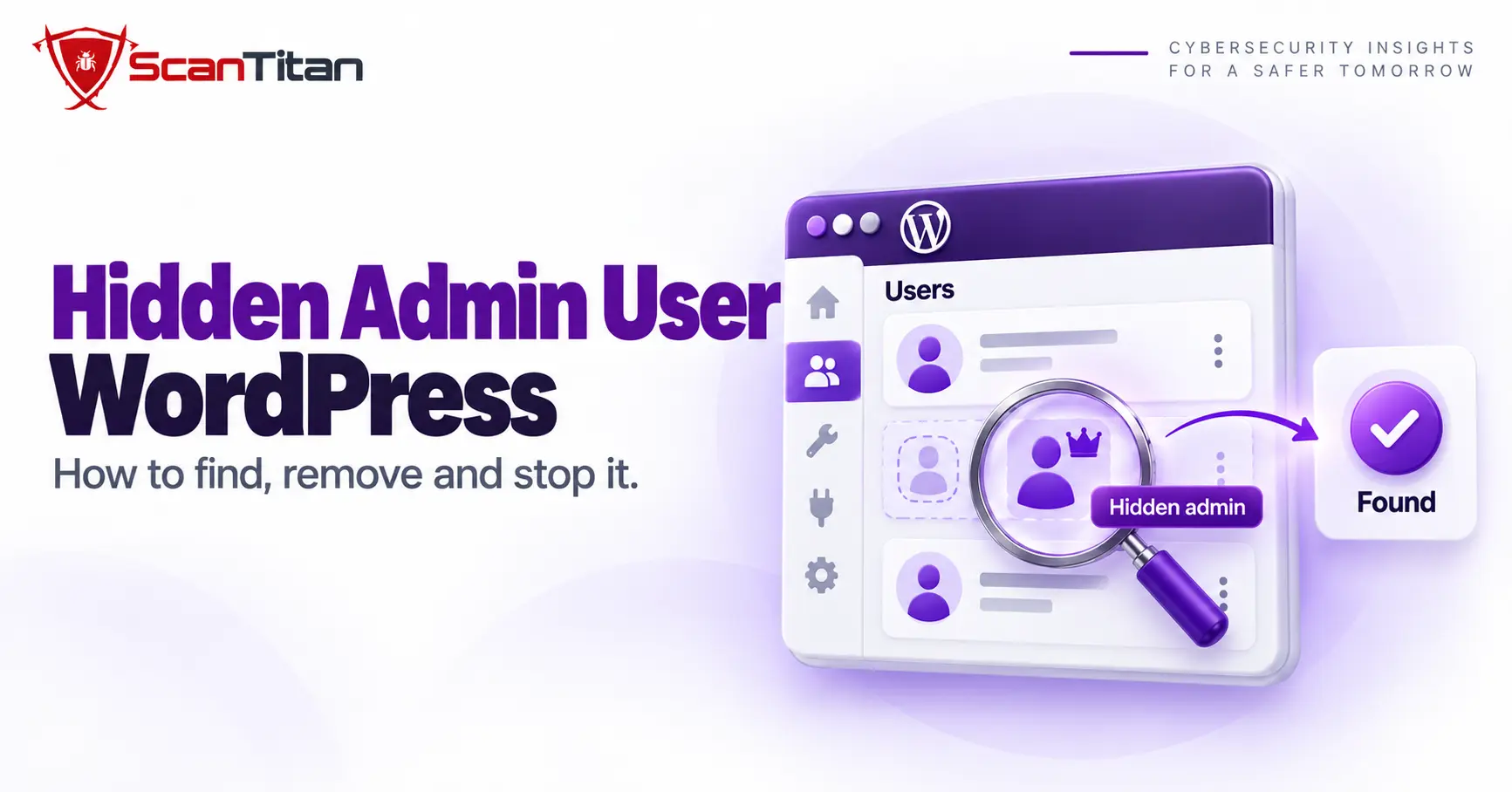
Hidden admin user WordPress infections are administrator accounts that exist in the database but are filtered out of the Users screen by code, so the dashboard shows nothing unusual. Attackers create one to return after cleanup. This guide shows how attackers hide the account, how to find it with direct SQL when even WP-CLI is filtered, how to remove it, and how to tell it from a legitimate hidden support user.
Hidden Admin User WordPress: How Attackers Create and Hide One
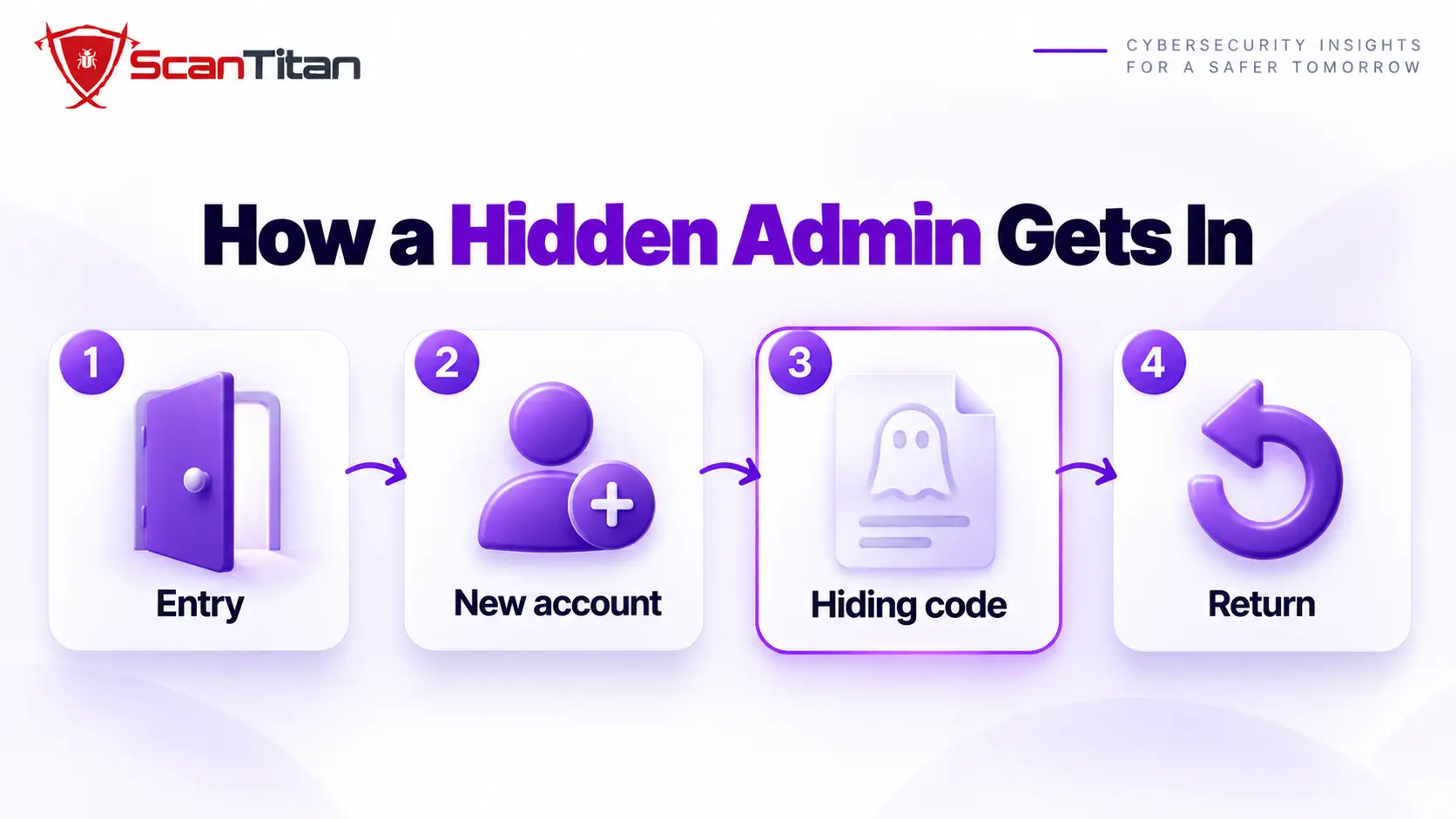
Attackers get an administrator account onto a site in three common ways: a vulnerable plugin that lets them create users, a stolen password used to add a second account, or a backdoor script that inserts the account on demand. The account matters more than any malware it installs, because an administrator can reinstall everything after you clean the site. To stay unnoticed, the attacker hides the account from the Users screen with code, or picks a name that looks like part of a plugin. The dashboard then lists only the administrators you expect while another one keeps working. Our guide on how did my website get hacked shows how to trace the entry point behind it.
5 Ways Attackers Hide an Admin User From the WordPress Users List
The 5 ways are a user query filter, a mu-plugin, edited capabilities, a disguised username and a direct database insert. They can be combined, and the first two need code on your server, which means finding the account is only half the job. Each one below starts with a plain definition, then shows how to confirm it and how to remove it.
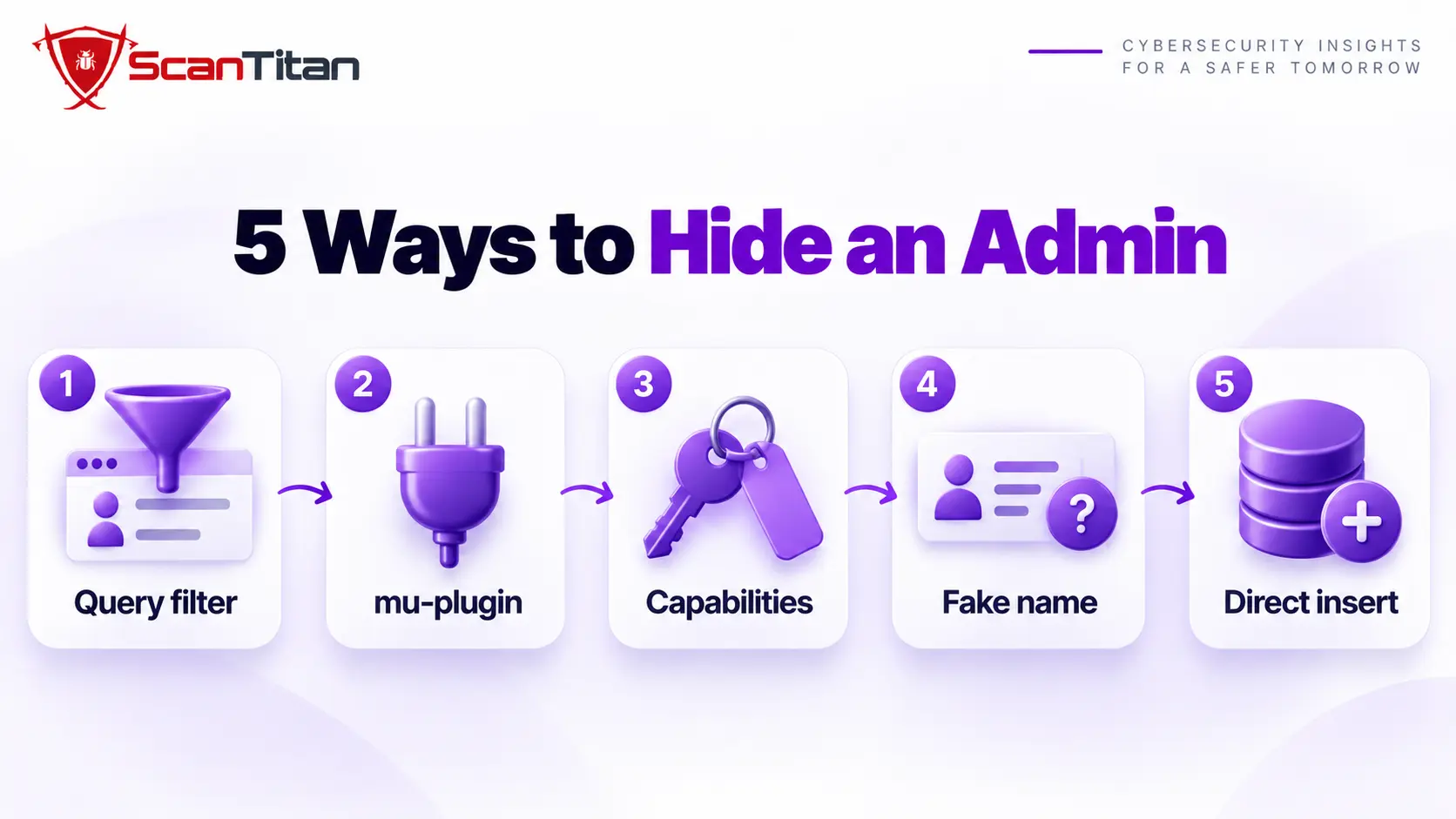
1. A User Query Filter That Removes the Account From the List
A user query filter is a few lines of PHP that hook into pre_user_query, the action WordPress fires after it builds the query for a user list and before it runs it, and use it to drop one account from the results.
How to confirm it: Compare the number of administrators WordPress shows with the number in the database, using the queries in the steps below. Then run grep -rn "pre_user_query" wp-content --include="*.php". A few legitimate plugins use the hook, so read each hit before you judge it.
How to remove it: Copy the file, delete the filter and the file that registers it, and look for the code that recreates it, because a filter without its account is a sign the attacker may return.
2. A mu-plugin That Runs on Every Request
A must-use plugin is a PHP file in wp-content/mu-plugins that WordPress loads on every request without activation, and attackers favor it because it is easy to overlook and not managed from the normal plugin list. The WordPress documentation notes that these plugins do not show in the default plugin list.
How to confirm it: Run ls -la wp-content/mu-plugins and open the Must-Use tab of the plugin screen. Any file you did not install deserves a read.
How to remove it: Copy it, delete it, and search the rest of wp-content for sibling files with similar names or code.
3. Edited Capabilities Instead of the Administrator Role
An edited capability is an account that holds administrator powers through its own capabilities data, such as manage_options, or through a custom role, so a check that only looks for the Administrator role misses it. The roles and capabilities documentation explains how WordPress stores them.
How to confirm it: Search the capabilities data for manage_options as well as administrator, using the second query in the steps below, and check wp_options for custom roles you did not create.
How to remove it: Reset the account to the lowest role it needs or delete it, and remove any custom role the attacker added.
4. A Disguised Username and Display Name
A disguised account is a visible administrator with a name chosen to look like part of the system, such as a support helper or a plugin name, so an owner skims past it in a long list.
How to confirm it: Check the registration date, the email address and the last login. An address on a domain you do not recognize, or a date that matches the first sign of infection, gives it away.
How to remove it: Write down the details for your records, delete the account, and rotate every password and key it could have seen.
5. A Direct Database Insert
A direct insert is an account written straight into the wp_users and wp_usermeta tables by a backdoor script or a SQL injection, which skips the hooks that normally record or notify a new user.
How to confirm it: Sort users by registration date and look for accounts with no matching person, no welcome email trail and an unusual date.
How to remove it: Delete the rows from both tables, then find the script or flaw that wrote them, since the account will be inserted again until that is closed. A search of the access log for the request that created it usually points to the vulnerable form or script.
Why Neither the Users Screen Nor WP-CLI Shows a Hidden Admin User
Both the dashboard and the command wp user list load WordPress first, so a hook registered by a plugin or mu-plugin runs for both and can filter the same account from both lists. A direct database query does not pass through WordPress at all, so it returns the rows exactly as stored. That is why I treat wp db query or phpMyAdmin as the check that counts, and a clean-looking user list as a hint. If the two disagree, the difference is your suspect. Even a filter that only runs inside the admin area still leaves the database rows untouched, which is why the direct query catches it.
How to Find a Hidden Admin User in WordPress With SQL and a Code Search
Replace the wp_ prefix with the one in your wp-config.php if it differs, and work on a backup of the database.
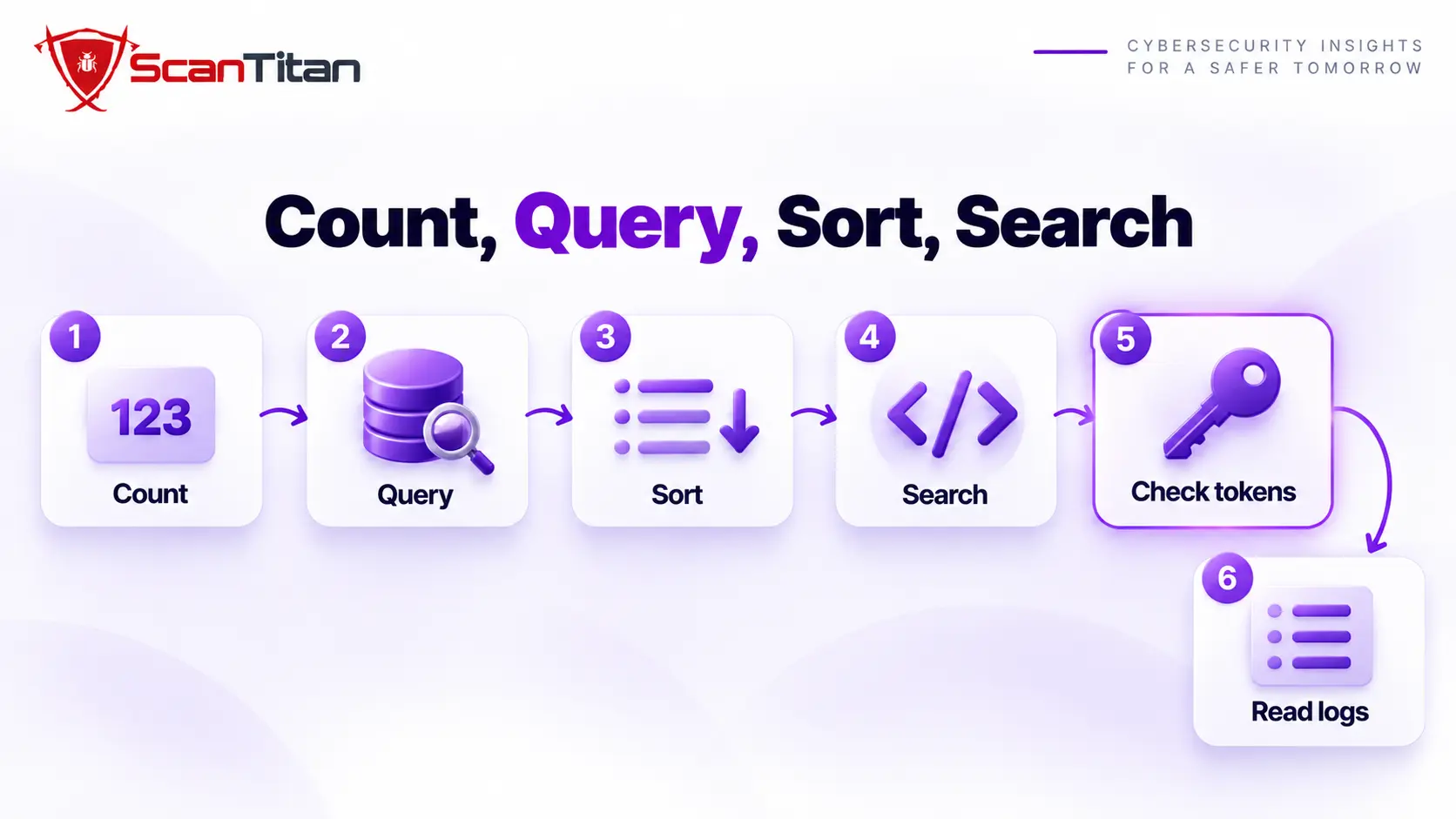
- Count the administrators on the Users screen, then count the accounts in the database. Command:
wp db query "SELECT COUNT(*) FROM wp_users" - Query the database for every account with administrator rights or
manage_options. The query is below. - Sort all users by registration date and note accounts created near the first sign of infection.
- Search plugins, themes and mu-plugins for code that hides users, using the
grepcommand in the first method above. - Check application passwords on every administrator with
wp user application-password list, because a token gives access without a new account. - Read the access log around each suspicious registration time to see which request created the account.
SELECT u.ID, u.user_login, u.user_email, u.user_registered
FROM wp_users u
JOIN wp_usermeta m ON m.user_id = u.ID
WHERE m.meta_key = 'wp_capabilities'
  AND (m.meta_value LIKE '%administrator%' OR m.meta_value LIKE '%manage_options%');

SELECT ID, user_login, user_email, user_registered
FROM wp_users ORDER BY user_registered DESC LIMIT 20;
Our guide on database malware in WordPress has more queries for posts and options.
How to Remove a Hidden Admin User Without Losing the Evidence
Removing the account before the code that hides it, or the flaw that created it, only invites a replacement. Follow this order.
- Copy the rows from both user tables, and the logs, before you change anything.
- Find the hiding code and the creation route, using the three passes in our guide to find a backdoor in a website.
- Delete the account with
wp user deleteor by removing both database rows. - Remove the filter, the mu-plugin and any other code that hid or recreated it.
- Rotate every administrator password, the salts in
wp-config.phpand any application passwords. - Recheck with the same queries a day later and again after a week.
Hidden Admin User or Legitimate Support Account? How to Tell
No. Some hosts, agencies and security tools create a support or recovery administrator and hide it on purpose. Check by asking the provider, by confirming the account was created before any sign of infection, and by matching its email address to the provider’s domain. If nobody can vouch for it, treat it as hostile. A hidden account is bad practice even when it is legitimate, because it blinds you to a real intruder who uses the same trick. If you manage a client’s site, ask for a visible account with a documented name instead. The general list of signs of website malware shows what else to check when an account looks wrong.
How to Stop a Hidden Admin User Returning After Cleanup
An attacker who cannot create or hide an account cannot use the trick. Close the routes in this list.
- Limit administrator accounts to the people who need them, and give everyone else a lower role.
- Protect every administrator login with a unique password and two-factor authentication.
- Alert on new administrator accounts, so one is noticed in minutes, not months.
- Update core, plugins and themes, and remove unused ones.
- Review the full list of administrators monthly with the direct query, not just the dashboard. If one returns, work through the causes in why WordPress malware keeps coming back.
When a Hidden Admin User Needs a Professional Investigation
Get help when you find an account you cannot explain and no hiding code, when the account returns after you delete it, when it was used to change content or install plugins, or when customer or payment data may have been exposed. A rogue administrator can do anything you can, so the investigation has to cover what it touched, not just the account. A professional cleanup finds the creation route, every hiding mechanism and every other foothold, and documents what the attacker could reach. ScanTitan’s website malware removal service covers all of it.
Hidden Admin User WordPress FAQ
How do hackers hide admin accounts in WordPress?
Most often with a filter on the user query that removes the account from the Users list, or with a mu-plugin that runs on every request. Some use edited capabilities, a disguised name, or write the account straight into the database. Check the database directly, because the dashboard can be manipulated.
How do I find my admin username?
Open Users in the dashboard and look for accounts with the Administrator role, or run a database query on the user tables. If you do not know which account is yours, check the registration dates and email addresses. An administrator you do not recognize needs investigation.
Can WP-CLI miss a hidden admin user?
Yes. WP-CLI loads WordPress first, so a hook added by a plugin or mu-plugin can filter its user list the same way it filters the dashboard. A direct query to the database is not affected, so it is the more reliable check.
Should I delete or disable a rogue administrator?
Copy the account details first, then delete it, because a disabled account can be re-enabled by the code that created it. Remove the hiding code and fix the entry point before or immediately after, or the account will be recreated.
Can a hidden admin survive a restore?
Yes, if the backup was taken after the account was created, or if the entry point stays open so the account is added again. Check the user tables after any restore, and rotate every password and salt.
What can a rogue administrator do?
Anything an owner can: install plugins and themes, edit files, create users, change content and export data. That is why a hidden admin is as serious as a backdoor file, and why you should assume anything it could reach may have been altered.