

To find a backdoor in a website, run three passes: compare every file against a clean copy, search for code that behaves like a backdoor, and trace unusual requests in your access logs. Backdoors hide in eight places, from fake core files to the database, and a scanner alone misses many of them. This guide gives the commands, the patterns, how to separate false positives, and how to remove what you find without losing evidence.
The Three Passes That Catch Almost Every Website Backdoor
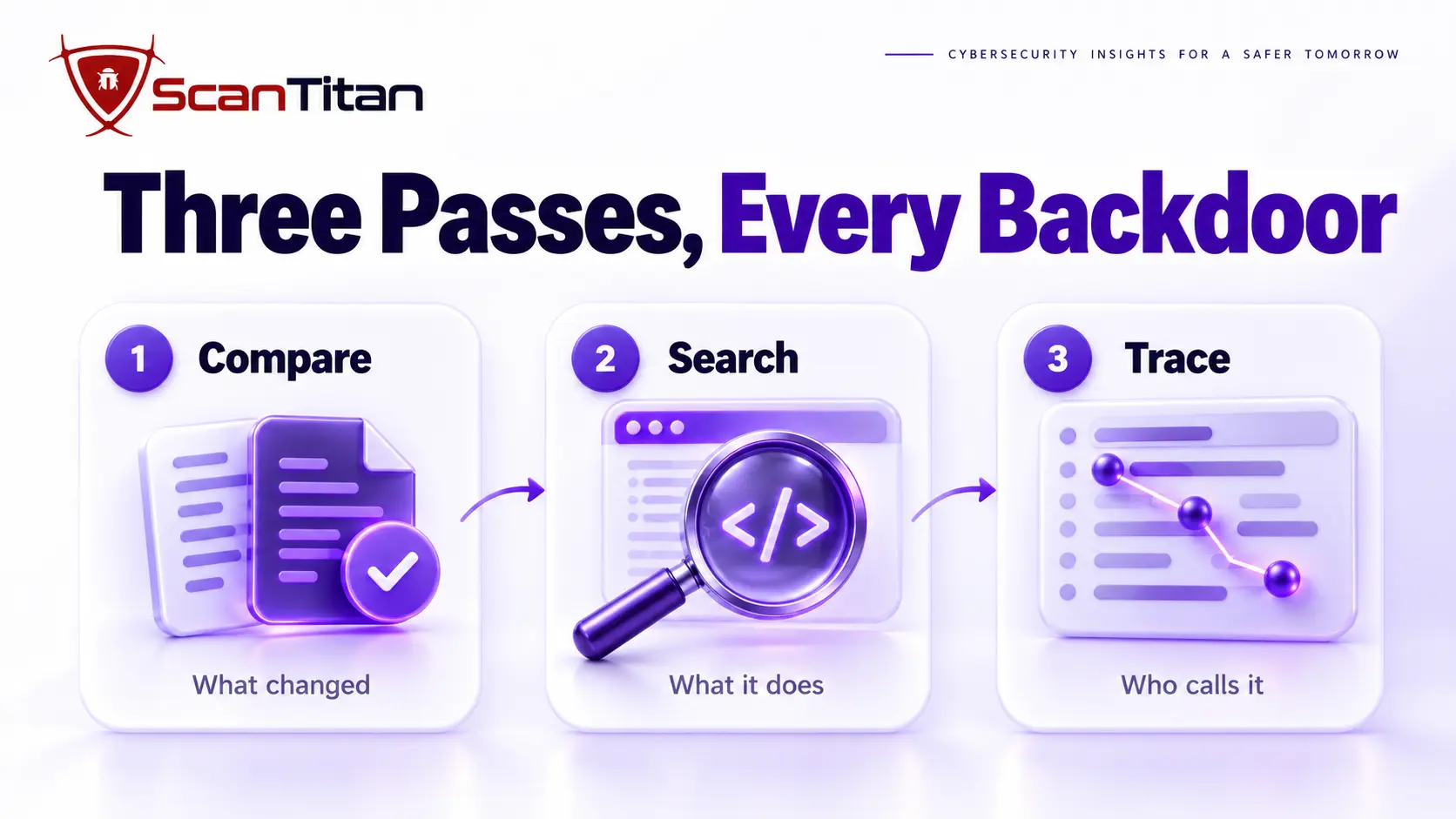
Three passes done in order catch almost every backdoor: compare every file against a clean copy to see what changed, search for code that behaves like a backdoor to see what it does, and trace unusual requests in your access logs to see who calls it. Each pass finds what the other two miss. A comparison cannot read your custom theme, a code search cannot tell a hostile file from a legitimate one, and the logs cannot show a backdoor nobody has used yet. A scanner is a useful fourth input, but treat it as a hint, as our guide on why a scanner says clean when the site is still infected explains.
What a Website Backdoor Is and Why Cleanup Misses It
A backdoor is any hidden method that lets an attacker return after the first break in, and a web shell is the interactive version that works over HTTP. Cleanup misses backdoors for three reasons: they are small, they are named to look normal, and attackers plant several, so removing nine leaves the tenth to reinstall the rest. Some are not files at all, but database rows, scheduled tasks or settings. MITRE describes the technique as a server software component: web shell. If you keep getting reinfected, read why WordPress malware keeps coming back.
Video: John Hammond explores a WordPress PHP backdoor web shell. It runs about 40 minutes, so treat it as an optional deeper dive.
Find Backdoor in Website: The Eight Places Backdoors Hide
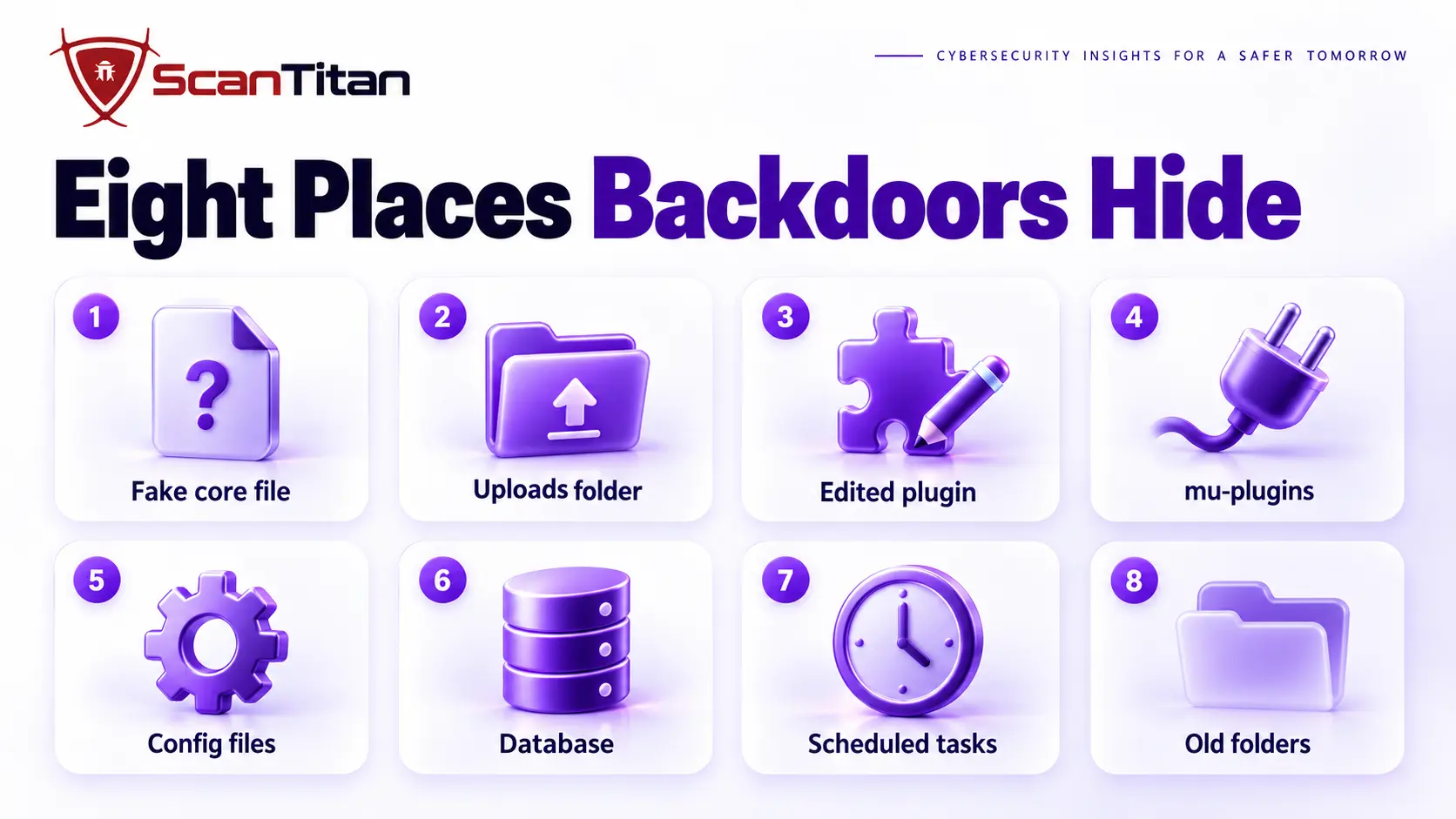
These eight places cover almost every backdoor I find on a hacked WordPress site. Each one starts with a plain definition, then shows how to find it, how to remove it and an example. Examples marked typical case are common scenarios, not named clients.
1. Fake Core Files With Convincing Names
A fake core file is a backdoor named to look like a real WordPress file, so a quick glance skips it.
How to find it: Run wp core verify-checksums, which compares your core files with the official release and reports files that should not exist. Also list the root folder and compare each name with the real core files.
How to remove it: Copy the file and the logs first, delete it, then find what wrote it, because a fake core file is rarely the only foothold.
Example: In April 2026, a backdoor planted through bought plugins was reported to be named wp-comments-posts.php, one letter away from the real core file wp-comments-post.php, and it was used to inject code into wp-config.php.
2. PHP Files in the Uploads Folder
A PHP file in the uploads folder is a script stored where only images and documents belong, and it is the most common web shell location.
How to find it: Run find wp-content/uploads -iname "*.ph*" to list PHP and similar extensions. Then look for code hidden inside image files with grep -rl "<?php" wp-content/uploads. A few plugins add an empty index.php, and those are harmless.
How to remove it: Delete the file after copying it, block PHP execution in the uploads folder with a server rule, and find the upload path that let it in.
Example: Typical case: a form plugin with a weak upload check accepts a file named photo.php.jpg. The server runs it as PHP, and the attacker has a shell in a folder nobody reviews.
3. Edited Legitimate Plugin and Theme Files
An edited legitimate file is a real plugin or theme file with a few hostile lines added, which makes it the hardest backdoor to spot by name.
How to find it: Run wp plugin verify-checksums --all for plugins from WordPress.org. For premium plugins and themes, download a fresh copy from the vendor and run diff -r against the installed folder.
How to remove it: Replace the whole plugin or theme from a fresh copy, because deleting one line does not prove the rest is clean.
Example: Typical case: a single line added at the top of a theme’s functions.php includes a long encoded string. The theme looks and works normally, and only a comparison with the original shows the extra line.
4. mu-plugins and Drop-In Files
A must-use plugin is a plugin that loads on every request without being activated, and a drop-in is a file in wp-content that replaces core behavior, such as object-cache.php or db.php.
How to find it: List wp-content/mu-plugins and the PHP files directly inside wp-content. WordPress shows them under the Must-Use and Drop-ins tabs of the plugin screen, and the list of valid drop-ins tells you which names are real. Remove anything you did not install.
How to remove it: Copy it, delete it, and keep only the cache or database drop-ins that your own plugins created.
Example: Typical case: a file called wp-content/db.php that no database plugin created. It runs on every page load and rebuilds other backdoors.
5. wp-config.php, .htaccess and .user.ini
These configuration files are backdoor locations because they run before or around everything else, and attackers use them to load a hidden file or change how files are handled.
How to find it: Open wp-config.php and look for long encoded blocks or unknown includes. Run grep -rn "auto_prepend_file" . --include=.htaccess --include=.user.ini, and read .htaccess for handler lines that treat images as PHP and for redirects to domains you do not own.
How to remove it: Restore each file to its default content, then rotate the database password and the salts, because the attacker may have read them.
Example: The April 2026 plugin backdoor wrote its payload into wp-config.php, which is why removing the plugin alone did not clean the site.
6. Database Rows and Rogue Administrators
A database backdoor is a hostile row, such as an extra administrator account or an option that holds code, so a file scan never sees it.
How to find it: List administrators with wp user list --role=administrator and compare them with your real team. Our guide on database malware in WordPress has the queries for posts and options.
How to remove it: Delete unknown users with wp user delete, clean the infected rows, and rotate every password and salt.
Example: Typical case: an administrator named like a plugin helper, created at 3 a.m. the day before the first spam page appeared. Deleting the spam pages did nothing while the account existed.
7. Scheduled Tasks That Restore the Backdoor
A scheduled task is a recurring job, often a WordPress cron event, that downloads or rewrites a backdoor every hour or day after you delete it.
How to find it: Run wp cron event list and look for hooks you do not recognize. On the server, also run crontab -l for the account.
How to remove it: Remove the event with wp cron event delete and delete the code that registered it, or it comes back.
Example: A security team that analysed a repeatedly reinfected site reported a restorer file whose only job was to put the malicious files back after each cleanup.
8. Forgotten Themes, Plugins and Old Folders
A forgotten component is an inactive theme, an unused plugin or an old folder such as /old or /test that nobody updates and that attackers can still request.
How to find it: List everything in wp-content/themes and wp-content/plugins, then look in the web root for old copies, backups and test sites. Request a suspicious path in a browser to see whether it still runs.
How to remove it: Delete what you do not use, because an inactive plugin with a flaw is still reachable, and scan what is left.
Example: Typical case: an abandoned staging copy of the site in a subfolder, running an old plugin version. The attacker entered through it and planted a backdoor that also reached the main site.
Pass One: Compare Against a Clean Copy
A clean-copy comparison is the fastest way to find a backdoor you cannot recognize, because it lists every file that differs from the original. It will not cover custom code, premium products from the vendor, or files in wp-content/uploads, so use it as the first filter, not the last. A security team that analysed a repeatedly reinfected site reported that a comparison against the official release found 211 files that did not belong, while scanners reported nothing.
wp core verify-checksums
wp plugin verify-checksums --all
wp core download --skip-content --version=$(wp core version) --path=/tmp/clean-wp
diff -r --brief /tmp/clean-wp /path/to/your/site | grep -v "wp-content"
Pass Two: Search for Code That Behaves Like a Backdoor
A behavior search looks for what code does, not what it is called, so it catches backdoors with innocent names. Each pattern below is a function that attackers favor, and each also has legitimate uses, which is why a hit is a lead and not a verdict.
| Pattern | What it does in a backdoor | Legitimate use |
|---|---|---|
eval( | Runs a string as code | Rare, some templating tools |
base64_decode( | Unpacks a hidden payload | Plugins decoding stored data |
gzinflate( or gzuncompress( | Decompresses a payload | Compression in libraries |
assert( | Runs request input as code in older PHP versions | Debug checks |
preg_replace with the /e modifier | Runs the replacement as code, removed in PHP 7 | None today |
system(, exec(, shell_exec(, passthru( | Runs operating system commands | Backup and image tools |
$_POST or $_REQUEST passed to include or file_put_contents | Writes or loads attacker content | Upload handlers |
grep -rEl --include="*.php" "eval\(|base64_decode\(|gzinflate\(" wp-content
grep -rE --include="*.php" "(eval|assert|system|shell_exec|passthru|exec)\s*\(\s*\$_(POST|GET|REQUEST|COOKIE)" .
If a hit is heavily obfuscated, our article on obfuscated PHP malware shows how to decode it safely, and the malware code analyzer can explain what a suspect file does.
Pass Three: Trace Requests in Your Logs
Logs show what the site did, and they are hard for malware to fake. A backdoor must be called to be used, so it leaves requests that look different from normal traffic. Download the access log before it rotates and work on a copy.
grep "POST" access.log | grep "\.php" | grep "/wp-content/uploads/"
awk '{print $7}' access.log | sort | uniq -c | sort -n | head -30
awk -F\" '{print $6}' access.log | sort | uniq -c | sort -rn | head- Look for POST requests to PHP files in uploads, plugin or theme folders that normally take none.
- Check the least requested paths, because a backdoor is often called a handful of times and nothing else.
- Compare user agents and addresses with your real traffic, since attackers use scripts with odd or empty agents.
- Find the first request to a suspect file, then read the requests just before it, because they usually name the entry point. Our guide on how did my website get hacked shows how to read them.
How to Tell a Real Backdoor From a False Positive
Many legitimate plugins use base64_decode or even eval, so deleting every hit breaks your site while leaving real backdoors in place. Ask four questions of each suspect file, in order.

- Check where the file sits. A PHP file in uploads or in a folder that should hold images is hostile until proven otherwise.
- Identify who made it. A file that belongs to a plugin you installed should match the vendor’s copy exactly.
- Read what it does with request data. Code that takes input from
$_POSTor$_REQUESTand passes it to a command or an include is a backdoor pattern. - Compare it with a fresh vendor copy. If the file differs, or the vendor does not ship it, treat it as malicious.
How to Remove a Website Backdoor Without Losing the Evidence
Remove backdoors in a fixed order. Copying first keeps the evidence of how the attacker got in, and rotating last stops the attacker using anything they stole.
- Copy each suspect file and the access log to a safe place before you change anything.
- Quarantine the file by moving it out of the web root, and check that the site still works.
- Delete every confirmed backdoor, including database rows, scheduled tasks and rogue users.
- Replace core, plugins and themes from fresh official copies.
- Rotate every password, key and salt, from a clean computer.
- Retest with all three passes to confirm nothing remains.
For the full cleanup around this step, follow our guide on how to remove malware from a website.
How to Check You Found Every Backdoor
Finding one backdoor does not prove you found them all, because attackers plant several. Keep checking after the cleanup until the site has stayed quiet.
- Repeat all three passes after the cleanup, and compare the results with the first run.
- Watch file changes and the administrator list daily for two weeks, since a missed backdoor usually reinstalls itself in days.
- Read the access log for requests to files that no longer exist, because attackers keep probing their old backdoors.
- Investigate any return by following the causes of malware that keeps coming back.
When to Hand a Backdoor Hunt to a Professional
Get help when you find a backdoor and cannot tell how it got there, when the infection returns after a cleanup, when customer or payment data may be exposed, or when several sites share the hosting account. These cases often involve more than one foothold, and each day of guessing is another day of exposure. A professional hunt compares files at scale, reads the logs for the first request and checks the database and server together, then documents what the attacker could reach. ScanTitan’s website malware removal service includes the backdoor hunt.
Find Backdoor in Website: Common Questions
How do I find a backdoor in WordPress?
Run three passes. Compare core and plugin files with the official checksums, search the files for code that runs request input as commands, and read the access log for odd POST requests to PHP files. Then check administrators, scheduled tasks and the database, because many backdoors are not files.
Can a scanner find every backdoor?
No. Scanners match known patterns, so a new or heavily disguised backdoor can pass, and they usually do not read the database or scheduled tasks. Use a scanner as a hint, and confirm with a file comparison, a behavior search and the logs.
What does a PHP backdoor look like?
Often a short script that takes input from a request and runs it, or a long unreadable string passed to a decoder and then to eval. Some look like normal files with one added line. Judge by what the code does with request data, not by how it looks.
Where do backdoors usually hide?
In the uploads folder, in fake core files with convincing names, inside edited plugin and theme files, in mu-plugins and drop-ins, in configuration files, in database rows and rogue users, in scheduled tasks, and in forgotten folders and inactive plugins.
Can backdoors be detected?
Yes, with the right method. A comparison against a clean copy finds changed files, a behavior search finds dangerous code, and log analysis finds the requests that use it. A backdoor that nobody has used yet leaves no log trace, which is why you run all three passes.
Is it safe to delete a backdoor file?
Yes, after you copy it and the logs. The file shows how the attacker got in, and deleting it without copying throws that away. Delete it only after checking it is not a legitimate file, then find what wrote it and close that entry point, or it returns.