
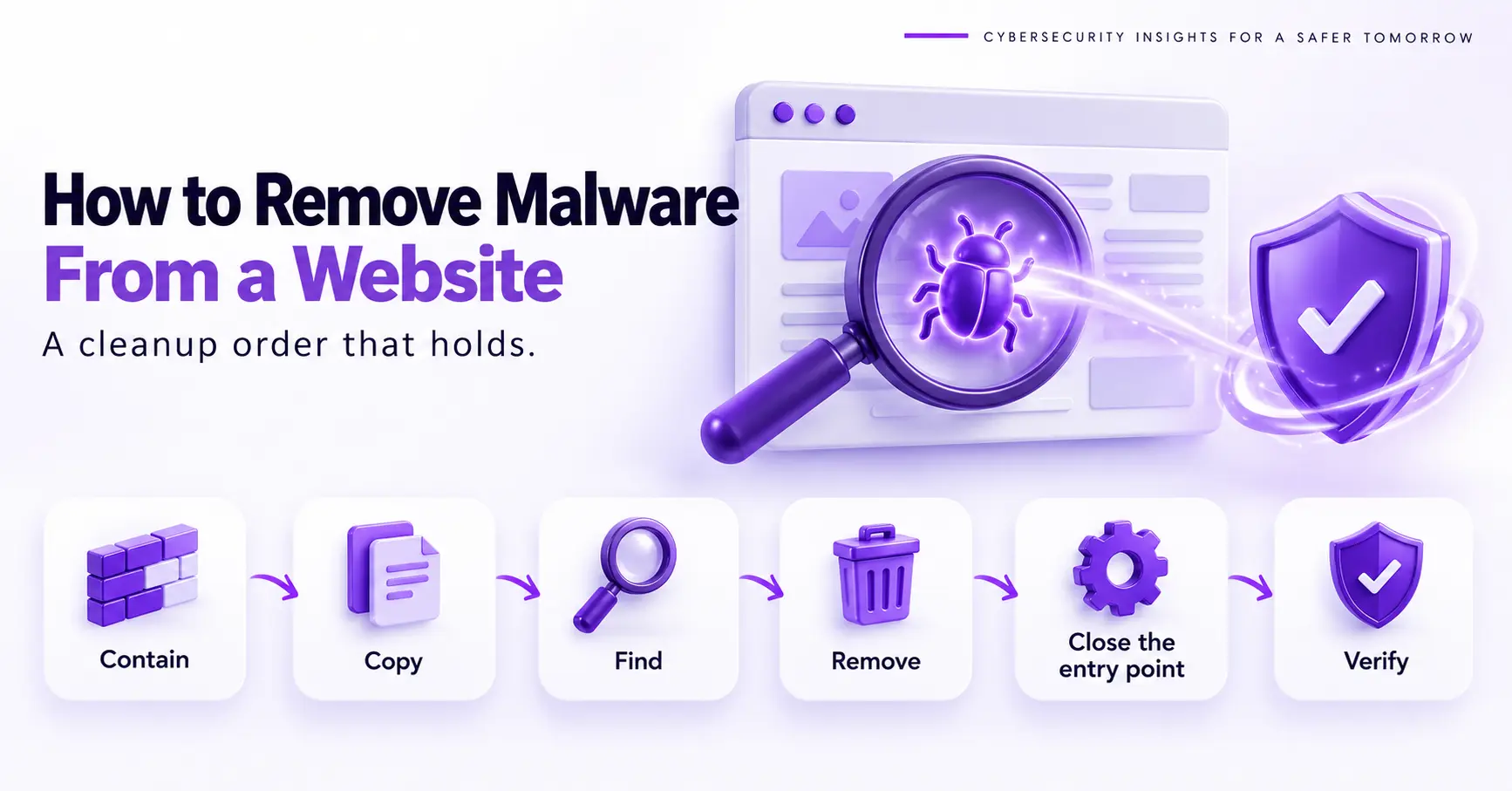
A website malware cleanup is the ordered process you follow to remove malware from website files and databases without leaving a way back in. It runs in six steps: contain the site, copy it, find every infected spot, remove it, close the entry point and verify. Most cleanups fail in the middle steps, because an owner deletes one visible file and a hidden web shell rebuilds it within hours. This guide gives the order, shows where scanners go blind and marks the point where a professional costs less.
The Three Parts of Website Malware
Website malware is malicious code that an attacker has planted in a site’s files or database. A cleanup removes three separate things: the payload, the persistence and the entry point. Delete only one of them and the other two rebuild it, which is why WordPress malware keeps coming back after a partial cleanup. The payload is the visible damage, such as an injected redirect, a block of spam links or a card skimmer on the checkout page, and it varies across the 15 different types of malware. The persistence is the hidden access that lets the attacker return, such as a web shell (a script that gives remote command control of the server) or a backdoor account. The entry point is the vulnerability, the weakness that let them in, usually an outdated plugin or a stolen password. See how did my website get hacked to find which one applied to you.
Website Malware Removal Methods Compared
A removal method is the way you clean the infection, and four methods cover almost every case. They are a manual cleanup, a restore from a clean backup, an automated or professional cleanup service, and a rebuild on a fresh install. The right choice depends on your technical skill, how old the infection is and what the site handles. Restore or rebuild is fast, but only a cleanup that finds the entry point stops the next infection, so most owners combine methods. The table compares them, and the rest of this guide teaches the manual method, because it shows you what any other method must also do.
| Method | Best when | Main risk |
|---|---|---|
| Manual cleanup | You have file access and can verify the result | A missed backdoor means reinfection, and a wrong delete breaks the site |
| Restore from a clean backup | A backup predates the first infection | It restores the same vulnerability and loses newer content |
| Automated or professional service | You lack time or skills, or the site takes payments | Quality varies, so confirm the entry point is closed |
| Rebuild on a fresh install | The site is small or the damage is extensive | Content and settings must be recreated |
Malware Removal on WordPress, Joomla and Custom Sites
The six step cleanup is a platform neutral process that applies to WordPress, Joomla, Drupal, Magento and custom PHP sites. Contain, copy, find, remove, close the entry point and verify work the same way on every platform. Only the file paths and commands in this guide are WordPress examples, so treat them as templates, and our hacked WordPress site recovery guide covers the WordPress specifics. On another platform, swap each example for its equivalent: the media upload folder (for example images on Joomla, sites/default/files on Drupal and pub/media on Magento), the platform’s configuration file, its scheduled task system, and the official release package you compare against. Confirm each mapping against your platform’s documentation before you delete anything.
Does Website Malware Go Away on Its Own?
Website malware is code that runs from files and database rows on your server, so it stays until someone removes it. It also repairs itself, because attackers build persistence into the infection. In April 2025, Wordfence documented a fake anti-malware plugin that hid from the WordPress dashboard and used a modified wp-cron.php file to reinstall itself after the owner deleted the plugin. Symptoms fade because many scripts only fire for search visitors or on a schedule, so a quiet week proves nothing. If you saw a redirect last Tuesday and not today, assume the code is still there. Quiet is not the same as clean.
Contain the Infected Website First
Containment is the first step of a cleanup, and it stops the damage from spreading while you work. It limits what visitors see and what the attacker can still reach. Four actions, in this order, do the job.
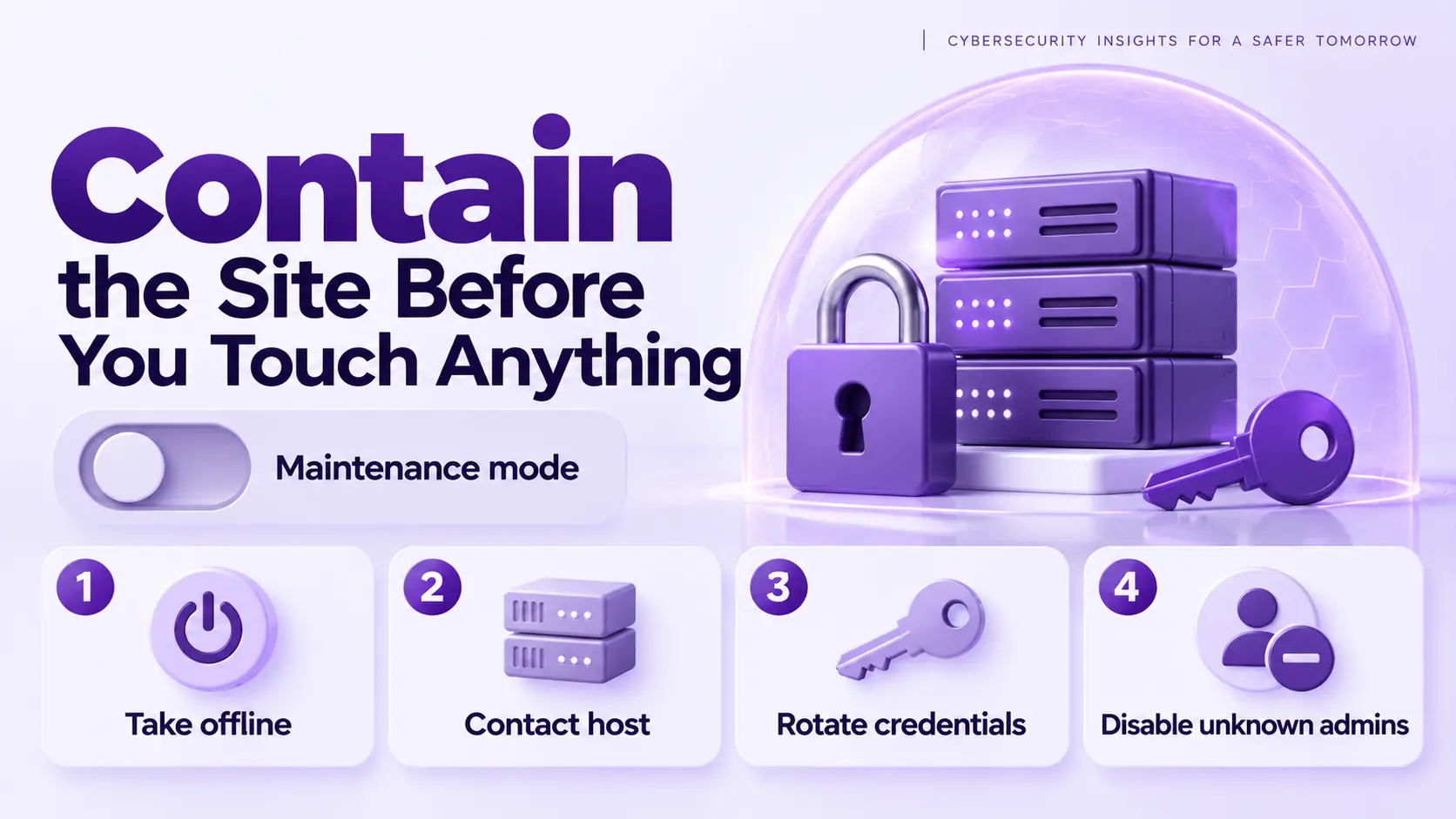
- Take the site offline or switch on maintenance mode, so visitors stop receiving infected pages and the attacker’s scripts stop collecting data. If your host offers a suspended page, use it.
- Contact your hosting provider and ask for access logs, file change logs and any malware alerts they raised. Hosts can also tell you whether other sites on your account share the infection.
- Rotate your hosting panel, SFTP (the encrypted file transfer login) and database credentials from a clean computer. Sucuri’s Joomla cleanup guide advises holding CMS admin password resets until the backdoors are gone, because an attacker with live access can capture the new password.
- Disable administrator accounts you do not recognize, but write down their names and creation dates first. Those details often point to the start of the attack. If the account does not appear in the Users list, see hidden admin user WordPress.
Back Up the Infected Site Before Cleaning
A forensic copy is a read only duplicate of the infected files and database that you store before you change anything. It preserves the file timestamps, the injected code and the filenames that show how the attacker got in. It is your only record of the entry point once you start deleting, and your safety net when a cleanup breaks a plugin. Store the copy somewhere the site cannot write to, and keep the host’s logs with it, because hosts retain logs for a limited time, so ask for them early. Do not restore the account before you copy the logs, because a restore overwrites files and logs and can erase the evidence you need. If you are a one-person team with no developer, this is the step that turns a bad day into a recoverable one.
Find Where the Malware Hides
Scan the Files and the Database
A malware scan is an automated check that compares your site against known malicious patterns. A remote scanner checks what the server shows a visitor, and a server side scanner reads the files directly. A remote scan cannot read PHP files that never render, so it misses code that a file level scan finds. Use both kinds if you can, and treat each report as a list of leads, not a verdict, because a clean result does not prove a clean site. Our guide on a scanner that says clean while the site is still hacked explains why. Write down every flagged path and every database table, then run a website malware scan for the visitor facing view.
Compare Core Files Against Clean Originals
Core file verification is a comparison of your CMS core files against the official release of the same version. On WordPress, WP-CLI (the WordPress command line tool) runs it with the command wp core verify-checksums, which checks installed core files against the checksums WordPress.org publishes and lists every changed or unexpected file. The command wp plugin verify-checksums with the all flag does the same for plugins hosted on WordPress.org. This works because core files are identical across installs of the same version, and on other platforms you compare against the official release package. Do not edit an infected core file by hand. Replace it with a fresh copy of the matching version, because an attacker may have added code you cannot see in a quick read.
Look for What Scanners Miss
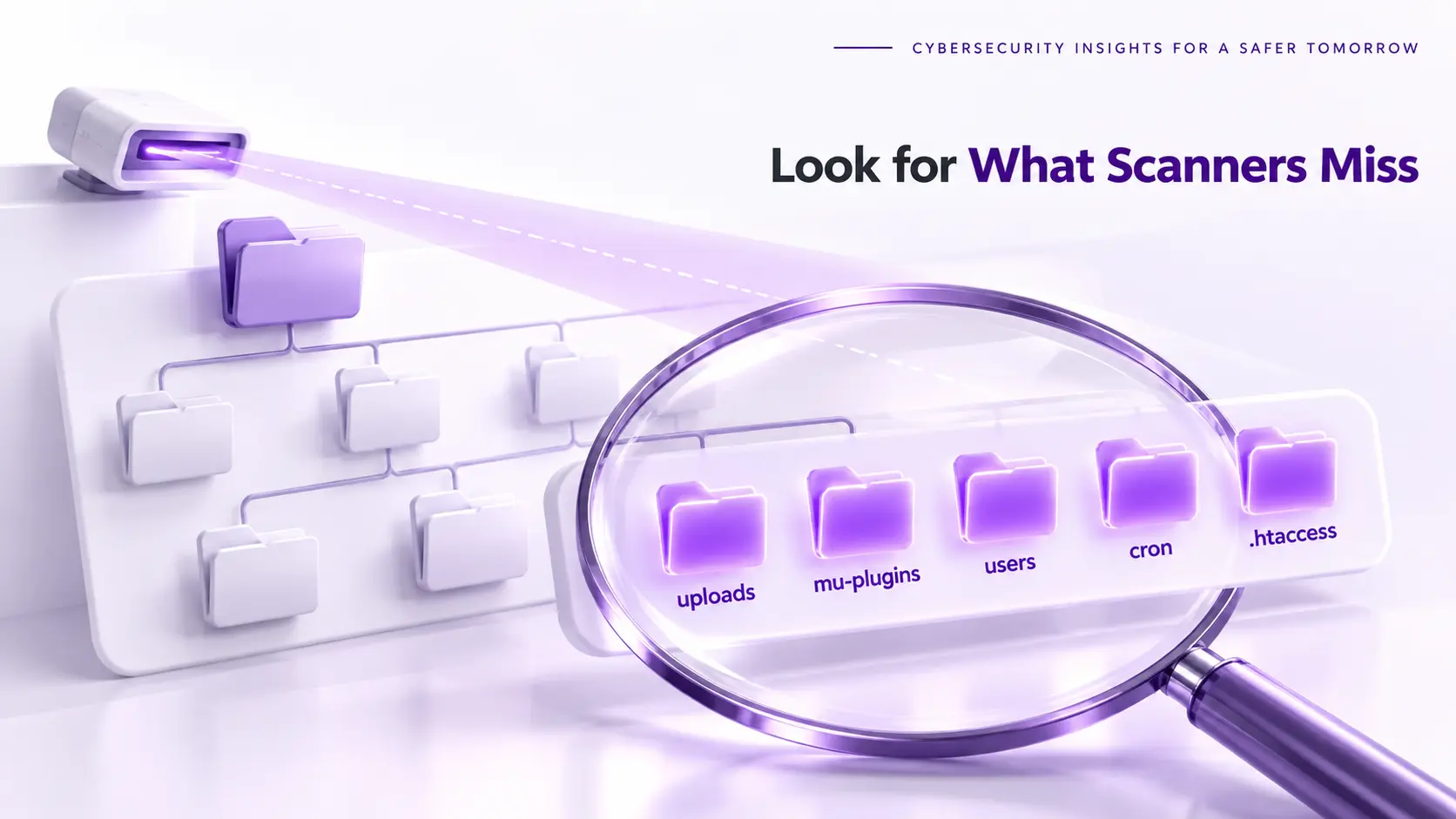
Persistence is hidden access that survives a cleanup, and it lives in places a scan skips. Check each location in the table by hand and keep the findings next to your preserved copy. The table uses WordPress paths as examples, so map each row to your platform’s equivalent. Attackers choose these spots because owners and scanners rarely look there. On a typical WordPress installation, unexpected PHP files inside media upload directories are suspicious and deserve investigation, although legitimate plugins can sometimes create executable files in nonstandard locations. Sucuri researchers reported malware in the wp-content/mu-plugins folder in 2025, in files named redirect.php, index.php and custom-js-loader.php, among others. Other typical signs are PHP files with random names, folders named after banks or brands that hold phishing kits, and long base64 or eval strings inside site files. On a server with shell access, this command lists the PHP files in uploads in seconds.
find wp-content/uploads -name "*.php"| Location | What to check | Why a scan misses it |
|---|---|---|
wp-content/uploads |
PHP files in image folders | An image folder looks harmless, so scans and manual reviews often skip it |
wp-content/mu-plugins |
Any file you did not install | Must-use plugins load without activation and cannot be deactivated from the dashboard |
| Users table | Administrators with unfamiliar names, or accounts missing from the dashboard list | Malware can filter accounts out of the user list |
| Scheduled events (WP-Cron) | Events you did not create, listed with the command wp cron event list |
A scheduled job can download the malware again after you delete it |
wp-config.php and .htaccess |
Include lines or rewrite rules you did not write | A remote scan sees the redirect, not the rule that causes it |
| Database options and posts | Script tags and long encoded strings | File scanners do not read database rows |
Remove the Malware in This Order
Malware removal is the step that deletes the payload and the persistence in a fixed order. It starts with files, then the database, then accounts, and it ends with credentials. Resetting CMS passwords last keeps the attacker’s backdoor from capturing the new ones. Work through these five steps in order, and keep the table above open while you do.
- Replace core files with fresh copies of the same version from the official source, and reinstall plugins and themes from their official downloads instead of cleaning them in place.
- Delete the files you confirmed as malicious, including web shells and stray PHP files in the uploads folder. Keep the filenames in your notes, because a reinstalled copy often returns under the same names. If you are unsure what a file does, paste it into our malware code analyzer first.
- Clean injected content from the database, starting with the options and posts tables, and remove spam posts, rogue scripts and unknown scheduled events. Export each table first so you can undo a wrong edit.
- Remove rogue administrator accounts and any backdoor accounts you disabled earlier, then check server configuration files such as
.htaccess, and your CMS configuration file such aswp-config.phpon WordPress, for lines you did not write. - Reset CMS administrator passwords and, on WordPress, the authentication salts in
wp-config.phponly after the backdoors are gone, so the new credentials cannot be captured.
Find and Close the Malware Entry Point
The entry point is the weakness an attacker used to get in, and it is the one part of the infection that a cleanup does not remove. It decides whether the site is reinfected within days. The usual causes are a plugin or theme with a known vulnerability, a reused or stolen password, and software from outside the official channel. In June 2024, Wordfence reported that attackers used reused developer passwords to push malicious updates into five WordPress.org plugins, including Social Warfare. Read your logs for the first request to the malicious file, then match its timestamp against your update history. A web application firewall (WAF) buys time when you cannot patch, but it never replaces patching. Check that your PHP version is still supported with our Software End of Life Checker. That check matters more than usual right now, because the PHP2Shell flaws are fixed only in PHP 8.5.12, 8.4.27, 8.3.36, and 8.2.35. Scan your PHP site to see which version it reports.
Verify the Malware Is Gone
Re-Scan After a Delay
A delayed re-scan is a second check that you run a day or more after the cleanup. It catches scheduled reinstallers, such as a hidden cron job, that need time to fire. A clean scan an hour after cleanup proves little. Scan again after a full day, then once more after a few days, and compare the results against your first scan’s notes. Any file name, directory or database entry that reappears means a persistence mechanism is still active, so return to the persistence checks. Use a second scanner that works differently from the first, so one tool’s blind spot does not become yours.
Check What Visitors and Googlebot See
A visitor test is a check of your pages the way an attacker’s script decides who to infect. It covers search visitors, first visits, mobile devices and Googlebot. A difference between any two of those views means the site is not clean yet. Load your pages from a Google search result, in a private browser window and on a phone, because many malicious redirects only fire for search visitors, first visits or mobile devices. Then use the URL Inspection tool in Google Search Console to see the page as Googlebot receives it. Finally, search Google for your domain with the site operator and look for pages you never published, which is how the Japanese keyword hack usually shows itself.
Clear Blocklists After Malware Removal
A blocklist is a list of URLs that a security vendor or search engine has flagged as unsafe. Google lists flagged URLs in the Security Issues report in Search Console, and you request a review there after the fix. Other vendors, such as McAfee, Norton and Yandex, keep separate lists with their own review forms. If a flag stays after the review, see our guide on a site still blocklisted after cleanup. Do not request a review until the site passes every check above, because a rejected review costs time and a reinfected site invites a second flag. Google says a security review can take from a few days to a few weeks. Our guide to the Deceptive Site Ahead warning walks through the review step by step.
When to Hire Malware Removal Help
A professional cleanup is a service that removes the malware, closes the entry point and verifies the result for you. It fits four situations: the site was reinfected within days, the hosting account is compromised, the site takes card payments, or you cannot say where a suspicious file came from. For a live store run by a two-person team, the cost of a day of downtime usually exceeds a removal fee. Do it yourself when you can name the entry point, replace files from official sources and verify the result. If you want it done for you, ScanTitan’s website malware removal service is built for this situation.
Website Malware Removal FAQ
How Can I Check If My Website Has Malware?
A website malware check is a combination of visitor tests, a scan and a manual review of files, accounts and scheduled tasks. It starts with the signs of website malware a visitor would report: redirects to other sites, spam pages in Google results, browser warnings and a host suspension notice. A scan that returns clean while those signs persist usually means the infection lives in files or the database, where remote scanners cannot see it. Run a website malware scan for the public view, then check the upload folders, the user list and the scheduled tasks by hand. Search Google for your domain with the site operator and look for pages you never published.
Can I Remove Website Malware for Free?
Free malware removal is a do it yourself cleanup that uses free scanners, WP-CLI and official replacement files. It works for simple infections when you have file access, because the scanners find the leads and the replacement files cost nothing. What you pay with is time and risk: a missed backdoor means reinfection, and a wrong delete can break the site. Free tools can help identify malicious files, changed core files, suspicious accounts and other indicators, but determining the original entry point often requires log analysis, vulnerability investigation and manual correlation that a basic free scanner may not provide. If the site earns money or holds customer data, price your time and a possible second outage against a professional cleanup before you decide.
Should I Restore a Backup or Clean the Files by Hand?
A backup restore is a rollback of the site to a saved copy from an earlier date. It removes malware only if the backup predates the first infection, and a backup taken after the intrusion restores the malware with it. Find the earliest suspicious file timestamp in your preserved copy and in the host’s logs, then pick a backup older than that. A restore also reverts legitimate content added since, such as orders and posts, so export those first. If you cannot date the infection, clean by hand and use the backup only as a reference, because a restore without a patch resets the clock on the next infection.