
A site still blocklisted after cleanup is rarely a mystery. The flag stays because you are still waiting for a review, part of the infection is still there, or a different list holds the flag. Blocklists do not judge how clean you feel, only what their crawler or reviewer sees. This guide shows how long reviews take, the 7 reasons a flag stays, how to tell which list flags you and how to prove the site is clean before you ask again.
Waiting or Stuck? How Long a Blocklist Review Takes
A flag that lasts a few days after cleanup is often normal, not a failure. Google’s documentation says a security review can take from a few days to a few weeks, and it asks you not to resubmit while a request is pending, because an early second request does not speed anything up. Other vendors set their own schedules, and most publish no guaranteed time. So the first question is whether you are inside the window or past it. If you filed recently and every flagged URL is clean from every angle, wait. If the request was rejected, the warning changed type, or a flagged URL still shows something bad, you are stuck, and the next sections show why.
| List type | How long to expect | What to do while you wait |
|---|---|---|
| Google Safe Browsing review | A few days to a few weeks, according to Google | Do not resubmit; recheck the flagged URLs daily |
| Antivirus and security engines | Set by each vendor, with no common schedule | Use the vendor’s own dispute channel once, then watch the verdict |
| Web blocklists and threat feeds | Varies; some clear only when their crawler next sees a clean page | Keep the pages clean and crawlable |
| DNS filters and email lists | Varies; often quick once the listing conditions are met | Fix the cause, then use the list’s own delisting page |
Site Still Blocklisted After Cleanup: 7 Reasons the Flag Stays
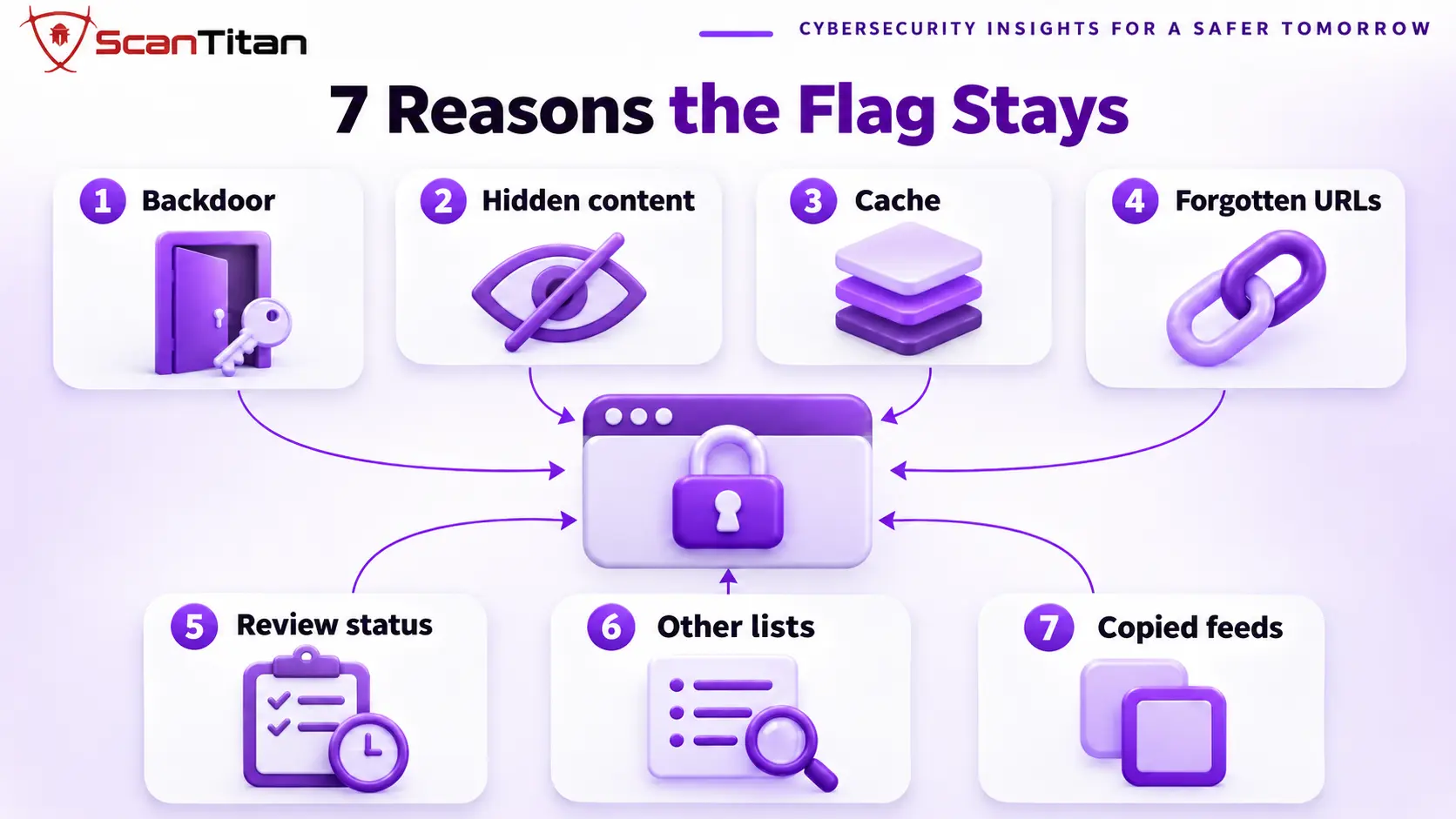
A flag that stays after cleanup is a blocklist verdict that has not changed since the site was cleaned, because the list still sees a problem, has not looked again, or is a different list from the one you cleared. The 7 reasons below are separate causes, so a site can have several at once, and fixing one does not clear the others. Each reason says what it is and how to confirm it.
- Surviving backdoor: A surviving backdoor is a hidden way back into the site that the cleanup missed, so the infection returns and the list sees it again. Confirm it by checking recent file changes, the administrator list and scheduled tasks, using our guide to find a backdoor in a website.
- Conditional content: Conditional content is malicious code that loads only for some visitors, such as mobile, search-referred or first-time ones, so it never appears when you check as the owner. Confirm it by testing as a first-time visitor, as our guide on malicious JavaScript on a website explains.
- Cached copy: A cached copy is an old version of the page that a plugin cache, a server cache or a CDN keeps serving, and list crawlers fetch that copy. Confirm it by fetching the flagged URL with the cache bypassed and comparing the two results.
- Forgotten URL: A forgotten URL is a page, an old subdomain, a staging copy or an add-on domain that still carries the problem. Confirm it by comparing the example URLs in Search Console with every host in your DNS records.
- Review status: The review status is where your request stands: never filed, filed before the cleanup finished, or still pending, and any of the three keeps the flag. Confirm it in the Security Issues report.
- Different list: A different list is any blocklist other than Google’s, such as an antivirus engine, a DNS filter or an email list, and each keeps its own verdict, so a Google all-clear changes none of them. Confirm it by looking the URL up in VirusTotal to see which engines still flag it.
- Copied feed: A copied feed is a product that reads another vendor’s list and clears only after that vendor does, on its next refresh. Confirm it by re-scanning the domain a week later to see what is left.
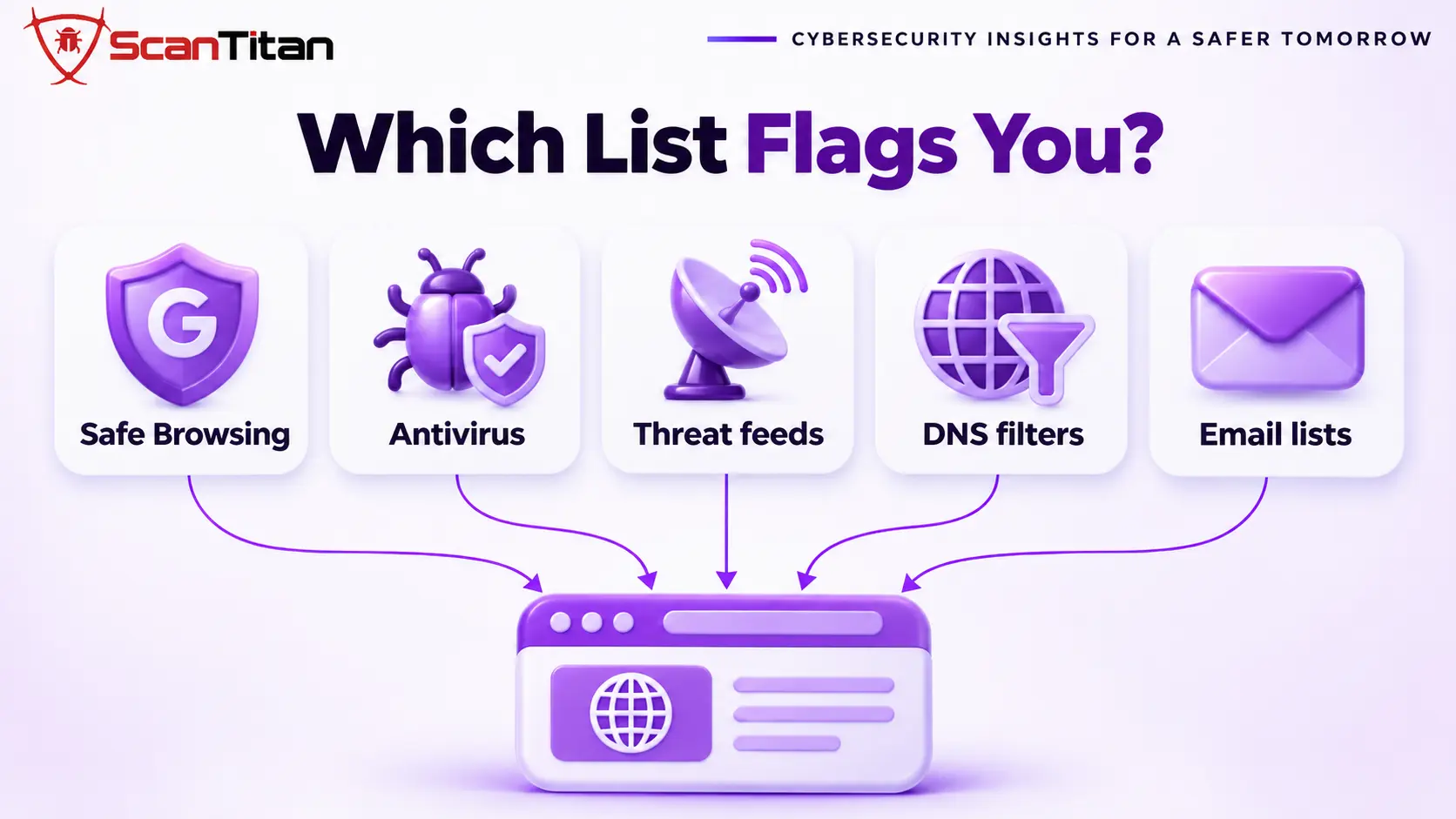
Which List Flags You? Browser, Search, Antivirus, DNS and Email
One browser warning usually means several lists, so identify each one before you file anything. The warning page itself rarely names its source, which is why owners clean the site, clear Google and then find that a security gateway or a DNS filter still blocks visitors. Each list keeps its own verdict and its own review queue, so a clear result in one tells you nothing about the others. Use the checks in the table to find every list that holds a flag, then keep a short record of the list, the date you filed and the answer you got, so you never file the same request twice.
| List type | Who shows the flag | How to check it | Where to ask for removal |
|---|---|---|---|
| Google Safe Browsing | Chrome, Firefox and Safari warnings, and Google Search labels | The Safe Browsing site status tool and the Security Issues report | A review request in Search Console, which needs a verified property |
| Antivirus and security engines | Security software and some browsers | VirusTotal shows which engines flag the URL | Each vendor’s own URL dispute or false positive form |
| Web blocklists and threat feeds | Firewalls and security gateways | VirusTotal lists some, and the feed’s lookup page lists the rest | The feed’s own removal form or email address |
| DNS filters | Secure DNS resolvers, school and office networks | The resolver’s category lookup page | The resolver vendor’s reclassification form |
| Email reputation lists | Mail servers that reject your messages | The list’s lookup page, such as Spamhaus | The list’s own delisting page, usually for the owner of the domain or IP |
What the Security Issue Type Tells You About What Is Left
The issue type in the Security Issues report names what Google detected, so it tells you where to look when the flag survives a cleanup. A site that cleaned its pages but still carries a code injection flag, for example, has almost always missed a script or a restorer, not a page of spam. Match the type in your report to the table, and check the listed place again before you ask for a new review. If the report shows more than one type, treat each as its own job, because a clean result for one type does not clear the others. Fix them all before you file, since a review that still finds an issue can be rejected.
| Issue type in the report | What Google says it is | What to recheck first |
|---|---|---|
| Hacked: Code injection | A hacker is injecting malicious code into your pages, such as redirects or mining software | Scripts in theme files, the database and third-party tags, as in our malicious JavaScript guide |
| Hacked: Content injection | A hacker added spammy links or text, often with pharmaceutical terms | Posts, hidden links and cached copies of the spam pages |
| Hacked: URL injection | A hacker created new pages on your site, often with spam links or redirects | New URLs in the sitemap, the index and the folders behind them |
| Harmful downloads | Your site offers a download that Google thinks is malware or unwanted software | Every downloadable file and the pages that link to it |
| Social engineering | Content that tricks visitors into revealing information or downloading software | Fake login or payment pages and injected overlays |
How to Remove Your Site From the Google Safe Browsing Blocklist
Google clears its own warning only through a review request in the Security Issues report in Search Console, and only for a site whose ownership you verified. Follow these steps once the site is clean.
- Open the Security Issues report for your verified property and note the example URLs.
- Fetch each example URL yourself and confirm that the problem is gone.
- Select Request Review and describe what you found and fixed.
- Leave the request alone until Google decides, because a second request does not speed it up.
- Read the result in the report and in the email Google sends, then act on any new issue it lists.
Video: Google Search Central walks through the Security Issues report and how to fix what it lists. It runs about 6 minutes, and the menus may look slightly different today.
The longer cases, such as a rejected review or a false positive, are covered in our guide to the Deceptive Site Ahead warning.
How to Prove the Site Is Clean Before Another Review
A second review that fails costs you more time than a day of checking first. Run these six checks and keep the results.
- Fetch every flagged URL from another network and with a mobile user agent and a Google referrer, using the first command below.
- Search the returned HTML for script domains you cannot name.
- List the files changed since the cleanup, the administrator accounts and the scheduled events, using the other commands below.
- Cross-check each flagged URL in VirusTotal and in the Safe Browsing site status tool.
- Scan the site from outside and save the result, as our guide on a scanner that says clean while the site is still infected explains why one scan is not enough.
- Repeat checks 1 and 3 after 24 hours, which catches a backdoor that restores the infection on a schedule.
curl -sL -A "Mozilla/5.0 (iPhone; CPU iPhone OS 17_0 like Mac OS X)" -e "https://www.google.com/" "https://example.com/flagged-page/" | grep -io "<script[^>]*src=[^>]*>"
find . -type f -name "*.php" -mtime -7
wp user list --role=administrator
wp cron event list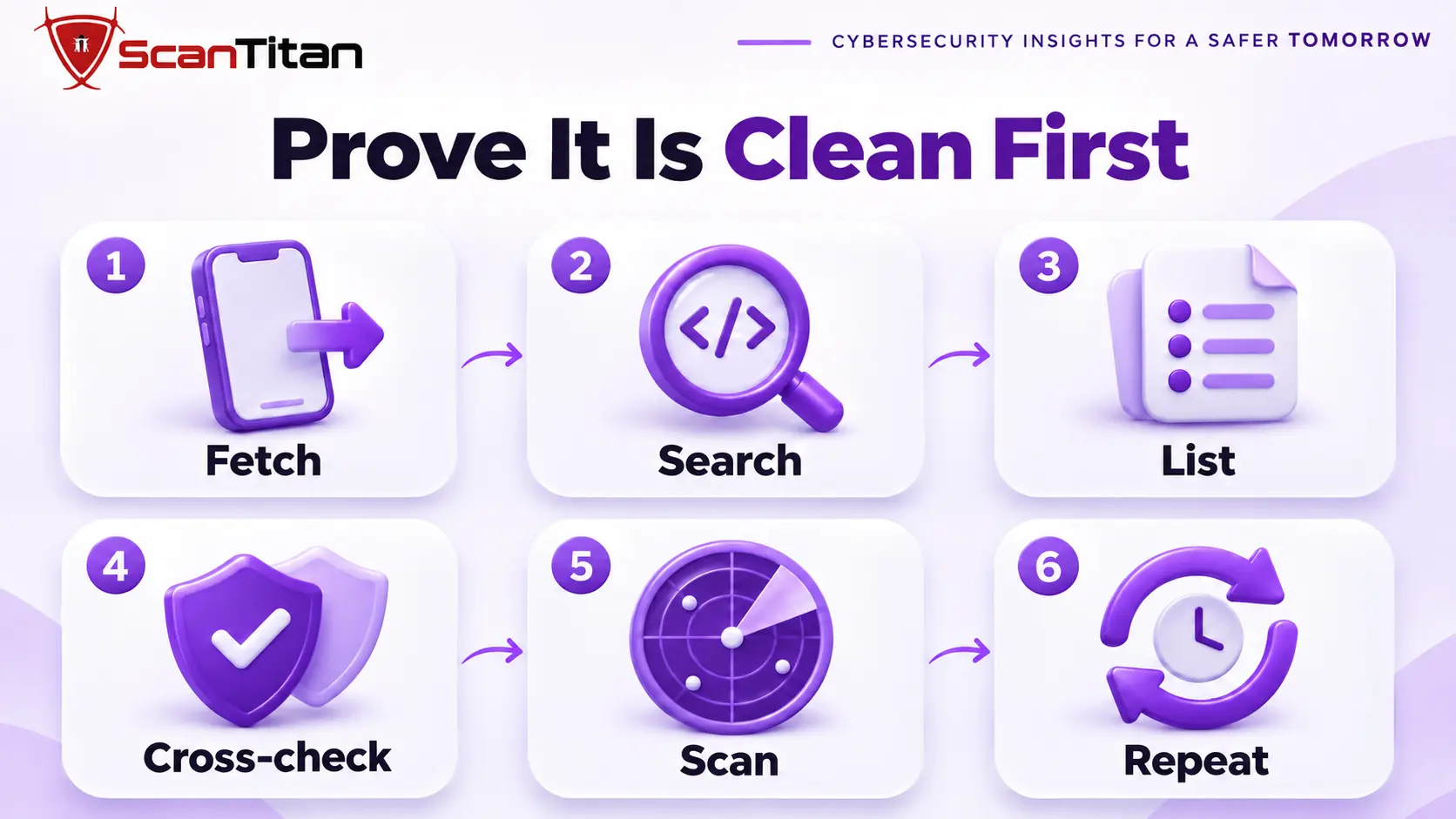
What to Write in a Second Review Request
Vendors approve specific requests and ignore vague ones, so a note that says only “the site is clean now” rarely works. Send one request per list, through that list’s own channel, and include the same five things each time.
- Name the exact URLs, with the protocol, as the list shows them.
- State what was found, in one sentence, such as an injected script in the theme footer.
- List what you removed and the date you removed it.
- Describe how you verified the cleanup, including the networks and devices you tested from.
- Keep the message plain text, short and free of attachments.
URL: https://example.com/old-page/
Flag: Malicious website, as shown by the vendor
Found: an injected script in the theme footer that redirected mobile visitors
Removed: the script and a backdoor file in the uploads folder, on 12 November
Verified: fetched the page from two networks and a mobile user agent, and the scan is clean
When the Flag Is a False Positive After Cleanup
Sometimes the site is clean and the list is wrong, or the list reacts to something you do not control. A third-party script that was flagged on its own, an old redirect on a forgotten domain, a shared IP address with a bad history and a lookalike of a flagged brand can all keep a flag alive. Test each one by loading the page with that script or host removed. If the flag stays on a page with no suspect content at all, ask the list for a manual re-review and state plainly that you believe it is a false positive. Our Deceptive Site Ahead guide has the Google side of this.
How to Keep the Flag From Coming Back
A flag that clears and returns means the entry point is still open, and every return makes the next review slower and harder to win. Close the hole before you celebrate, and keep watching for a month, because a backdoor can restore the infection on a schedule.
- Patch the entry point the attacker used, and rotate every credential and secret key.
- Monitor files, administrator accounts and scheduled events, and alert on any change you did not make.
- Re-scan from outside every week for a month, and check Search Console after each scan.
- Read why WordPress malware keeps coming back if a flag returns more than once.
When a Blocklisted Site Needs a Professional Cleanup
Get help when the flag returns after a second review, when several lists flag you at once, when a checkout or login page was involved, or when customer data may have been exposed. These cases usually hide a second foothold, and every rejected request costs days. A professional cleanup finds the entry point and every restorer, verifies the result from outside and prepares the review requests, so you do not need a third attempt. It also records what was found and removed, which is the evidence a reviewer wants to see and the proof you need if customers or a payment provider ask what happened. ScanTitan’s website malware removal service covers the cleanup and the delisting steps.
Site Still Blocklisted After Cleanup FAQ
How do I remove blacklisted websites?
Clean the site and close the entry point, identify every list that flags it, then send one specific review request to each list through its own channel. For Google, that is a review request in Search Console. Verify the cleanup from outside before you ask.
How long does it take to clear a blacklisted name?
Google says a security review can take from a few days to a few weeks. Other vendors set their own schedules and most give no guarantee. A rejected or incomplete request adds delay, and products that copy another list clear only after the original does.
Can blacklisting be removed?
Yes. A flag is not permanent. It clears when the list’s reviewer or crawler sees a clean site, and it returns if the site is reinfected. Fix the entry point as well as the visible content.
How do I unblacklist a domain?
Find which lists flag the domain, clean it, then use each list’s own removal form or review tool as the owner. Email reputation lists and some DNS filters also expect you to control the domain or IP address. File one request per list.
Will my search rankings come back after the flag clears?
Removing the warning restores the click-through quickly. Rankings that fell because spam pages were indexed depend on Google recrawling the cleaned pages, and nobody can promise a date. Check Search Console for remaining issues and request indexing for key pages.