
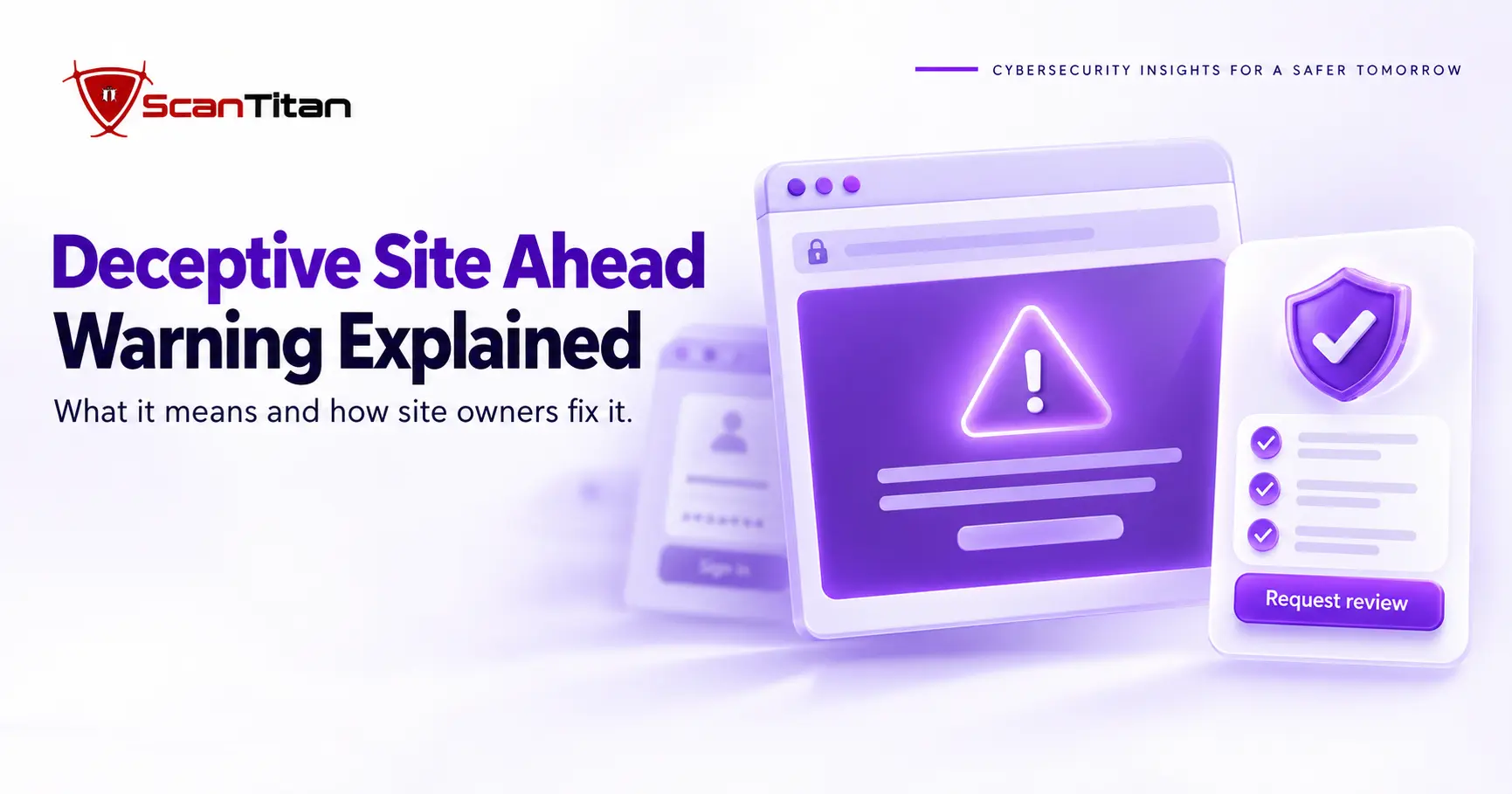
The Deceptive Site Ahead warning is a red Chrome screen that appears when Google Safe Browsing detects behavior associated with phishing or social engineering on a page. For visitors, it means leave. For site owners, it means Google detected harmful or deceptive behavior, and the cause may be hacked content, an injected script, a compromised third party resource or content that is intentionally there. This guide explains what triggers the flag, how to see what Google found, and how to fix the site and request a review.
What the Deceptive Site Ahead Warning Means
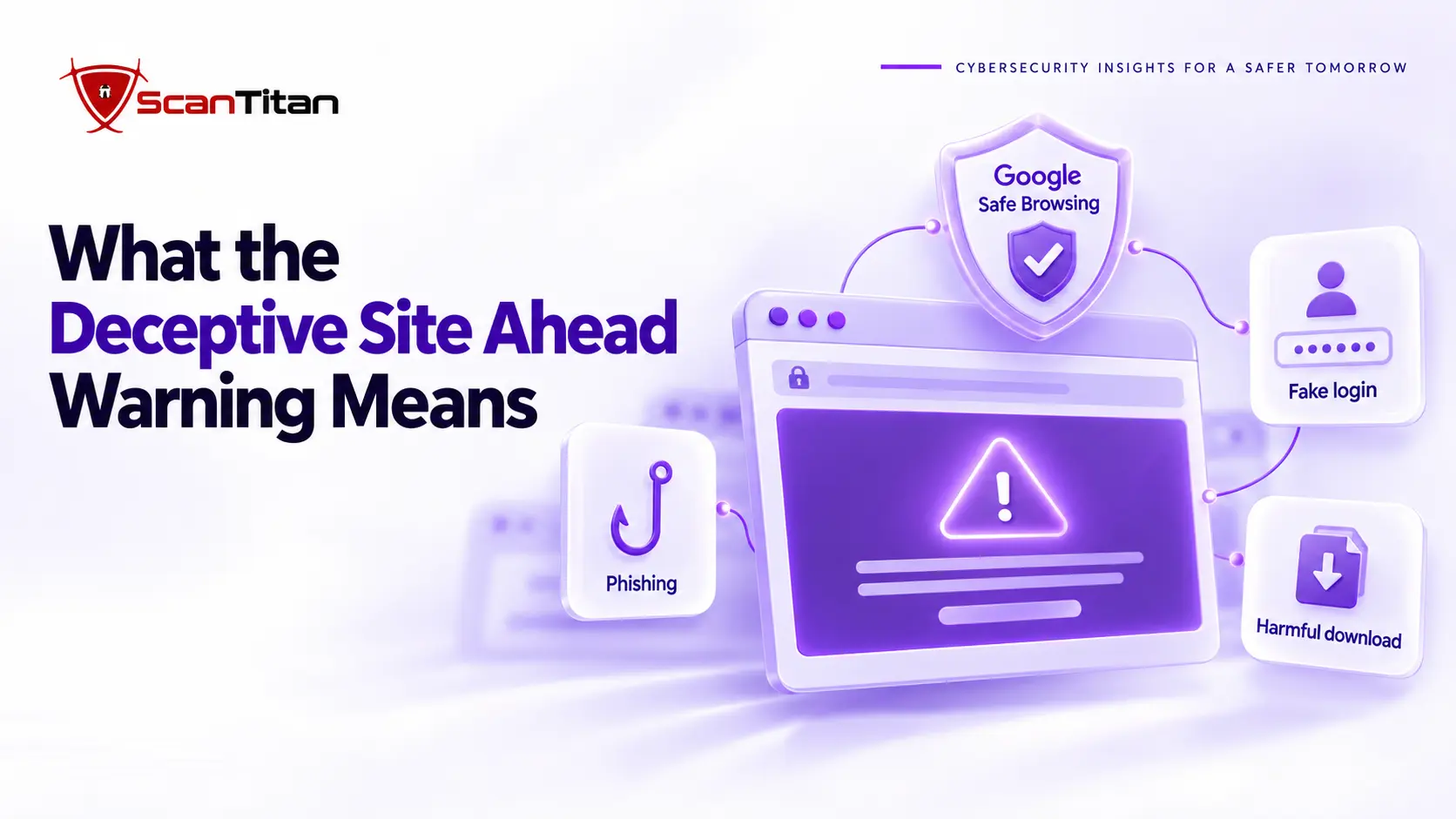
Deceptive Site Ahead is a full-screen Chrome interstitial that Google Safe Browsing shows when it suspects a page of social engineering. The warning appears in red before the page loads, so the visitor sees it first. It blocks the page and warns the visitor that attackers may trick them into revealing personal information or installing software. Google calls the category social engineering, and phishing pages are its most common form. Other browsers that use Safe Browsing data show their own versions: Firefox says Deceptive Site, and Safari shows a fraudulent website warning. The warning describes the website ahead, not your computer, so your device is not infected.
Deceptive Site Ahead vs Other Browser Warnings
A browser warning is a full page or address bar message that a browser shows about a site, and not every warning comes from Google Safe Browsing. Safe Browsing warnings name phishing, malware or unwanted software, while certificate and mixed content warnings are separate problems. Fix each type separately, because clearing an SSL error will not clear a Safe Browsing flag. Chrome shows most of these messages, and other browsers use different wording for similar conditions. Check which type you are seeing before you start, because the fix for a Safe Browsing flag, a certificate error and a mixed content warning is completely different. The table maps the messages owners ask about most.
| Message | Browser | Usually means |
|---|---|---|
| Deceptive site ahead | Chrome | Social engineering or phishing content |
| The site ahead contains malware | Chrome | Malware detected on the site |
| The site ahead contains harmful programs | Chrome | Unwanted software |
| Fraudulent website warning | Safari | Suspected phishing, can use Safe Browsing data |
| Deceptive site or Potential security risk ahead | Firefox | Suspected phishing or unsafe site |
| This page is trying to load scripts from unauthenticated sources | Chrome | Mixed content: a secure page loads insecure resources |
| Your connection is not private | Chrome | Certificate problem, not a Safe Browsing flag |
Deceptive Site Ahead as a Visitor
A visitor, in this context, is anyone who sees the warning on a site they do not own. The safe response is to leave the page and enter no credentials. Chrome offers a Details link that opens the page anyway, but that option exists for site owners checking their own pages. Go back to the previous page, or type the address of the service you wanted yourself instead of following the link that brought you here. If the link came from an email or message, report that message as phishing to your provider. If several unrelated sites trigger similar warnings, investigate the device, browser configuration, DNS filtering, extensions or network environment as well as the websites themselves.
Why Google Shows Deceptive Site Ahead
A Safe Browsing flag is a classification that Google’s automated systems assign to a URL or an entire site. The systems assign it for one or more of the reasons below, and a single compromised plugin can cause several at once. Each reason maps to a different fix.
- Host phishing pages on the site, such as a fake bank or webmail login uploaded through a vulnerable plugin or a stolen password.
- Serve compromised third party scripts or ads. When a script provider is hijacked, every site that loads the script inherits the problem.
- Collect passwords or payment details through forms the owner never built, such as a fake login form added to a hacked page.
- Redirect visitors through injected code to a deceptive page, often only for visitors who arrive from search or use a phone.
- Imitate another brand through a lookalike domain, a copied login page or a cloned checkout.
Find What Safe Browsing Detected
The Security Issues report is a Google Search Console report that lists the security problems Google detected on a verified site. It names the issue type and, for many issues, lists sample URLs. Together with the Transparency Report site status page, it is the authoritative source for why you were flagged. Use the table to read the issue type, then follow the four steps.
| Issue type in the report | What Google detected | Where to look first |
|---|---|---|
| Deceptive pages (social engineering) | Phishing or lookalike content that asks for personal data | Unknown directories, login forms, copied brand pages |
| Hacked content | Pages, links or code added through a weakness | New pages, spam links, modified files, unknown users |
| Malware and unwanted software | Harmful code, downloads or software that behaves in unwanted ways | Injected scripts, redirects, download links |
- Open the Google Transparency Report Safe Browsing site status page, enter your URL, and note whether Google currently lists the site as unsafe.
- Open the Security Issues report in Google Search Console for your verified property, read the issue type, and check the owner list for anyone you did not add.
- Read the sample URLs before you change anything, because they show which pages Google saw.
- Compare each flagged URL as a search visitor and as Googlebot sees it, using the URL Inspection tool, and open sample URLs from a computer outside the network that serves your site, because some attacks hide from the site’s own network and from logged in users.
Fix What Triggered Deceptive Site Ahead
Remove Phishing Pages and Injected Code
A phishing kit is a ready made folder of HTML, images and a PHP script that emails stolen entries to the attacker. Attackers upload it into a directory that no menu links to, so the real site keeps working while the kit runs. Kaspersky’s Securelist reported more than 22,000 hacked WordPress sites used this way between May and July 2023. Preserve a copy of the files first, then scan for unfamiliar folders, delete the kit, and remove the web shell or backdoor that let it in. Our guide to remove malware from a website gives the full cleanup order, including the database and user accounts.
Fix Third Party Scripts, Ads and Forms
A third party script is code that loads on your page from another company’s server. It runs with the same access as your own code, so a hijacked provider can flag your site even when your files are clean. For how a hijacked script steals card data at checkout, see our Magecart guide. In 2024, Sansec reported that the polyfill.io domain began serving malicious redirects after a change of owner, and more than 100,000 sites kept loading it. Google’s Security Issues documentation also tells owners to inspect third party ads, images and embedded resources. Ad networks rotate ads, so refresh a page several times and check both mobile and desktop views in URL Inspection. List every external script your pages load and remove the ones you cannot explain. Host a copy on your own domain or a trusted CDN, and add Subresource Integrity (SRI), a hash that makes the browser reject a modified file. As general security hygiene, serve every form that collects passwords or payment details over HTTPS.
Clean Hacked Content and Close the Entry Point
Hacked content is material that attackers add to your site through a weakness, such as injected spam pages. Google lists it separately in the Security Issues report because fixing it means finding the entry point rather than just deleting pages. A review filed while a backdoor remains may pass briefly at best: the attacker reinjects the pages, and Google flags you again. The spam pages of the Japanese keyword hack are a typical example. Replace core files with clean copies, remove unknown administrator accounts, update every plugin and theme, and reset credentials after the backdoors are gone. Check wp-config.php and .htaccess for lines you did not write, and see our hacked WordPress site recovery guide if the site runs WordPress.
Request a Safe Browsing Review
A security review request is a submission in Search Console that asks Google to recheck a site after you fixed the flagged issues. Google reviews the flagged URLs and clears the listing if they are clean. Google says a security review can take from a few days to a few weeks, according to its Security Issues documentation. Then follow these five steps.
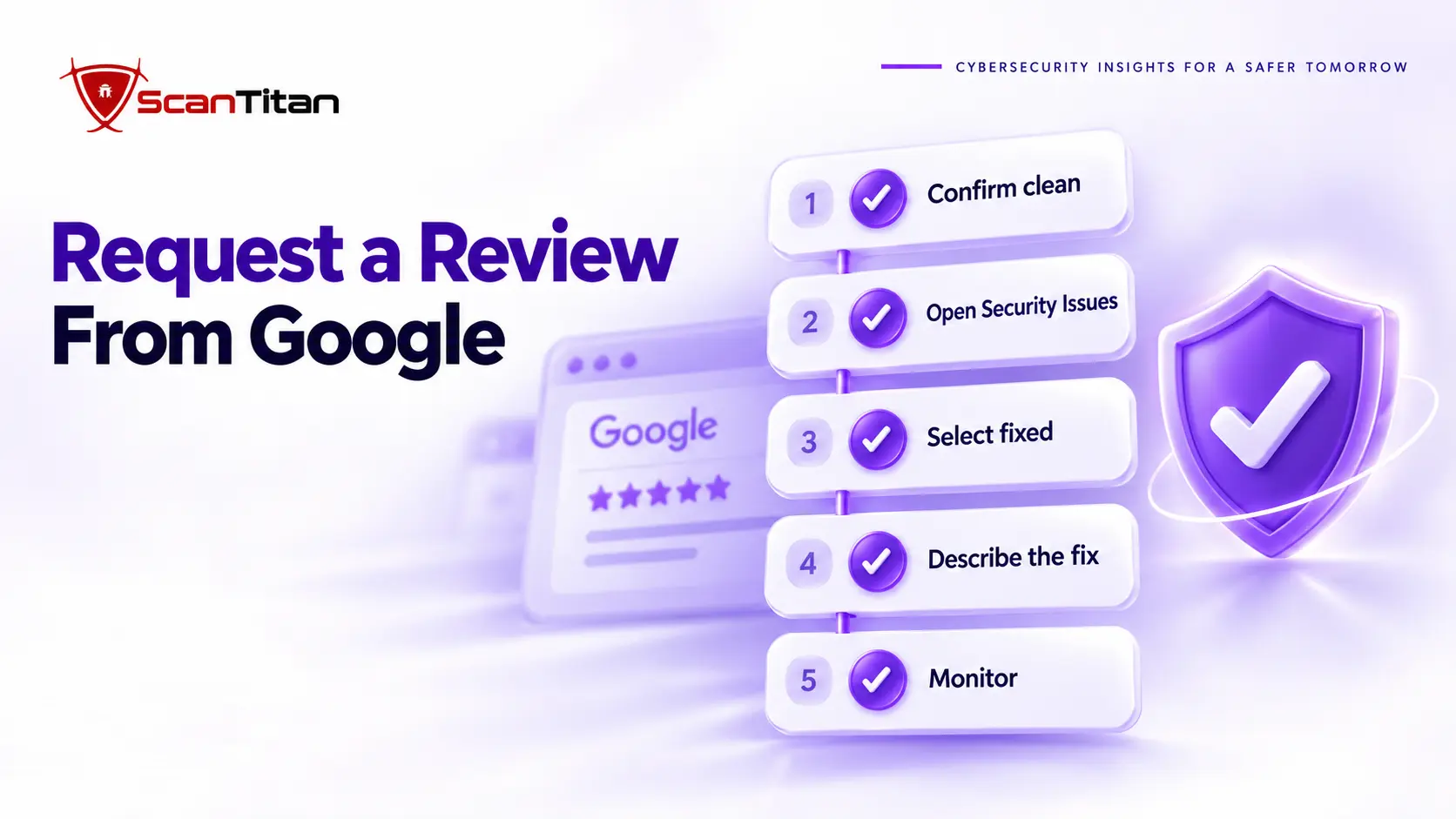
- Confirm that every flagged URL is clean and that you closed the entry point, which matters more than the visible symptom.
- Open the Security Issues report for the exact property that shows the warning. A flagged subdomain may need its own verified property.
- Select the option that says you fixed the issues, then choose to request a review.
- Describe in a few plain sentences what you found, what you removed and which weakness you closed, for example: removed phishing files from the uploads folder, replaced core files, updated every plugin and rotated every credential.
- Monitor the report and your email for Google’s decision, and keep checking the site for reinfection while you wait.
Deceptive Site Ahead: Rejected or False Positive
When Google Rejects the Review
A rejected review is Google’s finding that at least one flagged URL still shows the problem. The new sample URLs in the Security Issues report show which pages Google still sees as unsafe. Google often lists different pages the second time, so read the list again before you do anything. The usual causes are a missed backdoor that restored the injected pages, a scheduled task that reinfected the site, content that is hidden from you but visible to Googlebot, and a request filed for the wrong property. Fix what you find and file again. Do not file repeatedly without changes, because each rejection costs time while visitors still see a red screen, and Hostinger states that repeated rejections can trigger a 30 day block on new requests. If the flag stays even after a clean review, our guide on a site still blocklisted after cleanup covers the other lists and causes.
When the Flag Is Wrong
A false positive is a flag on a site that has no deceptive content. Owners report them on newly registered domains, on sites that share a hosting IP address with an abused neighbor, and on legitimate pages that load a script from an unfamiliar domain. In one thread on Google’s support forum, a school administrator reported that Chrome flagged the school’s single sign on subdomain. Run every check above first, because a clean result is the evidence you need. Then file the review and explain that you found no issues, listing what you checked, and use Google’s form to report an incorrect phishing warning if you believe Safe Browsing classified a page in error. Use VirusTotal to see whether other security vendors also flag the URL, since each vendor has its own review form.
After Deceptive Site Ahead Clears
Post-review monitoring is the period after Google lifts the warning, when reinfection is most likely. It works by re-scanning weekly for a few weeks, reviewing the Pages report for URLs the attacker created, and watching search results for lingering spam titles. Traffic usually returns once the flag lifts, but recovery speed depends on how long the site stayed flagged, and no ranking timeline is guaranteed. Third party guides report that the warning clears within about 72 hours of an approved review, and that phishing and malware reviews often finish in days while hacked content reviews can take weeks. Treat those figures as reports, not promises.
Prevent Deceptive Site Ahead Flags
Continuous monitoring is a routine of patching, file watching and script review that keeps a cleaned site from being flagged again. It works because attackers reinfect sites through the same weakness they used the first time. Patch plugins and themes within days of a release, because attackers scan for known flaws hours after disclosure. Give every account a unique password and turn on two factor authentication for administrators and hosting. Keep an inventory of the external scripts your pages load, and watch file changes so a new PHP file in the uploads folder triggers an alert. A recurring website malware scan catches injected code before Google does, and ScanTitan’s website malware removal service handles the cleanup if the warning keeps coming back.
Deceptive Site Ahead FAQ
Can I Turn Off the Deceptive Site Ahead Warning?
The Deceptive Site Ahead warning is a protection that you can bypass as a visitor but cannot switch off as a site owner. Visitors can open the Details link and continue, which is a poor idea on a site you do not own because the warning exists to stop credential theft. Owners remove the cause and then request a review in Search Console, and Chrome stops showing the warning once Google clears the listing. You can also switch off Safe Browsing in Chrome settings. That removes the protection for every site you visit, which is a poor trade for avoiding one warning.
What Does the Warning Mean on My iPhone?
The iPhone warning is Safari’s fraudulent website warning, and Apple says Safari can use Google Safe Browsing data for it. It means the same as Chrome’s warning: the site ahead is suspected of phishing or deception. Do not proceed on a site you do not trust, and do not enter credentials. If several unrelated sites trigger similar warnings, investigate the device, browser configuration, DNS filtering, content blockers, configuration profiles or the network environment as well as the websites themselves. If the flagged site is yours, follow the owner steps in this guide and request a review.
Does the Warning Mean My Computer Has a Virus?
The warning is a description of the destination, not a diagnosis of your device. Chrome blocked the page before it loaded, so nothing from it ran on your computer. The risk starts only if you click through and then enter a password, card number or one time code, or install software the page offers. If you already did any of those, change that password on the real service, turn on two factor authentication, contact your bank if you entered card details, and run a scan with your usual antivirus. If you did none of them, close the tab and move on.
Will the Warning Hurt My Rankings Permanently?
A Safe Browsing flag is a temporary classification, and it does not by itself impose a permanent ranking penalty. Traffic drops sharply while the warning shows, because Chrome blocks the page and most visitors leave. After a successful review, traffic generally returns, but the speed depends on how long the site stayed flagged and on any spam pages the attacker left in the index. No ranking timeline is guaranteed. The lasting damage usually comes from staying flagged for weeks, so speed of cleanup matters more than any single setting. Clean the site, request the review and monitor Search Console for leftover spam URLs.
My Site Looks Normal. Can It Still Be Flagged?
A cloaked infection is content that attackers hide from site owners, logged in users and direct visits while showing it to search engines or specific visitors. A site can look completely normal to you and still serve phishing or malware to others. That is why the Security Issues report and URL Inspection are more reliable than your own browser. Check the sample URLs Google lists, view them as Googlebot, and open them from a computer outside your own network. Trust the evidence in Search Console over what you see on your screen.