
Short answerTo fix a hacked WordPress site, contain it in maintenance mode, back it up for evidence, reset every password, scan for and remove the malware, reinstall clean core, plugins, and themes, clean the database, and delete every backdoor (see how to find a backdoor in a website). Then close the vulnerability that let the attacker in, harden the site, and re-scan to confirm it is clean. Skipping the entry-point step is why hacks come back.
The 10 Steps to Fix a Hacked WordPress Site
The recovery process is an ordered sequence, and skipping ahead is how sites stay infected. Work through these steps in order, and each one is explained in full below. If you only have an hour, start with what to do in the first 24 hours of a hacked website.
- Enable maintenance mode to contain the site and protect visitors.
- Back up everything, even the hacked site, for evidence and recovery.
- Reset all passwords and the secret keys in
wp-config.php. - Contact your hosting provider for logs and server-level help.
- Scan for malware and locate every infected file and database entry.
- Remove the malware by reinstalling clean files and cleaning the database.
- Find and close the entry point, the vulnerability that caused the hack.
- Restore from a clean backup if cleaning in place is not viable.
- Update and harden the site to prevent a repeat.
- Remove any Google blocklist warning once the site is clean.
Signs your WordPress site has been hacked
Before you fix anything, confirm the symptoms, because some site problems are not hacks. Watch for these common indicators.
- Spot unexpected redirects and SEO spam hack signs. If your site sends visitors to spam, gambling, or pharmaceutical pages, investigate the compromise. Read our guides to malicious redirects and the Japanese keyword hack if the symptoms match. Pharmaceutical keywords, hidden pages, or unfamiliar Google results may indicate a WordPress pharma hack.
- Find unknown admin accounts. Check the users list for administrators you did not create, a frequent sign of a backdoor.
- See a Google warning. Read any “this site may be hacked” or “deceptive site” label in search results or the browser.
- Notice injected content. Look for spam links, pop-ups, or Japanese keywords added to pages you did not edit.
- Detect strange files. Find scripts with random names in
wp-content/uploadsor the root, often webshells.
Any one of these means you should treat the site as compromised. Automated attacks against WordPress sites are continuous, so a confirmed compromise indicator is a reason to investigate immediately rather than wait.
How do WordPress sites get hacked?
Knowing the common causes helps you find the entry point faster when you reach that step, and our guide on how did my website get hacked shows how to prove which one applied.
- Exploit an outdated plugin or theme. Attackers use a known flaw in third-party code that a patch already exists for, which is the leading cause by far.
- Guess or reuse a weak password. Brute-force and credential-stuffing tools break weak admin logins that lack two-factor authentication, and automated attempts run around the clock.
- Abuse a nulled plugin or theme. Cracked software downloaded for free frequently ships with a pre-installed backdoor.
- Run outdated core or server software. An unpatched WordPress core, PHP version, or web server leaves known holes open.
- Sit on weak hosting. Poorly isolated shared hosting lets a compromise on a neighbouring site reach yours.
Many WordPress compromises involve outdated or vulnerable components, but stolen credentials, nulled software, weak hosting isolation, exposed old installations, and server-level issues can also be the entry point. That is why the entry-point step later matters as much as the cleanup itself.
Credential attacks can become more targeted when an attacker first performs WordPress User Enumeration to discover valid account identifiers. Enumeration does not compromise the account by itself, but it can remove part of the guesswork from password spraying or credential stuffing.
What Not to Do When Your WordPress Site Is Hacked
A cleanup mistake is an action that destroys evidence or leaves the attacker a way back in. It makes the fix slower and the reinfection more likely. Avoid these five before you start the steps below.
- Avoid deleting files before you take a backup, because the infected copy is your evidence of how the attacker got in.
- Skip restoring an old backup before you patch, because the same flaw lets the hack return.
- Stop reusing passwords, and never reset them from a computer that may carry malware.
- Resist trusting one clean scan, because a remote scan cannot read server files or the database.
- Treat other sites on the same hosting account as compromised until you have checked them.
Step 1: Stay calm and enable maintenance mode
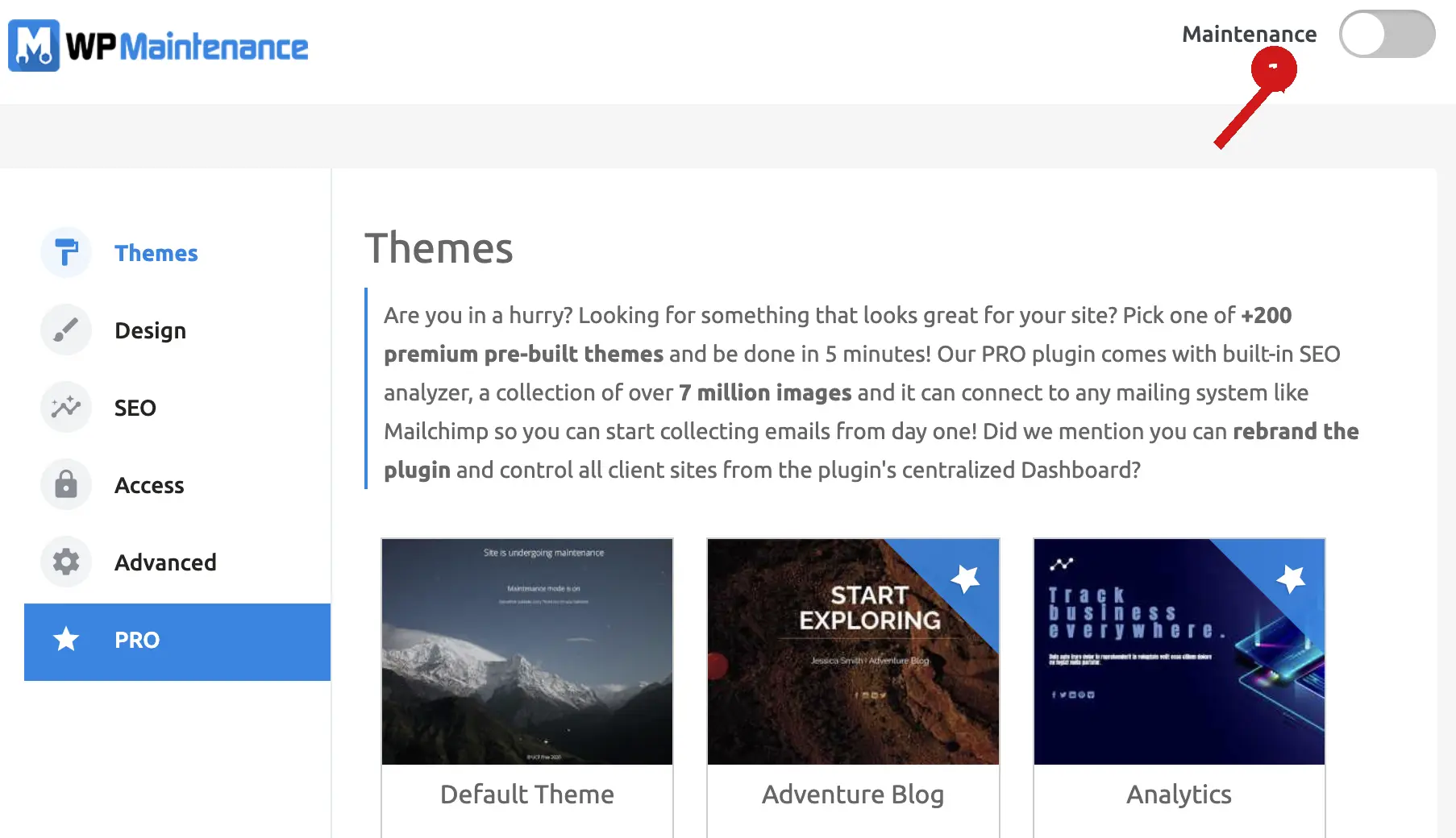
Your first move is to contain the site, not to start deleting files. Put the site into maintenance mode so visitors see a holding page instead of injected spam or a malware warning, which protects both your visitors and your search rankings while you work. You can enable it with a plugin such as WP Maintenance Mode, or if the dashboard is inaccessible, use your hosting control panel to password-protect or temporarily disable public access. If the compromise is actively redirecting visitors, serving malware, or exposing sensitive data, prefer host-, firewall-, CDN-, or password-level access controls over relying only on a WordPress maintenance plugin running inside the compromised application. Containment matters because a live infected site keeps harming visitors, spreading spam, and damaging your reputation with every hour it stays up. Note what you observe as you go and resist the urge to make random changes, because an orderly cleanup beats a frantic one every time.
Step 2: Back up the site, even hacked
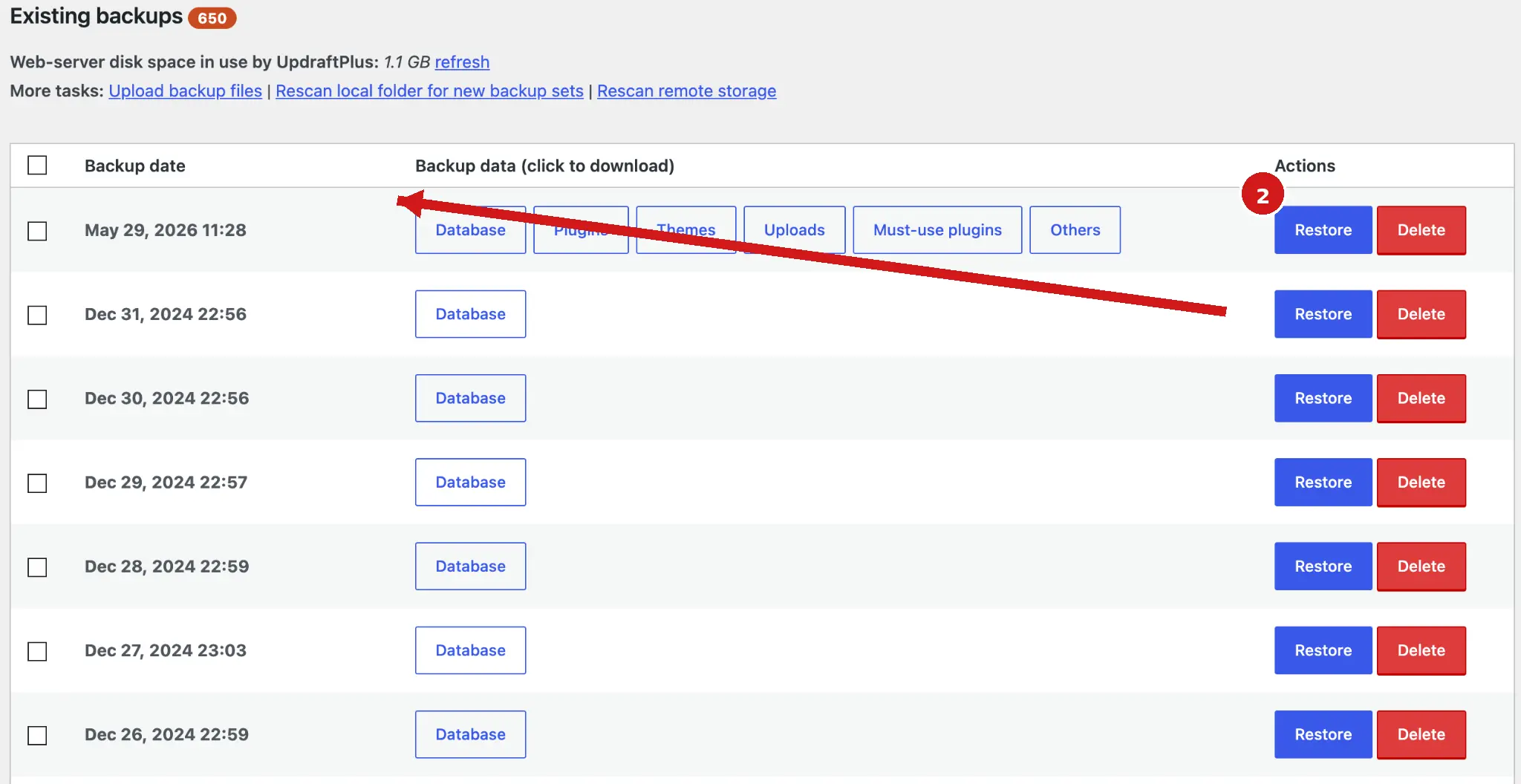
Before you change a single file, take a full backup of the site as it is, infected and all. This sounds odd, but a backup of the compromised state preserves evidence you may need to find the entry point, and it gives you a rollback if a cleanup step breaks the site further. Use your host’s backup tool or a plugin to capture both the files and the database. Label it clearly as the infected copy so you never restore it by accident. Preserve recent web-server access and error logs, security-plugin alerts, relevant timestamps, and the infected file/database snapshot before major cleanup changes. Keep the compromised copy separate and never overwrite a known-clean backup. If you already have a known-clean backup from before the hack, keep it separate and note its date, since you will weigh restoring it later. A cleanup without a safety net is how a bad afternoon becomes a lost site.
Store that forensic backup outside the public web root; otherwise the recovery copy itself can create an Exposed Backup Files Vulnerability and expose source code, database data, or credentials.
Step 3: Reset all passwords and secret keys
An attacker who got in almost certainly has credentials, so rotate everything before you rebuild trust in the site.
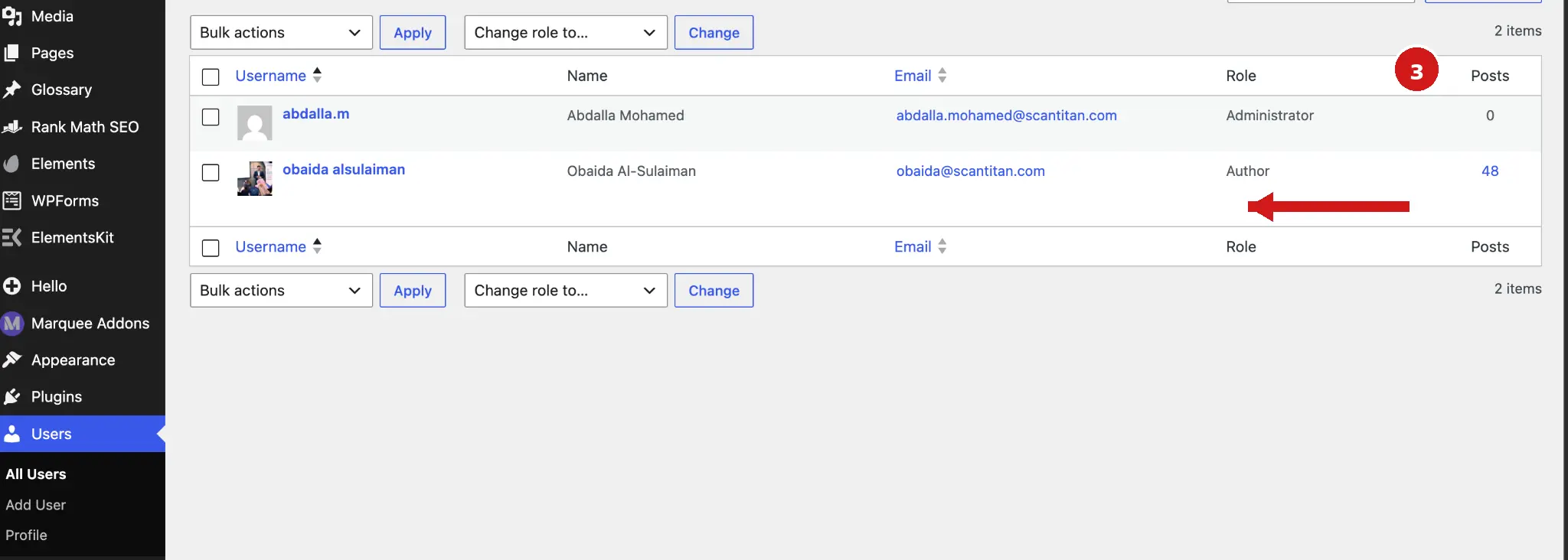
- Reset WordPress admin passwords. Change the password for every administrator and force a logout of all active sessions. If credential theft is suspected, rotate credentials from a trusted device.
- Change hosting and infrastructure credentials. Update the hosting control panel, SSH/SFTP/FTP, database credentials, primary admin email, CDN/DNS accounts, and relevant API or application passwords the attacker could have captured.
- Rotate the secret keys. Replace the authentication keys and salts in
wp-config.php, which invalidates every existing session cookie. - Remove unknown accounts. Delete any administrator or user account you did not create, since these are common backdoors.
If the attacker may still have had active access during the cleanup, perform a final credential and session rotation again after the site is clean. Skipping this step lets an attacker walk back in through a stolen credential the moment you finish cleaning, which is one of the most common reasons a fix fails.
Step 4: Contact your hosting provider
Your host is an ally, and reaching out early saves time. Many hosts detect malware at the server level, keep access logs that reveal how and when the attacker got in, and can tell you whether neighbouring sites on shared hosting were affected too. Ask them for recent access and error logs, since those often contain the exact request that dropped the first malicious file, which is gold when you reach the entry-point step. Some hosts also run their own scans or offer a cleanup service. If your site was suspended, they will tell you what they found, which narrows your search. A five-minute message to support can turn a blind cleanup into a targeted one.
Step 5: Scan for malware and locate the infection
You cannot remove what you have not found, so scan thoroughly from more than one angle.
- Run a security plugin scan. Use a WordPress security plugin that checks core, plugin, and theme files against known-good versions, and treat its report as a list of leads rather than a verdict.
- Check core file integrity. Compare your
wp-admin,wp-includes, and root files against a clean WordPress install to spot altered or added files. - Verify WordPress core checksums. With SSH and WP-CLI, run
wp core verify-checksums --include-root --version=$(wp core version)to compare core files against WordPress.org and flag unexpected root or core files. - Verify repository plugin checksums. Run
wp plugin verify-checksums --all --strictfor plugins hosted on WordPress.org. Premium and custom plugins may not have public checksums and must be compared with a trusted vendor copy. - Use a remote scanner. Run a website malware scan to see the infection as a visitor and search engine do. A clean remote result is not proof, because a remote scanner cannot read server files or the database.
- Search the database. Look in
wp_options,wp_posts, andwp_usersfor injected scripts, spam links, and rogue admin accounts. Our guide to database malware in WordPress has the queries.
Note every infected file and database row as you find it, because a complete list is what makes the removal step clean rather than a guessing game.
Step 6: Remove the malware
With the infection mapped, remove it methodically rather than deleting at random. Our guide to remove malware from a website covers the same order for any platform.
- Reinstall clean core files. Download a fresh copy from WordPress.org and replace the core, preserving your
wp-contentfolder andwp-config.php. - Replace plugins and themes cleanly. Delete infected plugin and theme folders, then reinstall known-good versions from the official repository rather than cleaning file by file.
- Clean the database. Remove injected scripts and spam from the tables you flagged, working from your infected backup so you can compare.
- Delete every backdoor. Hunt for and remove webshells and hidden scripts, especially in the uploads folder, since one missed backdoor reinfects everything. If you are unsure what a file does, paste it into our malware code analyzer before you delete it.
- Check persistence locations. Review
wp-content/mu-plugins,wp-content/uploadsfor executable scripts,wp-config.php,.htaccess,.user.ini, rootindex.php, scheduled WordPress events and cron jobs, and any unfamiliar files or abandoned WordPress copies elsewhere in the same hosting account. - Remove rogue admin users. Delete the unauthorised accounts you found so the attacker loses their foothold.
A cleanup is only finished when every item on your list is gone, because attackers plant redundant backdoors precisely so that a partial cleanup fails.
Step 7: Find and close the entry point
This is the step most guides skip, and it is the one that decides whether the hack comes back. Cleaning the malware without closing the hole that let it in simply resets the clock. Review the logs from your host for the request that dropped the first malicious file, then match it to a cause: a vulnerable plugin, covered in WordPress plugin vulnerabilities; a file upload flaw that let an attacker upload a webshell; a WordPress SQL injection that reached the database; stolen credentials; or a server-level weakness. Also check old WordPress copies, staging folders, publicly reachable backups, abandoned plugins or themes, and other sites under the same hosting account; an outdated secondary install can be the route into an otherwise patched main site. The fastest way to identify known vulnerable components is to run a WordPress vulnerability scanner, which maps your plugins and themes to known CVEs so you can patch the exact flaw. Close the entry point, and the malware has no easy route back in.
Step 8: Restore from a clean backup
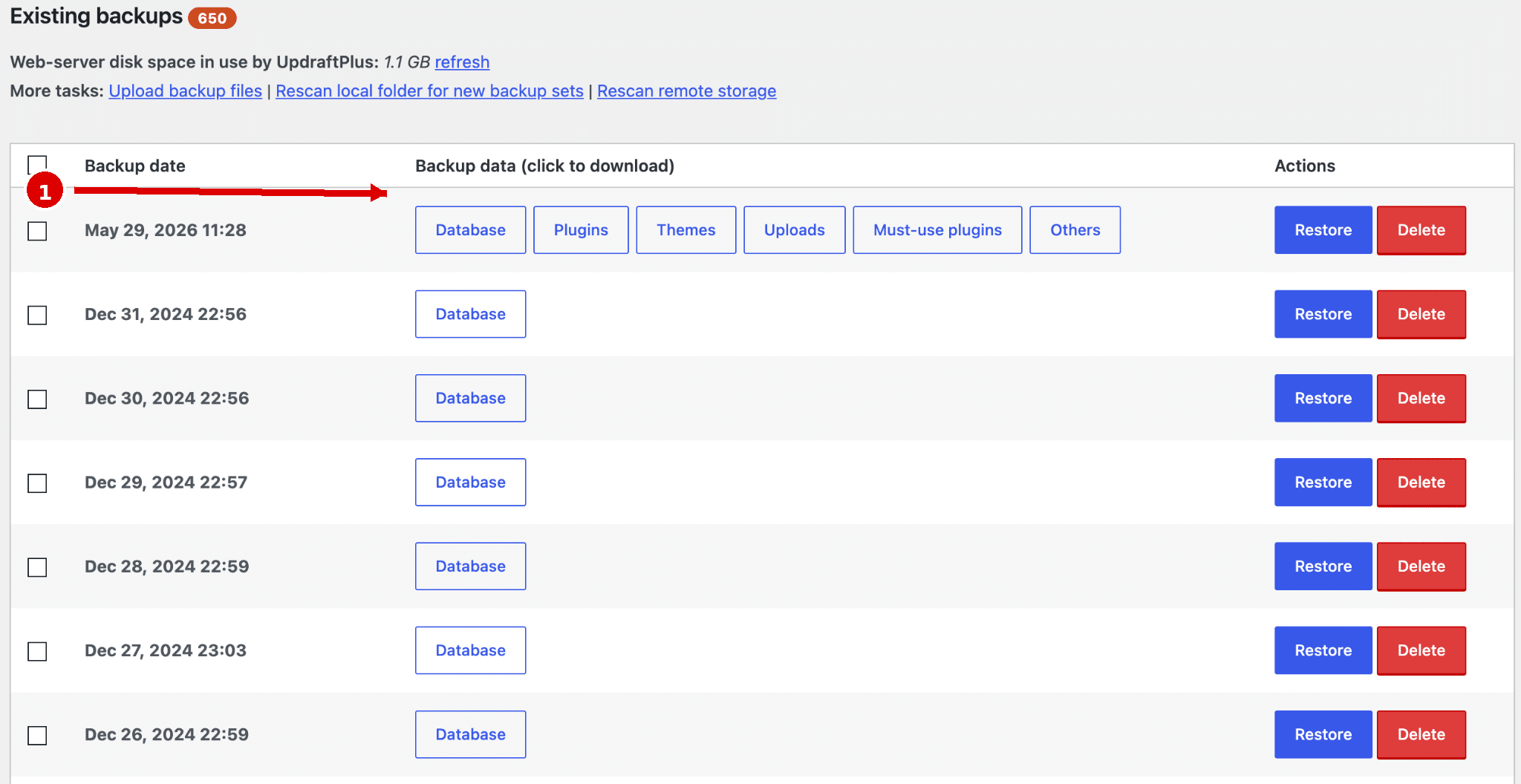
If the infection is widespread or you cannot be sure you found every backdoor, restoring a known-clean backup is often faster and safer than cleaning in place. Choose a backup from before the hack, restore both files and the database, and then immediately apply the security steps, since the vulnerability that caused the hack may still exist in that older copy. On WooCommerce, membership, booking, subscription, or form-heavy sites, restoring an old database can overwrite legitimate orders, users, submissions, or transactions created after the backup. Preserve and reconcile clean post-backup business data before replacing the live database. This is the catch with restoring: a clean backup returns you to a working site but may also return you to the flaw the attacker used, so you must update and patch straight after. Restoring works best when you know roughly when the hack happened and have a backup that predates it. If you cannot date the hack, rebuild instead: install a fresh WordPress core, reinstall plugins and themes from official sources, and bring back only media files from the uploads folder after removing any PHP files in it. Pair it with the entry-point step above, or you may be cleaning the same hack again within days.
Step 9: Update everything and harden the site
A clean site is still a vulnerable site until you patch and harden it, so close the gaps before you lift maintenance mode.
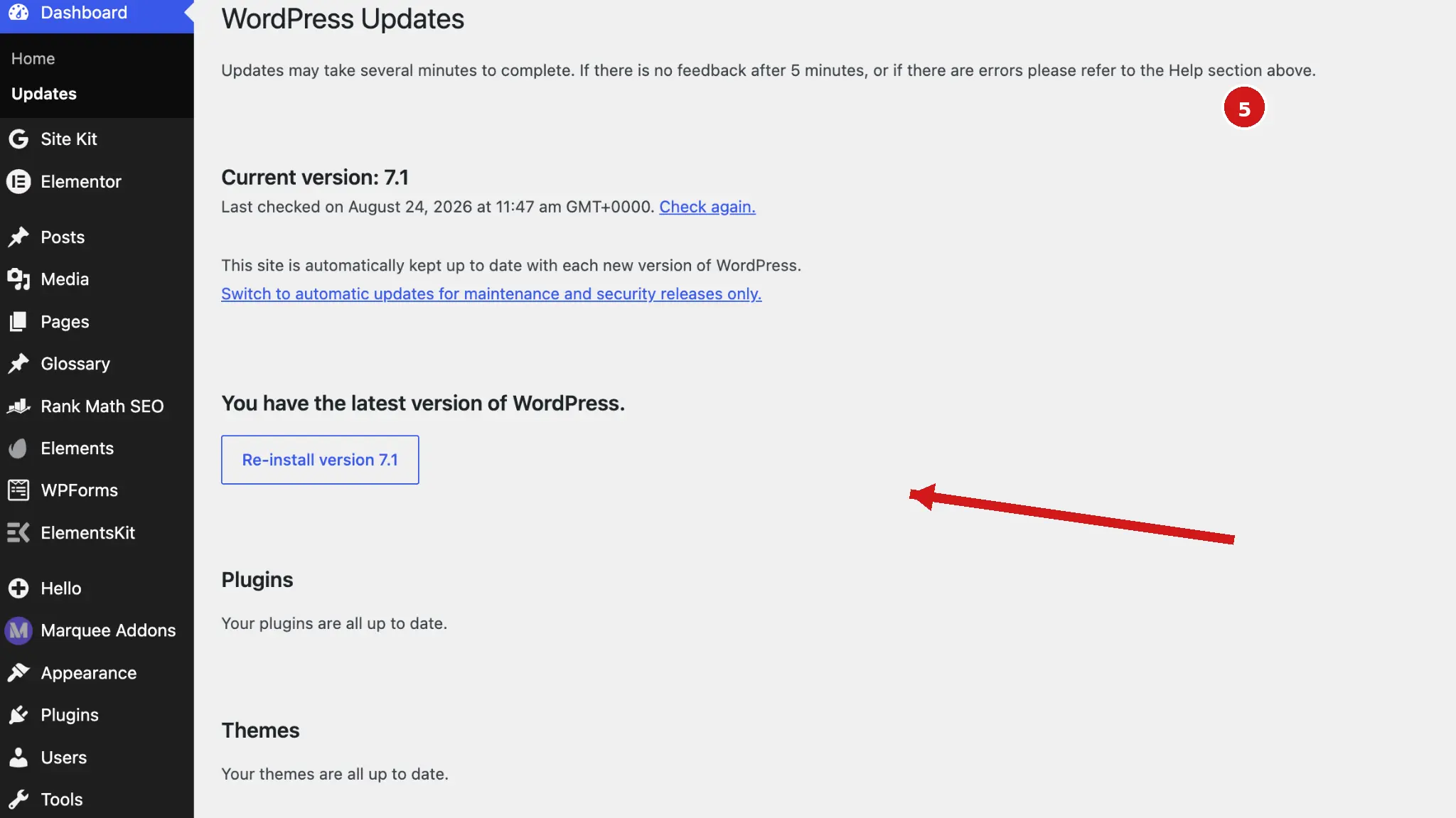
- Update the core, plugins, and themes. Bring everything to the latest version, since an outdated component is the most common way back in. Check that your PHP version is still supported with our Software End of Life Checker. That check matters more than usual right now, because the PHP2Shell flaws are fixed only in PHP 8.5.12, 8.4.27, 8.3.36, and 8.2.35. Run a PHP vulnerability scan to see which version your site reports.
- Remove unused and nulled code. Delete plugins and themes you do not need, and never run nulled software, which often carries backdoors.
- Enforce strong authentication. Require strong passwords and turn on two-factor authentication for every administrator.
- Add a web application firewall. Put a firewall in front of the site to block exploit attempts against flaws you have not patched yet.
- Grade your security headers. Run the Security Headers Checker and add the missing headers, such as Content-Security-Policy, to limit which scripts can load.
- Schedule regular scans and backups. Automate both so the next problem is caught early and recovery is quick.
Hardening is what turns a one-time cleanup into lasting security, and it is the difference between fixing this hack and preventing the next.
Step 10: Remove Google blocklist warnings
If Google flagged your site, a browser or search warning will keep visitors away even after the site is clean, so clear it deliberately. Our guide to the Deceptive Site Ahead warning explains the review in detail. Confirm first that the site is genuinely malware-free, because all listed security issues should be fixed before you request review. Then open Google Search Console, find the Security Issues report, and review the sample URLs Google flagged to be sure you cleaned them. Submit a review request describing what you removed and how. Google says security reviews can take from a few days to a few weeks. If your host or a security vendor blocklisted the site elsewhere, request removal from those services too. Clearing the warning is the final visible step that tells your visitors and search engine the site is safe again.
How to confirm your WordPress site is fully clean
Do not declare victory too early; verify the cleanup held. Re-scan the whole site and confirm it comes back clean from both a file scan and a remote URL scan, since one can miss what the other catches. Before reopening fully, re-check administrators, active sessions, scheduled tasks and cron, mu-plugins, DNS/CDN settings, core and plugin checksums, and recently modified files in addition to running file and remote scans. Watch your logs and traffic for a week or two for signs of reinfection, such as new unknown files or a returning redirect, which point to a backdoor you missed. Confirm the version and components are current, using a method like checking your WordPress version without login to be sure the update took. Reinfection within days often means either a surviving backdoor, an unpatched entry point, or compromised credentials, so treat a recurrence as a signal to revisit the containment and root-cause steps rather than simply cleaning again. Remember that a clean scan is not proof on its own, so also check what visitors, Google and the server see.
Before you lift maintenance mode, run a free website security scan against the live site. A clean external result is the only evidence that matters, because it is what an attacker would see.
When to call a professional or use a removal service
Some hacks are beyond a do-it-yourself fix, and knowing when to escalate saves both the site and your time. WordPress.org also publishes an official FAQ for hacked sites with support resources. Call in help when the site holds customer accounts or payment data, when it keeps getting reinfected after you clean it, when you cannot locate the backdoor, or when the infection has spread across many sites on the same server. A dedicated malware removal service brings tooling and experience that clean stubborn infections and confirm the site is genuinely clear, which matters most when data or revenue is on the line. There is no shame in escalating; a botched cleanup that leaves a backdoor active is far more expensive than professional help. For a lean team facing a serious compromise, expert removal is often the fastest route back to a safe, trusted site.
A hacked WordPress site, GDPR, and PCI DSS
A hack is not only a technical event; if data was exposed, it can become a legal and compliance incident. If the incident is a personal-data breach, GDPR Article 33 requires notification to the supervisory authority without undue delay and, where feasible, within 72 hours after awareness unless the breach is unlikely to result in a risk to individuals’ rights and freedoms. In the US, the FTC’s data breach guide tells businesses to check state notification laws and to notify law enforcement. If cardholder data may have been compromised, payment brands or acquirers may require additional incident reporting and, in some cases, an independent PCI Forensic Investigator. This is why the evidence you preserved in step two and the logs from your host matter beyond the cleanup: they help establish what was and was not accessed. For a small business, the message is direct: treat a serious hack as a possible data breach from the start, document what you find, and take appropriate legal or compliance advice early.
Hacked WordPress Site FAQ
How do I know if my WordPress site is hacked?
Common signs are unexpected redirects to spam sites, pop-ups or ads you did not add, admin accounts you do not recognise, a warning in Google search results, a sudden traffic drop, or new files with random names on the server. Your host may also suspend the site or email you about malicious activity. If you notice any of these, scan the site and treat it as compromised until a clean result proves otherwise.
Can I fix a hacked WordPress site myself?
Often yes, if you follow an orderly process: contain the site, back it up, reset passwords, scan and remove the malware, close the vulnerability, and harden. A simple infection is within reach of a confident site owner. Call a professional when payment or personal data may be exposed, when the site keeps getting reinfected, or when you cannot locate the backdoor, since a missed backdoor undoes the whole cleanup.
Will reinstalling WordPress remove the hack?
It removes malware in the core files, but not on its own. Reinstalling clean core files overwrites infected ones there, yet most WordPress hacks also plant code in plugins, themes, the uploads folder, or the database, and leave a backdoor. A full fix reinstalls clean core, plugins, and themes, cleans the database, removes every backdoor, and closes the vulnerability that caused it. Reinstalling the core alone usually leaves the site reinfected.
How do I remove the site may be hacked warning from Google?
First, clean the site completely and confirm it is malware-free. Then open Google Search Console, go to the Security Issues report, review the flagged samples, and click Request Review once all listed security issues are fixed, explaining what you changed. Google says security reviews can take from a few days to a few weeks, so verify the cleanup before submitting the request.
Why does my WordPress site keep getting hacked?
Almost always because the original entry point was never closed. Cleaning the malware without patching the vulnerable plugin, theme, or configuration that let the attacker in just resets the clock, and automated tools return through the same hole. Repeated reinfection also points to a backdoor that survived the cleanup. The fix is to find the root cause, patch it, remove every backdoor, and then scan on a schedule.
Was my data stolen if my WordPress site was hacked?
Assume exposure was possible until you can rule it out. A hack that reached the database or a webshell with server access could have read user records, customer data, and secret keys. Review logs and other evidence to establish what was accessed. If personal data was breached, GDPR notification obligations depend on the risk to individuals; where notification to the supervisory authority is required, Article 33 sets a 72-hour window after awareness. Payment-data incidents may also trigger PCI-related reporting or forensic requirements.
How much does it cost to fix a hacked WordPress site?
Cost varies widely by provider, site size, persistence of the compromise, number of affected sites, and whether forensic or compliance work is required. A simple cleanup may be inexpensive, while a multi-site or data-breach investigation can cost substantially more. The larger cost is often indirect: downtime, lost traffic, a Google warning, and reputational damage. Cleaning promptly and closing the entry point helps limit those costs.
How long does it take to clean a hacked WordPress site?
A straightforward infection can sometimes be cleaned in a few hours by someone following an orderly process. A widespread compromise with many backdoors, a large database, or an unclear entry point can take a day or more, and Google’s security review can take from a few days to a few weeks. The biggest time-saver is finding the entry point early, since it prevents the reinfections that otherwise restart the whole job.
Can a hacked WordPress site be recovered?
Yes. A hacked WordPress site can be recovered when you remove the malware, close the entry point, and verify the result. Recovery has two parts: the site itself, which can often be cleaned or rebuilt in hours or days, and your search trust, which follows Google’s recrawl and has no guaranteed timeline. If you cannot find every backdoor, rebuild with a fresh WordPress core, plugins and themes from official sources, and only media files from the uploads folder. Keep the infected backup, because it shows what to fix.
How do I secure a WordPress site from hackers?
Close the weaknesses attackers use most. Update core, plugins and themes within days of each release, delete anything you do not use, and never run nulled software, which often carries backdoors. Give every account a unique password, turn on two-factor authentication for administrators, keep tested offsite backups, and block PHP execution in the uploads folder. Watch for new administrator users and changed files, and run a recurring website malware scan.
Cleaned the site but not sure what let the attacker in? Run a scan to find the vulnerable plugin or flaw behind the hack, with evidence and a fix for each finding, so it does not come back.