
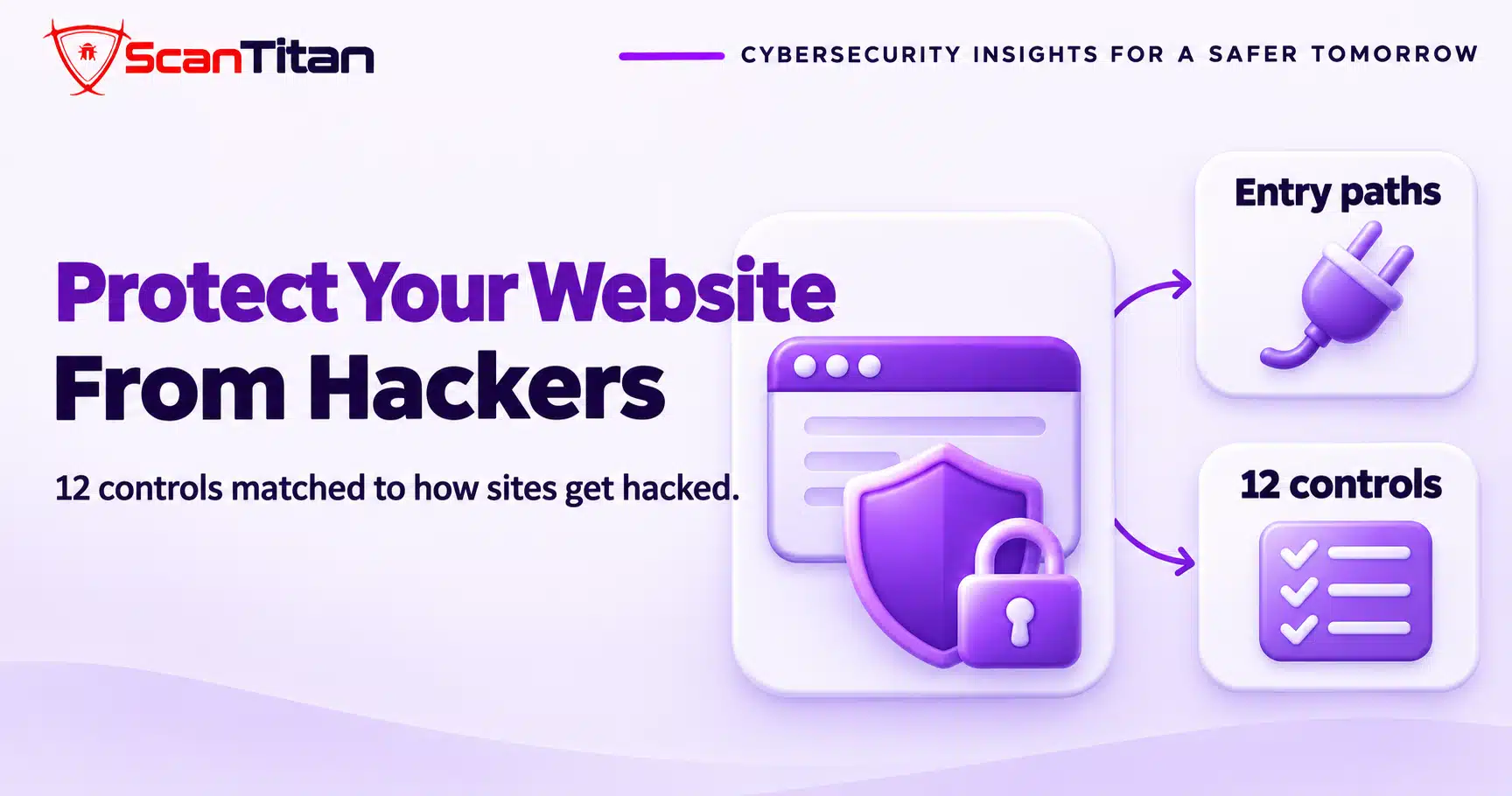
To protect a website from hackers, close the five ways attackers usually get in: outdated software, stolen logins, a weak shared host, third-party code and files you did not vet. Twelve controls cover those paths, and most take less than an hour to set up. Padlock icons and SSL certificates are not among them, because encryption does not stop an attacker who walks in through a vulnerable plugin. This guide matches each control to the entry path it blocks, so you spend time where hackers actually strike.
How Websites Actually Get Hacked
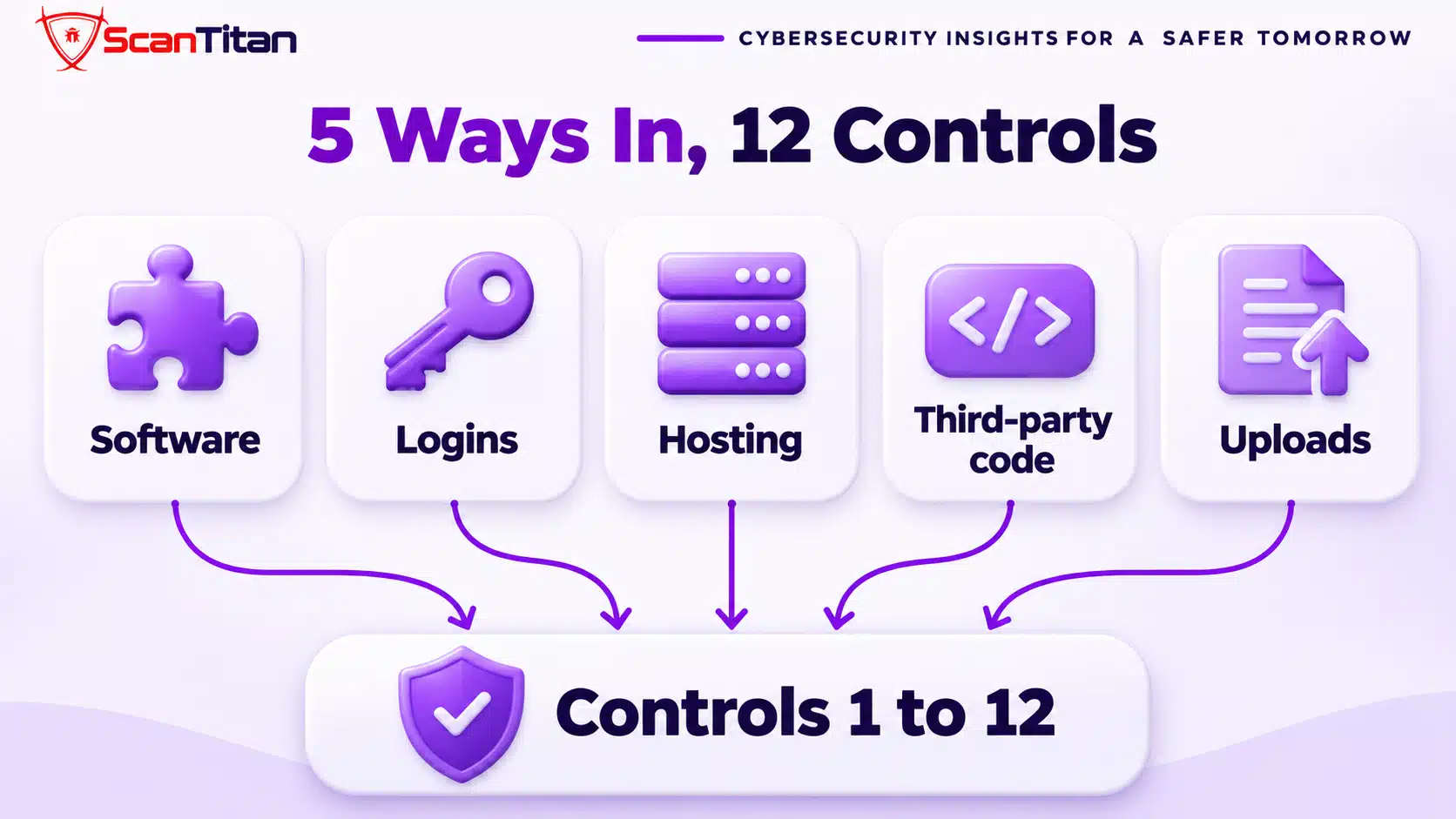
An entry path is the first weakness an attacker uses to reach your site, and almost every hack starts with one of five. The list below is the direct answer, and each path has its own section after it.
- Vulnerable software: Vulnerable software is a plugin, theme or core release with a known flaw that attackers exploit automatically.
- Stolen logins: Stolen logins are passwords taken from other breaches or guessed, which let an attacker sign in as a real user.
- Weak hosting: Weak hosting is a server where one infected site on the same account or server can reach the others.
- Third-party code: Third-party code is a script, plugin or library you load from someone else, whose owner or supply chain can be compromised.
- Nulled and uploaded files: Nulled and uploaded files are pirated plugins, or files that visitors upload, which carry or run attacker code.
Vulnerable Plugins, Themes and Core
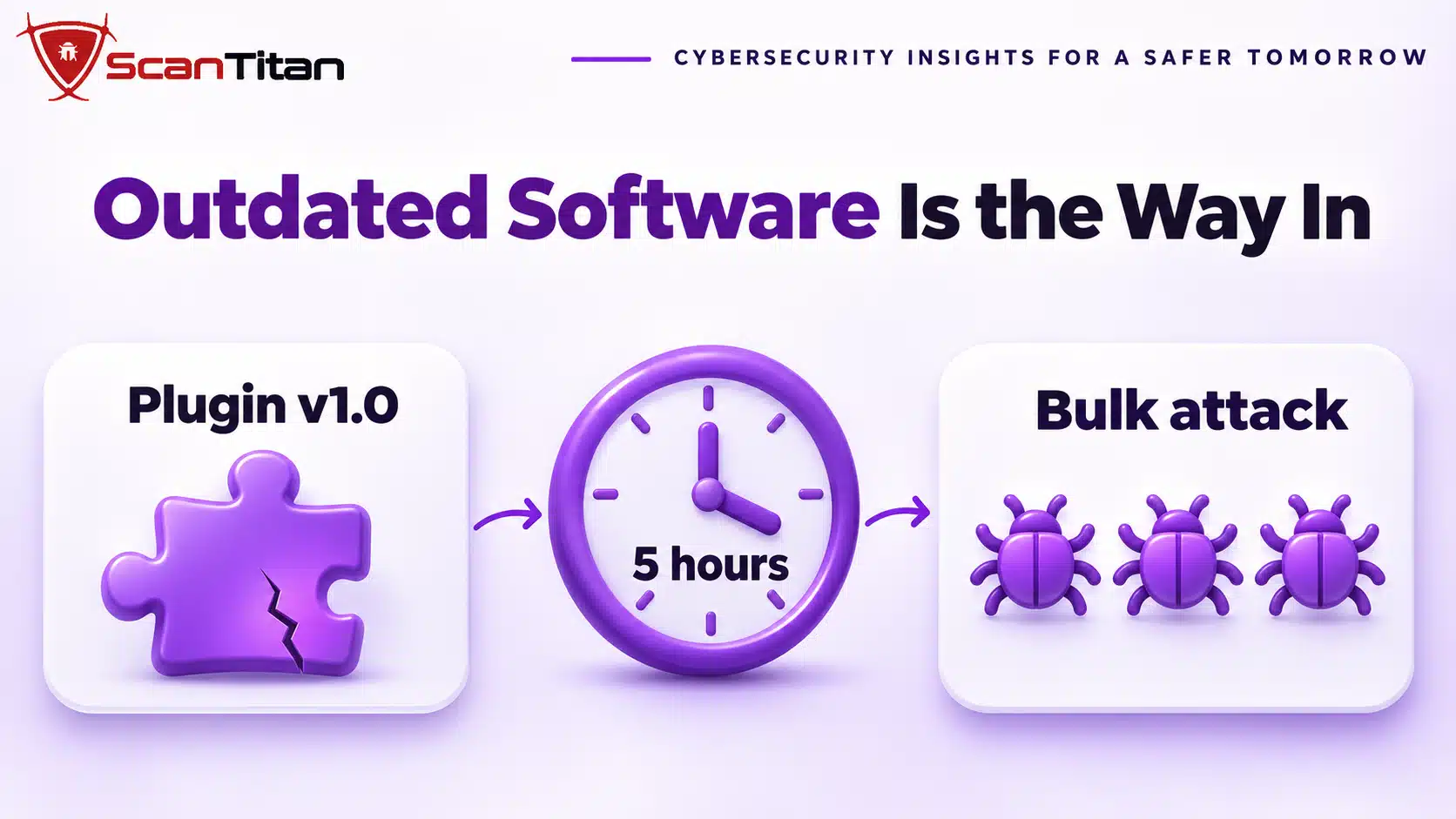
Outdated software is the most common way in, and plugins cause most of it. Patchstack recorded 11,334 new vulnerabilities across the WordPress ecosystem in 2025, with about 91% of them in plugins, and it found a median time to first exploit of roughly five hours for the most heavily exploited flaws. That means attackers do not wait for your monthly update day. Automated scanners find every site that runs the flawed version and attack them in bulk. Controls 1, 2 and 6 below stop this path. Our guide to WordPress plugin vulnerabilities lists the real cases and the vulnerability classes behind them.
Stolen or Guessed Logins
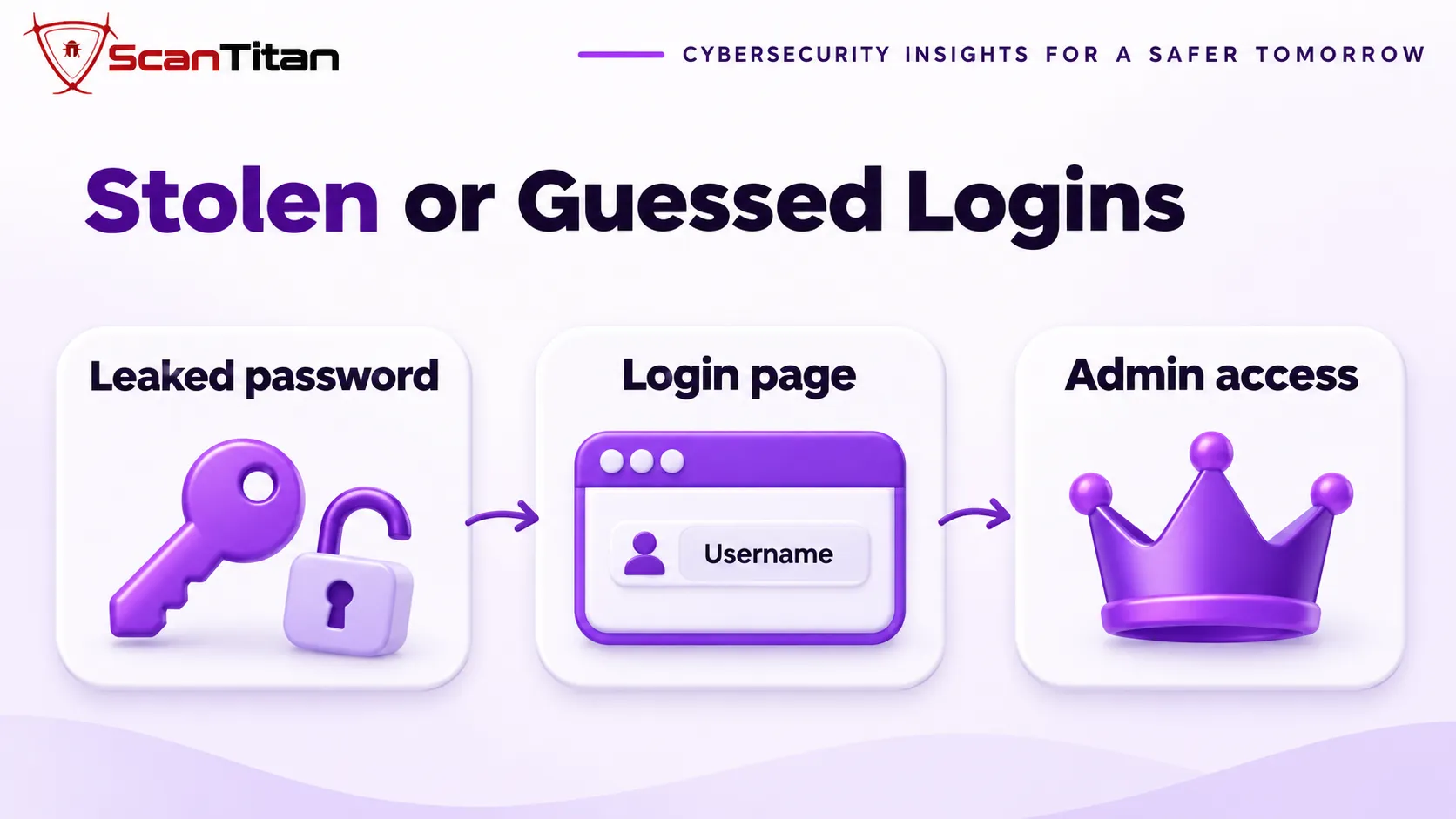
A login attack works because people reuse passwords, and attackers test leaked ones at scale. Cloudflare reported that about 41% of successful human logins on its free plan between September and November 2024 used leaked passwords, which shows how often a real password is already in a criminal list. Once an attacker signs in as an administrator, no firewall objects, because the request looks legitimate. Many owners only learn about it from a hidden account that appears later, so check our guide to the hidden admin user. Controls 3 and 4 stop this path, and control 11 catches it when they fail.
A Weak Shared Host
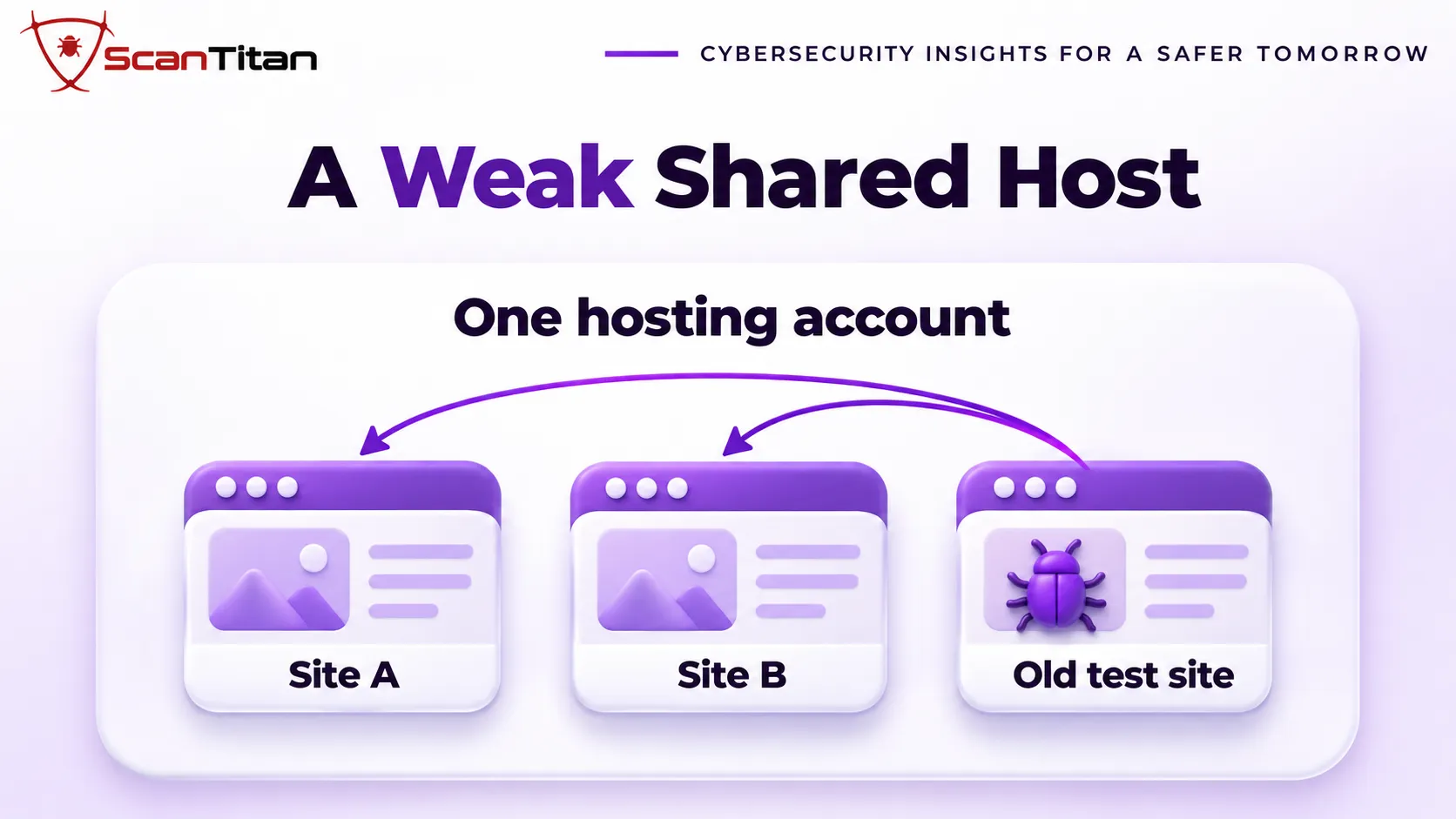
Shared hosting becomes a hacking path when several sites live in one account or run under one server user, because malware on the weakest site can read and write the files of the others. This is why owners clean one site and see the infection return from a forgotten test site or an old install in the same folder. A host that isolates each site in its own account, with its own user and its own limits, removes most of that spread. Controls 5 and 8 stop this path. Our guide on why WordPress malware keeps coming back shows how a neighbouring site restores a cleaned one.
Third-Party Code You Do Not Control
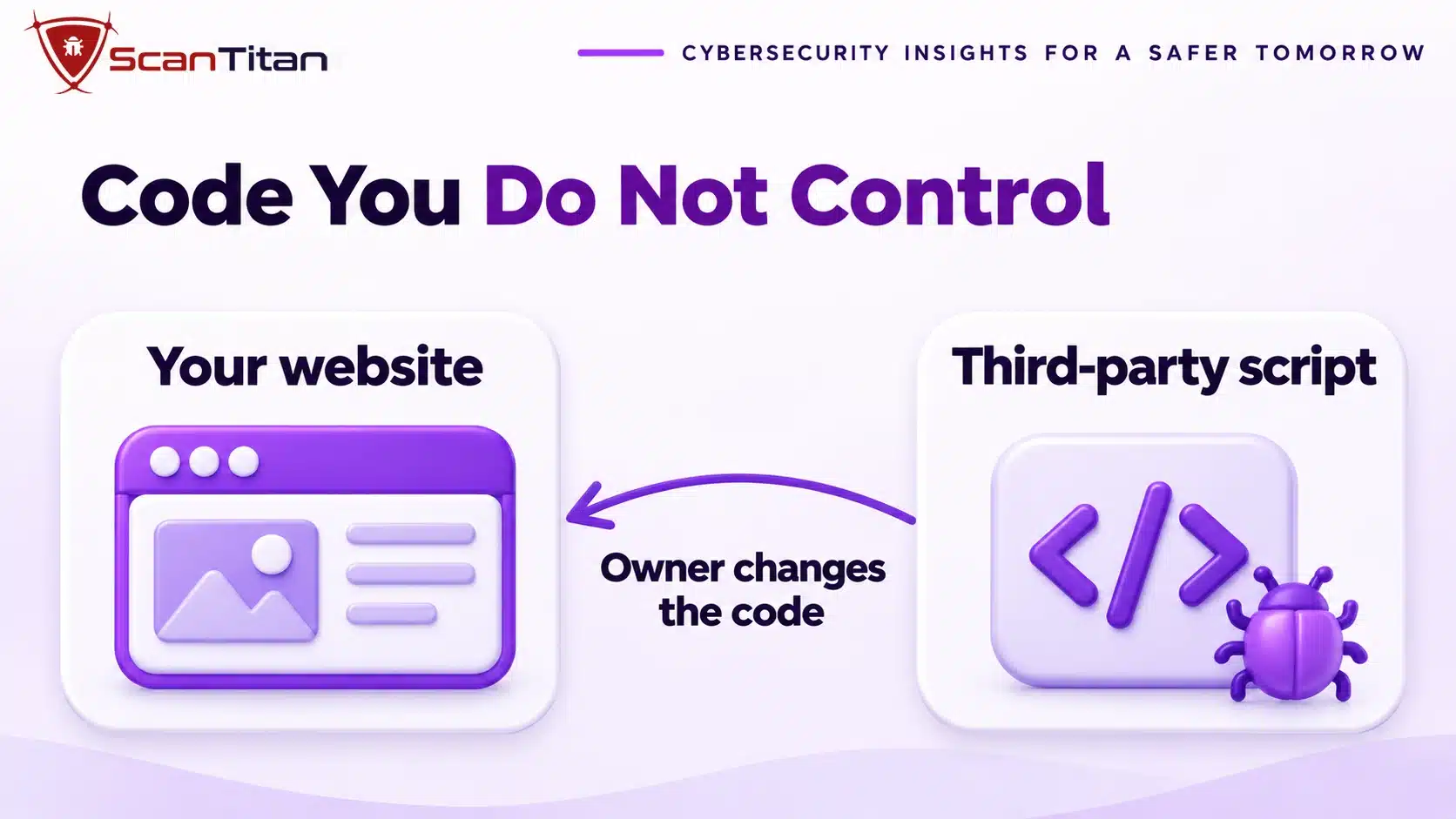
Every script, library and plugin you load is code that you trust but did not write, and its owner can change it. In June 2024, researchers reported that the new owner of the popular Polyfill.io service had started injecting malicious code into the scripts it served, so every site that loaded it passed the code to its visitors. In April 2026, more than 30 WordPress plugins were reported to have been bought by a new owner and found to carry a backdoor that stayed dormant for months. Controls 2 and 10 stop this path, and our guide on the JavaScript npm supply chain attack shows how dependencies turn into a risk.
Nulled Plugins and Unsafe Uploads
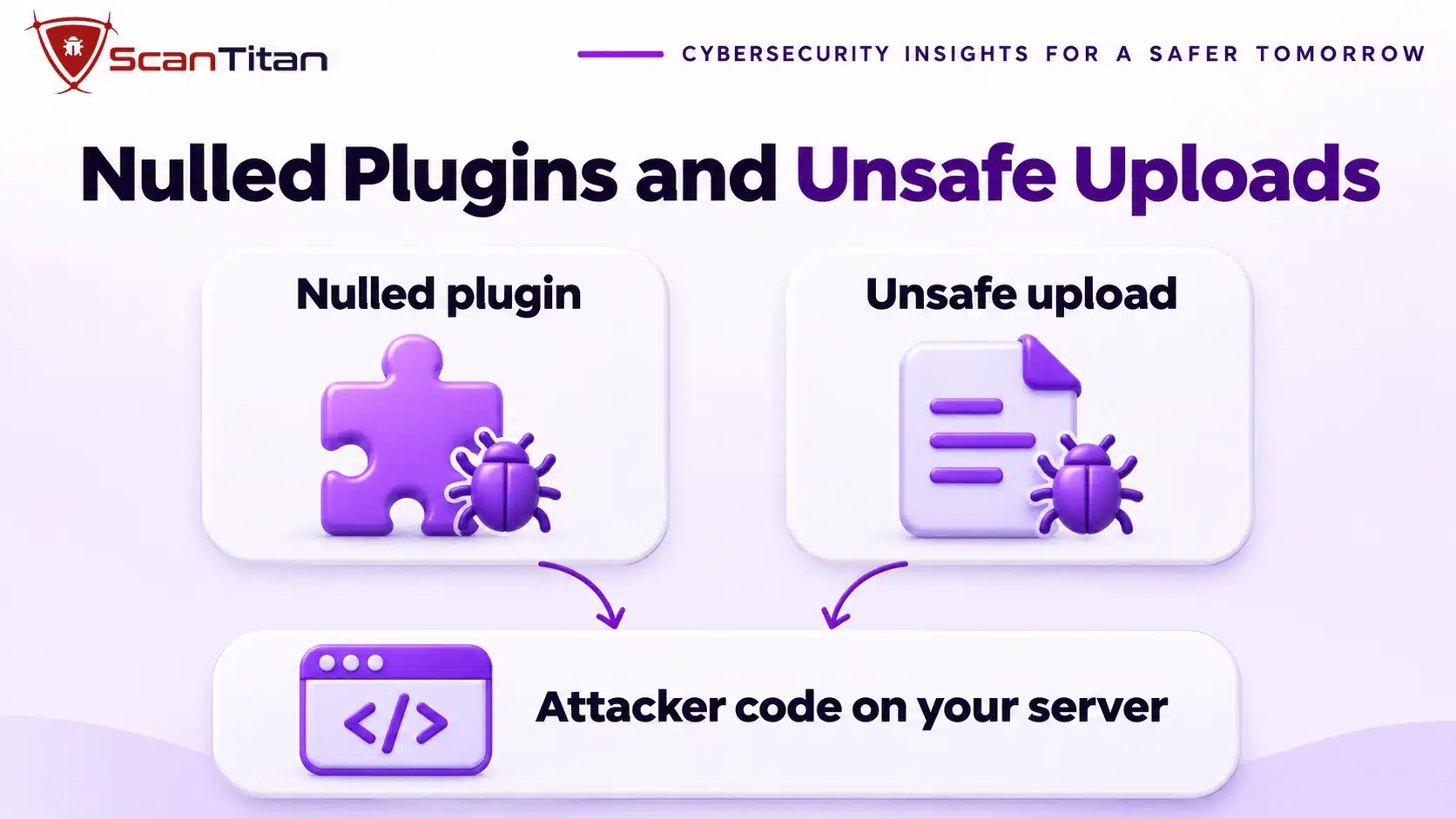
A nulled plugin is a paid plugin or theme that someone pirated and redistributed, and the redistributor often adds a backdoor to it. An unsafe upload is a file that a form or plugin accepts without checking its type, so an attacker uploads a script instead of an image and then runs it. Both put attacker code directly on your server, with no vulnerability to find. Controls 2 and 9 stop this path. Read how nulled plugins carry malware, and how a WordPress file upload vulnerability leads to remote code execution.
Which Control Stops Which Entry Path
No single control covers all five paths, which is why checklists that stop at a firewall or a plugin leave gaps. The table lists, for each path, the main controls that block it and the backup controls that catch what gets through, using the numbers from the next section. Use it to find the path you have not covered yet, then jump to those controls and set them up first.
| Entry path | Main controls | Backup controls |
|---|---|---|
| Vulnerable software | 1 Patch, 2 Remove unused, 6 Firewall | 7 Scan, 8 Backups |
| Stolen logins | 3 Lock logins, 4 Limit admins | 11 Monitor, 12 Response plan |
| Weak hosting | 5 Isolate accounts | 7 Scan, 8 Backups |
| Third-party code | 2 Remove unused, 10 Control scripts | 7 Scan, 11 Monitor |
| Nulled and uploaded files | 2 Remove unused, 9 Block uploads | 7 Scan, 6 Firewall |
How to Protect a Website From Hackers in 12 Steps
To protect a website from hackers, follow these twelve steps. Start with the one that closes your biggest gap.
- Patch software within days, because outdated plugins and themes are the most common way in.
- Remove every plugin, theme and old install you do not use.
- Lock every login with two-factor authentication and a unique password.
- Limit admin accounts and set folder permissions to 755 and file permissions to 644.
- Isolate each site in its own hosting account so one infection cannot spread.
- Put a firewall in front of the site to block known attacks.
- Scan from outside and compare core files with the official release.
- Keep tested offsite backups you have restored at least once.
- Turn off the file editor and block PHP in the uploads folder.
- Control third-party scripts with integrity checks and limited sources.
- Watch logs, admin accounts and Search Console for warning signs.
- Write a response plan before you need one.
Each step below says what it stops and what it leaves open, because every control has limits.
1. Patch Software Within Days
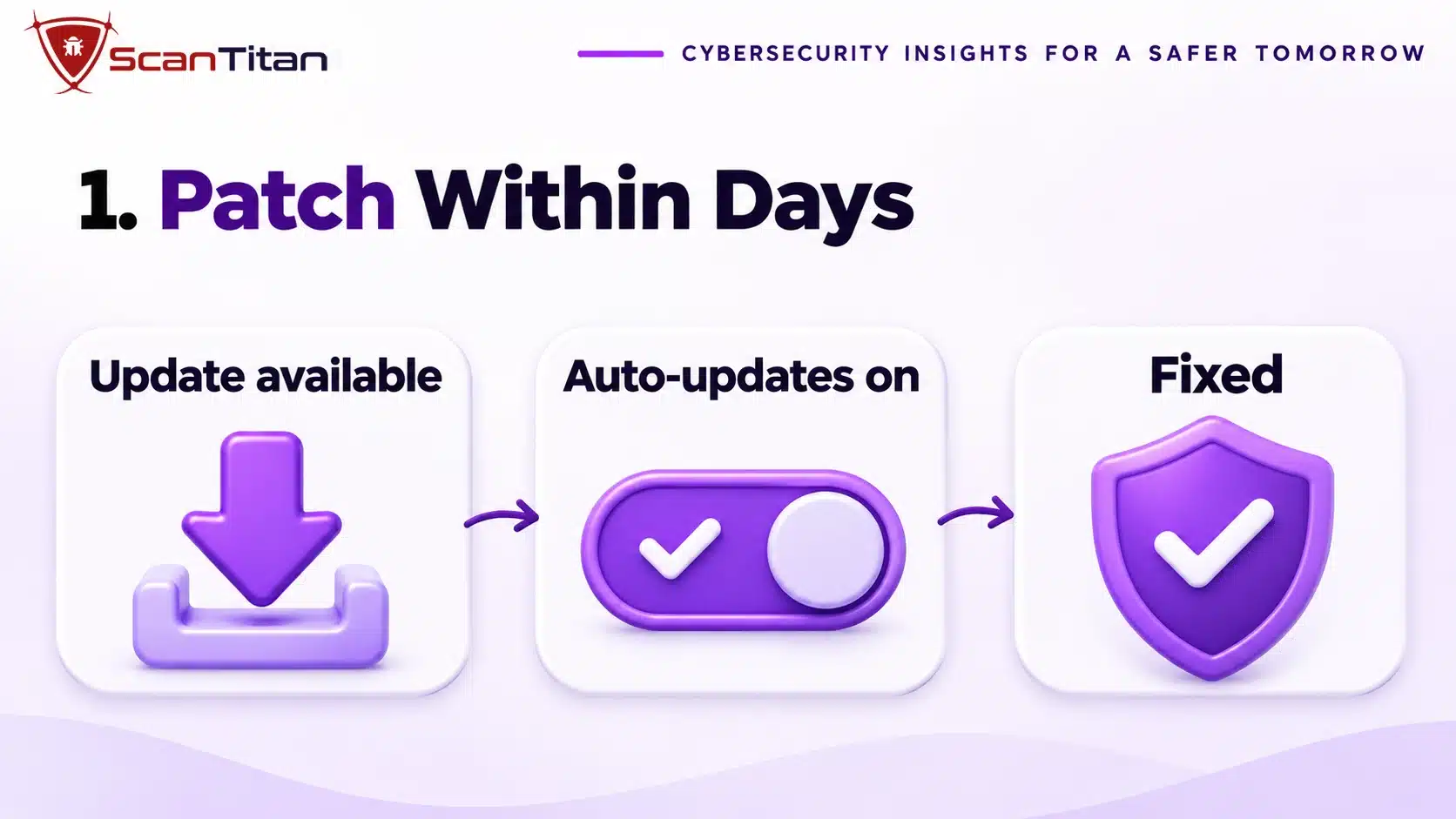
Patching means installing the update that fixes a known flaw, and it blocks the entry path that attackers use most. Turn on automatic updates for plugins and themes in the dashboard, and install core security releases as soon as they appear. Check the site weekly for updates that need a manual step, such as premium plugins that update through their own licence. Patching does not help against a flaw nobody has fixed yet, or against a stolen password, so it works best with controls 3 and 6. A plugin that no longer receives updates counts as unpatched, so replace it instead of waiting for a fix that will not come.
2. Remove Everything You Do Not Use
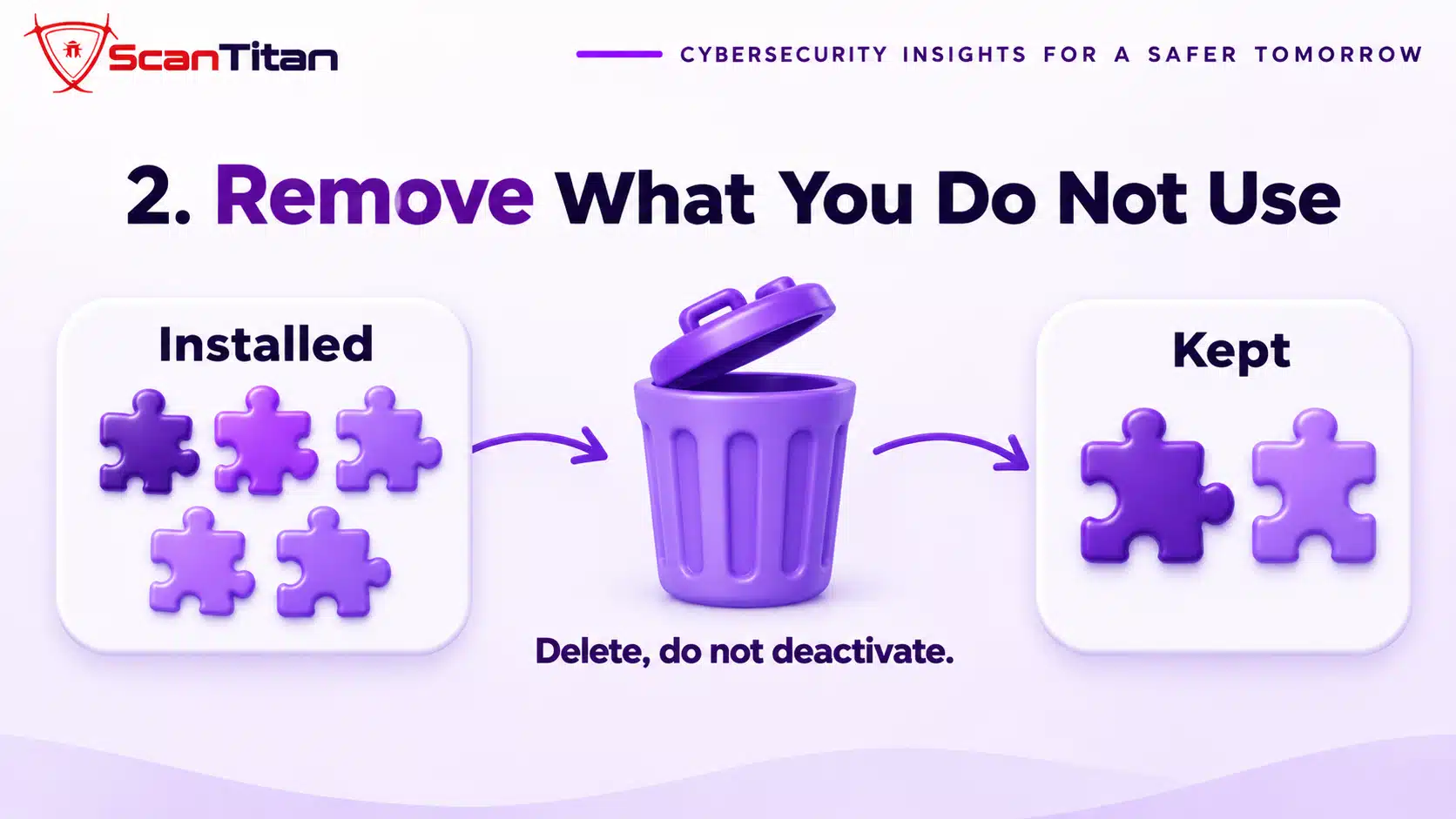
Every plugin, theme and old install is code that attackers can reach, and a deactivated plugin still sits on the server where an exploit can request its files. Delete, not deactivate, any plugin or theme you do not use, and remove forgotten test sites, staging folders and old backups from the web root. Keep one default theme as a fallback and delete the rest. Never install a pirated plugin, because that is a direct route for malware. Removing software cuts every path that depends on it, and it costs nothing. It does not protect the code you keep, so you still need controls 1 and 6.
3. Lock Down Logins With Two-Factor Authentication
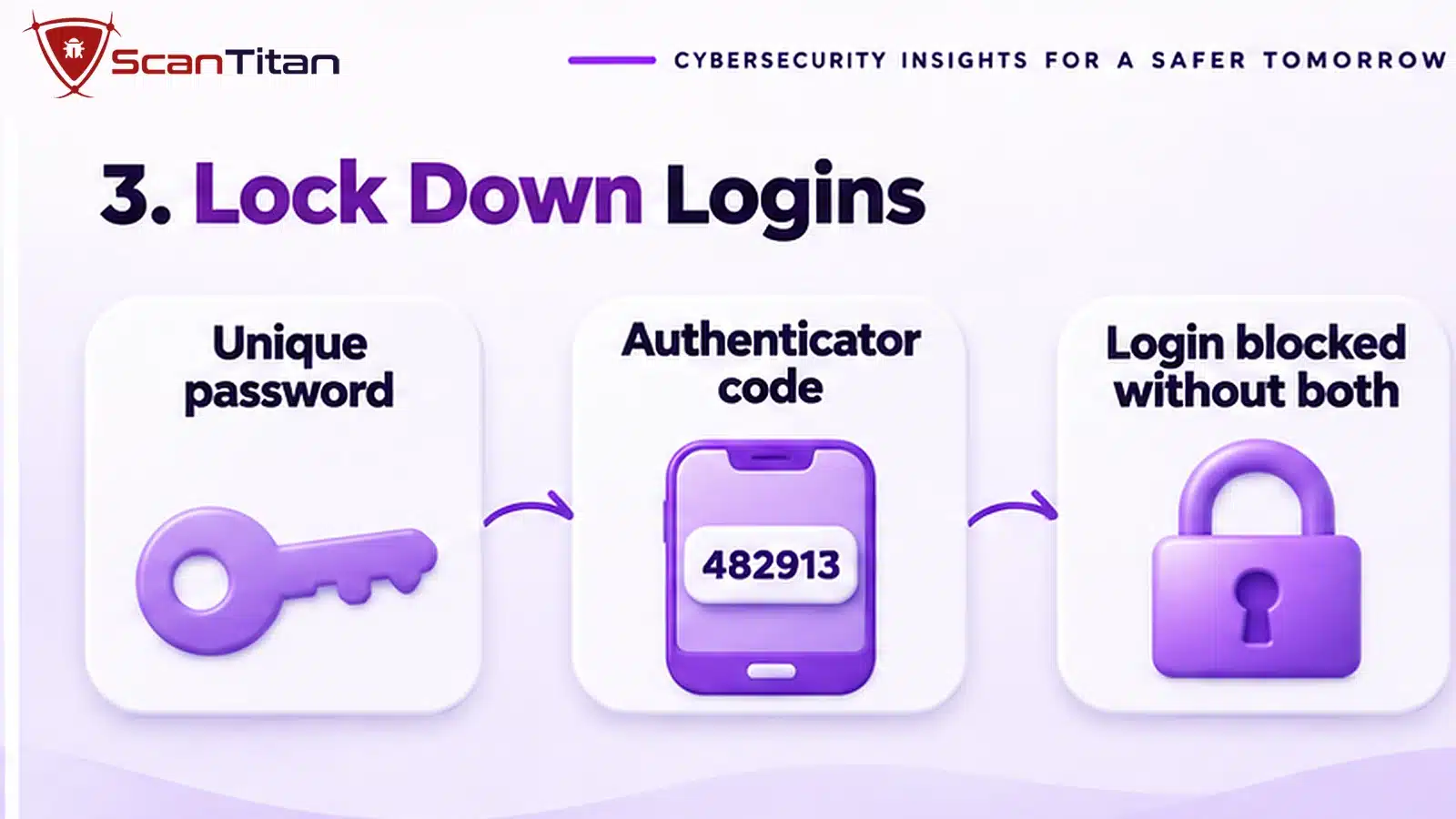
Two-factor authentication means a password alone cannot open the account, because a second code from an authenticator app is also required. Turn it on for every administrator and editor, use a password manager so each login has a unique long password, and limit failed login attempts so bots cannot guess endlessly. Pick an authenticator app over text messages when you have the choice. This stops stolen and guessed passwords, which is the second most common path. It does not stop an exploit in a plugin, which skips the login entirely, and hiding the login URL is not a substitute because it only slows down scanners.
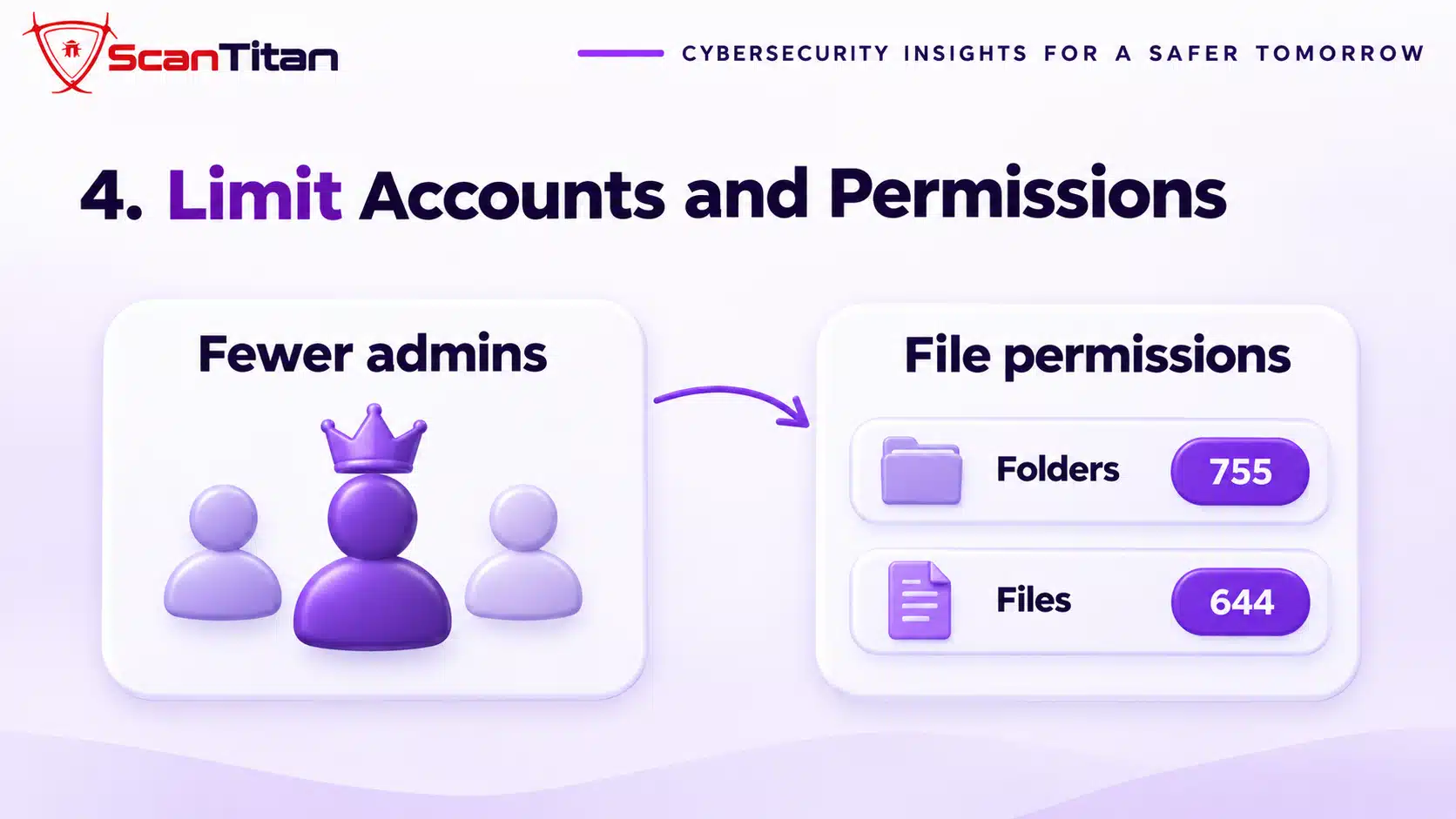
4. Limit Admin Accounts and File Permissions
Least privilege means every account and file gets only the access it needs, so a single stolen login or exploit reaches less. Give most people the editor or author role, delete admin accounts that nobody uses and rename or delete any account called admin. For files, the WordPress hardening guide recommends 755 for directories and 644 for files, which you can set with find . -type d -exec chmod 755 {} \; and find . -type f -exec chmod 644 {} \; from the site folder. Tight permissions limit what a hacked account can change. They do not stop the first break in, so pair them with control 11, which tells you when an account changes.
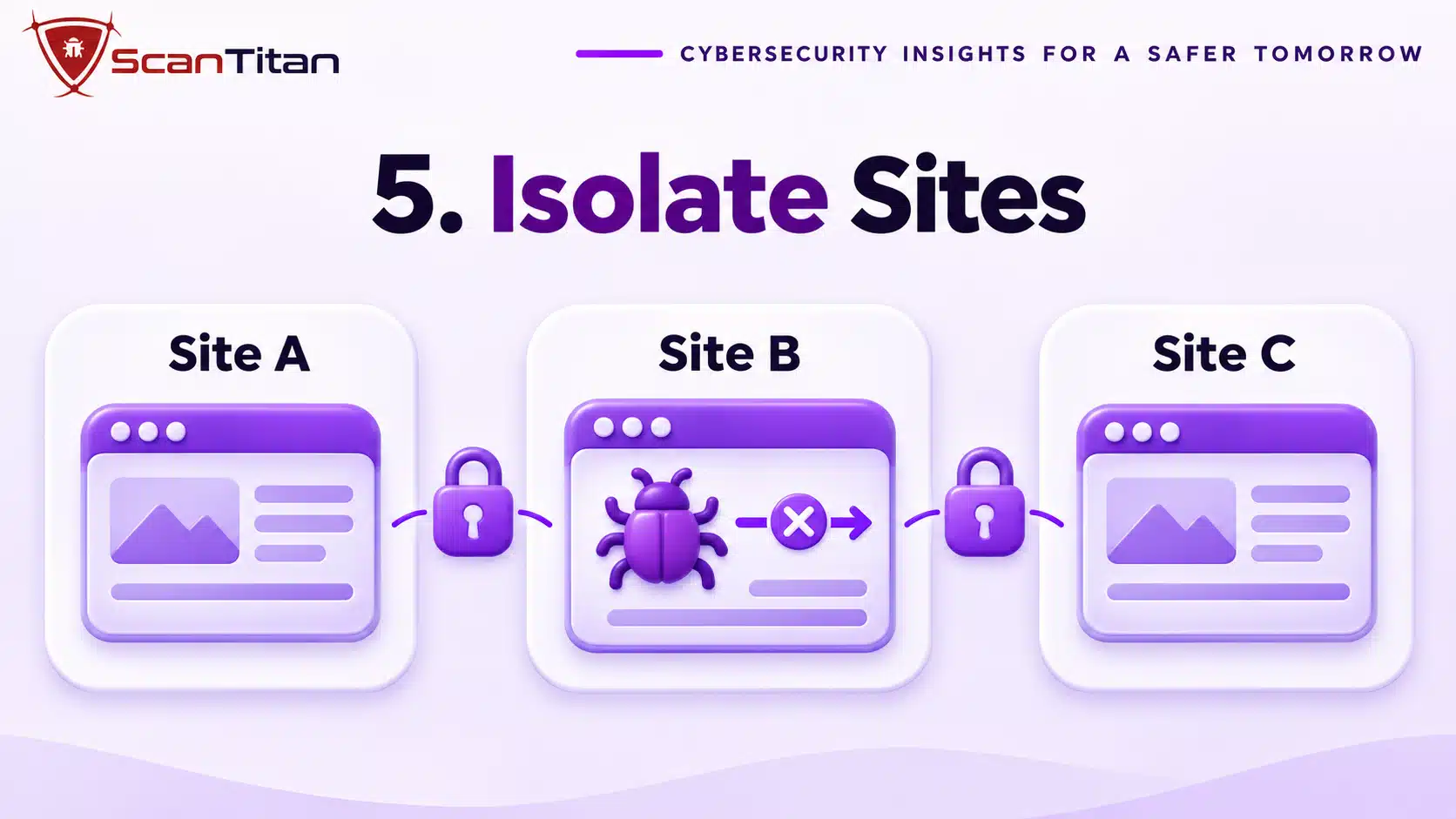
5. Isolate Sites on the Server
Isolation means each website runs in its own account, with its own user, folders and database, so infection cannot cross from one site to another. Ask your host whether sites are isolated, and avoid putting several unrelated sites in one hosting account or one folder tree. Give every site its own database user with access to only that database. Isolation is the control that prevents the reinfection loop where you clean one site and a neighbour restores the malware. It does nothing against a vulnerable plugin on the site itself, so it complements controls 1 and 2 and does not replace them.
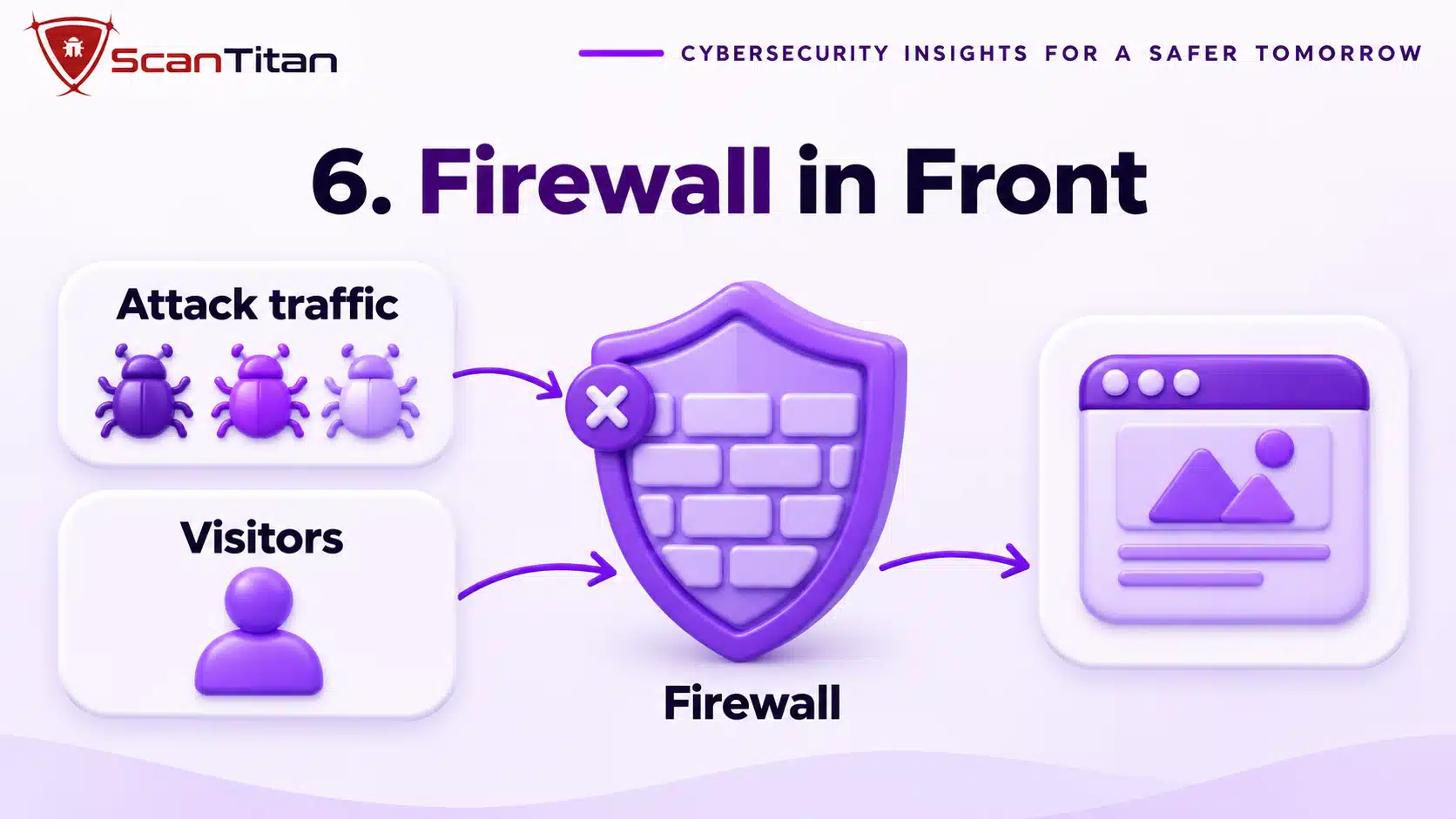
6. Put a Firewall in Front of the Site
A web application firewall, or WAF, is a filter that sits between visitors and your site and blocks requests that match known attack patterns, such as SQL injection or a request for a vulnerable plugin file. Some also offer virtual patching, which blocks an exploit for a flaw before you can update. A firewall reduces automated attacks a lot, but it has limits: it cannot see a login with a stolen password, it does not remove malware that is already on the server, and it misses attacks that look like normal traffic. Treat it as one layer next to patching and scanning, and not as the whole defence.
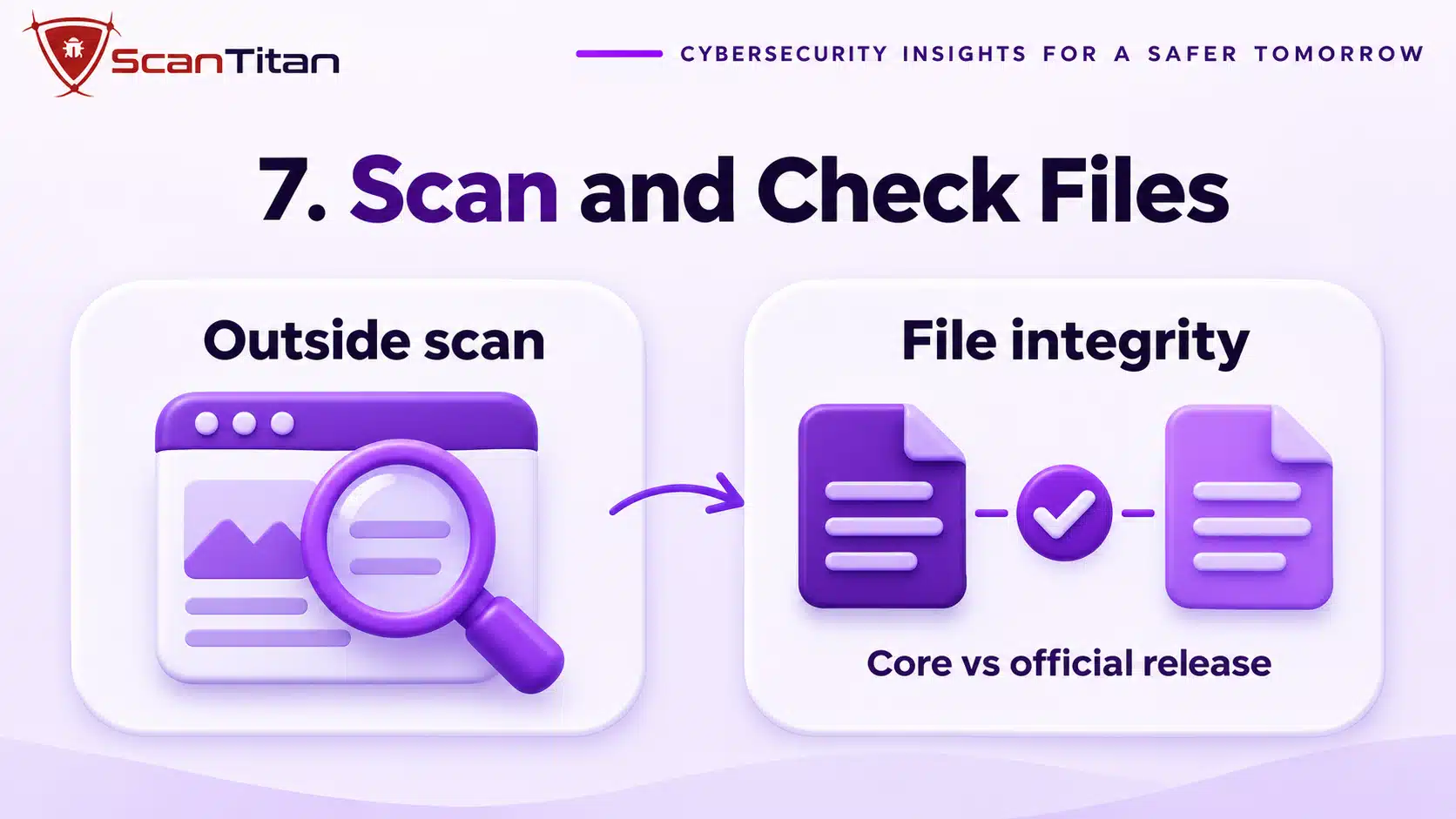
7. Scan From Outside and Check File Integrity
A malware scan checks your site for code that should not be there, and an integrity check compares your files with the official release. Run both on a schedule, because a firewall cannot tell you that an attacker already got in. On WordPress, wp core verify-checksums compares core files with WordPress.org, and our guide on WordPress core files modified explains each result. Start with a free website malware scan from outside, because it sees what visitors and search engines see. A scan finds an infection but does not prevent one, and a clean result only means nothing known was found.
8. Keep Tested Offsite Backups
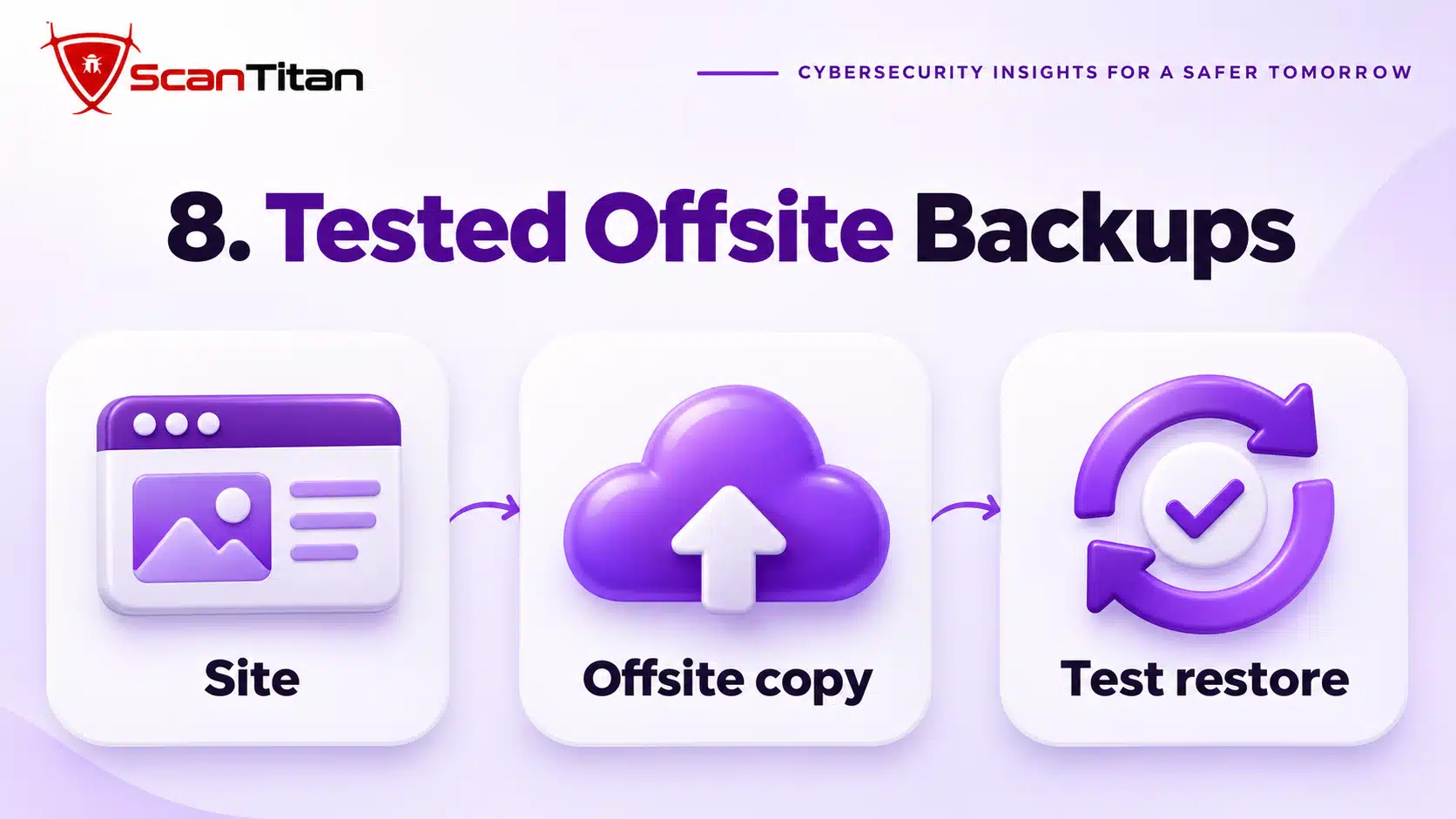
A backup is a copy of your files and database that lets you rebuild the site after an attack, and it only counts if it is stored away from the server and you have tested a restore. Keep at least one copy in a different place from your host, keep several dated versions, and set the schedule by how often your content changes. Restore a backup to a test site once, so you know the steps before an emergency. Backups do not stop an attack, and a copy taken after the infection brings the malware back. Our guide on what to do when a website is hacked shows how to pick a clean copy.
9. Turn Off the File Editor and Block PHP in Uploads
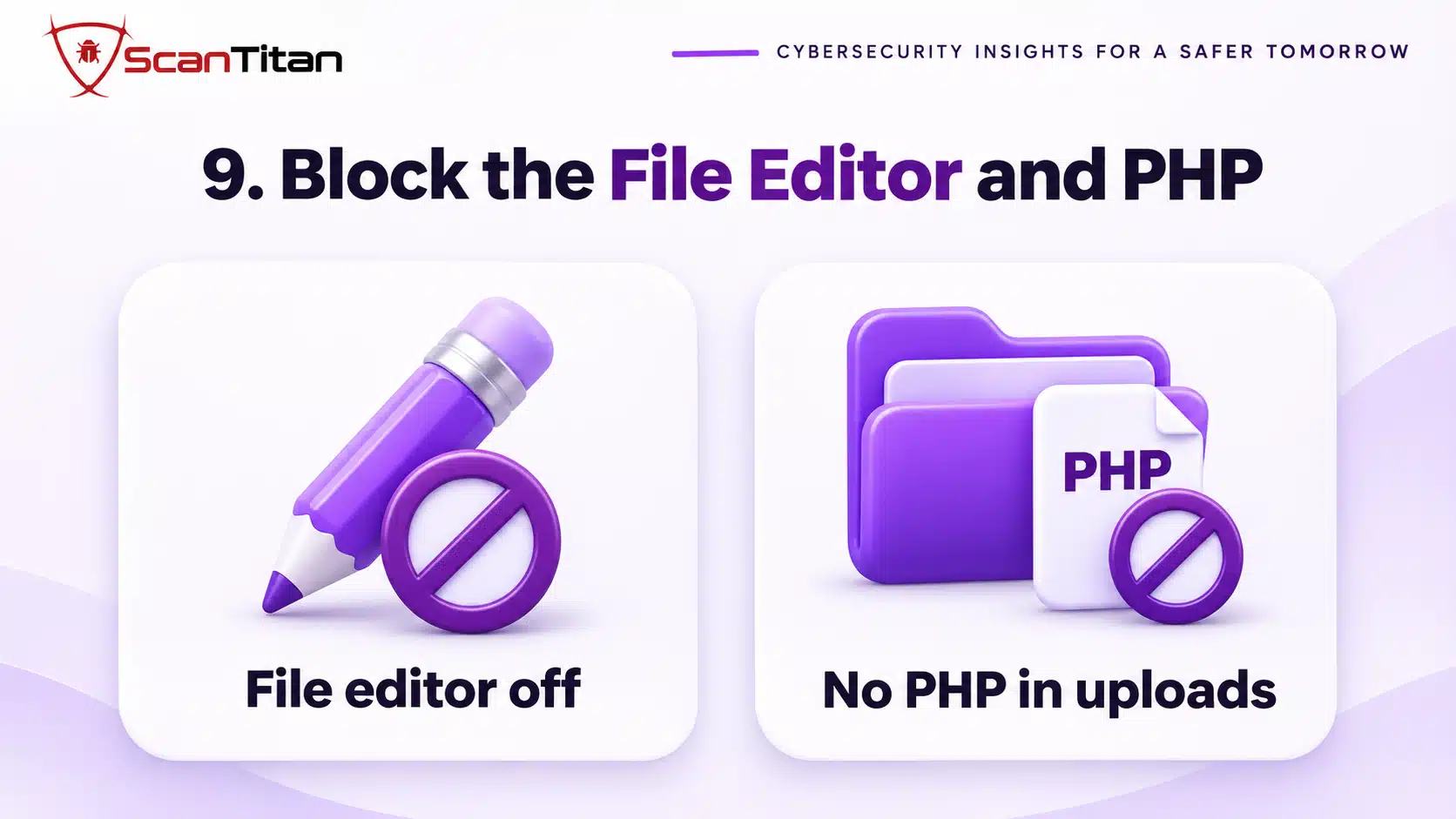
Two settings stop attackers from turning a small foothold into code execution. First, add define( 'DISALLOW_FILE_EDIT', true ); to wp-config.php, which removes the dashboard file editor. The WordPress hardening guide notes that this will not stop an attacker from uploading files, but it can stop some attacks. Second, stop PHP files from running in the uploads folder, because media files never need to execute. On Apache, a rule in the uploads folder does it, and nginx needs a location rule instead, so ask your host if you are unsure. Also restrict which file types any upload form accepts. This does not fix a vulnerable plugin that writes files elsewhere.
10. Control Third-Party Scripts
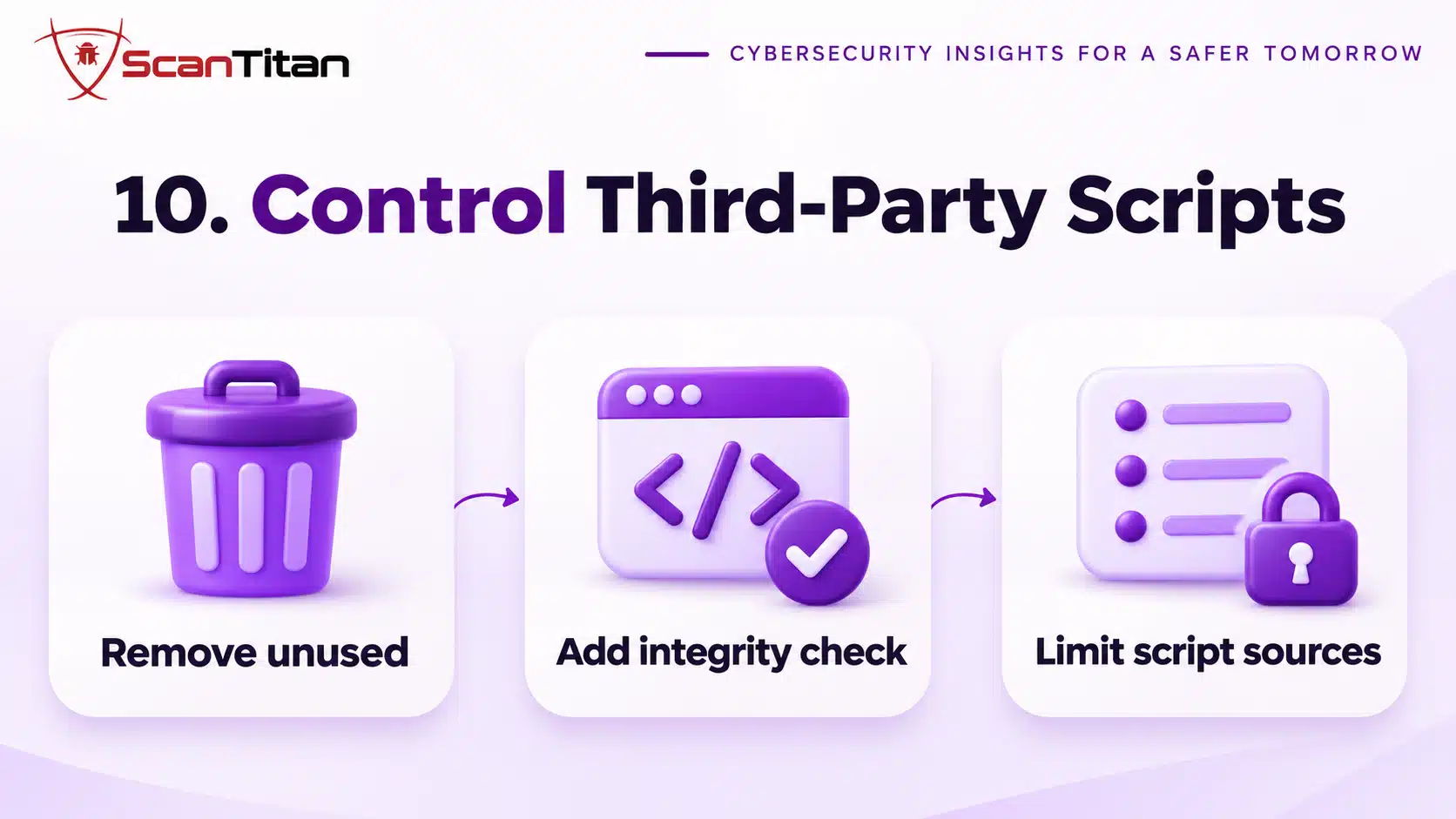
Third-party scripts run with the full power of your page, so load as few as you can and know who owns each one. Remove unused analytics, chat and tag manager scripts, and limit who can edit the tag manager, because an attacker who reaches it can inject code into every page. For a script you must load from another domain, add a Subresource Integrity attribute, such as integrity="sha384-..." with crossorigin="anonymous", so the browser refuses a changed file. A Content Security Policy can also limit where scripts load from. Our guide on malicious JavaScript on a website shows what injected code looks like.
11. Watch Logs, Admin Accounts and Search Console
Monitoring means you learn about an attack in hours instead of months. Check the list of administrators every week, watch for new PHP files and changed core files, and read the Security Issues and Manual actions reports in Google Search Console, which can show a hack before any visitor reports it. Ask your host for access logs and look for repeated requests to one PHP file. Monitoring does not block an attack, but it shortens the time an attacker has, and that limits the damage. See how Google flags hacked sites in our guide to checking whether a website is blacklisted.
12. Write a Response Plan Before You Need It
A response plan is a short document that says who does what in the first hours of an incident, and it saves the time that attackers use. Write down where the backups are, how to put the site into maintenance mode, who can contact the host, and the list of passwords to rotate: hosting, SFTP, database, WordPress admins and secret keys. Add the contact for a professional cleanup. A plan does not prevent anything, but a site that is cleaned in a day loses far less than one that is cleaned in a week. Our first 24 hours guide is a ready template.
Video: the independent channel Emit.Reviews walks through securing a WordPress site in about 12 minutes. It is about a year old and uses WordPress examples, so treat it as a companion to the controls above.
What Does Not Protect a Website
Four popular tips give less protection than their place on checklists suggests. An SSL certificate encrypts traffic between the browser and your server, and every site should have one, but it does nothing against a vulnerable plugin or a stolen password. Hiding the WordPress login URL slows bots, and the WordPress hardening guide itself files that kind of change under security through obscurity. A scanner alone detects a problem but blocks nothing, and a firewall alone cannot see what already got in. The most dangerous belief is that attackers ignore small sites, because their tools attack every site that runs a flawed version, whatever its size.
Where a Small Site Should Start
If you run a small WordPress or similar site and have one hour, this order closes the most paths first.
- Update core, every plugin and every theme, and delete the ones you do not use.
- Turn on two-factor authentication for every administrator and replace reused passwords.
- Delete admin accounts nobody uses and rename any account called admin.
- Create an offsite backup and restore it once to a test site.
- Add a firewall in front of the site, either through your host or a plugin.
- Run a free website malware scan and book a weekly repeat.
If You Think the Site Is Already Hacked
Prevention does not help once an attacker is in, so check first. Signs include redirects that only some visitors see, spam pages in Google, new administrator accounts and a browser warning. Run the checks in our guide to the signs of website malware, then follow how to fix a hacked WordPress site. Do not just delete the visible file, because the attacker usually left a second way back in. If you cannot find the entry point, or the site handles logins or payments, ScanTitan’s website malware removal service finds it and removes it.
How to Protect a Website From Hackers FAQ
How can I make my website secure?
Start with five controls: update everything and delete unused plugins, turn on two-factor authentication, keep a tested offsite backup, put a firewall in front of the site and scan it weekly. These close the most common entry paths. Then add the remaining controls in this guide as time allows.
Is an SSL certificate enough to protect a website from hackers?
No. SSL encrypts the connection between visitor and server, so it protects data in transit, and browsers expect it. It does not stop attackers who exploit a vulnerable plugin, guess a password or upload a malicious file, so treat it as a requirement and not as protection.
Do hackers target small websites?
Yes. Attacks are automated and scan the internet for software with known flaws, so a small site with an outdated plugin is as easy to hit as a large one. Attackers use hacked small sites to send spam, host phishing pages and redirect visitors.
How do I know if my website has been hacked?
Look for redirects, spam pages in Google results, unknown administrator accounts, changed core files, a browser warning and a Search Console security alert. A clean-looking site does not rule out a hack, so scan it from outside and compare core files with the official release.
Do I need a firewall if I already scan my site?
Yes, because they do different jobs. A firewall blocks many attacks before they reach the site, while a scanner finds an infection that already got in. A firewall cannot see a stolen login, and a scanner cannot block an attack, so use both together.
What is the most common way websites get hacked?
Vulnerable software, mainly outdated plugins and themes, followed by stolen or guessed logins. Patching quickly, removing unused plugins and using two-factor authentication close the two largest paths, which is why they come first in this guide.