
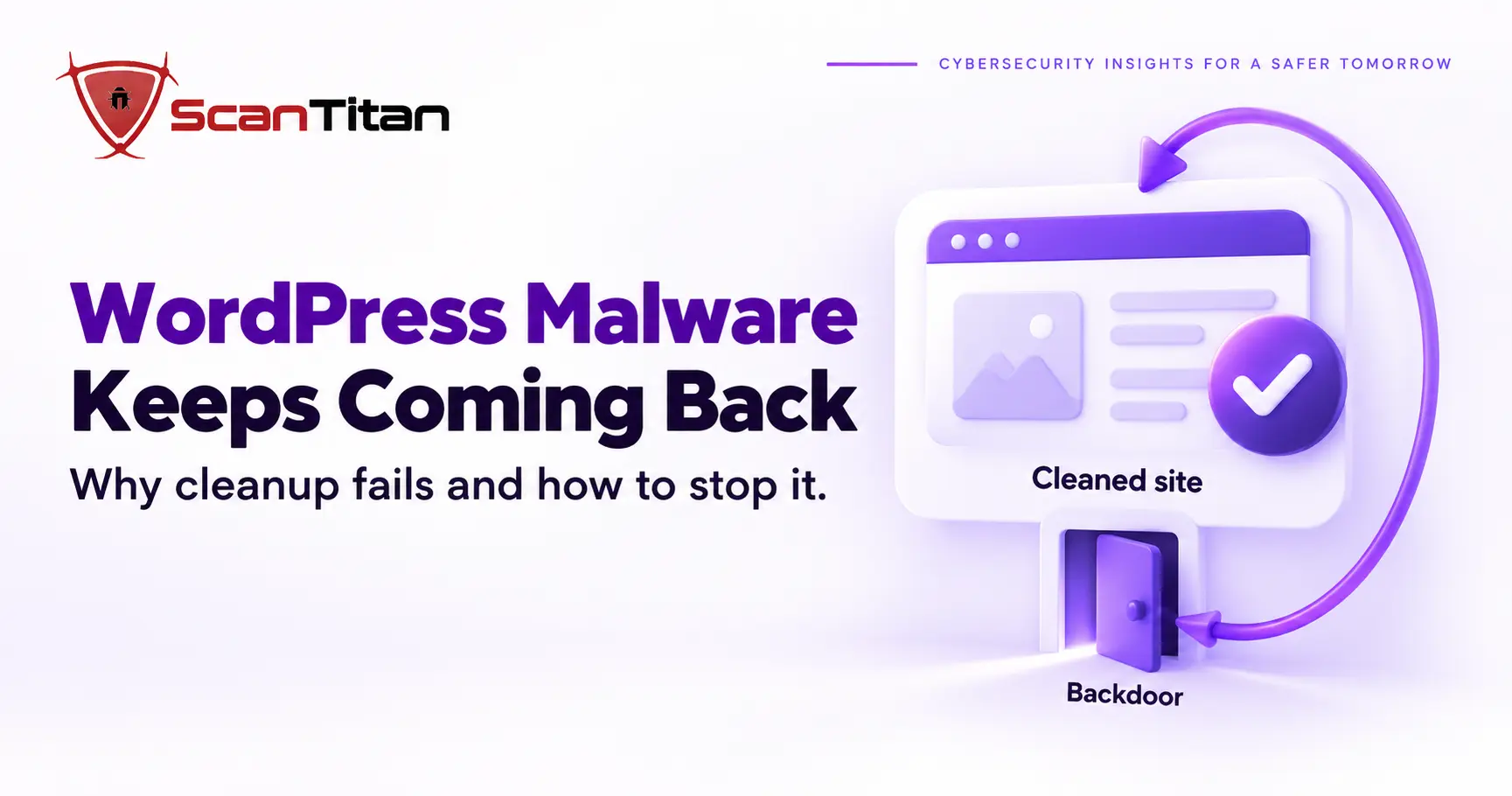
WordPress malware keeps coming back when cleanup removed what you could see and left the way back in. The usual causes are a surviving backdoor, a hidden admin user, a malicious mu-plugin or cron job, a payload in the database, or the original unpatched hole. This guide shows how to tell reinfection from a new attack, find each of the seven sources with a specific check, close them in the right order, and confirm the site stays clean.
Why WordPress Malware Keeps Coming Back After Cleanup
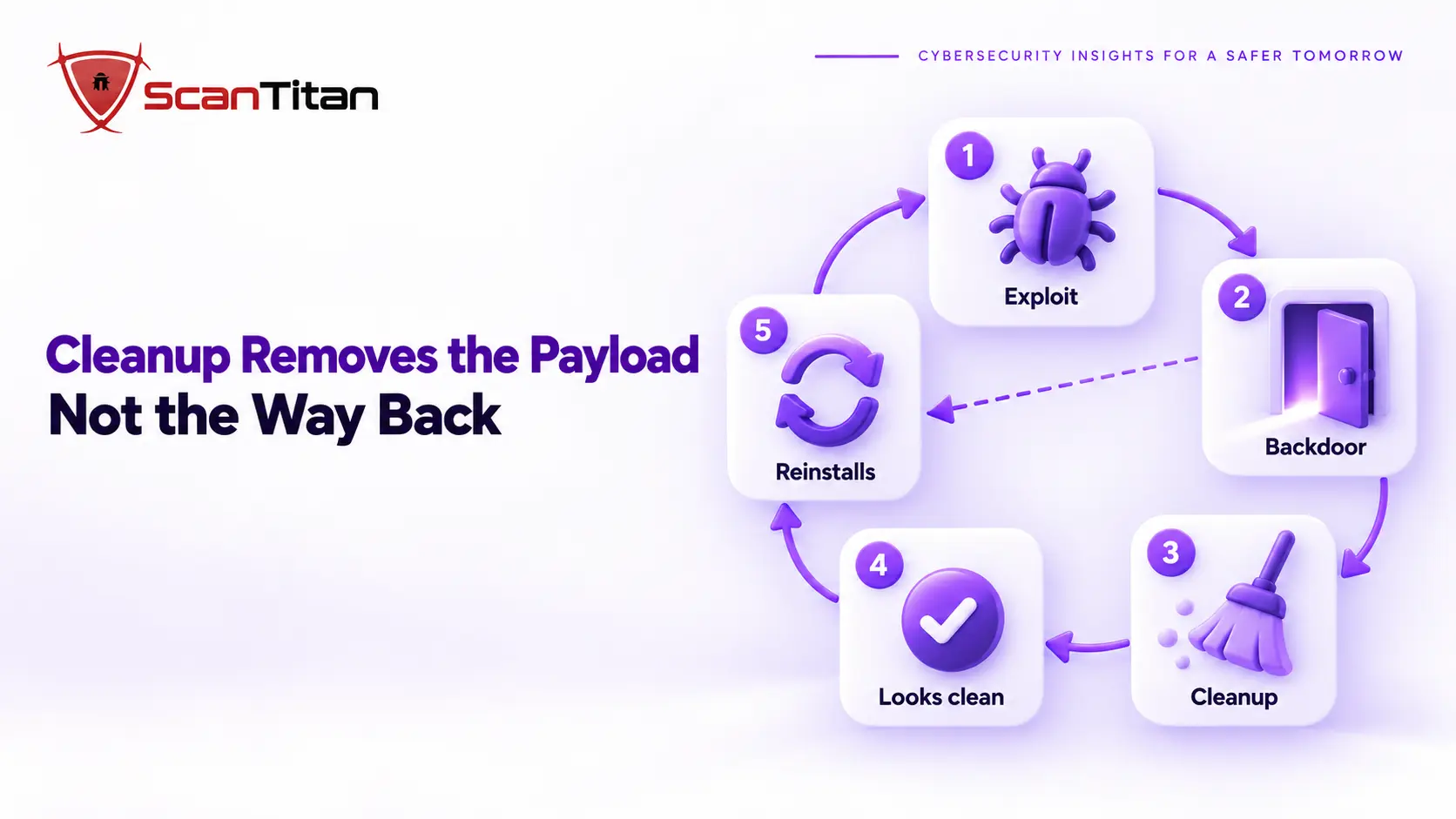
A compromise has three layers: the entry point that let the attacker in, the payload that does the damage, and the persistence that lets them return. Most cleanups delete the payload, because it is the part you can see, and then stop. The entry point is still open and the persistence is still in place, so the next automated visit rebuilds the infection, often within hours. I treat visible malware as a symptom. Reinfection is almost always a persistence or entry-point problem, not a sign that you missed one more infected file. If you have not yet cleaned the site once, start with our guide on how to remove malware from a website.
Reinfection or a New Hack: Why Did the WordPress Malware Return?
The two look the same on the surface, but they need different fixes. Reinfection means the same foothold survived. A new hack means someone used a different way in, which usually means the hole was never closed or a second one exists. Compare what you find now with what you removed last time, and read the first malicious request in the access log rather than the last one. The table below separates the signals. If most of your answers land in the left column, hunt for persistence. If they land on the right, hunt for the entry point.
| Signal | Points to reinfection | Points to a new attack |
|---|---|---|
| Timing | Returns within hours or days, often on a schedule | Returns weeks later, after an update or a new plugin |
| Files | Same filenames, same code, same folders as before | Different filenames and a different payload |
| Location | Files reappear that you deleted | Files appear in places that were clean |
| Log evidence | Requests to a file you thought was removed | First hit is a vulnerable plugin path or a login attempt |
| Best next step | Look for backdoors, admin users, cron jobs | Find the exploited plugin and rotate credentials |
Seven Reasons WordPress Malware Keeps Coming Back
The seven sources below are ordered by how often they explain a site that was cleaned and reinfected. Each one has a specific check you can run, and each one is the reason a scanner can report a clean site that is still compromised.
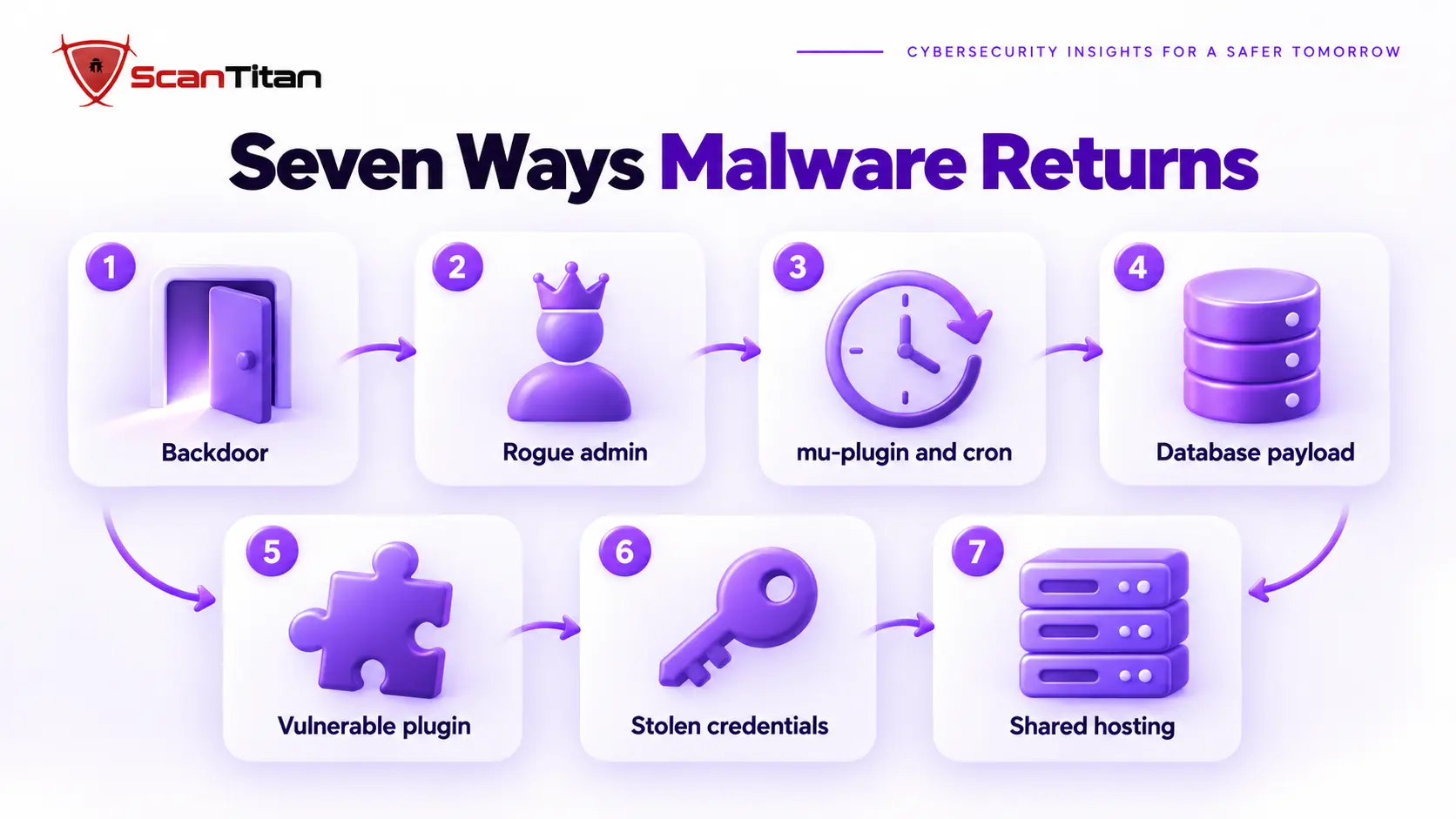
1. A Surviving Backdoor or Web Shell
A backdoor is a small file or code fragment that gives the attacker access without a password, and it is the most common reason cleanup fails. Attackers plant several, and they hide them in places you would not search: a fake image in the uploads folder, a file named like a core file, or a few lines added to a legitimate plugin. If you remove nine and miss the tenth, the tenth reinstalls the other nine. Read how a web shell works to know what to look for, and treat any PHP file that accepts input from a request and passes it to a function like eval or system as hostile until proven otherwise. MITRE ATT&CK lists this technique as Server Software Component: Web Shell, which attackers use to keep access after the first compromise.
2. A Hidden or Rogue Admin User
An attacker with an administrator account does not need a backdoor file at all. They log in, install a plugin, and the malware is back through the front door. Some accounts are easy to spot, such as a random username with a throwaway email address. Others are hidden from the Users screen by code that filters the list, so the dashboard shows nothing unusual. Check the database directly, not just the dashboard, and look at registration dates that do not match any real hire or contractor. Deleting the user fixes nothing if the code that recreates it is still running, so look for that code too.
3. A Malicious mu-plugin, Cron Job or Auto-Prepend File
Three mechanisms run code without you activating anything. Must-use plugins in wp-content/mu-plugins load automatically on every request and appear on a separate tab in the plugin screen that few people open. WordPress cron events can store a scheduled task that downloads and rewrites the malware every hour. And a PHP setting called auto_prepend_file, set in .htaccess, .user.ini or php.ini, makes the server run a chosen file before every script. Each of these survives a full wipe of your plugins and themes, which is why the infection returns even after you reinstall everything.
4. A Payload Stored in the Database
Many cleanups only touch files, and the database holds a second copy of the infection. Attackers insert JavaScript into post content, widgets, and the wp_options table, or change the siteurl and home values so visitors are sent elsewhere. A file scan never reads these rows, and restoring files from a backup leaves them in place. Search the options, posts and postmeta tables for script tags, iframes and long encoded strings, and compare your active plugins list against what you actually installed. Look for option names you do not recognize, because malware often stores its own settings there.
5. The Vulnerable Plugin or Theme That Let Them In
If the original vulnerability is still there, the attacker or the next automated scanner simply uses it again. Plugins and themes are the usual entry point, including copies that are deactivated but still on disk, because a vulnerable file can often be reached directly by URL. Check every plugin and theme against its current version, remove anything abandoned or unused, and read the changelog of the last update for security fixes. Use the access log to find the first malicious request after the previous cleanup, since the path in that request names the vulnerable component more reliably than any scanner report.
6. Stolen Credentials That Were Never Rotated
A malware removal changes files, but it does not change who knows your passwords. If the attacker took your FTP, SFTP, hosting panel, database or administrator password during the first compromise, they can log back in and reinstall everything. The same is true of authentication salts in wp-config.php, which control whether stolen login cookies still work. Rotate everything: hosting and SFTP passwords, the database password, every WordPress administrator and editor password, API keys, and the salts. Changing the salts logs out every session, which is exactly what you want after a compromise.
7. Cross-Contamination From Other Sites or Accounts
On shared hosting, several sites often live in one account, and an infected neighbor can reinfect a clean site because they share permissions. A forgotten staging copy, an old test site or a second domain in the same hosting account is enough. Clean one site while the others stay infected and the malware simply crosses back over. List every site and folder under the account, scan them all together, and delete anything you no longer use. If the host runs several customers on one account with weak separation, moving the site to isolated hosting may be the only durable fix.
Why a Clean Scan Does Not Mean the WordPress Malware Is Gone
A scanner compares files against known patterns, so it misses what it cannot read or what is not a file. A new obfuscated backdoor has no signature, a database payload is outside its scope, and a rogue admin account is not malware at all. A clean report therefore proves only that nothing known was found in the places it looked. I never accept a green result as proof when a site has been reinfected once already. Our article on why a scanner says clean when the site is still infected explains each blind spot, and the checks below cover the ground a scanner leaves open.
How to Find the Backdoor Behind Recurring WordPress Malware
Run these checks on a copy of the logs and files, in this order, and write down every result before you change anything.
- Verify WordPress core against the official checksums. The WP-CLI command
wp core verify-checksumsreports any core file that differs from the release. Addwp plugin verify-checksums --allfor plugins hosted on WordPress.org. - Search the uploads folder for PHP, since media folders should not contain code. Command:
find wp-content/uploads -name "*.php" - List every administrator and compare it to the people you know. Command:
wp user list --role=administrator --fields=ID,user_login,user_email,user_registered - Review scheduled tasks for events you did not create. Command:
wp cron event list - Open the must-use plugins folder and the server config files, and look for
auto_prepend_filein.htaccessand.user.ini. - Query the database for injected script and changed URLs in the options, posts and postmeta tables.
- Read the access log from before the first reinfection and note the first request to a file or path that should not exist.
The Cleanup Order That Stops WordPress Malware Coming Back
The order matters more than the tools. If you clean before you close the entry point, the attacker undoes your work. If you restore a backup before you patch, you return to a state that was already vulnerable, and a backup taken after the first infection may carry the backdoor with it. Follow this sequence.
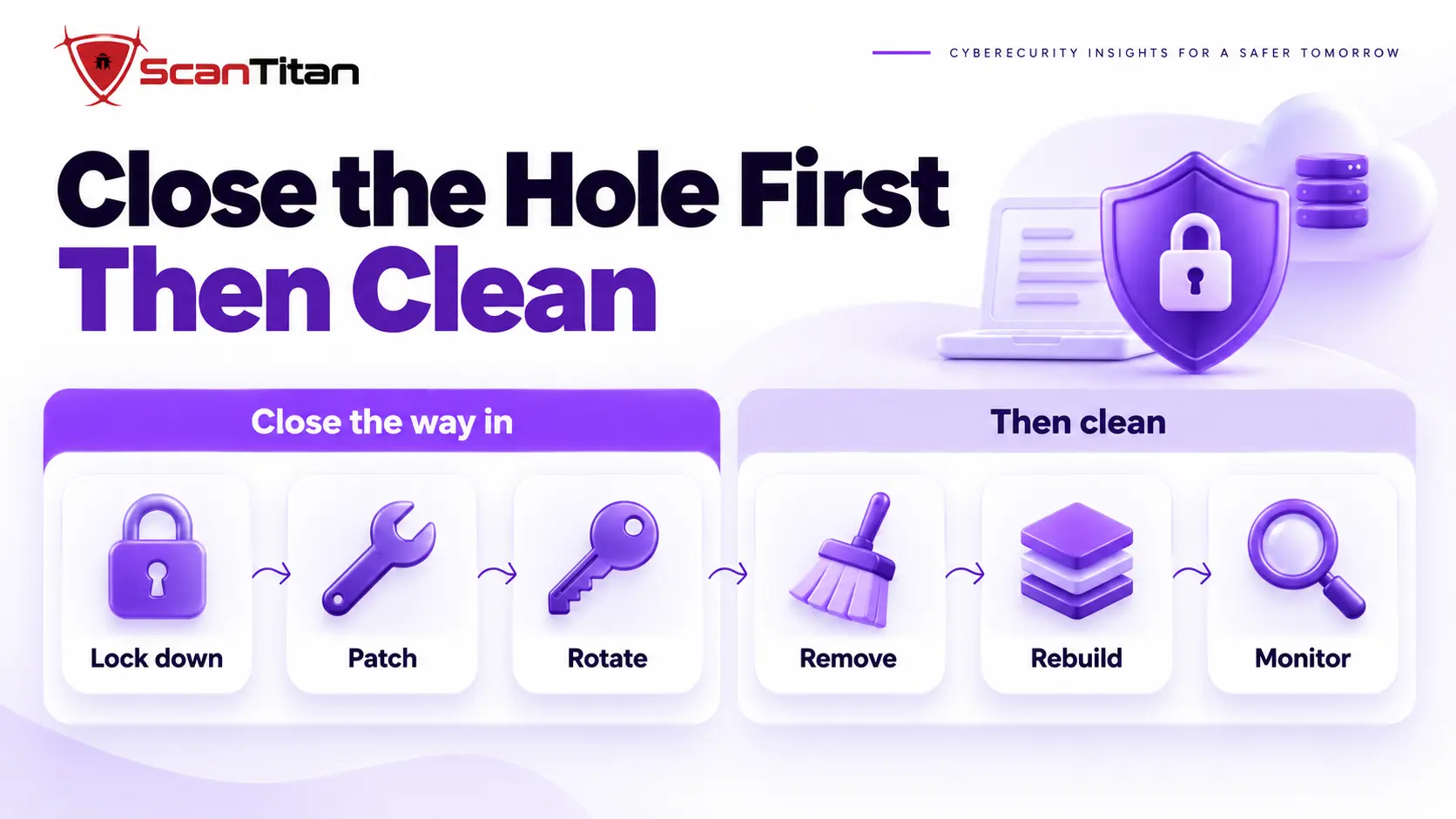
- Lock the site down with maintenance mode or a temporary access restriction so the attacker cannot keep writing files while you work.
- Patch or remove the vulnerable plugin, theme and WordPress version that let them in.
- Rotate every credential, including hosting, SFTP, database, administrator accounts and the salts in
wp-config.php. - Remove the persistence: backdoors, rogue users, mu-plugins, cron events,
auto_prepend_fileentries and database payloads. - Rebuild core, plugins and themes from fresh copies, and keep only your own uploads and content after scanning them.
- Reopen the site and watch it, using the checks in the next section.
If you are unsure about the first hours, our guide on what to do when your website is hacked covers the immediate steps.
How to Confirm WordPress Malware Will Not Return
A single clean scan is not confirmation. Reinfection typically shows up within days, so verification has to run over time. Use these checks for the first two weeks.
- Compare core and plugin checksums every day for the first week, and any difference is a signal to investigate the same day.
- Monitor file changes so a new PHP file in uploads or a modified core file raises an alert instead of waiting for the next scan.
- Review administrators, cron events and mu-plugins after each day of traffic, since persistence usually reactivates on schedule.
- Watch the access log for requests to files that no longer exist, because attackers keep probing for their old backdoors.
- Scan the site with more than one tool, and check Google Search Console for security issues and unexpected indexed pages.
When Recurring WordPress Malware Needs a Professional
Get help when the site is reinfected a third time, when you find malware outside the WordPress folder, when customer data or payments were exposed, or when you cannot find the first malicious request in the logs. These signs usually mean the compromise reached the server account, not just the site. At that point more manual cleanup costs you days and risks another reinfection, and every extra day of infection can mean blocklist warnings, lost search traffic and unhappy customers. A professional cleanup finds the entry point, removes every persistence mechanism and documents what happened. ScanTitan’s website malware removal service does exactly that.
Questions About WordPress Malware That Keeps Coming Back
Why does my WordPress site keep getting hacked?
Because the way in was never closed. The usual causes are a backdoor you did not find, a vulnerable plugin that is still installed, or passwords the attacker already stole. Cleaning the visible malware without fixing those lets the attacker return, and automated tools often do it within hours.
Can malware come back after restoring from a backup?
Yes, in two ways. The backup may have been taken after the first infection and carry the backdoor, or the backup may be clean but restore a site that is still vulnerable to the same exploit. Patch the vulnerability and rotate credentials before or immediately after the restore, and scan the restored files.
How do I find the backdoor?
Compare core and plugin files with the official checksums, search the uploads folder for PHP files, and look for files that changed on a day nobody updated anything. Then read the access log for requests to files that should not exist. A backdoor is usually small, and it often has an innocent name.
Is my hosting provider the reason it keeps coming back?
Sometimes. On shared hosting, an infected site in the same account can reinfect a clean one, and weak account separation makes that easier. Check every site in the account first. If the infection still returns after all of them are clean, ask the host about isolation, or move the site.
How long until I know the site is really clean?
Plan on watching it for 7 to 14 days. A single clean scan only tells you nothing known was found at that moment. Daily checksum comparisons, file change alerts and a review of admins and scheduled tasks give you real evidence, and reinfection almost always shows within that window.
Will changing my passwords stop the malware from coming back?
Not by itself. Passwords close one route, but a backdoor, a hidden admin account or a vulnerable plugin still lets the attacker back in. Changing passwords and salts is an essential step in the sequence, and it only works alongside patching and removing persistence.
How can I tell if my WordPress site has been hacked again?
Look for redirects that only some visitors see, administrator accounts you did not create, PHP files in the uploads folder, changed core files and a security warning in Google Search Console. If you have cleaned the site before and any of these return, treat it as reinfection, and run the checks in this guide before you clean again.
How do I remove WordPress malware for good?
Remove the entry point and the persistence, not just the visible files. Patch the vulnerable plugin, rotate every credential and salt, delete backdoors, rogue users, mu-plugins, cron events and database payloads, rebuild core and plugins from official copies, then watch the site for two weeks.