

WordPress core files modified is a scanner alert that means a file in your install no longer matches the official release for your version. It is not always a hack. A missing hello.php or an edited readme.html is usually harmless, but a changed file inside wp-includes that nobody edited, or an unknown PHP file in a core folder, often is one. You can tell the difference in about ten minutes with a checksum check, and this guide shows how, then how to fix each case.
wp core verify-checksums on the server. A mismatch in wp-includes or wp-admin that you never edited, or a PHP file that “should not exist” in a core folder, is a warning sign, so back up the site and reinstall core. Missing sample files such as hello.php, or a wrong version or locale, are usually harmless.What “WordPress Core Files Modified” Means
Every WordPress release ships with a public list of checksums, which are fingerprints that match each core file exactly. A scanner or the WP-CLI command wp core verify-checksums compares the files on your server to that list for your exact version and language. It reports three results: a file that “doesn’t verify against checksum” was changed, a file that “doesn’t exist” was deleted, and a file that “should not exist” was added. The alert tells you that something differs. It does not tell you who changed it or why, so the next step is to sort the harmless differences from the dangerous ones.
Core Files Modified: Harmless or Hacked?
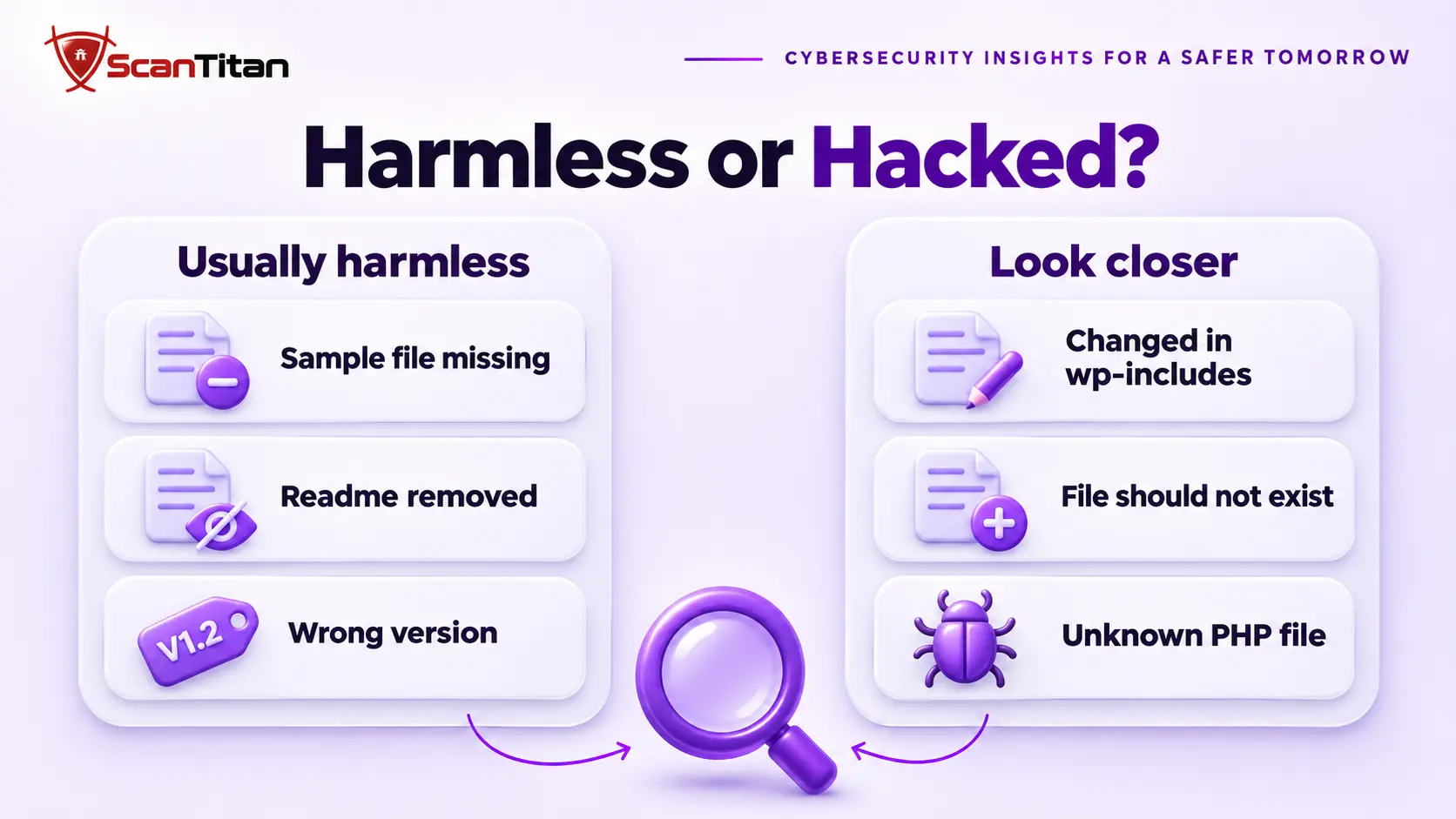
Most alerts come from ordinary causes, and a few come from attackers. A host or an installer may remove the sample plugin hello.php, a hardening guide may tell you to delete readme.html, and a wrong version or language setting makes the whole check fail at once. An attacker, on the other hand, edits a core file because that file runs on every request and few owners ever open it. A good rule is to ask whether anyone has a reason to touch the file: sample files and root text files have many harmless reasons, while wp-includes and wp-admin have almost none. The table below separates the cases by what the check reports and what to do next.
| What the check shows | Usual cause | How to confirm |
|---|---|---|
| hello.php or an index.php in wp-content “doesn’t exist” | Harmless: a host, an installer or you removed a sample file | Nothing to restore, and the file is safe to leave out |
| readme.html or license.txt missing or changed | Usually harmless: a hardening step that hides the version | Open the file and look for links or script tags you did not add |
| Every file fails to verify | False alarm: a wrong version or locale in the check | Run the check again with the correct version and locale |
| A file in wp-includes or wp-admin “doesn’t verify” | Suspicious: nobody should edit these files | Compare it with a clean copy of the same release |
| A PHP file “should not exist” in wp-admin or wp-includes | High risk: often a backdoor with a core-style name | Open the file and read it before you delete anything |
| wp-config.php looks wrong | Not covered: the official list never includes this file | Read it by hand for code you did not write |
How to Check Which WordPress Core Files Changed
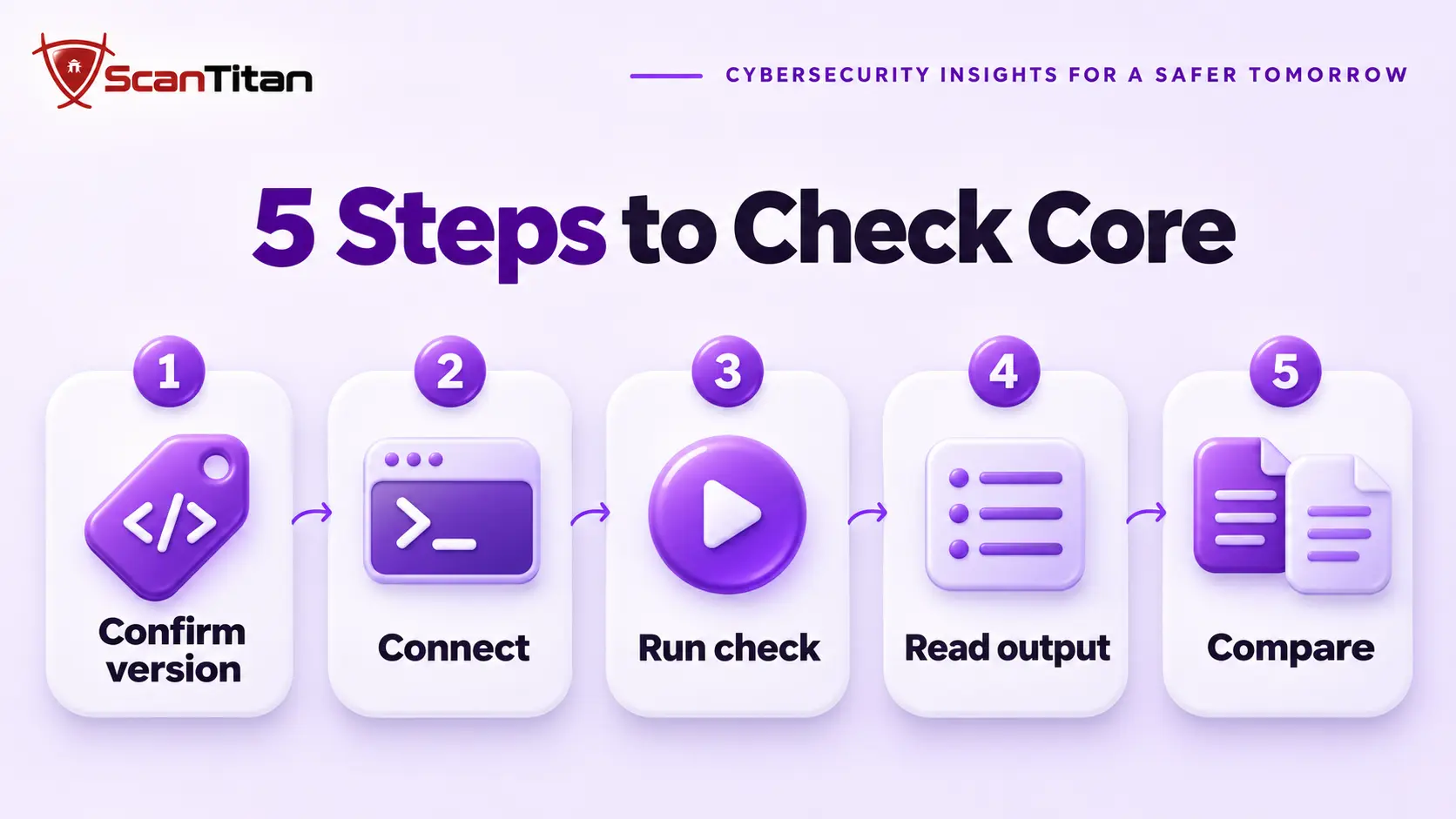
These steps take about ten minutes and give you a list of exact file names. Work on the live server, and write down every file the check reports.
- Confirm your WordPress version and language under Dashboard, Updates, because the check fails for every file when either one is wrong.
- Connect to the server over SSH, or open the terminal in your hosting panel, and move to the folder that holds wp-config.php.
- Run
wp core verify-checksumsand let it finish. Add--include-rootto also catch extra files in the top folder. - Read each result line and sort it with the table above: changed, missing or added.
- Compare every changed or added file with a clean copy of the same release before you decide it is safe.
Reading the Output Line by Line
Each line of output names one file and one problem. A line that says the file doesn’t verify against its checksum means the content changed, and that is the line to take seriously when the path sits in wp-includes or wp-admin. A line that says the file doesn’t exist usually points to a sample file that someone removed. A line that says the file should not exist means the check found a file in a core folder that WordPress never ships, which is the pattern a backdoor uses to look official. If the check reports nothing, core is intact, and a hidden problem sits in plugins, themes, uploads or the database instead.
Checking Without SSH Access
Many shared hosts give no SSH access, and you can still check core without it. Download a clean copy of your exact version and language from WordPress.org, unzip it on your computer, and download the wp-admin and wp-includes folders from your site by SFTP. Then compare the two folders with a free diff tool such as WinMerge on Windows or Meld on Linux and macOS. Any file that differs, or exists on only one side, is a candidate. Some hosts also offer a built-in file scanner in the control panel, and a scanner that checks core files by checksum will give you the same list.
What Malicious Core File Changes Look Like
Attackers change core files in three common ways, and each one leaves a different trace in the check. Knowing the three shapes helps you read a file quickly, instead of staring at hundreds of lines of legitimate code.
Code Appended to a Real Core File
The most common change is a few lines added to the end, or the start, of a real core file, so the site keeps working while the attacker gets a way back in. A typical line decodes a hidden string or reads a command from the request and runs it, for example eval(base64_decode($_REQUEST['cmd']));. The check reports the file as changed, and a diff against the clean copy shows the extra lines at once. Our guide on obfuscated PHP malware explains how to read the long encoded strings that often hide such a line.
A Whole Core File Replaced
Sometimes an attacker swaps a core file for a longer or shorter version that adds a login bypass, a hidden admin account or a spam injector. The file name is correct, the file still loads, and the site seems normal, which is why owners miss it. The checksum check catches it every time, because the content no longer matches the release. When you find a replaced file, assume the attacker had write access to the whole install, and look for a second foothold such as a backdoor in the website before you close the incident.
A Fake Core File Name
The third pattern is an extra file whose name looks like core, such as wp-includes/class-wp-cache.php, wp-admin/user-new2.php or a random name with a core-style prefix. WordPress never ships these, so the check reports them as files that should not exist. The code inside is usually a web shell, a small script that lets the attacker run commands. Read the file before you delete it, because its contents often show what the attacker intended, and keep a copy for your records. Also check the file’s modified date, because a file dated days after the rest of core stands out. Our guide on the web shell shows what these files do.
How to Fix Modified WordPress Core Files
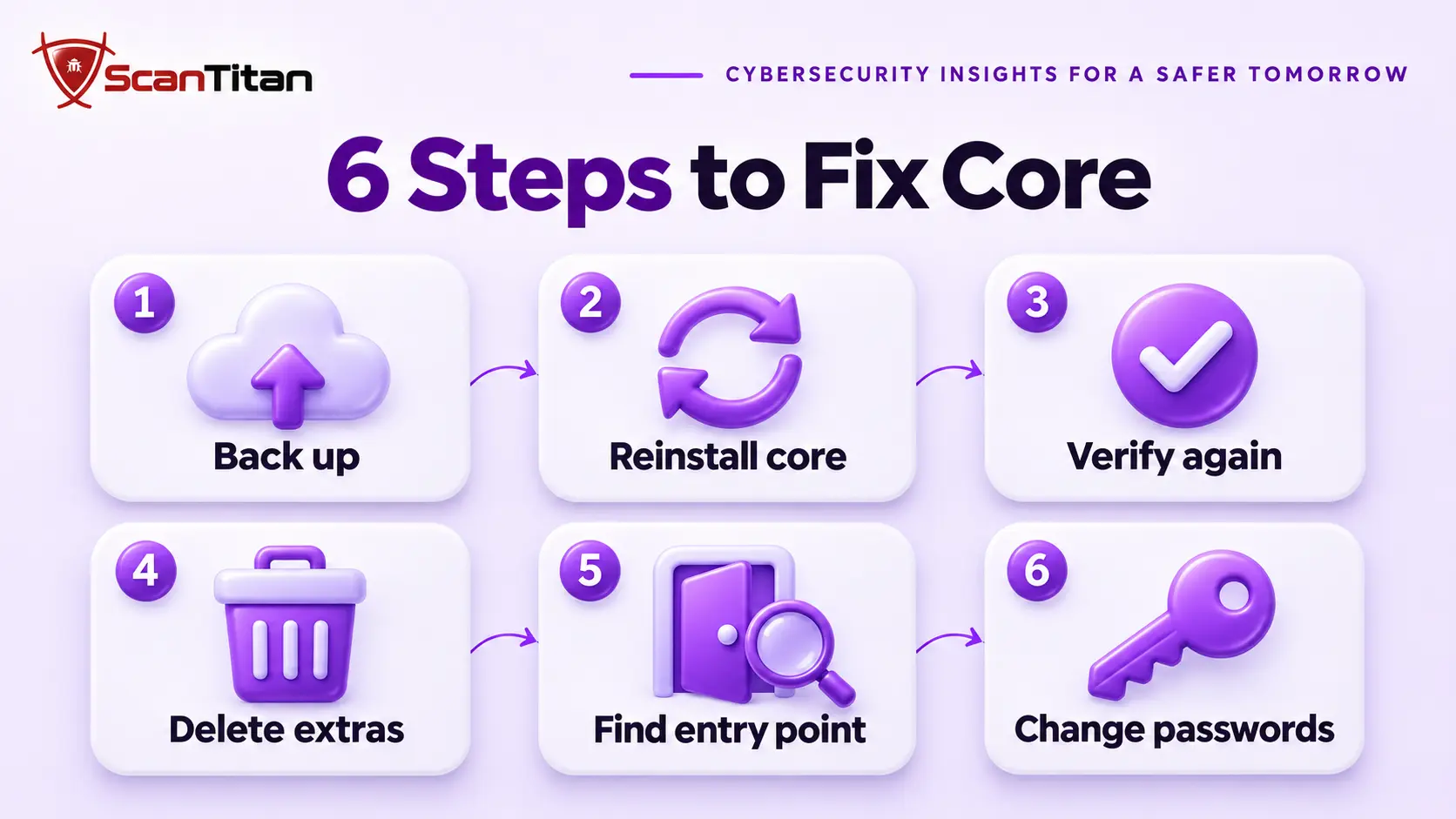
Reinstalling core is the fix, and it takes only a few minutes when you do it in the right order. The order matters, because you want evidence before you overwrite anything.
- Back up the site as it is now, files and database, so you keep the evidence and a way to roll back.
- Reinstall core from Dashboard, Updates, with the Re-install version button, or run
wp core download --force --skip-contentto overwrite core files and leave your themes, plugins and uploads untouched. - Run
wp core verify-checksumsagain and confirm that it reports no changed files. - Delete every file that “should not exist” after you read it and save a copy.
- Search for the way the attacker got in, starting with outdated plugins, nulled software and weak passwords, using our guide on how a website gets hacked.
- Change every administrator, database, SFTP and hosting password, and rotate the secret keys in wp-config.php.
Video: the web host 20i shows how it fixes modified WordPress core files on its own hosting. Your panel may look different, and it runs about 3 minutes.
When the Same Core File Keeps Changing
If the check passes after a reinstall and fails again days later, something on the server is rewriting the file, and reinstalling core again only resets the clock. The usual causes are a second backdoor outside core, a malicious must-use plugin or cron job that restores the change, or a stolen password that the attacker still holds. Reinstalling is necessary but never enough on its own in this case, because the change returns as soon as the hidden piece runs. Work through our guide on why WordPress malware keeps coming back, and check the mu-plugins folder first, since code there loads without appearing in the plugin list.
How to Stop Core Files From Changing Again
A few habits keep core clean and make a change obvious when it happens. None of them needs a developer.
- Update core, plugins and themes within days of each release, and delete any plugin or theme you do not use.
- Disable the file editor in the dashboard by adding
define( 'DISALLOW_FILE_EDIT', true );to wp-config.php. This blocks editing from a stolen admin login, but it does not stop an attacker who can already write files, so treat it as one layer. - Schedule a weekly
wp core verify-checksumsrun, or a scan that checks core by checksum, so a change reaches you within days instead of months. - Restrict who has SFTP and hosting access, use unique strong passwords and turn on two-factor authentication.
When Modified Core Files Need a Professional
Get help when the same file changes again after a reinstall, when you find a file that should not exist and cannot tell what it does, or when the site handles logins or payments. These cases usually mean the attacker had access for some time, and a single reinstall leaves other footholds behind. A professional cleanup compares core, plugins, themes, the database and the server’s scheduled jobs against clean copies, removes every foothold and then confirms the result from outside. ScanTitan’s website malware removal service covers that process, and you can start with a free website malware scan to see what is exposed.
WordPress Core Files Modified FAQ
What does WordPress core files modified mean?
It means one or more files in your install do not match the official release for your version. The file may have been changed, deleted or added. It is a reason to check, and it is not proof of a hack, because hosts, installers and hardening steps cause harmless differences too.
Is a modified core file always a hack?
No. A missing hello.php, a removed readme.html or a wrong version or locale in the check are common harmless causes. A changed file in wp-includes or wp-admin that you never edited, or an unknown PHP file in a core folder, deserves a close look.
How do I check which core files were modified?
Run wp core verify-checksums from the folder that holds wp-config.php. Without SSH access, download a clean copy of your exact version and compare the wp-admin and wp-includes folders with a diff tool. Either method gives you a list of changed, missing and added files.
Will reinstalling WordPress core delete my content?
No. Reinstalling core replaces the core files and leaves your database, themes, plugins and uploads alone. The wp core download command with the skip-content option does exactly that. Back up first anyway, because the backup also preserves evidence of what the attacker changed.
Why does wp-config.php not appear in the checksum check?
The official checksum list does not include wp-config.php, because every site’s file is different. That makes it a favorite hiding place, so read it by hand for code you did not write, and check wp-content, plugins and themes with separate tools.