
Why Does the Drupal Version Number Matter?
A Drupal version number is more than a technical detail. It tells you whether the installed core branch is still covered by the Drupal Security Team.
As of August 2026, the supported branches are:
- Drupal 11.4.x.
- Drupal 11.3.x.
- Drupal 10.6.x.
Drupal 10.5.x, Drupal 11.2.x, and earlier branches no longer receive security coverage.
Drupal 10 reaches end of life on December 9, 2026, so organizations using Drupal 10.6 should already be preparing for an upgrade to Drupal 11.
Older major versions are also unsupported:
- Drupal 7 reached end of life on January 5, 2025.
- Drupal 8 reached end of life in November 2021.
- Drupal 9 reached end of life in November 2023.
Once a branch reaches end of life, the Drupal Security Team stops releasing fixes for it, but researchers and attackers may continue finding weaknesses.
A website running the latest patch of a supported branch is in a much stronger position than a website left on an unsupported major or minor release.
How Do You Check the Drupal Version of Your Own Site?
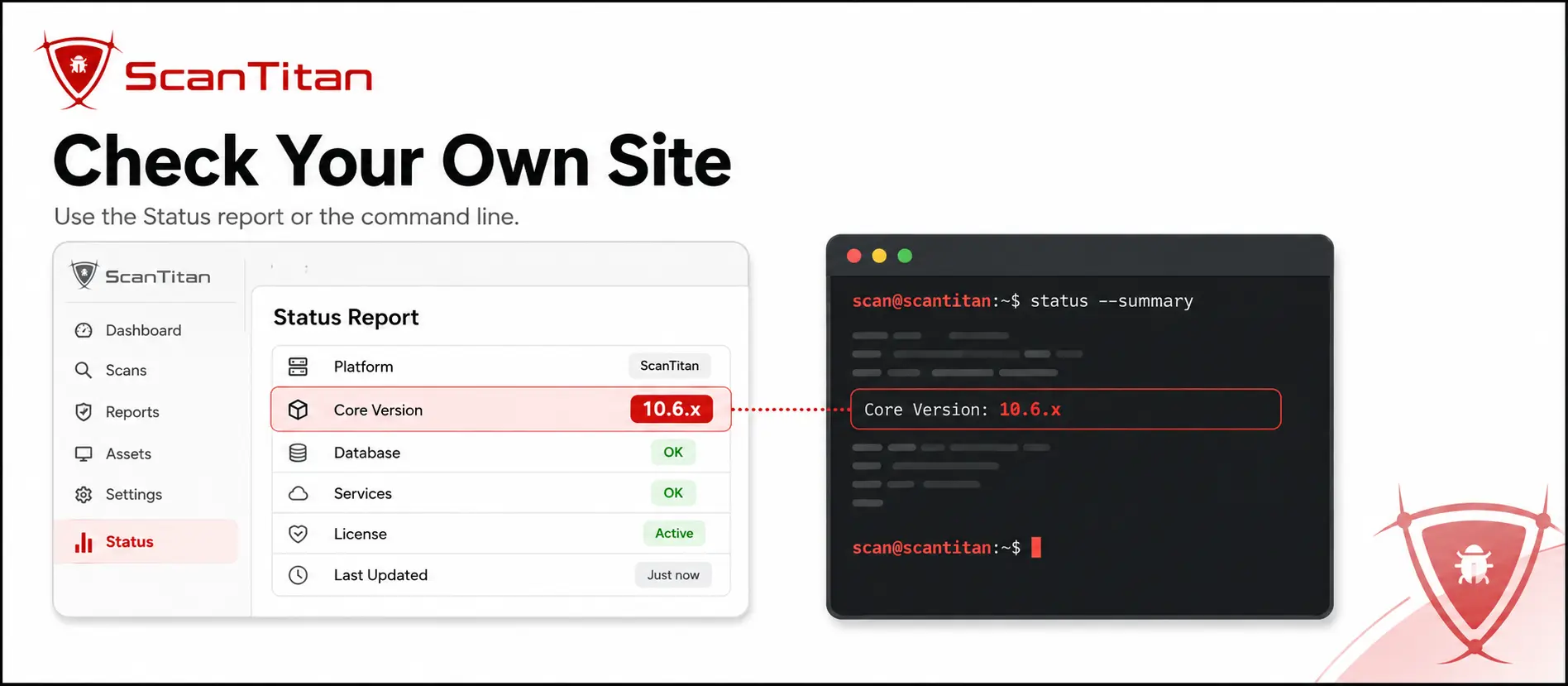
If you own the website or have legitimate administrative or server access, you can retrieve the exact version through the dashboard, command line, or source files.
1. Check the Status Report in the Drupal Admin Dashboard
The fastest method requires only an administrator login.
In the Drupal administration menu, go to:
Reports → Status report
You can also visit:
/admin/reports/statusDrupal displays the installed core version near the top of the Status report, alongside information about PHP, the database, the web server, trusted-host settings, and other configuration warnings.
While you are logged in, also open:
Reports → Available updates
Or visit:
/admin/reports/updatesThis page shows available updates for Drupal core, contributed modules, and themes.
If Drupal marks an available update as a security update, treat it as a priority. Do not wait for a routine maintenance cycle when the related advisory is highly critical or associated with active exploitation.
The dashboard method is usually the best option for site administrators because it reads information from the running installation rather than relying on an externally visible clue.
2. Check the Version with Drush or Composer
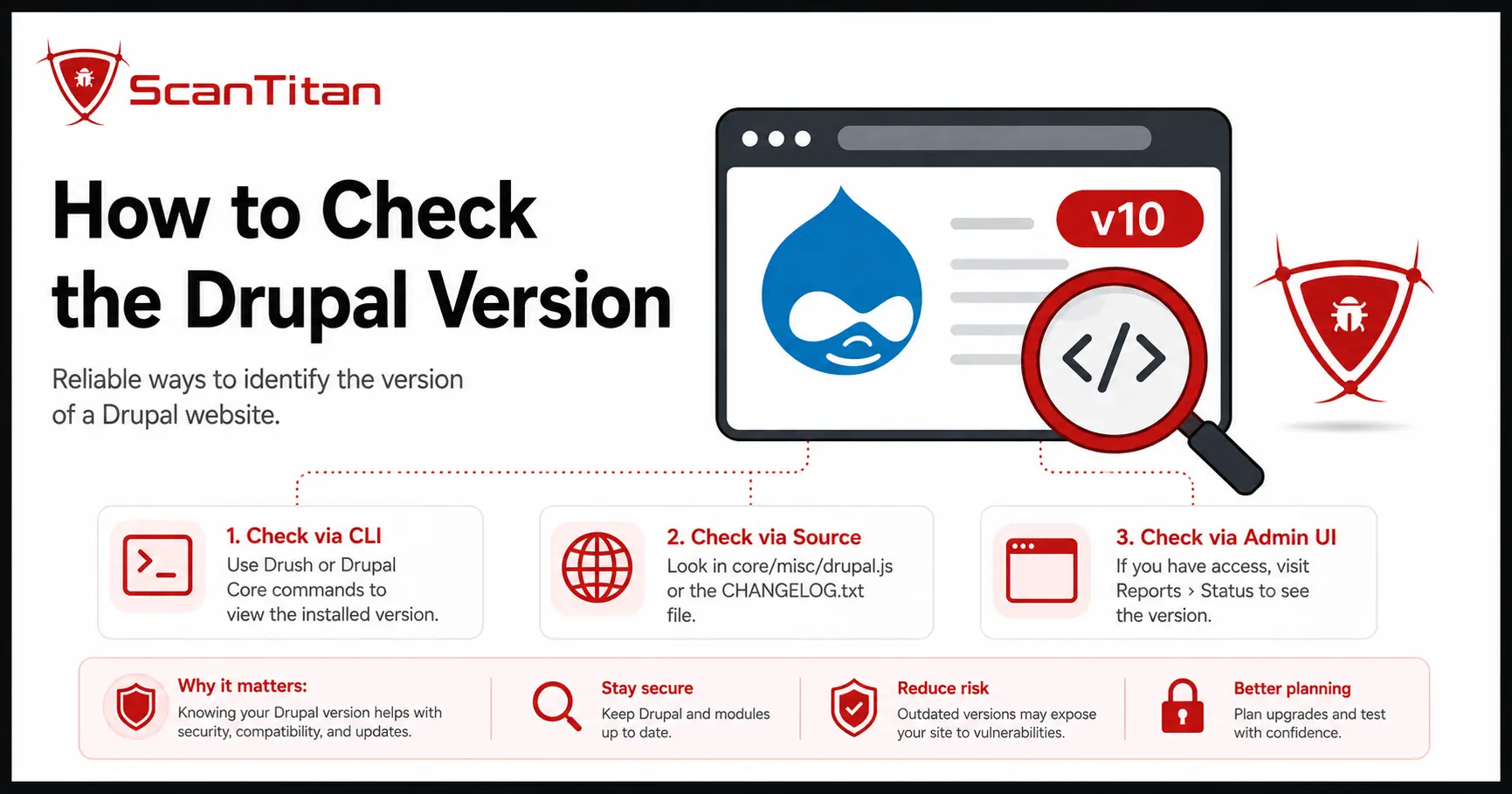
If you have SSH or command-line access, Drush and Composer provide fast and reliable options.
From the Drupal project directory, run:
drush statusLook for the Drupal version in the command output.
Drush retrieves the version from the bootstrapped Drupal installation, so the result reflects the site that is actually running.
For projects built with Drupal’s recommended Composer template, run:
composer show drupal/core-recommendedYou can also inspect the installed core package directly with:
composer show drupal/coreAnother option is to open composer.lock and search for either:
drupal/core-recommendeddrupal/core
The locked package version shows the exact core release installed by Composer.
Command-line checks are especially useful when you manage multiple Drupal websites because they can be scripted and incorporated into inventory, monitoring, or deployment workflows.
3. Check Drupal’s Core Files
If you have FTP, SFTP, hosting-control-panel, or file-manager access but cannot log in to Drupal, you can read the version from the installed files.
In Drupal 8 and later, open:
core/lib/Drupal.phpLook for the constant named:
VERSIONIts value identifies the installed Drupal core release.
Drupal 7 stores similar version information in:
includes/bootstrap.incDo not rely on core/CHANGELOG.txt to identify the exact patch version of a modern Drupal installation. In current Drupal releases, that file primarily contains general release-cycle information rather than a dependable exact-version header.
On Drupal 7, the root CHANGELOG.txt file may still reveal the installed release. However, file-level checks should be treated carefully when multiple deployments, incomplete updates, or leftover files may exist.
When possible, confirm the file result against Drush, Composer, or the Drupal Status report.
How Do You Check the Drupal Version of a Website You Do Not Control?
A website you do not administer requires a different approach.
Only assess websites you own or have explicit written permission to test. External version detection relies on public signals and does not guarantee an exact answer.
A hardened website may hide most or all obvious version information.
1. Inspect the Page Source and Public Asset Paths
Open the website in your browser and view the page source.
You can normally do this by pressing Ctrl+U or by right-clicking and selecting View Page Source.
Search the HTML for terms such as:
DrupaldrupalSettings/core//sites/default//modules/contrib//themes/contrib/
Some Drupal websites expose a generator meta tag that identifies Drupal and may occasionally indicate a major version. However, modern and well-hardened installations often omit this information.
The absence of a generator tag does not prove the site is not Drupal.
Asset paths can also provide useful clues:
- References to
/core/usually indicate Drupal 8 or later. - Legacy paths such as
/misc/drupal.jsmay indicate Drupal 7. drupalSettingscommonly appears in modern Drupal page output.
These signals can help identify the platform or narrow the major branch, but they rarely prove the exact patch release by themselves.
2. Check Predictable Drupal Files and Endpoints
Drupal installations include predictable files and paths that may be publicly reachable when the web server is not hardened correctly.
On an authorized target, you may check paths such as:
/CHANGELOG.txt/core/CHANGELOG.txt/core/install.php/update.php/core/misc/drupal.js/core/misc/druplicon.png
A Drupal 7 CHANGELOG.txt file may reveal the exact installed release.
On modern Drupal versions, core/CHANGELOG.txt should not be treated as a reliable source for the exact patch version. Other files and paths may confirm that the site uses Drupal without identifying the complete release number.
A 404 Not Found response does not prove the website is not Drupal. The site owner may have blocked or restricted the file, which is generally the correct hardening decision.
Use exposed files as one signal and compare them with page-source, header, asset, and fingerprinting results before reaching a conclusion.
3. Use Technology Fingerprinting Tools
Technology fingerprinting tools can automate the process of reading public signals.
Common options include:
- Wappalyzer.
- BuiltWith.
- WhatCMS.
- Authorized CMS fingerprinting scanners.
These tools may identify Drupal and sometimes infer a major branch, but they should not be expected to return the exact patch release consistently.
They rely on the same externally visible clues available in the HTML, headers, scripts, assets, files, and URL structure. A hardened website that hides those signals may appear as unknown or may be classified only at the CMS level.
For a definitive result on a website you are authorized to assess, combine passive fingerprinting with an approved active scan or authenticated access.
What Should You Do After Finding the Drupal Version?
A version number has value only when you use it to make a security decision.
Take the following steps after identifying the installed release.
Confirm That the Branch Is Supported
Compare the release with the currently supported Drupal branches.
As of August 2026, supported security coverage applies to:
- Drupal 11.4.x.
- Drupal 11.3.x.
- Drupal 10.6.x.
A website running Drupal 7, 8, or 9 is on an unsupported major branch.
A website running Drupal 10.5.x, Drupal 11.2.x, or an earlier minor release is also outside current security coverage, even though its major version may appear recent.
Do not check only the first number. Minor-branch support matters too.
Check Applicable Security Advisories
Compare the exact installed version against Drupal’s security advisories.
Review both:
- SA-CORE advisories for Drupal core.
- SA-CONTRIB advisories for contributed modules and themes.
A CVE identifies a publicly disclosed vulnerability, but the advisory explains which versions are affected, which configurations are required, and which release contains the fix.
Do not assume every CVE associated with Drupal affects your installation. Version range, enabled modules, database type, permissions, configuration, and exposure can all affect applicability.
Verify the Exposure with an Authorized Scan
Knowing the version tells you which vulnerabilities may apply.
A scan can then check for:
- Vulnerable-version matches.
- Publicly exposed files.
- Reachable installation or update endpoints.
- Misconfigured permissions.
- Detectable contributed modules and themes.
- Unsafe registration or account-enumeration behavior.
- Other externally visible weaknesses.
ScanTitan’s Drupal Vulnerability Scanner maps identifiable versions and configuration signals to relevant advisories and provides evidence for findings that can be verified through the selected scan depth.
An external scan cannot always identify every installed component. Authenticated access may be required to confirm disabled modules, custom projects, exact releases, permissions, and private configuration.
Some findings may also require manual validation before exploitability can be confirmed.
For a broader assessment of the platform, read our guide explaining whether Drupal is secure and where the most important risks sit.
How Do You Hide the Drupal Version?
Public version disclosure is usually an informational exposure or hardening issue rather than a vulnerability by itself.
However, an exposed version can make reconnaissance easier by helping an attacker narrow the list of vulnerabilities and exploits that may apply.
You cannot make Drupal fingerprinting impossible, but you can reduce unnecessary disclosure.
Block Public Access to Unnecessary Files
Configure the web server, CDN, or web application firewall to restrict public access to files and endpoints that anonymous visitors do not need.
Examples may include:
CHANGELOG.txt- Development or documentation files.
- Backup archives.
- Configuration copies.
- Installation or update endpoints when they are not required.
- Directory listings.
Avoid modifying or deleting required core files without understanding how updates and integrity checks may be affected. Server-level access controls are usually safer and more maintainable.
Remove an Exposed Generator Tag
If the website outputs a generator meta tag, remove or suppress it through the theme, configuration, or an appropriate maintained module.
Remember that removing the tag does not remove the underlying vulnerability. Attackers may still identify Drupal through scripts, assets, response behavior, or file paths.
Keep the Website Patched
Version hiding must never replace patching.
A hidden vulnerable release remains vulnerable. Blocking version signals may slow basic reconnaissance, but updating to a supported and patched release removes the known weakness.
Monitor for New Exposure
A deployment, theme change, caching update, CDN rule, or server migration can make a previously blocked file reachable again.
Include version-disclosure checks in scheduled vulnerability scans and post-deployment security reviews.
Why Version Checking Should Be Part of a Larger Security Process
Checking the Drupal version is the first step, not the complete assessment.
Version checking is one input. scan the whole website and you also get the misconfigurations, exposed files and TLS issues that no version number reveals.
Teams that reduce their exposure consistently do four things:
- Maintain an accurate inventory.
- Keep core, modules, themes, PHP, and supporting software current.
- Subscribe to Drupal security advisories.
- Scan and review the live website on a schedule.
If you want to begin with a manual review, our guide to checking a website for vulnerabilities manually complements the methods in this article.
Frequently Asked Questions
Where do I find the Drupal version in the admin dashboard?
Log in as an administrator and go to Reports, then Status report, or visit /admin/reports/status. Drupal displays the installed core version alongside information about PHP, the database, the web server, and other configuration warnings.
Can I check the Drupal version without logging in?
Sometimes. On an authorized site, inspect the page source, review public asset paths, check predictable Drupal files, or use a fingerprinting tool. A hardened site may hide these signals, so external detection may identify only the platform or major branch rather than the exact patch release.
How do I check the Drupal version using Drush?
Run drush status from the Drupal project directory and read the Drupal version from the output. Drush retrieves the information from the bootstrapped site, which generally makes it more dependable than an externally visible file.
Which Composer command shows the Drupal version?
For a site using the recommended Composer template, run composer show drupal/core-recommended. You can also run composer show drupal/core or inspect composer.lock to find the exact installed core package version.
Does hiding the Drupal version make the site secure?
No. Hiding the version reduces unnecessary information disclosure but does not fix the underlying vulnerability. Attackers may still fingerprint Drupal through other signals. Patching to a supported release is the real security control.
How can I tell whether my Drupal version is out of date?
Compare both the major and minor branch with the current Drupal support schedule. As of August 2026, Drupal 11.4.x, 11.3.x, and 10.6.x receive security coverage. Drupal 10.5.x, Drupal 11.2.x, and earlier branches are unsupported.