

db_version schema number and a cached core-update record whose version_checked field records the installed release at the last update check. This guide shows the accurate way to find it through phpMyAdmin, SQL, and WP-CLI, and links each result back to real security risk.
Short answerWordPress does not store its release number as a plain row, so a query for a wp_version option returns nothing. Read the db_version schema number from wp_options, or inspect _site_transient_update_core and look for its serialized version_checked value, which records the release present when the last core update check ran. If you have server access, wp core version is the cleanest way to get the exact installed release, but it is not a database lookup. The canonical release string lives in wp-includes/version.php.
How to check a WordPress version in database ?
You can read the version from the database in a few ways, depending on the access and tools you have. Work down this list and pick the one that matches your setup.
- Query the
db_versionoption in thewp_optionstable for the schema number, then map it to a release. - Read the
_site_transient_update_coreoption inwp_optionsand look forversion_checked, the installed release recorded at the last update check. - Run
wp core versionwith WP-CLI, the cleanest server-access command for the exact installed release, though it is not a database lookup. - Use
wp option pluckor the network-aware transient command to extractversion_checkedfrom the stored update transient. - Query with the MySQL command line if you have shell access to the server.
- Open Adminer or another database tool as a phpMyAdmin alternative.
- Read
wp-includes/version.phpdirectly for the definitive release, since that file, not the database, holds it.
Each method is explained in full below, starting with the caveat that trips up most guides.
First, the catch: the version is not a plain database row
Before you run a query, understand what the database actually stores, because most guides get this wrong. The WordPress release you see in the dashboard, such as 6.7.1, lives in the wp-includes/version.php file in the $wp_version variable, not in a database table. The database stores a different but related value: the db_version option in wp_options, which is the schema revision number, a value like 57155 that WordPress bumps only when a release changes the database structure. A popular tutorial tells you to run a query for a wp_version option, and it returns nothing, because that option does not exist. What the database may also hold is the _site_transient_update_core record, which caches WordPress’s update check. Its top-level version_checked field records the installed release that was present when the last check ran. The current values inside individual update-offer objects are the versions being offered by WordPress.org, not the canonical installed-version field.
| Value/source | What it tells you | Exact installed release? |
|---|---|---|
$wp_version in wp-includes/version.php |
Core file release | Yes |
wp core version |
Installed core release | Yes |
_site_transient_update_core → version_checked |
Version present when the last update check ran | Usually, but cached |
db_version in wp_options |
WordPress database schema revision | No |
SELECT VERSION() |
MySQL/MariaDB server version | No — unrelated to WordPress release |
Query the db_version schema number in phpMyAdmin
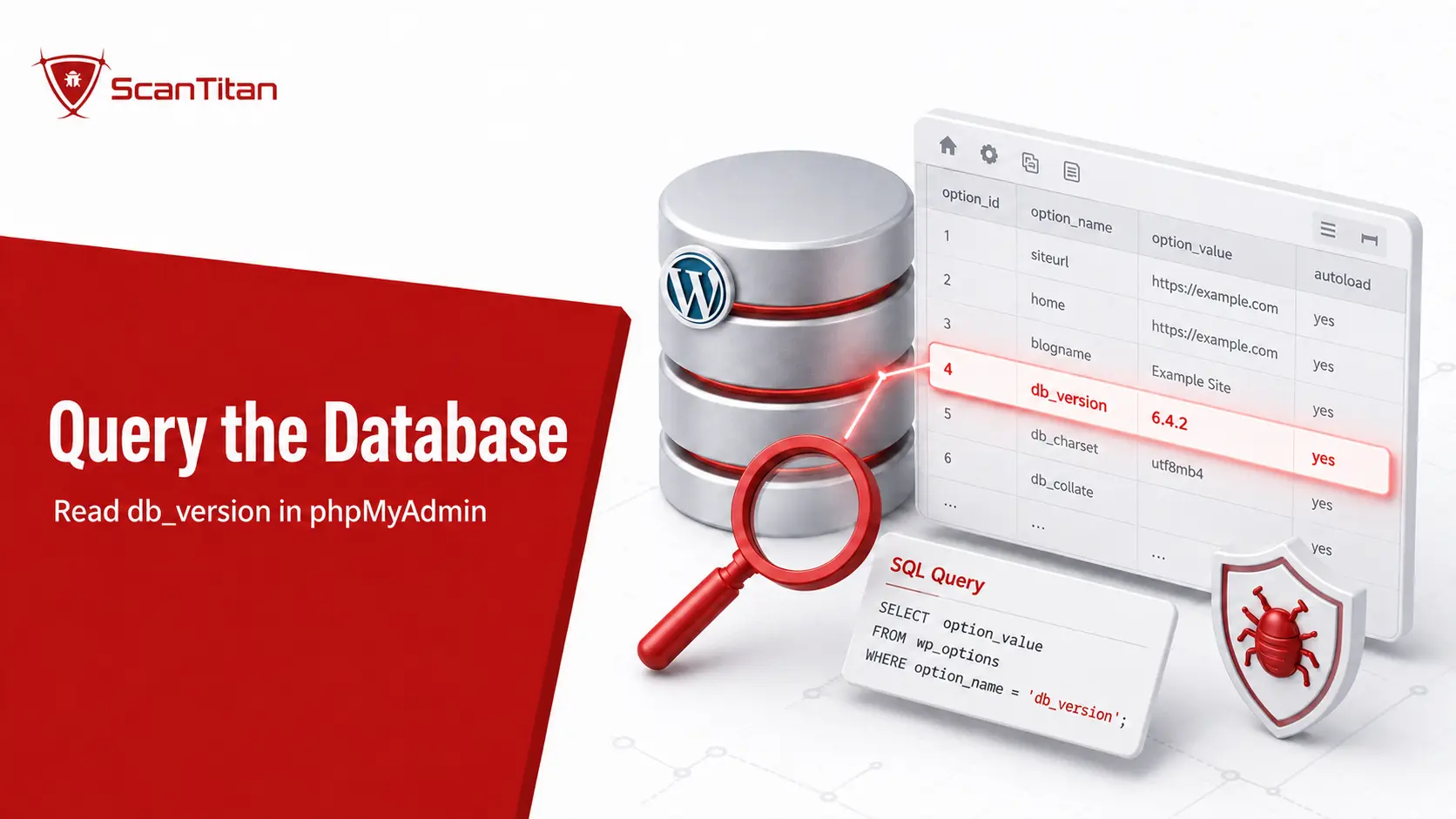
The most common database method reads the schema number, which you then translate into a WordPress release.
- Open phpMyAdmin from your hosting control panel, usually cPanel.
- Select your WordPress database from the list on the left.
- Click the SQL tab at the top of the screen.
- Run the query
SELECT option_value FROM wp_options WHERE option_name = 'db_version';. - Read the number returned, then map it to a release using the table further down this guide.
Adjust the table name if your site uses a prefix other than the default, for example xyz_options instead of wp_options, since a wrong prefix returns an empty result. This method works even when the dashboard is broken, which is exactly when people reach for it, but remember it gives you the schema number, not the release, until you map it.
Read the exact version from the update transient
If you want a release string from WordPress’s cached update data, read the update record instead of relying on the schema number alone.
- Open the SQL tab in phpMyAdmin on your WordPress database.
- Run the query
SELECT option_value FROM wp_options WHERE option_name = '_site_transient_update_core';. - Find the
version_checkedvalue inside the serialized data returned. When the transient is fresh, it records the WordPress version that was installed when the last core update check ran.
The transient is cached update-check data, not the canonical version record. It can be stale, absent, or stored outside MySQL when a persistent object cache such as Redis or Memcached is active. Confirm it against wp-includes/version.php or wp core version when accuracy matters.
On WordPress Multisite, update_core is a network/site transient rather than a per-site option, so it normally belongs to network-wide storage such as wp_sitemeta rather than an individual site’s wp_options. Use network-aware transient or site-option commands instead of assuming the single-site table layout.
Use WP-CLI to query the database
The WordPress command-line interface is the cleanest route when you have server or SSH access. wp core version reports the installed core release from the installation and is not itself a database lookup, while the other commands below can read WordPress’s stored update data or schema value.
- Print the release directly. Run
wp core version, which returns the installed version in one line. - Compare the release and schema revision. Run
wp core version --extrato print the WordPress version and database revision together. - Extract the cached checked version on a conventional single site. Run
wp option pluck _site_transient_update_core version_checked. - Use the network-aware transient command when appropriate. Run
wp transient pluck update_core version_checked --network. - Run raw SQL when needed. Use
wp db query "SELECT option_value FROM wp_options WHERE option_name = 'db_version';"to read the schema number through WP-CLI.
WP-CLI respects your table prefix automatically, so you avoid the prefix mistakes that break hand-written queries, and it needs no browser. The official WP-CLI documentation covers installation if your host does not include it by default. For a locked-out site with shell access, wp core version is the fastest reliable exact-version check; use the transient or raw-SQL commands when you specifically need the database-backed value.
Use the MySQL command line
If you have shell access but not WP-CLI, the MySQL client reads the same values directly.
- Open your credentials. Find the database name, user, and password in your
wp-config.phpfile. - Connect to the database. Run
mysql -u your_user -p your_databaseand enter the password when prompted. - Run the query. Enter
SELECT option_value FROM wp_options WHERE option_name = 'db_version';and read the result.
You can also run the query in a single command with the -e flag, for example mysql -u your_user -p your_database -e "SELECT ...". As with every method here, correct the table prefix if it is not the default, and treat the connection as read-only for this task, since you are only viewing a value and never need to change one.
Use Adminer or another database tool
Not every host ships phpMyAdmin, and Adminer is a common single-file alternative that works the same way. Upload the Adminer script to your server, open it in a browser, and log in with the database credentials from your wp-config.php file. Once connected, select your WordPress database, open the SQL command area, and run the same db_version or _site_transient_update_core query you would use in phpMyAdmin. Desktop clients such as Sequel Ace, TablePlus, or DBeaver do the job too when you can reach the database over a secure connection or an SSH tunnel. The tool changes but the query does not, because the value you want lives in the same wp_options row regardless of how you connect to read it.
How to map a db_version number to a WordPress release
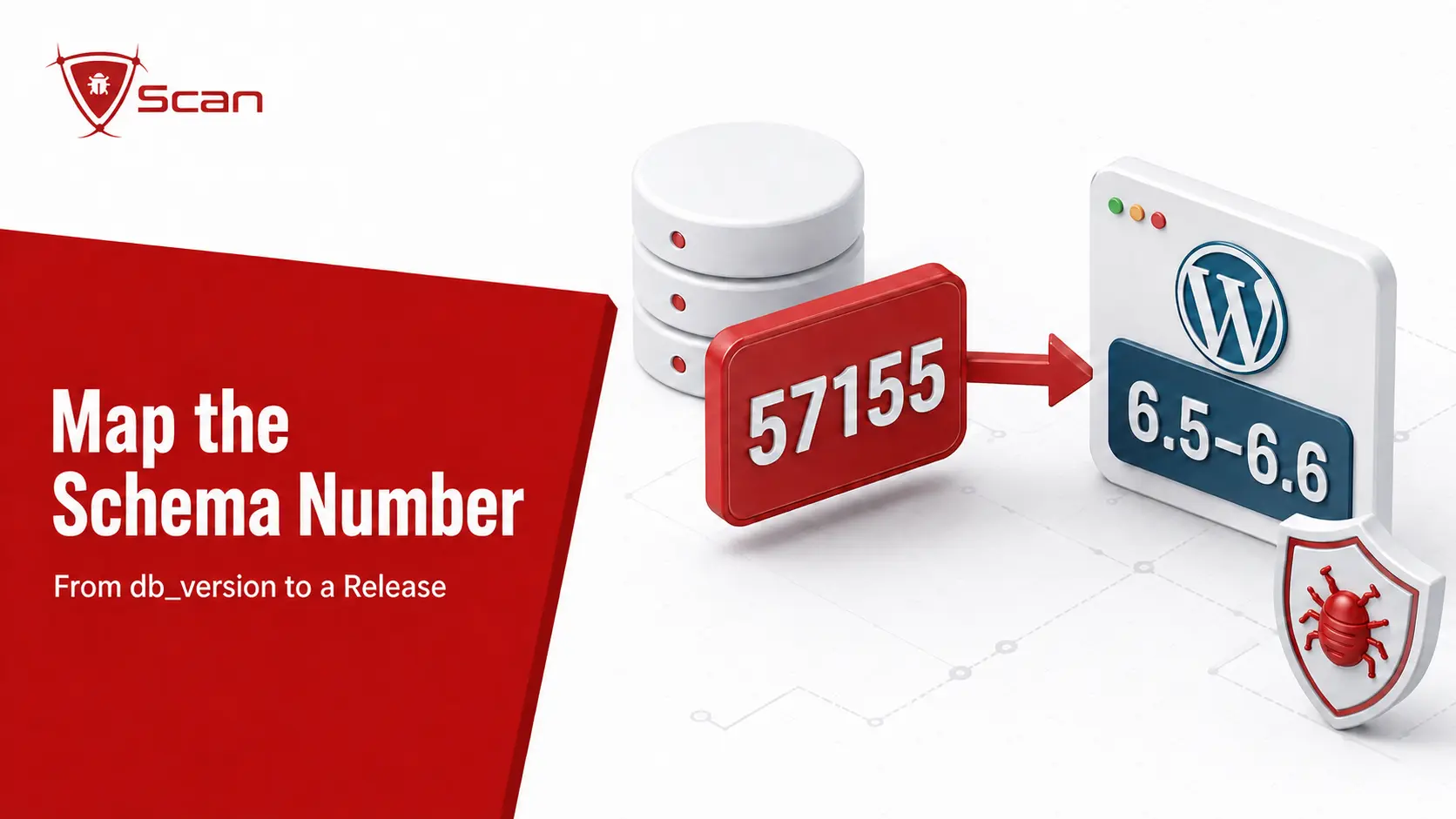
If you only have the db_version schema number, you map it to a release, since WordPress increases it in known steps. The values below are examples of how the mapping works, and the WordPress core keeps the definitive list.
db_version |
WordPress release(s) it can represent |
|---|---|
| 51917 | WordPress 6.0 initial release |
| 53496 | WordPress 6.0.1/6.1/6.2 family releases sharing that schema revision |
| 55853 | WordPress 6.3 |
| 56657 | WordPress 6.4 |
| 57155 | WordPress 6.5–6.6 |
| 58975 | WordPress 6.7–6.8 |
| 60717 | WordPress 6.9 |
| 61833 | WordPress 7.0–7.1 |
Because WordPress only bumps db_version when the database structure changes, several releases can share one schema revision. The mapping therefore identifies a database-schema revision or release family rather than an exact patch release. That is the limitation of the schema approach, and it is why wp core version or wp-includes/version.php is better when you need the precise installed release; a fresh version_checked transient can also corroborate it. Treat the schema number as a strong hint and confirm it against another method when the exact patch level matters.
The more reliable route: version.php
The single most reliable source is not the database at all; it is a file. WordPress defines its version in wp-includes/version.php, where the $wp_version variable holds the exact release and $wp_db_version holds the matching schema number. Open the file through your host’s file manager, an FTP client, or SSH, and read the value directly. This is where WordPress reads its own version, so it is always correct and never depends on a cached transient or a schema lookup. The reason this guide covers the database at all is that people specifically ask for it, often because they are already in phpMyAdmin fixing something else, but if your goal is simply the accurate number, version.php answers it in one line with no mapping required.
What about the MySQL database version?
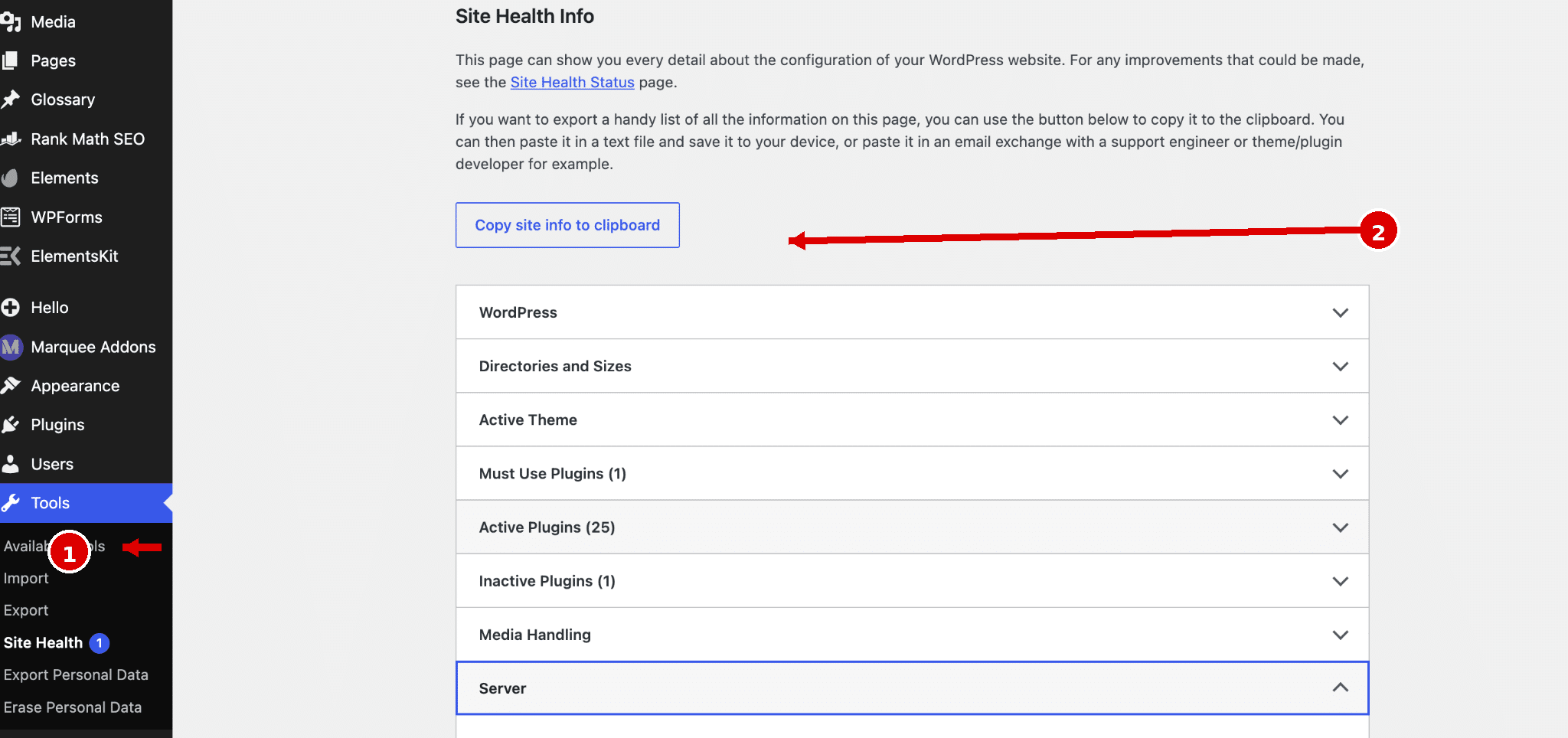
One source of confusion is worth clearing up, because the database version can mean three different things. The db_version schema number is one. The WordPress release is another. The third is the version of the database server itself, MySQL or MariaDB, which is separate from WordPress entirely. To read the server version, run SELECT VERSION(); in phpMyAdmin, or read the phpMyAdmin home screen, which prints it. WordPress exposes it in code through the wpdb::db_version() method, and the Site Health screen lists it under the server section. If someone asks for your database version during support, they usually mean this MySQL or MariaDB number, not the WordPress schema value, so confirm which one they need. Keeping the three straight, the release, the schema number, and the server version, saves a surprising amount of back and forth.
Why check the WordPress version at all?
Reading the version is rarely the end goal; it is a step toward a decision, and often a security one. A release number helps you determine which published vulnerabilities may apply to the site, although exploitability still depends on the component, configuration, and environment. Public or unintended disclosure of software-version information can contribute to reconnaissance and may be treated as information exposure in context, including under CWE-200, but the real risk comes from running a version with applicable unpatched vulnerabilities. There is a pointed database angle here too: an attacker who lands a WordPress SQL injection can read useful wp_options data to fingerprint the site, and the flaws in WordPress plugin vulnerabilities can then be assessed against the active stack. Knowing the version yourself, and keeping it current, is how you reduce the value of that reconnaissance.
The version number is only useful next to what it exposes. A website security scan maps your version to the CVEs that actually affect it.
How an attacker reads the version from the database
It helps to see this from the other side. If an attacker already has sufficient database-read access, WordPress options can reveal useful reconnaissance data such as the db_version schema revision, active theme settings, and the active_plugins option. That shows active plugins, not every plugin installed on disk, and it can help narrow likely targets rather than proving which exploits will work. The database can therefore provide reconnaissance that helps an attacker prioritise likely attack paths. This is the practical reason to treat version and component information with care even though it feels harmless: the same lookup that helps you plan an update can help an attacker plan what to investigate next. The defence is not hiding the number, which barely slows a capable adversary, but keeping the software current. A scanner reads related signals from outside, reporting detected versions and the vulnerabilities that may apply.
Common mistakes when reading the version from the database
A few errors send people to the wrong value, and knowing them saves time.
- Querying a
wp_versionoption. Stop looking for it, because it does not exist; usedb_versionor the update transient instead. - Reading the schema number as the release. Map the
db_versionnumber to a release rather than reporting the raw schema value like 57155. - Forgetting the table prefix. Match your real prefix, since a query against
wp_optionsfails silently when the site uses a custom prefix. - Trusting a stale transient. Confirm the
_site_transient_update_corevalue againstversion.phpif the site has not checked for updates recently.
Cross-checking the database value against version.php turns a plausible answer into a certain one, which matters when the version drives a patching decision.
When should you check the database for the version?
You reach for a database method in a few specific situations. The most common is being locked out of the dashboard, when a fatal error or a lost login blocks the usual At a Glance panel. Developers also read the version during a migration, to confirm that a staging site and its production target run the same release before pushing changes. Support teams ask for it when troubleshooting, since a version mismatch explains many plugin conflicts. A security reviewer checks it to judge how far behind a site has fallen on updates. In every case the database is a fallback rather than a first choice: if the dashboard works, the version is faster to read there, and if you only have the URL, the external methods are quicker. Reach for phpMyAdmin when the front end or the admin is the thing that is broken.
How to check the version without database access
If you do not have database or server access at all, you can still read the version from the outside. WordPress leaves it in the page source, the RSS feed, and a few default files, and our full guide on how to check a WordPress version without login walks through each method. Alternatively, a WordPress vulnerability scanner fingerprints the version for you and maps it to known CVEs, which turns the number into an actual risk assessment rather than a lookup. Between the external methods and a scanner, you rarely need database access purely to answer the version question, and the scanner adds the security context the raw number lacks.
Frequently asked questions
Is the WordPress version stored in the database?
Not directly as the release number you see in the dashboard. That value lives in wp-includes/version.php, in the $wp_version variable. The database stores the db_version schema revision and may also store the cached _site_transient_update_core record. In that transient, version_checked records the installed release that was present when the last core update check ran. So you can infer or corroborate the version through the database, but there is no default wp_version option row.
What is the WordPress database schema version?
It is the value stored as the db_version option in the wp_options table. WordPress increments it when a release changes the database structure, so it identifies a database-schema revision that may be shared by multiple WordPress releases. For example, db_version 57155 was shared by WordPress 6.5–6.6. It exists so WordPress knows whether the database needs upgrading after a core update.
What SQL query shows the WordPress version?
There is no wp_version option, so a query for it returns nothing, which is a common mistake in older guides. To read the schema number, query the db_version option in the wp_options table. To inspect the cached checked release, query _site_transient_update_core and look for version_checked. Because that transient can be stale, absent, or stored in a persistent object cache, confirm the exact installed release with wp-includes/version.php or wp core version when accuracy matters.
How do I check the WordPress version in phpMyAdmin?
Open phpMyAdmin from your hosting control panel, select your WordPress database, and open the SQL tab. Query the db_version option in wp_options to get the schema revision, or inspect _site_transient_update_core and look for version_checked, which records the release present at the last update check. Remember to adjust the table prefix if your site does not use the default wp_ prefix, and confirm cached transient data against the core files when accuracy matters.
Why would I check the version from the database?
Usually because you cannot reach the dashboard: a broken admin screen, a login you have lost, or a maintenance script that needs the value. Developers also read it during migrations to match staging and production. From a security angle, the version tells you which known vulnerabilities apply, and an attacker who gains database access through SQL injection reads these same tables to fingerprint the site.
Can I find the WordPress version with WP-CLI?
Yes. wp core version is the cleanest server-access method for the exact installed core release, but it is not a database lookup. To read the cached checked version on a conventional single-site installation, use wp option pluck _site_transient_update_core version_checked; for a network-aware transient lookup, use wp transient pluck update_core version_checked --network. wp core version --extra also prints the core version and database revision together.
Is the MySQL database version the same as the WordPress version?
No. The MySQL or MariaDB version is the database server’s own version, separate from WordPress. Reading SELECT VERSION(); returns that server version, while the db_version option returns WordPress’s schema number, and wp-includes/version.php holds the actual WordPress release. When someone asks for your database version during support, they usually mean the MySQL or MariaDB number, so confirm which one they need.
How does the schema number relate to the WordPress release?
WordPress bumps the db_version schema number only when a release changes the database structure, so multiple releases can share one schema revision. That means db_version identifies a database-schema revision or release family rather than an exact patch release. For the precise installed release, run wp core version or read wp-includes/version.php; a fresh version_checked transient can corroborate the result.
How do I check the version if I am locked out of the dashboard?
Use a database method through phpMyAdmin or WP-CLI, or read wp-includes/version.php through a file manager or FTP. If you have no server access at all, you can still read the version from the site’s page source, its RSS feed, or an online scanner. Being locked out of the admin does not stop you from finding the version through one of these routes.
Have the version but want to know what it exposes? Run a scan to map your WordPress core, plugins, and themes to known CVEs, with evidence and a fix for each finding.