

Learning how to check WordPress version without login often takes only a couple of minutes because default or lightly hardened WordPress sites may expose version clues in the page source, RSS feeds, asset URLs, and public files. Knowing the version can help with security auditing because automated tools use the same public clues for reconnaissance. This guide covers the most useful methods, their reliability and limitations, why the version matters, and how to reduce unnecessary disclosure, for owners and researchers alike.
Short answer:Many WordPress sites expose enough public clues to identify or estimate the core version without login. Check the generator meta tag, the RSS feed at /feed/, readme.html, core asset version strings, or an online fingerprinting tool. If the obvious signals are absent, the exact version may simply not be publicly exposed; that can result from deliberate hardening, theme behaviour, caching or CDN configuration, or security tooling, so it is not proof of the site’s overall security posture.
How to check WordPress version without login?
You can find a WordPress site’s version from the outside using signals the site publishes to every visitor. Work down this list, fastest first, and stop when one returns a number.
- View the page source and search for the
generatormeta tag, which names the exact version. - Open the RSS feed at
/feed/and read the<generator>line. - Load the
readme.htmlfile in the site root, where many installs still print the version. - Inspect asset version strings such as
?ver=6.xon core files, treating the result with care. - Use an online version checker such as WPScan, BuiltWith, or a vulnerability scanner.
- Check HTTP headers and
wp-links-opml.phpfor a leftover version string. - Use the dashboard or server access if the site is your own.
| Method | Login needed? | Confidence when present | Main caveat |
|---|---|---|---|
| HTML generator tag | No | High | Often removed |
RSS <generator> |
No | High | Feed may be disabled or filtered |
readme.html |
No | Low–medium | Modern releases may not expose an exact version |
Core asset ?ver= |
No | Medium | Can be cached, changed, or confused with plugin/theme versions |
| Online fingerprinting tool | No | Medium–high | Detection may return a range or no exact version |
wp-includes/version.php |
Server access | Very high | Not a public/no-login method |
wp core version |
Server access | Very high | Requires WP-CLI access |
The first two methods are useful starting points when their signals are present. The rest are fallbacks or confirmation methods, and each one is explained in full below.
Check the page source for the generator tag
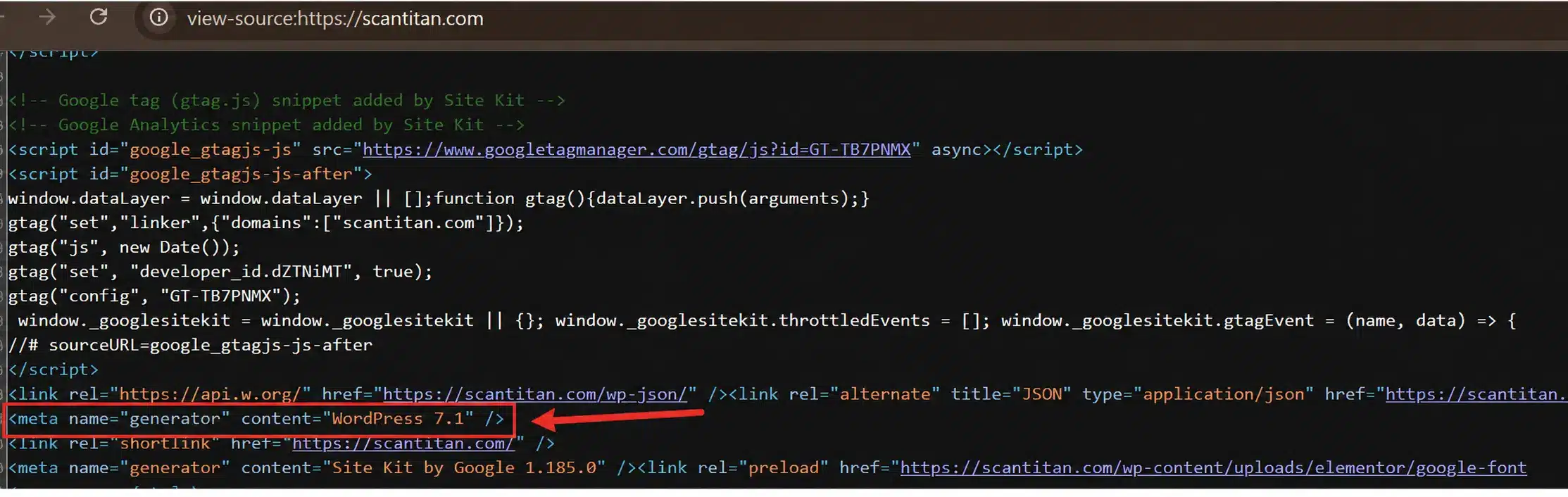
The generator meta tag is one of the fastest public version clues. WordPress can output it through its normal page-head hooks, and many themes leave it visible by default.
- Open the site in any browser.
- View the page source by right-clicking and choosing View Page Source, or pressing Ctrl and U together.
- Search the source with Ctrl and F for the word
generator. - Read the version in the tag, which looks like
<meta name="generator" content="WordPress 6.7.1" />.
If the tag is missing, move to the next method. It may have been removed deliberately, omitted by the theme, or changed by security or performance tooling. When it is present and clearly generated by WordPress, it is a high-confidence public signal.
Read the version from the RSS feed
WordPress adds a generator line to its feeds as well, and many owners strip the meta tag but forget the feed, so this is the best second check.
- Add
/feed/to the site URL, for exampleexample.com/feed/. - View the source of the feed that loads.
- Find the
<generator>element, which reads like<generator>https://wordpress.org/?v=6.7.1</generator>.
The feed can reveal a version that the homepage no longer shows, which is why researchers and scanners often check it after the page source. If the feed is disabled or the version is absent, the exact release may simply not be exposed there; deliberate hardening, feed configuration, caching, or other tooling can all produce the same result.

Check the readme.html file
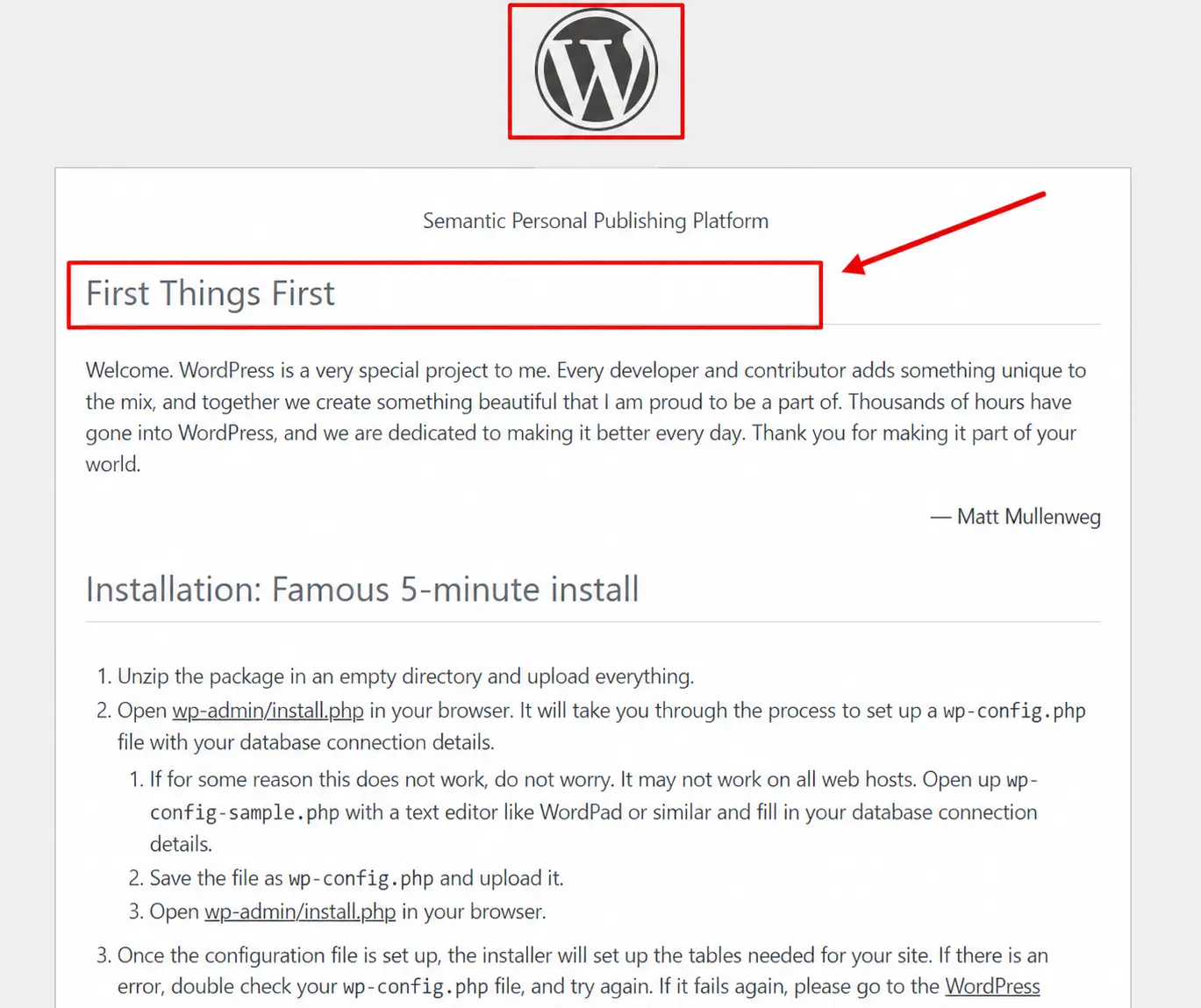
Every WordPress install ships a readme.html file in its root directory, and on many sites it still prints the version near the top of the page.
- Visit
example.com/readme.htmldirectly in your browser. - Read the heading, which historically displayed the release as
Version 6.x.
Treat this method as a fallback with a caveat. Newer WordPress releases reduced the detail in this file to limit fingerprinting, and security or hosting configurations may block or remove it. A missing or generic readme.html therefore does not prove the site is hardened; it simply means this source cannot give you a trustworthy exact version, so use another signal.
Inspect asset version query strings
WordPress appends a ?ver= query string to the CSS and JavaScript it loads, and for core files this sometimes matches the WordPress version.
- Open the page source and search for
wp-includes. - Read the
?ver=value on a core asset such aswp-includes/css/dist/block-library/style.min.css?ver=6.7.1.
This method needs the most caution, and many guides get it wrong. Plugins and themes set their own ?ver values, so a number you find may reflect an asset or a plugin rather than the WordPress core, and some sites deliberately freeze or fake the value to mislead scanners. Use an asset version to confirm a result from another method, never as your only source, because a confident wrong answer is worse than none.

Use an online WordPress version checker or scanner
If you would rather not read source code, several tools fingerprint the version for you and add context the raw tags do not.
A general website scanner does this as one step of a wider check, fingerprinting the CMS version alongside headers, exposed files and certificate configuration.
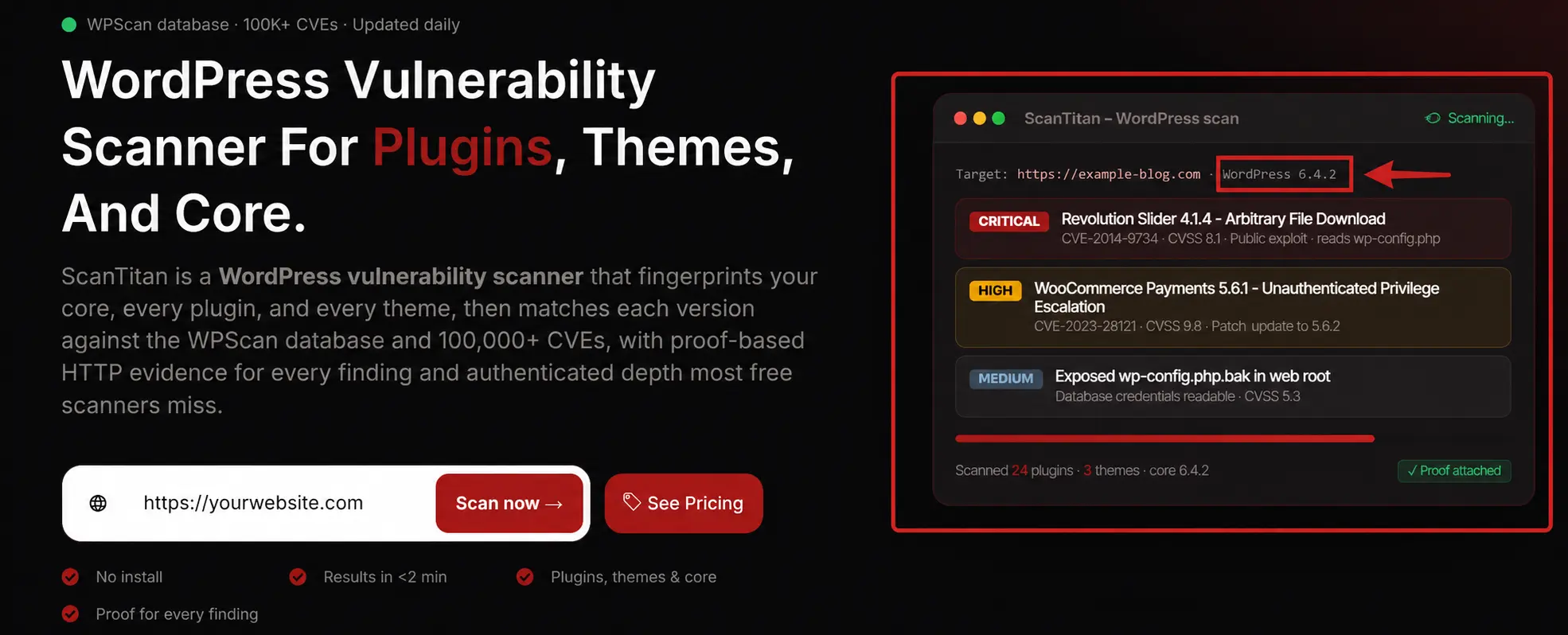
- Run a dedicated checker. Tools such as WPScan and BuiltWith can identify WordPress and may infer the core version or visible components, but results can be partial when version signals are hidden.
- Use a browser extension. Wappalyzer can identify the content management system and may show version information when enough public signals are available.
- Scan for vulnerabilities, not just the version. A WordPress vulnerability scanner goes further than any checker, mapping the detected version to known CVEs so you see the actual risk rather than a bare number.
A plain version checker answers what; a vulnerability scanner answers so what, which is the reason most people look up a version in the first place.
Check HTTP headers and other exposed files
A few lower-level signals help when the common tags have been removed, and they are worth knowing for a thorough audit.
- Read the response headers. Run
curl -I example.comand look at theLinkheader or anyX-Powered-Byvalue, though WordPress rarely names its own version here. - Open
wp-links-opml.php. The file atexample.com/wp-links-opml.phpincludes a generator comment carrying the version on many installs. - Inspect the REST API root.
/wp-json/can expose registered namespaces and routes, which may reveal the presence of particular plugins or features. It usually does not provide a trustworthy exact WordPress core version by itself.
None of these lower-level clues is as direct as a clear generator value, and they may narrow the fingerprint without yielding an exact release.
A quick example: fingerprinting a site in under a minute
To see how fast this goes, walk through a typical check. You open a site, view the page source, and press Ctrl and F for generator; within seconds you either have a version clue or know that signal is absent. If it is gone, you add /feed/ to the URL and read the <generator> line. Still nothing? You load readme.html, then glance at a core asset’s ?ver value for a hint, treating it with the usual caution. If all of those come back empty, the exact version may simply not be publicly exposed. That can result from deliberate hardening, theme behaviour, caching or CDN configuration, or security tooling, so it is not proof of the site’s overall security posture. At that point, use a scanner or authorised server-side method if you need a more confident answer.
Why does the WordPress version matter for security?
Knowing the version is not idle curiosity; version fingerprinting is a common reconnaissance step in automated WordPress attacks. An attacker can compare a detected release with published vulnerabilities to identify flaws that may apply, although exploitability still depends on the site, configuration, plugins, and environment. Public version information can contribute to information exposure in context, including under CWE-200, and the page-source and feed methods you just used mirror techniques in the OWASP Web Security Testing Guide. An outdated version is therefore a useful clue about potential exposure, not proof that a specific exploit will work. This is where checking connects to real risk: WordPress plugin vulnerabilities and classes such as WordPress SQL injection still have to be matched to the actual stack and conditions.
Version discovery is only one form of WordPress reconnaissance. WordPress User Enumeration focuses on another set of public signals, including REST API records, author archives, user sitemaps, and authentication responses that can reveal valid account identifiers.
What the WordPress version tells you about risk?
A version number is a useful risk signal, not a risk score by itself. WordPress publishes major and maintenance releases, listed in its release history, and minor security releases often install automatically. A site that is behind the current release deserves closer review, but the reason may be compatibility testing, release management, disabled automatic updates, or neglected maintenance. The practical question is whether the running core has applicable unpatched vulnerabilities and whether the plugins, themes, configuration, and hosting environment add further exposure. Reading the version is therefore a quick starting point for risk assessment, not a complete judgement of the site’s security posture.
How to hide your WordPress version?
You can strip the obvious version signals, which slows casual scanning even though it will not stop a determined attacker.
- Remove the generator meta tag. Add a
remove_action('wp_head', 'wp_generator')call to your theme’s functions file or a small custom plugin. - Strip the version from feeds. Filter
the_generatorto return an empty string so your RSS and Atom feeds stop leaking it. - Delete or block
readme.html. Remove the file after each update, or deny access to it in your server configuration. - Do not rely on asset query-string removal. Hiding
?ver=values provides little protection and can complicate cache invalidation. Prioritise updates and treat asset-version removal as optional obscurity only. - Use a security plugin. Tools such as Wordfence or a dedicated hardening plugin apply most of these changes with a single setting.
Apply these once and the quick public methods will come up empty, which is a reasonable step as long as you understand its limits.
Does hiding the WordPress version actually help?
Hiding the version helps a little, but it is obscurity rather than security, and treating it as protection is a mistake. A capable scanner fingerprints WordPress through many other signals, including its file structure, default paths, cookie names, and plugin assets, so removing the generator tag raises an attacker’s effort slightly rather than closing the door. The real defence is keeping the core, plugins, and themes updated. A fully patched core makes the disclosed version far less useful to an attacker, but it does not guarantee the site has no exploitable plugin, theme, configuration, or newly discovered issue. For a lean team, time spent applying updates is worth more than time spent trying to hide every version clue.
How to check plugin and theme versions too?
The core version is only half the picture, and often the less important half, because plugins and themes carry most of the real risk. The same techniques reveal them: plugin and theme assets load with a ?ver= query string that usually matches the add-on’s own version, and their files sit in predictable paths such as wp-content/plugins/<name>/. A version checker or scanner enumerates the installed plugins and their versions automatically, which matters because an outdated plugin is a far more common entry point than an outdated core, as our guide to the WordPress file upload vulnerability class shows. When you audit a site, read the plugin and theme versions with the same care you give the core number, because that is where an attacker looks first.
Read More: How to Fix a Hacked WordPress Site: A Step-by-Step Recovery Guide
Common mistakes when checking a WordPress version
A few recurring mistakes lead people to a wrong version, which is worse than no answer at all.
- Trusting the
?verstring blindly. Assume nothing from an asset version until another method confirms it, since plugins and caching can make it lie. - Reading a plugin version as the core. Match the
?veronly on awp-includescore file, not on a plugin or theme asset, or you will report the wrong number. - Assuming a missing tag means no WordPress. Treat a stripped generator tag as hardening, not proof the site runs something else, and confirm with the file structure.
- Believing a stale
readme.html. Check that the readme matches other signals, because a file left unchanged after an update can show an old version. - Stopping at the core version. Enumerate plugins and themes too, since those, not the core, are where most exploitable flaws live.
Cross-checking two independent signals turns a guess into a reliable answer, which matters when the version drives a security decision.
How to check your own site’s version with access
If the site is yours, you have faster and more reliable options than reading public source.
- Read the dashboard. The At a Glance panel on the admin home shows the current version, and it also sits in the footer of every admin screen.
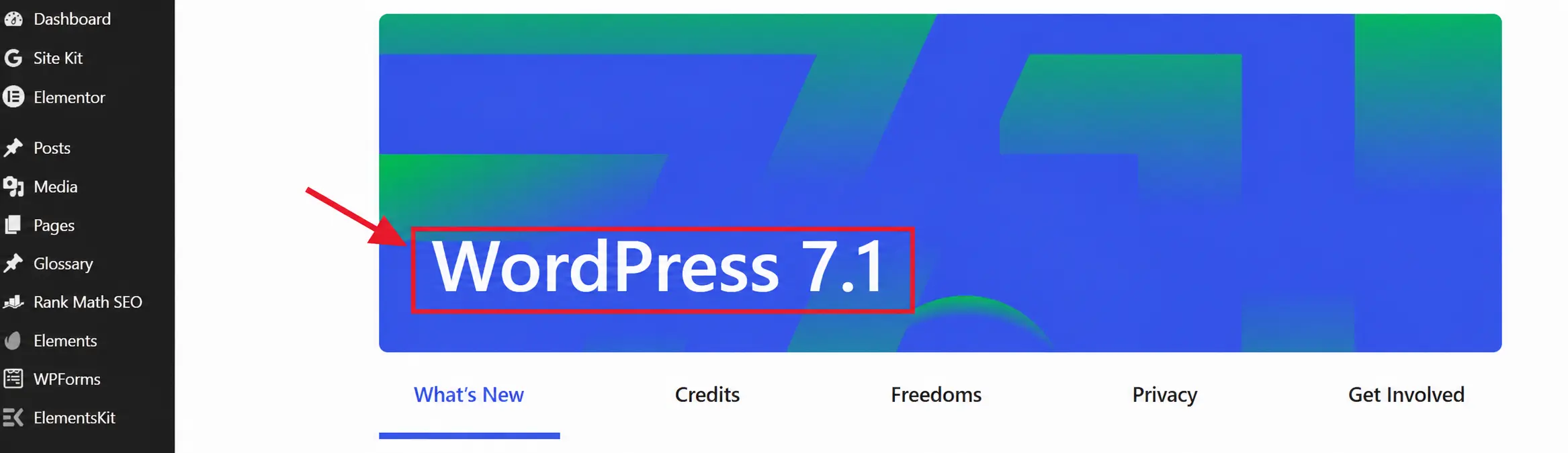
- Open
version.php. The file atwp-includes/version.phpholds the exact release in the$wp_versionvariable, the value WordPress reads itself. - Run WP-CLI. With server access, the single command
wp core versionprints the version straight to your terminal. - Check Site Health. The Tools, then Site Health, then Info screen lists the WordPress version in its own section.
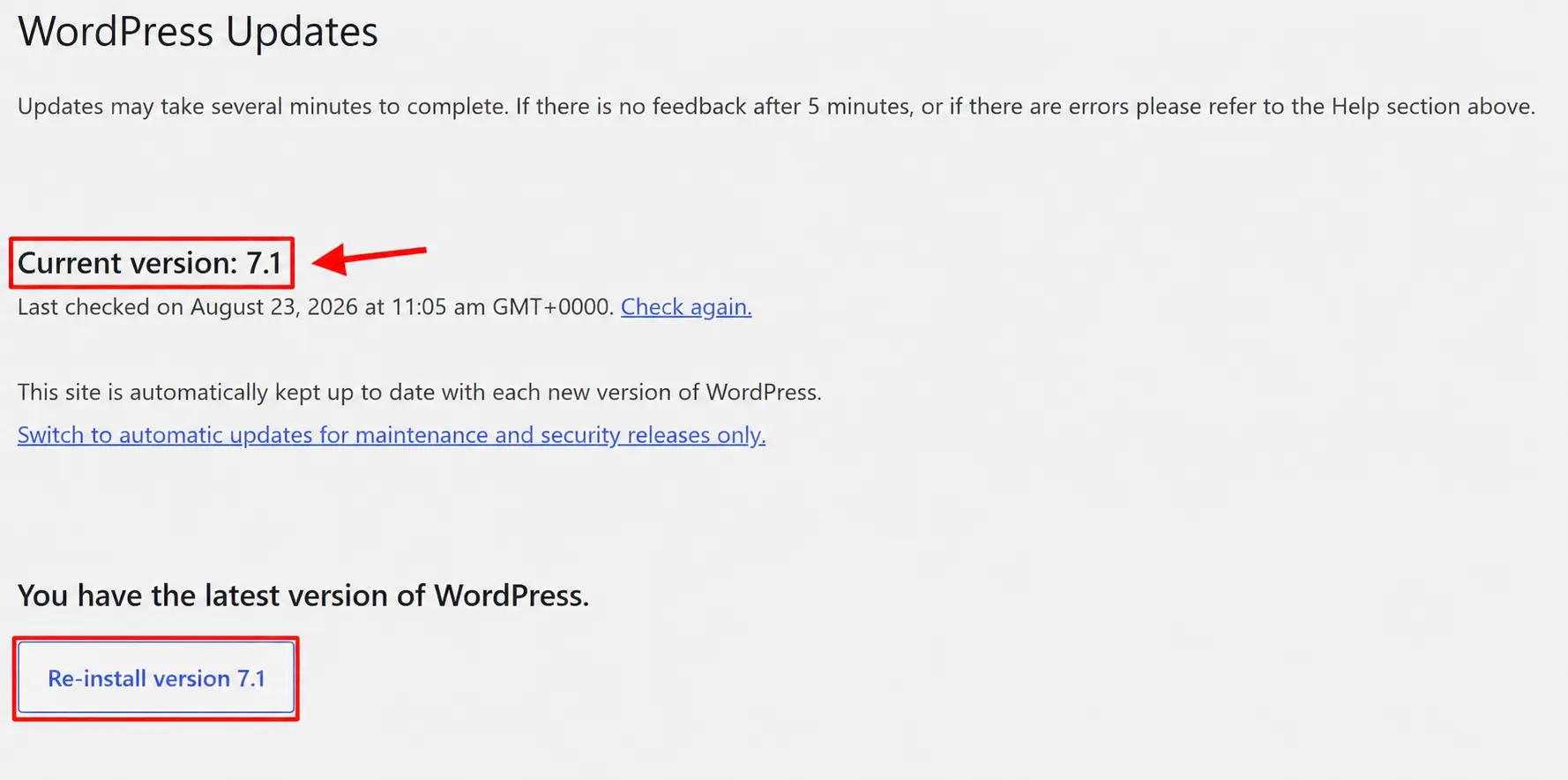
For reading the version straight from the database instead, see our guide on how to check a WordPress version in the database.
Frequently asked questions
Can you check a WordPress version without logging in?
Yes, often. Many WordPress sites expose public clues such as the generator meta tag, the RSS generator line, readme.html, or asset version strings. These can identify or estimate the release without admin access, but exact-version detection is not guaranteed when those signals are absent or altered.
What is the WordPress generator tag?
It is a meta tag WordPress can output through its normal page-head hooks to identify the software and version. Many themes leave it visible by default, while others or security tools remove it. When present and clearly generated by WordPress, it is a high-confidence public version clue.
Why can’t I find the WordPress version on some sites?
Because the exact version may simply not be publicly exposed. The generator tag or feed value may be removed, the theme may omit it, readme.html may be blocked, or caching, CDN, hosting, or security tooling may change the visible signals. Their absence can reflect deliberate hardening, but it is not proof of the site’s overall security posture.
Is it legal to check another website’s WordPress version?
Passive viewing of publicly served information such as page source, an RSS feed, or a public readme file is generally very different from active testing or exploitation. Laws, contracts, and acceptable-use terms vary by jurisdiction, so obtain authorisation before moving beyond passive observation or testing a site you do not own.
Does hiding the WordPress version improve security?
Only a little. Hiding the version is obscurity, not security, because a capable scanner can fingerprint WordPress through many other signals. It may reduce a casual clue, but it does not protect an unpatched site. A fully patched core makes disclosed core-version information less useful, while plugins, themes, configuration, and newly discovered issues still need their own controls.
How do attackers use the WordPress version?
They may fingerprint the version and compare it with published vulnerabilities to identify flaws that could apply, usually with automated tooling at scale. An outdated version is a useful reconnaissance signal, but it does not prove a specific exploit will work because exploitability still depends on the site’s configuration, plugins, themes, and environment.
What is the latest version of WordPress?
As of 22 August 2026, WordPress 7.1 is the current major release. It was released on 19 August 2026. Because maintenance and security releases change frequently, always confirm the latest point release on WordPress.org before making an update or security decision.
How can I tell if a WordPress site is outdated?
Find its version with the methods above, then compare it with the current WordPress release and check whether security fixes apply to the running branch. A version gap is a useful maintenance signal, but it does not by itself prove why the site is behind or how exploitable it is; review the core, plugins, themes, configuration, and environment together.
Can I check the WordPress version from the command line?
Yes, in two ways. On your own server, the WP-CLI core version command prints it directly. For a site you do not control, a request with curl to the page or the feed lets you search the response for the generator string. The command line is how most automated fingerprinting works, which is why the same signals appear in security scanners.
Found the version but not sure what it exposes you to? Run a scan to map your WordPress core, plugins, and themes to known CVEs, with evidence and a fix for each finding.