
Database malware WordPress owners miss is malicious code, links or settings stored in database rows instead of files, which is why file scanners and file restores never catch it. It shows up as injected scripts, spam links, redirects, a changed site URL or an administrator you never created. This guide explains where the infection hides, how to find it with SQL and WP-CLI checks, how to clean it without corrupting your data, and how to stop it returning.
What Database Malware Is in WordPress
WordPress keeps your posts, settings, widgets and user accounts in a MySQL database, and the PHP files read those rows to build every page. Database malware is hostile content in those rows: a script tag in a post, a redirect URL in an option, or an extra administrator in the users table. The rows cannot run by themselves. A theme, a plugin or an attacker’s loader file reads them and prints or executes the content, so the infection sits in one place and fires from another. That split explains the classic symptom, a site that scans clean and still redirects visitors. For the file side of the problem, read our guide on why a scanner says clean when the site is still infected.
File Malware vs Database Malware in WordPress
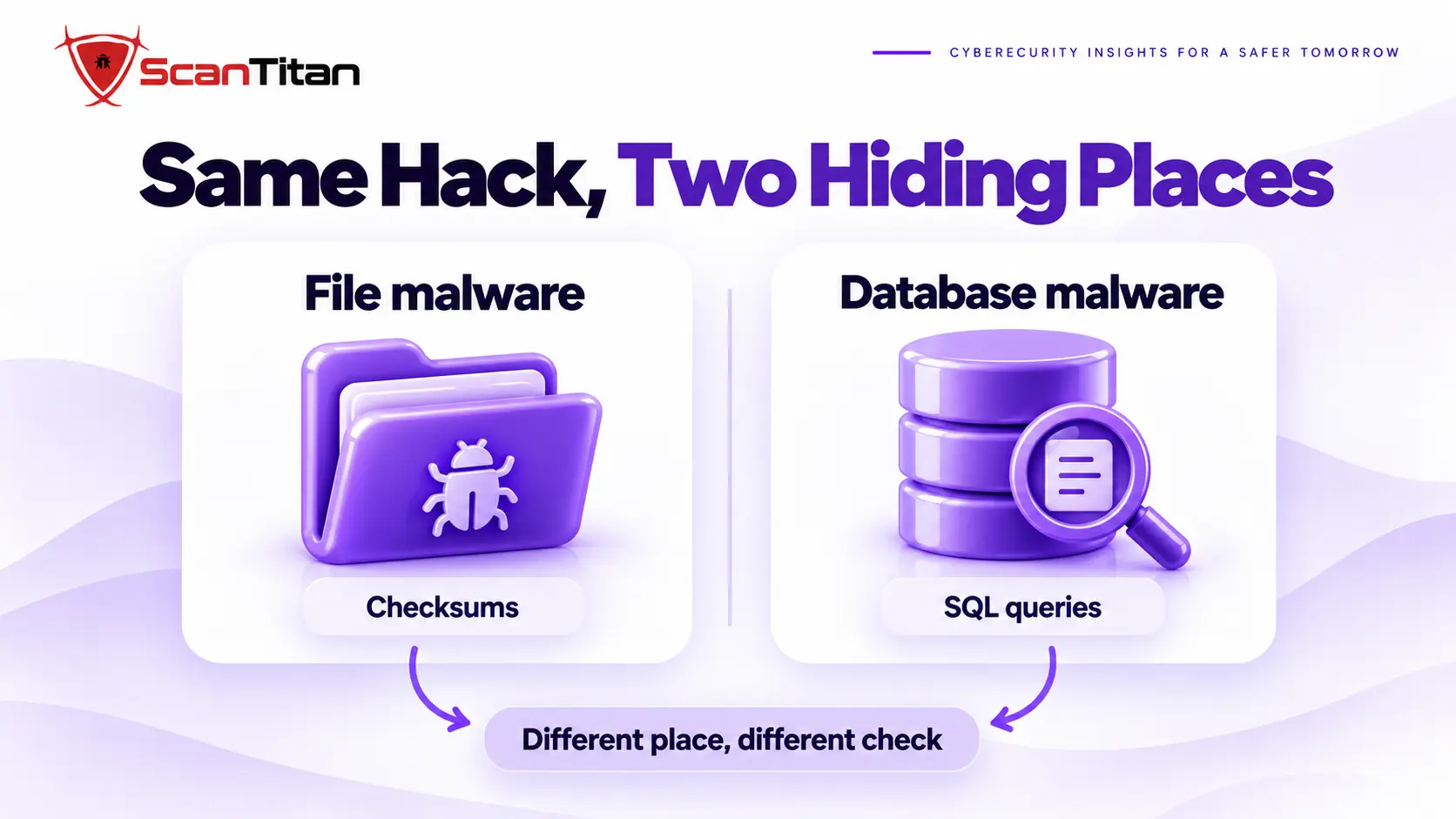
The two infections behave differently, and each one needs its own detection method and cleanup. File malware is code on disk that a scanner can hash and compare. Database malware is data, so a scanner has to read the tables and judge what it finds, which most file-based tools do not do. The table shows the differences that matter during cleanup, and the last row is why a full backup restore is rarely the right answer.
| Question | File malware | Database malware |
|---|---|---|
| Where it lives | PHP, JavaScript and config files on disk | Rows in posts, options, users and meta tables |
| How it runs | The server executes the file | A theme or plugin outputs the row, or a loader evals it |
| How you find it | Checksums, file comparison, signatures | SQL searches and WP-CLI queries |
| File restore effect | Removes it if the backup was clean | No effect, the rows stay |
| Database restore effect | No effect | Removes it but also deletes new orders, posts and comments |
| Reinfection cause | Backdoor or vulnerable plugin | The same, plus a file that keeps rewriting the rows |
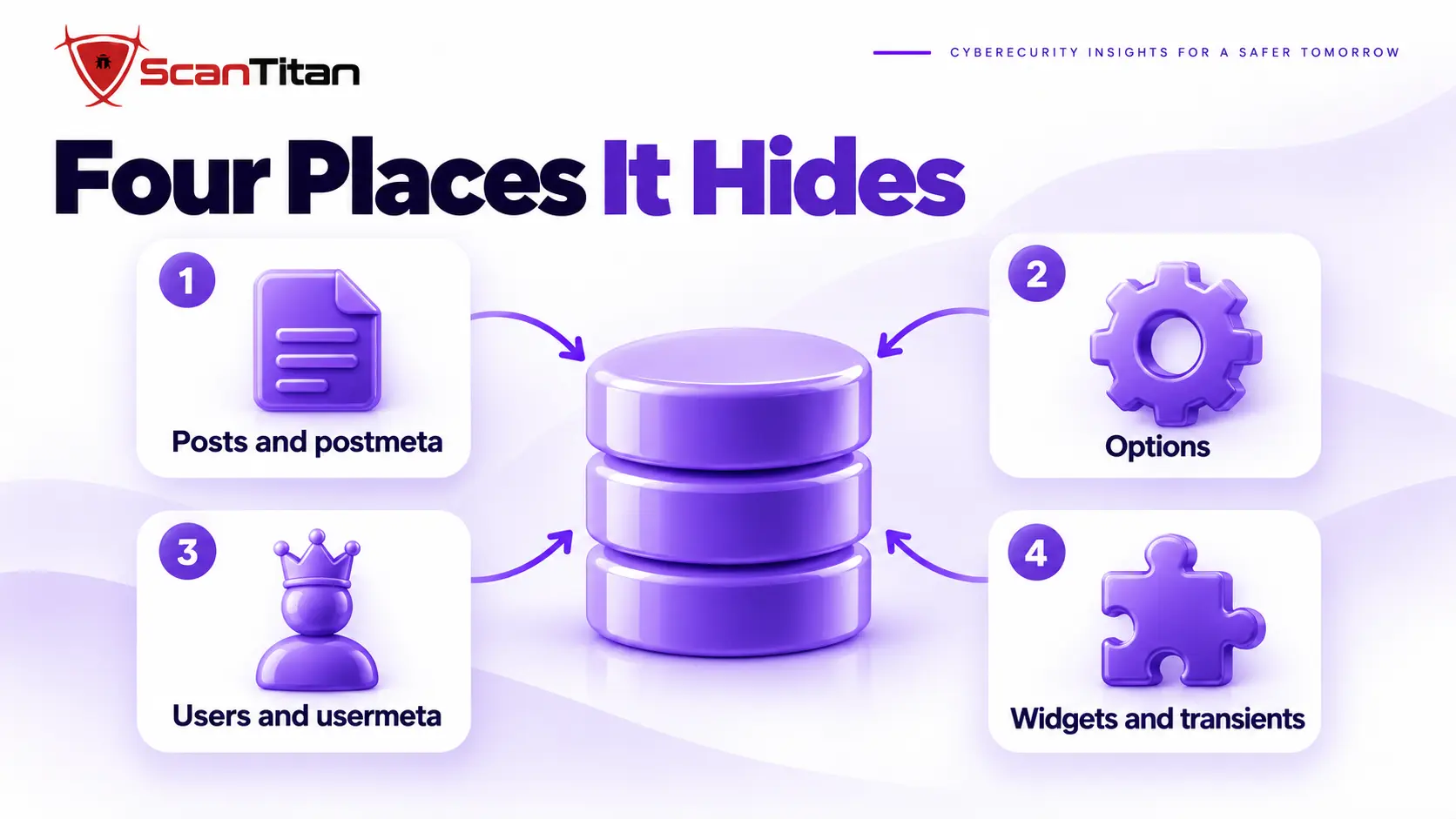
Database Malware WordPress: The Four Hiding Places
Attackers choose rows that the site loads on every request or that rarely get reviewed. The four places below cover most infections, and each one has a check you can run with WP-CLI or phpMyAdmin. Your table prefix may not be wp_, so replace it with the prefix in your wp-config.php.
Posts and Postmeta: Injected Scripts and Spam Links
The wp_posts table holds every post, page and revision, and attackers insert JavaScript, hidden iframes or pharmacy and casino links into the content column. Some injections sit in old revisions or drafts and only appear after a theme change. Others live in wp_postmeta, where a custom field can feed a template. Search for script and iframe tags across all post types, including revisions, and check the post status with wp db query. Command: wp db query "SELECT ID, post_type, post_status FROM wp_posts WHERE post_content LIKE '%<script%' OR post_content LIKE '%<iframe%'". Expect a few legitimate embeds, so read each hit before you delete it.
Options: Changed URLs, Widget Text and Strange Option Names
The wp_options table is the favorite hiding place, because WordPress loads many of its rows on every page view. Attackers change siteurl and home to redirect visitors, add code to widget text, or create options with names that look like plugin settings. Check the two URLs first with wp option get siteurl and wp option get home. Then search option values for encoded strings. Command: wp db query "SELECT option_name FROM wp_options WHERE option_value LIKE '%base64_decode%' OR option_value LIKE '%eval(%'". An option you do not recognize, with a long unreadable value, is a lead.
Users and Usermeta: Rogue Administrators
An attacker with an administrator account can reinstall anything, so a hidden account is as dangerous as a backdoor file. Some are hidden from the Users screen by code that filters the list, so check the tables directly. Command: wp db query "SELECT u.ID, u.user_login, u.user_email, u.user_registered FROM wp_users u JOIN wp_usermeta m ON u.ID = m.user_id WHERE m.meta_key = 'wp_capabilities' AND m.meta_value LIKE '%administrator%'". Compare every row with the people who really manage the site, and look at registration dates that match the date the infection started.
Widgets, Theme Settings and Transients
Some payloads survive a plugin reinstall because they sit in data the plugin never owns. Text widgets accept raw HTML, theme settings in options such as theme_mods_yourtheme can carry injected script, and transients, which are cached values stored under names starting with _transient_, can hold a payload that is reloaded each time it expires. Deleting transients is safe, because WordPress rebuilds them, so clear them after you clean. Review widget and theme option values for script, iframe and long encoded strings the same way you checked the main options.
Signs of Database Malware on a WordPress Site
These symptoms point to the database more than to the files, and any one of them justifies the checks below.
- Notice redirects that only some visitors see, such as people arriving from Google or on mobile devices.
- Spot spam links or text on a page that does not appear in the editor.
- Watch for the site URL changing back after you fix it, which suggests a loader rewriting the option.
- Find administrator accounts that reappear after you delete them.
- Check Google Search Console for indexed spam pages or a security issue warning.
- Suspect the database when a clean file scan and a clean file restore changed nothing.
How to Find Database Malware in WordPress With SQL and WP-CLI
Work on a copy where you can, and write down every row you change.
- Export the database before you touch anything. Command:
wp db export backup-before-cleanup.sql - Search posts and pages for script and iframe tags using the query in the posts section, and include revisions.
- Check the site URL and home URL, and confirm both match your real domain.
- Query the options table for encoded strings and unfamiliar option names.
- List the administrators with the users query, and compare them to your real team.
- Compare the active plugin list with what you installed. Command:
wp plugin list --status=active - Record each suspicious row before you change it, including the table, the ID and the full value.
| What you find | What to do |
|---|---|
| Script or iframe in a post | Edit the post and remove the injected tag, then check its revisions |
| Wrong siteurl or home | Set both back with wp option update, then find what rewrites them |
| Unknown option with encoded value | Copy it for evidence, then delete it with wp option delete |
| Administrator you do not know | Delete the user and rotate every password and salt |
| Infected widget or theme setting | Remove the code from the widget or reset the theme option |
How to Clean WordPress Database Malware Without Losing Data
Do not restore the whole database blindly. A restore removes the infection and also removes every order, comment and post created since the backup, which can cost more than the malware did. Clean the specific rows instead. Edit or delete an infected post in the dashboard, delete a malicious option with wp option delete, and remove rogue users with wp user delete. Be careful with search and replace. WordPress stores many settings as serialized data, which records the length of each string, so a manual find and replace that changes a length corrupts the option. WP-CLI’s wp search-replace handles serialized values correctly, and you should run it with the dry-run flag first.
How to Stop Database Malware Returning to WordPress
Rows do not rewrite themselves, so something with write access put them there. Find that source before you call the cleanup finished.
- Search the files for the code that writes the rows, starting with recently changed PHP files and the uploads folder.
- Update or remove vulnerable plugins, since a SQL injection in one plugin is a common way to write to the tables.
- Rotate the database password in
wp-config.phpand the administrator passwords, and change the salts. - Limit the database user to the permissions WordPress needs, and use a separate user for each site.
- Monitor file changes and review the administrator list weekly for a month.
If the infection keeps returning, work through the causes in our guide on why WordPress malware keeps coming back.
When Database Malware Needs a Professional Cleanup
Get help when order, customer or payment data may have been changed, when you have no recent clean backup, when the infection returns after you clean the rows, or when the tables are heavily customized and a wrong query could break the store. A professional cleanup reads the tables, finds the file that writes the rows and checks the server for a second foothold. ScanTitan’s website malware removal service covers both the files and the database, so one does not undo the other. Cleaning only one side is the most common reason owners end up paying twice.
Database Malware in WordPress: Common Questions
Can malware live in a WordPress database?
Yes. Attackers insert scripts, spam links, redirect URLs and extra administrator accounts into the posts, options and users tables. The rows do not run themselves, but a theme, plugin or loader file outputs or executes them, so the infection sits in the data and fires from the code.
How do I scan the database for malware?
Search posts and options for script tags, iframes and encoded strings with SQL or WP-CLI, check the site URL, and list the administrators. Most file scanners do not read the tables, so a clean scan result says little about the database. Combine the manual queries with a scanner that checks database content.
Does restoring a file backup remove database malware?
No. A file restore replaces files on disk and leaves the database untouched, so injected rows stay in place. Restoring an old database does remove them, but it also removes everything added since, so clean the specific rows unless the data loss is acceptable.
What does malware in wp_options look like?
Typically a changed siteurl or home value, an option with an unfamiliar name and a long encoded value, or widget text containing a script tag. Values that include base64 strings, eval calls or links to domains you do not own deserve a close read before you delete anything.
Is it safe to run a search and replace on the database?
Only with a tool that understands serialized data, such as WP-CLI search-replace, and only after a backup and a dry run. A manual replace that changes the length of a stored string breaks serialized settings and can disable a plugin or a theme.
Why does malware reappear after I clean the files?
Because the database still holds an infected row, or a file you missed keeps writing it. Clean both sides. Check the tables for injected content and rogue admins, and look for the backdoor or vulnerable plugin that has write access to the database.
How do I clean up a WordPress database after a hack?
Export it first, then fix only the infected rows: edit or delete injected posts, reset siteurl and home, delete malicious options and remove rogue users. Avoid restoring the whole database unless you can afford to lose recent orders and posts, and always find the file that wrote the rows.
Are there free tools that scan the WordPress database for malware?
Some security plugins check post content and options for known bad URLs and strings, and they can help as a first pass. None of them replaces running the queries yourself, because a plugin only finds what it already recognizes. Use a plugin scan and the SQL checks in this guide together.