

How did my website get hacked? Almost always through one of nine entry points: a vulnerable plugin or theme, stolen credentials, a nulled theme, a compromised hosting account, vulnerable custom code, exposed files, an infected admin computer, a third-party script, or weak server settings. Each one leaves different evidence in your logs and files. This guide shows how to work out which one applied to you, build a timeline of the attack, and close that specific way in before it is used again.
How Did My Website Get Hacked? Entry Point, Payload and Persistence
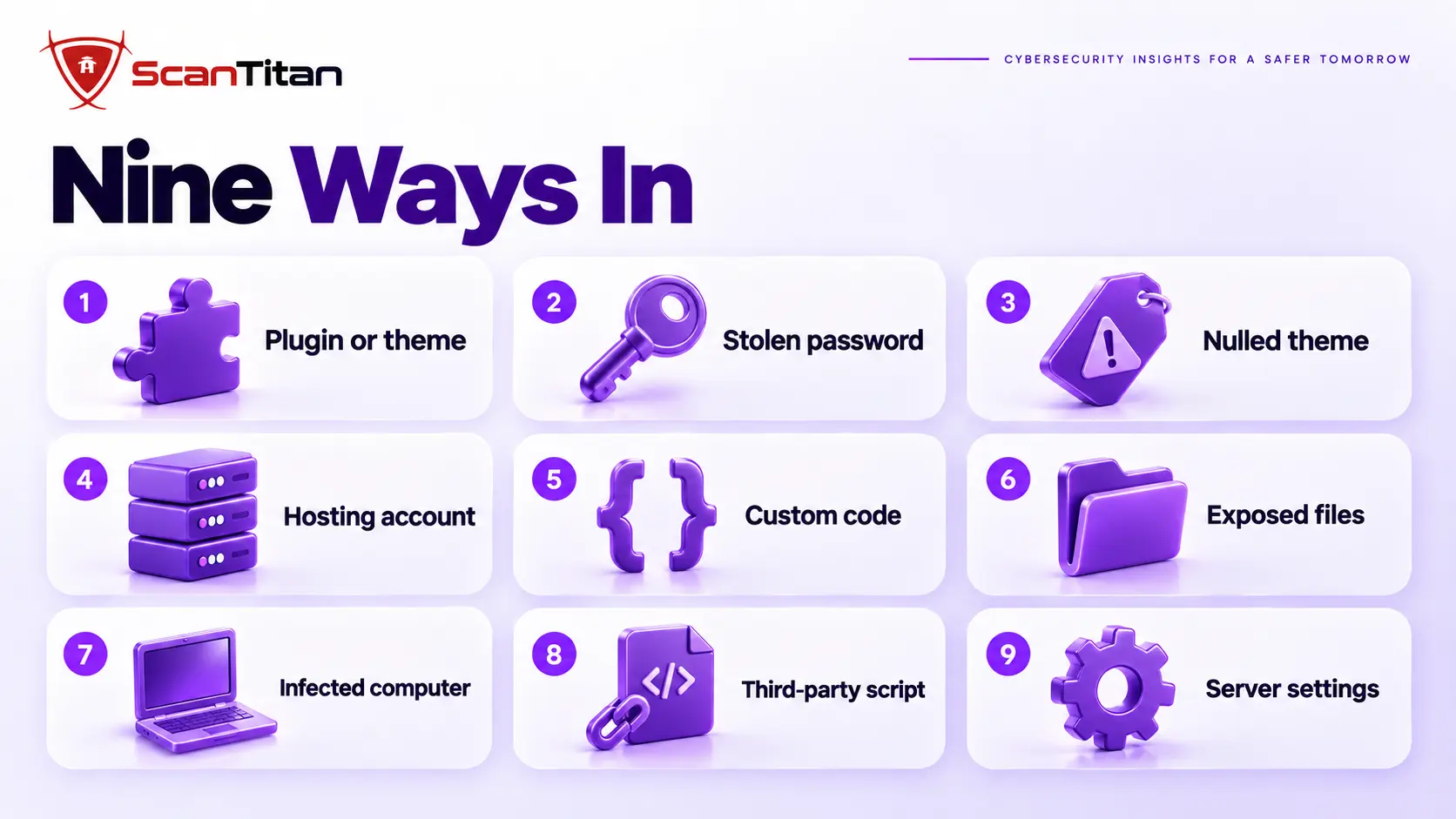
Most websites get hacked through one of nine entry points: a vulnerable or backdoored plugin or theme, stolen or reused passwords, a nulled theme, a compromised hosting account, vulnerable custom code, exposed backup or config files, an infected admin computer, a third-party script, or weak server settings. Outdated plugins and stolen passwords explain most of the small business cases I see.
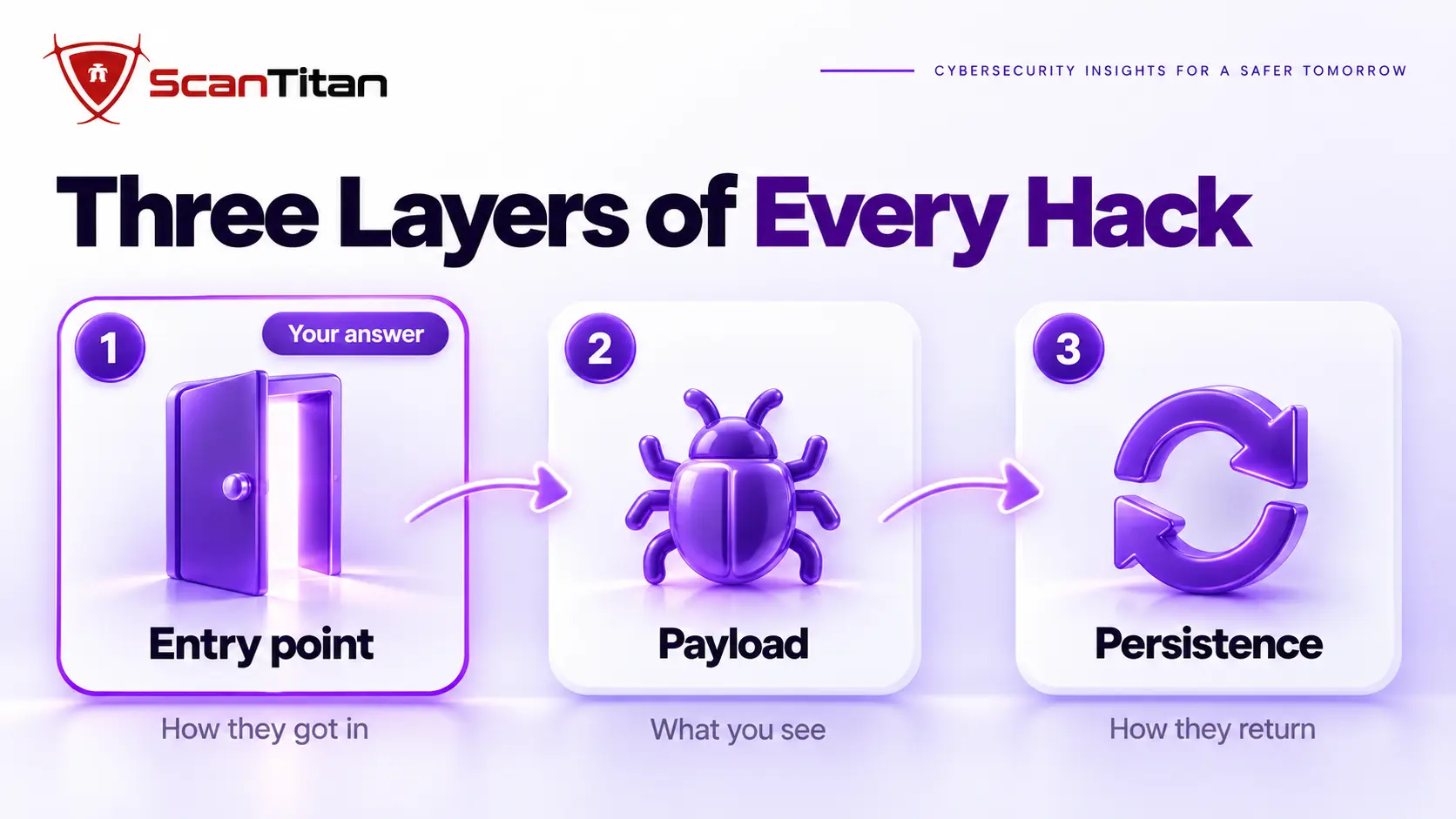
Every compromise has three layers: the entry point is how they got in, the payload is the damage you see, and the persistence is what lets them return. Your question is about the first layer, because a cleaned site gets hacked again when nobody found it. Our guide on why WordPress malware keeps coming back covers persistence.
The Nine Ways a Website Gets Hacked, and How to Check Each One
These nine entry points cover almost every case I see. They are ordered by how often they explain a hacked small business site. Each one starts with a plain definition, then shows how to confirm it, how to fix it and an example. Examples marked typical case are common scenarios, not named clients.
1. A Vulnerable or Backdoored Plugin, Theme or CMS Version
A vulnerable or backdoored plugin, theme or CMS version is code written by someone else that contains a flaw or hidden access, and flaws are found in code like this all the time. When a flaw is published, attackers scan the internet for sites still running the old version and exploit them automatically, often within hours. A deactivated plugin is still reachable by URL, so inactive does not mean safe. Our overview of WordPress plugin vulnerabilities shows how these flaws work.
How to confirm it: Compare each plugin and theme version with the date of the first suspicious change, then look up whether that version had a published flaw. Check the access log for requests to that plugin’s folder just before the first malicious file appeared.
How to fix it: Update or remove the plugin, delete anything inactive or abandoned, and compare its files with a clean copy from the official source, because an update does not remove files the attacker already wrote.
Example: A plugin does not even need a flaw. In April 2026, more than 30 WordPress plugins were reported to have been bought by a new owner and found to carry a backdoor that stayed dormant for months before it activated and wrote malicious code into wp-config.php. Check who owns and maintains each plugin, and treat a sudden change of owner or a forced update notice from WordPress.org as a reason to audit the site, because removing the plugin does not remove what it already wrote.
Video: a five-minute walkthrough of the April 2026 plugin backdoor case, from Fireship.
2. Stolen, Weak or Reused Credentials
A stolen, weak or reused credential is a password the attacker already has or can guess, so no vulnerability is needed. Credential stuffing means trying passwords leaked from other breaches against your login, and it works because people reuse passwords. OWASP describes it in its credential stuffing entry as automated injection of breached username and password pairs.
How to confirm it: Check the login history. Logins from a new country, at an odd hour, or an administrator account created just before the first malicious change all point here.
How to fix it: Rotate every password (WordPress, hosting, SFTP and database), turn on two-factor authentication for every administrator, limit login attempts, and remove accounts for people who no longer work on the site.
Example: Typical case: a shop owner uses the same password for a forum and the WordPress login. The forum is breached, and weeks later a bot logs in as the administrator, creates a second admin and installs a plugin that carries the malware. The site had no vulnerability at all.
3. Nulled Themes and Plugins
A nulled theme or plugin is a pirated copy of a paid product that often ships with a backdoor or a hidden spam module, installed by you with the attacker’s blessing. The code runs with full permissions, and it survives every cleanup that leaves the nulled copy in place.
How to confirm it: Look for obfuscated code and a license check that calls a strange domain. If you cannot trace a theme or plugin to its official vendor, treat it as hostile.
How to fix it: Replace it with a licensed or official copy. Delete the nulled package completely, then search the files and database for what it left behind, because the package often drops copies elsewhere.
Example: Typical case: a free copy of a premium theme installs fine and looks identical to the paid version. Inside its functions file, an obfuscated block adds a hidden administrator and loads spam links for search engines only. The owner sees nothing wrong until Search Console shows spam pages.
4. A Compromised Hosting Account or Neighbour Site
A compromised hosting account is a stolen hosting panel or SFTP login that gives access to every site in the account, so the hack may not have started in your site at all. On weakly isolated shared hosting, an infected neighbour can reach yours too.
How to confirm it: Several sites in one account infected at once, often with the same files, is the sign. Check the hosting panel login log, list every site and folder in the account, and scan them together.
How to fix it: Clean every site in the account in one pass, or move them into separate isolated accounts. Delete old test and staging copies, rotate the hosting and SFTP passwords, and review SSH keys.
Example: Typical case: an agency hosts ten client sites in one account. One old, unmaintained site is exploited and the attacker writes the same backdoor into all ten. Cleaning the one site that was reported changes nothing, because the others reinfect it.
5. Vulnerable Custom Code, APIs and SQL Injection
Vulnerable custom code is code in your own theme, plugin, form or API that trusts input it should not. A SQL injection flaw lets an attacker read or write the database through a URL or form field, which is how spam rows and rogue admin accounts appear with no file changes at all. The same trust problem affects exposed API endpoints and cross-site scripting, where input shown on a page runs as script in the next visitor’s browser.
How to confirm it: Look in the access log for requests with long query strings, quotes, or the word UNION or SELECT in the parameters, close to the time of the first change.
How to fix it: Patch the vulnerable form or plugin first, using prepared statements and input validation, then clean the database rows and treat the database as a second step. Cleaning the rows without fixing the code means they come back.
Example: Typical case: a contact form plugin builds a database query from a URL parameter without checking it. An attacker sends a crafted address, reads the user table and adds an administrator. No file on the server changes, so file scanners report clean while the rogue rows stay in the database.
6. Exposed Backups, Config Copies and Secrets
An exposed backup or config file is a file nobody meant to publish: a database backup left in the web root, a copy of wp-config.php named wp-config.php.bak, or a .git folder that exposes source code and passwords. Attackers request these names automatically.
How to confirm it: Ask for the likely URLs yourself, and search the access log for downloads of backup, archive and config files from addresses you do not recognize.
How to fix it: Delete the files, move backups out of the web root, add a rule that blocks direct access to backup and config extensions, and rotate every secret they held. Deleting the file does not undo what was already downloaded.
Example: Typical case: a developer copies wp-config.php to a backup name before an edit and forgets it. A bot requests that name, downloads the file, reads the database credentials and uses them to write spam into the database. The site’s software was fully up to date.
7. An Infected Computer or a Phished Admin
An infected admin computer is a device used to manage the site that has been compromised, so the site was fine and the person managing it was not. Malware on an administrator’s computer can steal saved passwords and session cookies, and a phishing email can collect a hosting or WordPress login.
How to confirm it: The sign is a legitimate login from your own account that you did not make, with no vulnerability in sight. Review active sessions and recent login locations.
How to fix it: Scan and clean the computers that manage the site, then change every password from a clean machine. Changing the salts in wp-config.php invalidates stolen login cookies, and a password manager on a clean machine stops the same theft from repeating.
Example: Typical case: a freelancer with administrator access opens a fake invoice attachment. Information-stealing malware copies the browser’s saved passwords, including the site’s. Days later someone logs in with the correct password from another country.
8. A Compromised Third-Party Script
A compromised third-party script is code loaded from another domain that runs with the full trust of your page. If that supplier is compromised, or an attacker buys a domain a script came from, the malicious code arrives without any change to your files. MITRE tracks this pattern as supply chain compromise.
How to confirm it: View the page source and list every external script. A script on a page that you did not edit, or a skimmer that appears only on the checkout, points here.
How to fix it: Remove the supplier or host a trusted copy yourself. Where you keep an external script, pin a specific version and use subresource integrity so a changed file is refused.
Example: In June 2024, security researchers reported that the new owner of the popular Polyfill.io domain was using it to inject malicious code, affecting more than 100,000 sites that loaded one script from it. The owners of those sites changed nothing. The script they trusted changed.
9. Weak Server Settings and File Permissions
Weak server settings are configuration choices you never touched that leave a door open. Files writable by every user, directory listing turned on, an old PHP version, or an FTP account with a default password make an easy target. The WordPress hardening guide covers permissions and server configuration.
How to confirm it: Look for changes made by the web server user in folders that should be read-only, directory listing that shows folder contents, and a PHP version that no longer receives security fixes.
How to fix it: Tighten permissions so the web server can write only to the folders that need it, disable directory listing, remove unused FTP accounts and keep PHP on a supported version.
Example: Typical case: the uploads and plugin folders are writable by everyone. A flaw in one small plugin would normally be limited, but now the attacker can write a PHP file anywhere and the web server runs it.
What You See Tells You How They Got In
The damage you see narrows the field before you read a single log line. Use the table as a first pass, then confirm the match in the next section.
| What you see | Most likely entry point | First check |
|---|---|---|
| New administrator you did not create | Stolen credentials or a plugin flaw | Registration date against the login log |
| Core or plugin file changed, nothing updated | Vulnerable plugin or theme, or hosting access | Checksums and modified dates |
| PHP files in the uploads folder | A file upload flaw | The first request to that file in the access log |
| Login from a new country or odd hour | Stolen credentials or an infected computer | Hosting, SFTP and WordPress login history |
| Several sites in one account infected | Hosting account or neighbour site | Scan every site in the account |
| Spam rows, no file changes | SQL injection or stolen database login | Access log query strings |
| Script from another domain on an unedited page | Compromised third-party script | Page source, list of external scripts |
| Backup or config file downloadable | Exposed files | Request the likely URLs yourself |
How to Find Out How Your Website Was Hacked
Work on copies of the logs and files, and write down every result. File dates can be altered by the attacker, so always confirm a date against a log entry.
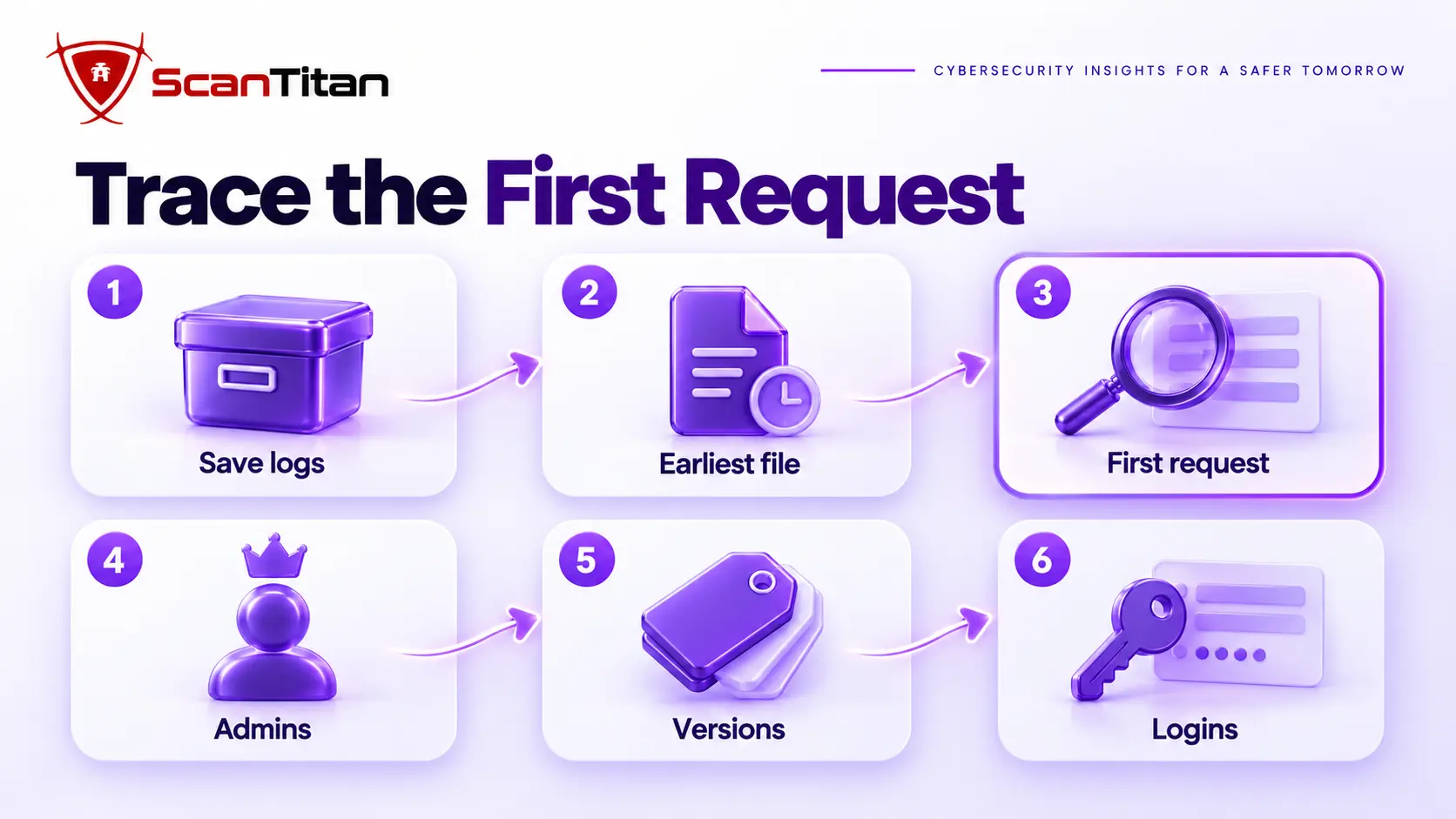
- Preserve the access, error and login logs before they rotate. Download them from the hosting panel and keep an untouched copy.
- Find the earliest recently changed file. Command:
find . -type f -mtime -30 -printf '%T+ %p\n' | sort | head -20 - Trace the first request to that file in the access log, then read the requests just before it. Command:
grep "filename.php" access.log | head -5 - List the administrators with their creation dates. Command:
wp user list --role=administrator --fields=ID,user_login,user_registered - Compare plugin and theme versions with the date of the first change, and look up which ones had a published flaw by then. Command:
wp plugin list --fields=name,version,update - Review hosting panel, SFTP and SSH logins for addresses and times you do not recognize.
- Verify WordPress core against the official release. Command:
wp core verify-checksums - Search the database for injected script and rogue rows, using the checks in our guide on database malware in WordPress.
How Long Did the Attacker Have Access? Build the Timeline
The first sign you noticed is almost never the first compromise. Build the timeline backwards: start from the visible damage, find the earliest malicious file or request, then keep looking for anything older. Check whether your backups contain the same files, since a backup that carries the infection tells you the minimum age of the hack. Log retention matters here, because many hosts keep access logs for only a few weeks. If the earliest entry in your logs is already malicious, you have not found the start yet, and any credential from that period should be treated as stolen.
Can Visiting a Website Get You Hacked? Owner vs Visitor
Some readers ask this question because they visited a site and then lost an account. A website can harm a visitor through a malicious script, a fake login page, or a download, and the damage lands on the visitor’s device or account, not on any server. This guide covers the other case, where you own the site and the server was compromised. If you only visited a suspicious page, change the passwords you used since, run a malware scan on your device, and review your accounts for unknown sessions and changes.
Close the Entry Point You Found
Fix the entry point before you clean the payload, because otherwise the attacker simply uses it again. Each cause has its own repair, and the table lists the first action for each.
| Entry point | Close it by |
|---|---|
| Vulnerable plugin, theme or CMS | Updating or removing it, then checking its files against a clean copy |
| Stolen or weak credentials | Rotating every password, adding two-factor authentication, changing the salts |
| Nulled theme or plugin | Replacing it with a licensed or official copy |
| Hosting account or neighbour | Cleaning every site in the account, or moving to isolated hosting |
| Custom code or SQL injection | Patching the code, then cleaning the database rows |
| Exposed files | Deleting them and rotating any secret they held |
| Infected computer | Cleaning the machine first, then changing passwords from it |
| Third-party script | Removing the supplier or pinning a trusted version |
| Weak server settings | Fixing permissions, directory listing and the PHP version |
After you close it, follow our guide on what to do when your website is hacked for the response steps, and our malware removal guide for the cleanup itself.
How to Stop Your Website Getting Hacked Again
Prevention follows the nine causes, so each habit below closes one of them.
- Update core, plugins and themes within days of each release, and delete anything you do not use.
- Protect every administrator and hosting login with a unique password and two-factor authentication.
- Buy themes and plugins only from their official vendors.
- Separate sites into isolated accounts, and delete old test and staging copies.
- Keep backups and configuration copies out of the web root.
- Monitor file changes and review administrators weekly, so a new foothold is caught early. If one returns, our guide on why a scanner says clean when the site is still infected explains what scanners miss.
When to Bring In a Professional Investigator
Call for help when customer or payment data may have been taken, when the hack returns after a cleanup, when several sites are infected, or when you cannot find the first malicious request in the logs. These cases often involve more than one entry point, and guessing costs you days of exposure. A professional investigation reads the logs, finds the entry point and the persistence, and documents what the attacker could reach, which you may need for customers or regulators, and it saves you from rebuilding the site twice. ScanTitan’s website malware removal service includes finding how the attacker got in.
How Did My Website Get Hacked: Common Questions
How do I unhack a website?
Contain it, save the logs, find the entry point, then clean the payload and persistence and close the way in. Patch or remove the vulnerable software, rotate every credential, rebuild core files from official copies and watch the site for two weeks. Cleaning without closing the entry point lets the attacker return.
Can a hacked website be recovered?
Yes, in almost every case. The site can be cleaned or rebuilt from a clean backup once you have closed the entry point. Search rankings and blocklist warnings take longer than the cleanup, because Google has to recrawl the site, so plan for weeks and submit a review if there is a warning.
How do I know if my website has been hacked?
Common signs are redirects, spam pages in Google results, unknown administrator accounts, changed core files, a browser or Search Console warning, and a host suspension notice. A clean-looking site does not rule it out, since many hacks hide from the owner. Check Search Console and the user list.
Why does my website keep getting hacked?
Because the entry point or the persistence survived the first cleanup. A backdoor, a rogue admin, a database payload or the original vulnerable plugin lets the attacker back in. Find the first malicious request in the logs and close that route before you clean again.
Is it possible to get hacked from a website?
Yes, as a visitor. A malicious page can run a script, show a fake login or trigger a download, and the harm lands on your device or accounts. If you own the site, the risk is different, since the attacker targets your server through a plugin, a password or a hosting account.
How do you stop your website from being hacked?
Close the nine entry points: keep software updated, use unique passwords with two-factor authentication, buy software only from official vendors, isolate sites, keep backups out of the web root and monitor file changes. No single step is enough, because attackers use whichever route is open.