

The 12 signs of website malware fall into five groups: what visitors see, what Google shows, what you see in the dashboard, what the server’s files and logs show, and what your host or email provider reports. Redirects, browser warnings and spam in search results are the most common. This guide lists the 12 signs, what each one usually means, how to confirm it and which guide to open next, and how to tell a hacked site from an infected device.
Signs of Website Malware: The Five Places You Will Notice It
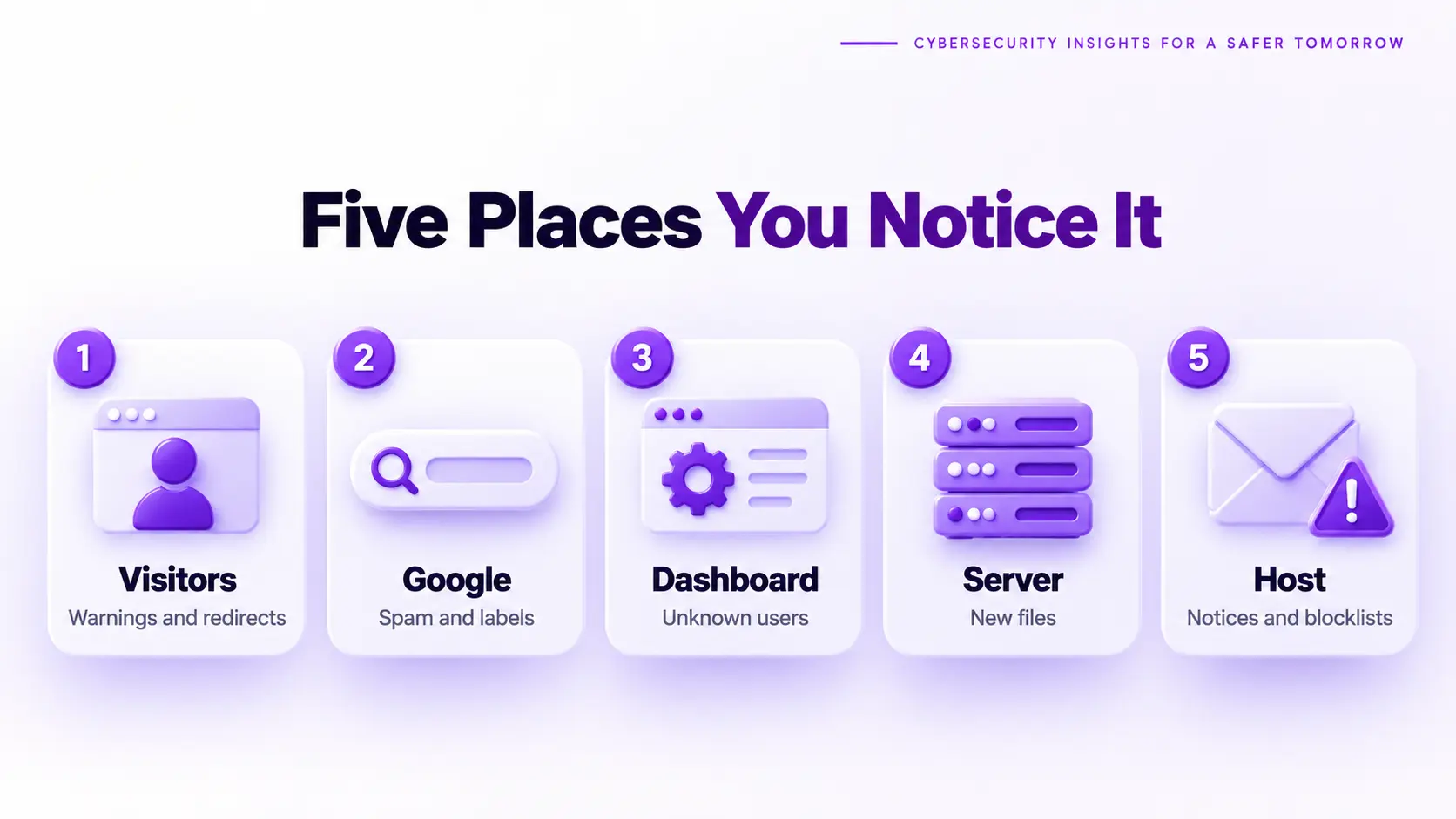
Malware on a website shows itself in five places: to visitors, in Google, in your dashboard, on your server, and in notices from your host or email provider. Visitors and Google usually reveal it first, because attackers work to hide from the person who owns the site, so many owners hear about an infection from a customer, a browser warning or a search result. One clear sign is enough to start an investigation, and two independent signs, such as a redirect plus spam pages in search results, make an infection very likely. A clean scan result never cancels a real sign. Each place has its own signs, listed in the next section.
The 12 Signs of Website Malware
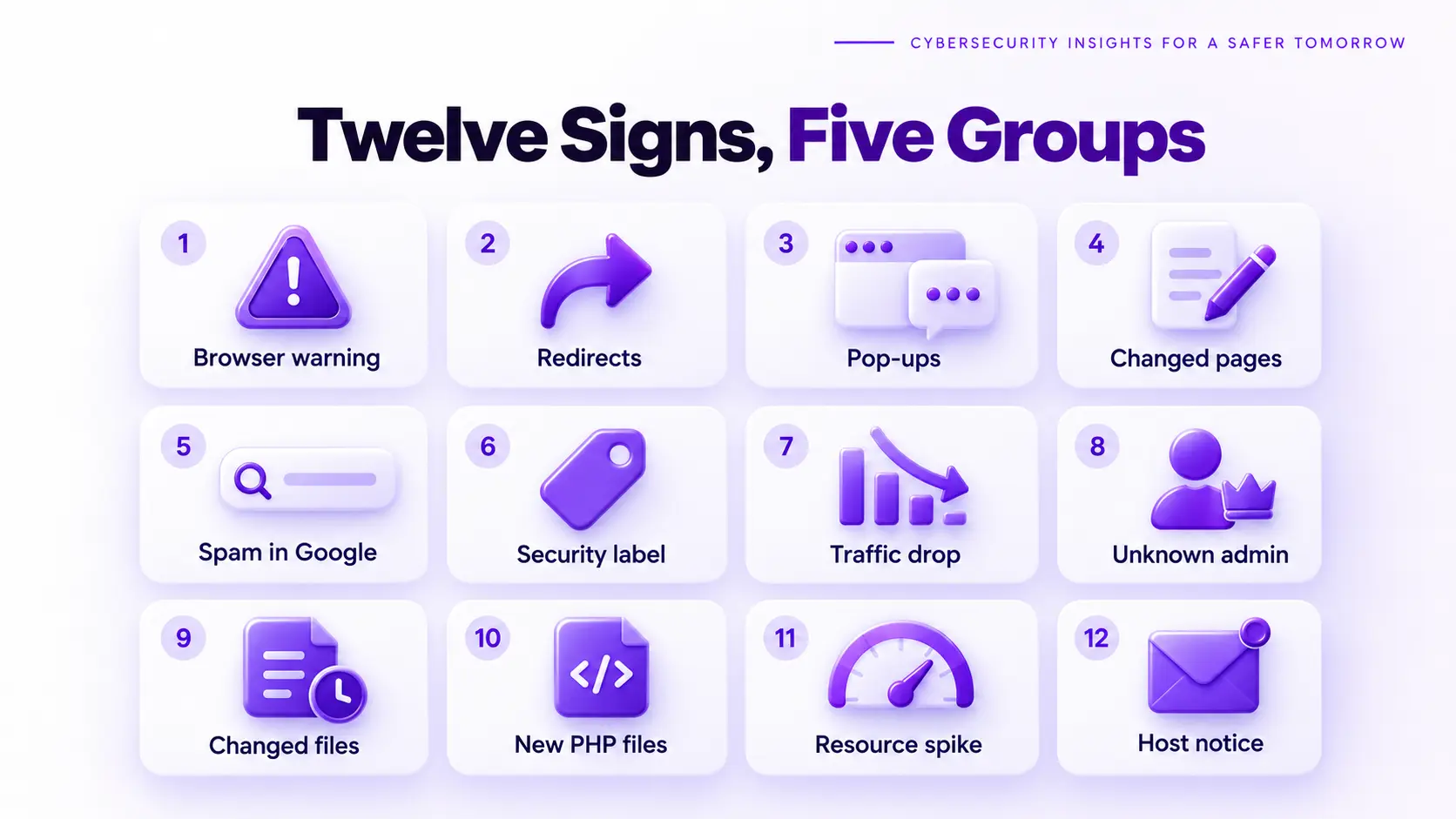
The 12 signs are a browser warning page, unexpected redirects, pop-ups and fake update prompts, pages that look changed, spam pages in Google, a security issue label, a traffic drop or strange queries, unknown admin users, changes you did not make, new PHP files, resource spikes and a host or mail notice. They are ordered by who notices them first. Each one below starts with a plain definition, then shows how to confirm it and what to do next.
1. A Browser Warning Page
A browser warning page is a full-screen red or yellow notice, such as Deceptive site ahead or The site ahead contains malware, that Chrome, Firefox or Edge shows before visitors reach your site. It appears when Google Safe Browsing flags the site for malware, phishing or harmful content.
How to confirm it: Look up your domain on Google’s Safe Browsing site status page and open the Security issues report in Search Console.
What to do next: Do not request a review until the site is clean, because a review filed while the infection remains fails. Our Deceptive Site Ahead guide walks through the steps.
2. Unexpected Redirects
An unexpected redirect is a visit that lands on a different site, often a spam, adult or scam page, and it frequently triggers only for some visitors, such as people arriving from Google or on a phone.
How to confirm it: Open your site in a private window by clicking through from a Google search result, then repeat on a mobile device. Check .htaccess, the theme header and the database for injected redirect code.
What to do next: Treat it as an active infection and read our guide to malicious redirects for where the code usually hides.
3. Pop-Ups, Ads and Fake Update Prompts
An injected pop-up is an ad, a fake browser update prompt or a notification request that your site never showed before, and it is usually loaded by a script an attacker added to your pages.
How to confirm it: View the page source or the network tab in your browser tools and look for scripts loaded from domains you do not recognize. Compare the theme files with a clean copy.
What to do next: Remove the script, then find out how it got in, because deleting it alone lets the attacker reinstall it. Our guide on how did my website get hacked shows how to trace the entry point.
4. Pages That Look Changed or Broken
A changed page is a layout, text or image that differs from what you published, from a defaced homepage to hidden links added in the footer, and a broken page can be the side effect of injected code that clashes with your theme.
How to confirm it: Compare the page with an earlier backup, and check the modified dates of your theme files against the last time you edited them.
What to do next: Restore from a clean copy only after you have found the entry point, because a restore into a vulnerable site is infected again within days. Follow our malware removal guide for the full order.
5. Spam Pages and Strange Titles in Google
A spam page in search results is a page on your domain that you never published, with a title about pharmacy products, casinos, replicas or foreign-language goods, created to borrow your site’s rankings. Well-known variants are the pharma hack and the Japanese keyword hack.
How to confirm it: Search site:yourdomain.com in Google and scroll through the results, then check the pages report in Search Console for URLs you do not recognize.
What to do next: Open our guide on the SEO spam hack, which covers how to find the code, remove it and clean Google’s index.
6. A Security Issue or “May Be Hacked” Label in Google
A security issue label is a warning in the Security issues report in Search Console, or a note next to your result in Google, that appears when Google detects hacked content or malware on your site.
How to confirm it: Open the Security issues report and read the examples Google lists, because they show which URLs it flagged.
What to do next: Fix the cause first and then request a review from the manual actions report if there is a manual action. Our guide on what to do when your website is hacked covers the first hours.
7. A Sudden Traffic Drop or Strange Search Queries
A traffic drop or odd queries is a fall in clicks, or a performance report full of terms unrelated to your business, and it can come from spam pages diluting the site or from Google demoting a flagged site.
How to confirm it: Open the performance report in Search Console and look for queries about pharmacy, casino or replica goods, then compare the last four weeks with the four before.
What to do next: Run the site: search from sign five and check the Security issues report before you assume it is an algorithm change, because a traffic drop alone does not prove malware.
8. Admin Users You Did Not Create
An unknown admin user is an administrator account you did not create, and attackers add one so they can return after you clean the site.
How to confirm it: Run wp user list --role=administrator and compare the names and registration dates with your real team. Some accounts are hidden from the dashboard list, so check the database too, as explained in hidden admin user WordPress.
What to do next: Copy the account details for evidence, delete the user and rotate every password. Our guide on database malware in WordPress has the queries that find hidden accounts, and a changed password does not remove an account that already exists.
9. Plugins, Files or Settings You Did Not Change
A change you did not make is a plugin you did not install, a file with a new modified date, or a setting such as the site URL that changed on its own.
How to confirm it: Run wp core verify-checksums to compare core files with the official release, and list the active plugins to spot ones you do not recognize.
What to do next: Replace the changed files from a clean copy and rotate your credentials. Our guide on how to find a backdoor in a website shows how to compare files at scale.
10. New or Changed PHP Files on the Server
A new PHP file is a script in a place where none belongs, such as the uploads folder, or a core file whose contents changed, and it often carries the attacker’s backdoor or a web shell.
How to confirm it: Run find wp-content/uploads -iname "*.ph*" to list PHP files in uploads, and find . -name "*.php" -mtime -7 to list recently changed ones.
What to do next: Copy the file and the logs before you delete anything, because they show how the attacker got in, then close that entry point.
11. Unusual CPU, Bandwidth or Outbound Traffic
A resource spike is a jump in CPU, bandwidth or outgoing connections that your visitors do not explain, because malware uses your server to send spam, mine cryptocurrency or attack other sites.
How to confirm it: Check the resource graphs in your hosting panel, and read the access log for paths and addresses that dominate the traffic.
What to do next: Ask your host which process or file is responsible, then find the file and trace how it arrived. A spike with no visitor explanation is a reason to look at the server, not just the site.
12. A Host Suspension, Abuse Email or Blocklisted Mail
A host notice or mail problem is a suspension, an abuse report, or your email landing in spam folders because your server or domain was used to send spam.
How to confirm it: Read the host’s notice, because it usually lists the file paths it found, and check whether your domain or server address appears on a mail blocklist.
What to do next: Ask the host for the full list of flagged files, clean them, rotate your credentials, and then request reinstatement and delisting. Keep the notice as evidence for your records.
Signs of Website Malware by Severity: Act Now or Investigate
Not every sign needs the same response. Act the same day on signs that mean visitors or your accounts are at risk, and investigate the others within a day. A traffic drop alone belongs in the last group, because it has many causes besides malware.
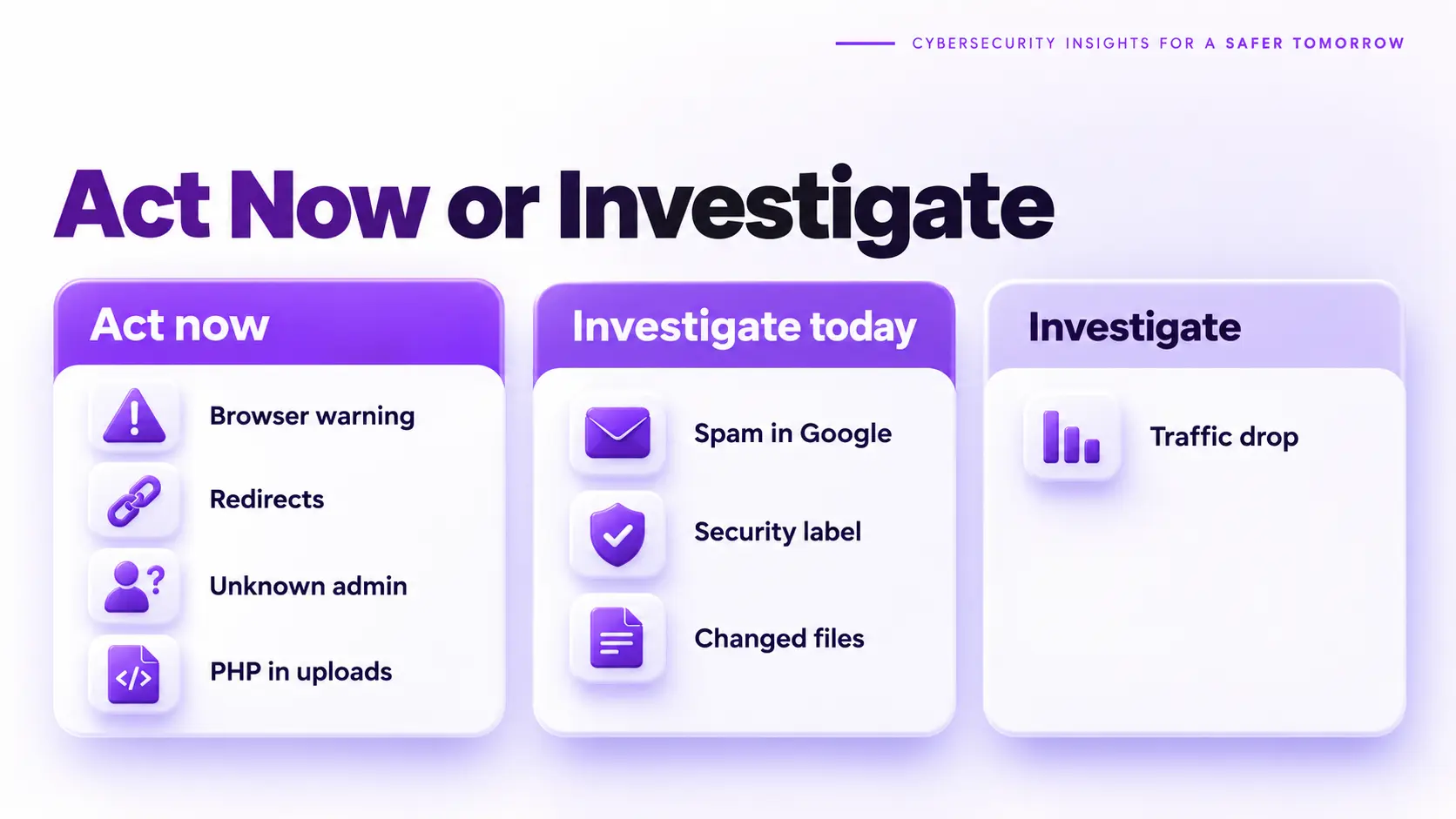
| Sign | Severity | First action |
|---|---|---|
| Browser warning page | Act now | Check Safe Browsing and Search Console |
| Redirects or fake update prompts | Act now | Test from a Google result on mobile |
| Unknown admin user | Act now | Copy details, remove user, rotate passwords |
| PHP file in uploads | Act now | Copy the file and the logs, then trace the request |
| Host suspension notice | Act now | Get the list of flagged files |
| Spam pages in Google | Investigate today | Run the site: search and check the pages report |
| Security issue label | Investigate today | Read the Security issues examples |
| Changed files or settings | Investigate today | Run the checksum comparison |
| Resource spike | Investigate today | Ask the host for the responsible process |
| Traffic drop or odd queries | Investigate | Check for spam pages before blaming an update |
Is It Your Website or Your Device?
Many people searching for signs of malware mean a site they visited, not a site they own. If a website you visit shows pop-ups, redirects or a download prompt, the harm lands on your device or accounts, and the fix is on your side: close the page, run a malware scan on your device, change the passwords you used since, and review your accounts for sessions you do not recognize. If the same symptoms appear for your own visitors, or on a site you manage, the problem is on the server and the 12 signs above apply. Test from a second device to tell the two apart.
Video: Google Help explains three signs of malware on your own device in Chrome, such as strange ads and unwanted changes. It is a short 2014 video, so the screens look dated.
How to Confirm Website Malware Before You Clean Anything
Confirmation takes a few minutes and protects the evidence you will need. Work on copies and write down every result.
- Copy the site files and the access logs before you change anything.
- Check Google’s Safe Browsing status for your domain and the Security issues report in Search Console.
- Test the site from a Google search result on a phone, then use the URL Inspection tool to see what Googlebot receives.
- List the administrators and compare them with your real team.
- Verify core files against the official checksums.
- Search the uploads folder for PHP files.
Why You May See No Signs of Website Malware at All
Absence of signs does not mean a clean site, because attackers design malware to stay hidden from the owner. Cloaked code shows spam only to Google or to visitors from search, and a dormant backdoor does nothing until the attacker uses it. A scanner can also report clean while the site is infected, as our guide on why a scanner says clean when the site is still hacked explains. If you have been hacked before, an infection that returns quietly is the usual story. Our article on why WordPress malware keeps coming back covers the persistence behind it.
What to Do When You Spot Signs of Website Malware
The first hour decides how much damage spreads and how much evidence you keep.
- Contain the site with maintenance mode or restricted access if visitors are being redirected or warned.
- Copy the files, database and logs as evidence before you delete or restore anything.
- Confirm the infection with two independent signs from the lists above.
- Follow the response steps in our guide on what to do when your website is hacked, then the cleanup order in the removal guide.
- Rotate every password and key once the entry point is closed.
When to Call a Professional About Signs of Website Malware
Call for help when you see more than one sign, when customer or payment data may be exposed, when Google or your host has taken action, or when you cleaned the site and the signs returned. These cases usually involve more than one foothold, and each day of guessing is another day of exposure and lost traffic. A professional confirms the infection, finds the entry point and every backdoor, and documents what the attacker could reach, which you may need for customers, insurers or a Google review. ScanTitan’s website malware removal service covers all of it.
Signs of Website Malware: Common Questions
How do I know if my website has malware?
Look for redirects, a browser warning page, spam pages in Google results, unknown admin users, new PHP files and a host notice. Confirm with Safe Browsing, the Security issues report in Search Console and a file check. A single clear sign is enough to investigate, and two make an infection very likely.
Can a website have malware without any visible signs?
Yes. Cloaked code hides from the owner, and a dormant backdoor shows nothing until it is used. Scanners can also miss it. If you have reason to suspect a compromise, check files, administrators, the database and the logs, not just the front end.
What are the most common signs of website malware?
Redirects, a Deceptive Site Ahead or malware warning from the browser, spam pages and strange titles in Google, injected pop-ups, unknown administrator accounts and a host suspension notice. Redirects and spam in search results are the two I see most often.
How can I check if a website is safe?
Look the domain up on Google’s Safe Browsing site status page and run a scan, but do not rely on either alone. If it is your own site, also compare files with the official release and review administrators and logs. If you only visited it, close the page and scan your device.
What if I accidentally clicked on a suspicious website?
Close the page without clicking anything else, run a malware scan on your device, and change the passwords you used since. Check your accounts for logins or settings you do not recognize. A visit alone rarely compromises a device, but a download or a form you filled in can.
Does a traffic drop mean my website has malware?
Not by itself. Traffic falls for many reasons, including algorithm updates and seasonality. It points to malware when it comes with spam pages in search results, a security label in Search Console, or unexpected queries in the performance report.