
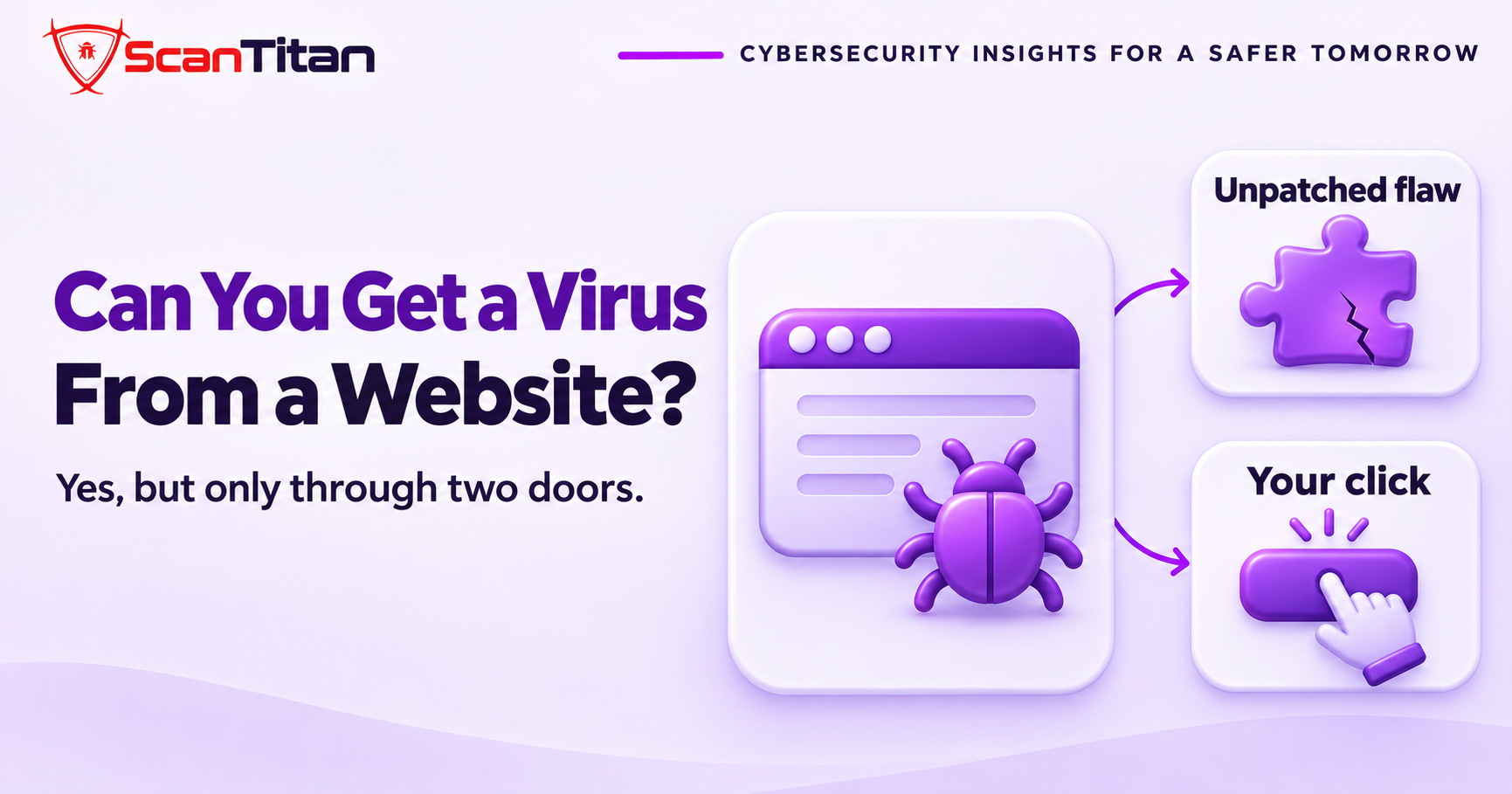
Can you get a virus from a website? Yes, but it is rare, and it needs one of two things: a browser or operating system with an unpatched flaw, or an action from you, such as running a command a fake prompt shows you. Loading an ordinary page in an updated browser almost never infects a device. A hacked site, a malicious ad or a fake update window can, which is why the risk is real and still smaller than most warnings suggest.
The Short Answer: What Can and Cannot Infect You
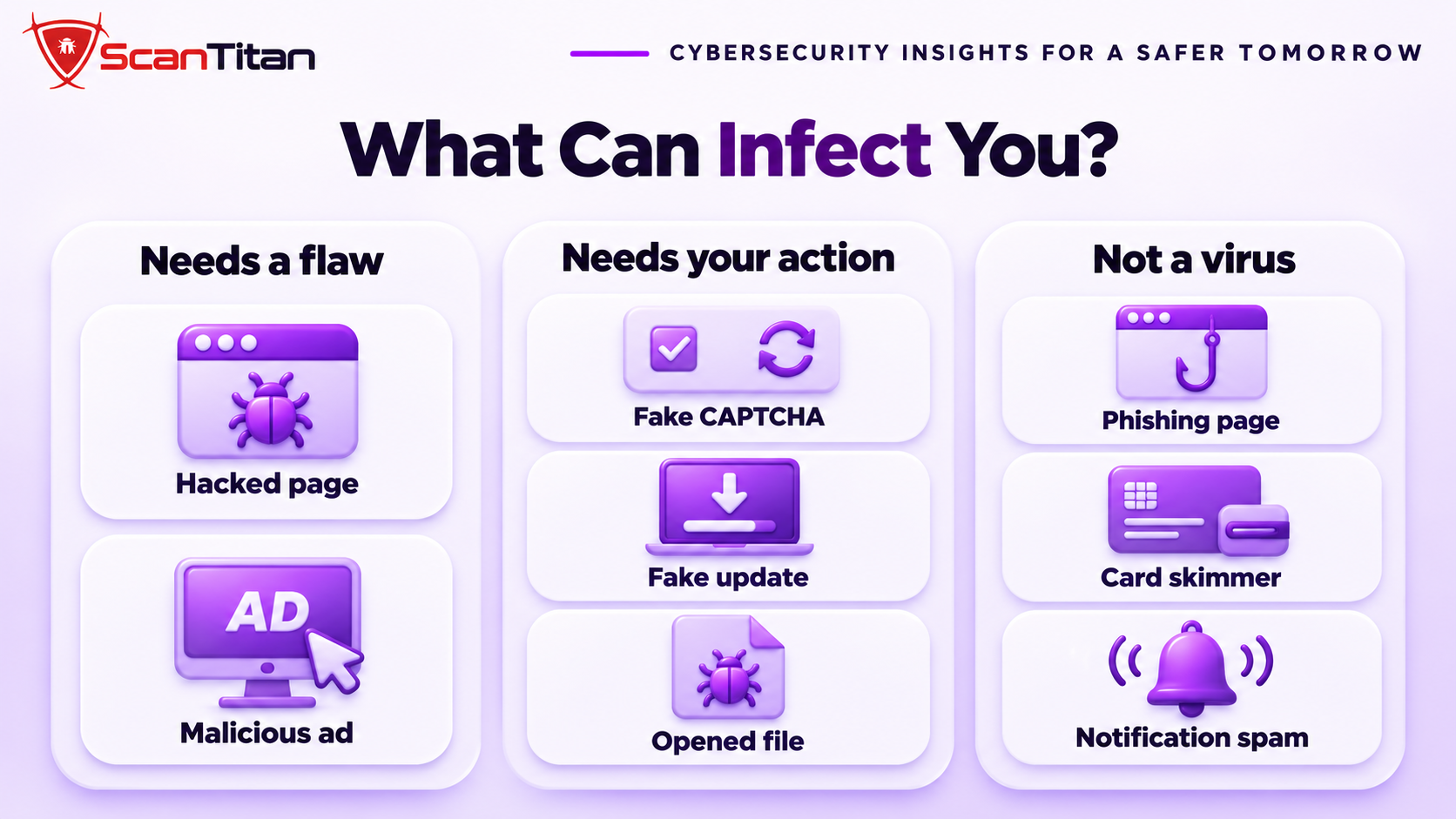
A virus is a program that copies itself, and most people use the word for any malware. A web page cannot run a program on your computer directly, because the browser runs page code inside a sandbox. Chromium’s design documents describe the sandbox as a way to run code that cannot make persistent changes to the computer. Infection happens when an attacker breaks out of that sandbox with a browser flaw, or when a page tricks you into stepping out of it yourself. The advice that you cannot get a virus just by visiting a site is wrong, and so is the panic. The table shows each scenario and what it needs from you.
| Scenario | Can it infect you? | What it needs from you |
|---|---|---|
| Loading a normal page in an updated browser | Very unlikely | Nothing |
| Loading a hacked page | Possible | An unpatched browser, plugin or operating system |
| A malicious ad on a legitimate site | Possible | Usually a click, or an unpatched flaw |
| Clicking a link | Possible | The page it opens must exploit a flaw or ask you to download something |
| Downloading and opening a file | Yes | You open the file |
| A fake update or CAPTCHA prompt | Yes | You run the installer or command it shows |
| Allowing notifications | Not a virus, but scam alerts follow | You click Allow |
| A phishing page | Not a virus, but stolen logins | You type your password |
| A card skimmer on a checkout page | Not a virus on your device, but stolen card data | You enter card details |
How a Website Can Infect You Without a Download
Three routes work without a download prompt, and each one starts on a page that looks normal. None of them needs you to type anything.
Drive-by Downloads and Exploit Kits
A drive-by download is malware that installs when you load a page, with no download prompt and no click. An exploit kit is the toolkit behind many of them: it checks your browser and plugins for known flaws, then sends the exploit that matches. This only works against software you have not updated, because every patch closes a flaw the kit depends on. The Chromium project documents why this matters: it states that it assumes determined attackers will find a way to compromise a browser process, so Chrome adds Site Isolation to keep pages from different sites in separate sandboxed processes. Updates remove the flaw, and the sandbox limits the damage if one slips through.
Malicious Ads on Real Websites
Malvertising is an ad that carries malicious code or sends you to a malicious page, and it can appear on a legitimate site because ad networks, not the site owner, choose the ads. You do not need to trust the site for the ad to reach you. Microsoft Threat Intelligence lists malvertisements next to phishing emails and compromised websites as the ways victims arrive at fake CAPTCHA pages that install malware. Most malicious ads need a click or a vulnerable browser to do harm, so updates and a skeptical click remain the best protection, and an ad blocker reduces how many ads you see at all.
Hacked Legitimate Websites
Attackers hack ordinary websites, often through an outdated plugin, and add a few lines of JavaScript that redirect visitors to an exploit page or a fake prompt. The site owner usually sees nothing, because the code often targets only some visitors, such as people arriving from Google. Attackers do not need to target you. Automated scanners find every site that runs a vulnerable plugin version and add the same script to all of them, so a small blog can pass infections to visitors for weeks. This is why a trusted site can still infect a visitor. Our guides to malicious JavaScript on a website and malicious redirects show how that injected code works and where it hides.
What Needs Your Action
A growing class of attacks asks you to do the last step yourself, which lets them slip past automated defenses. These are the prompts to refuse.
- Fake CAPTCHA prompts: A ClickFix lure is a fake verification or error page that tells you to copy a command and run it in the Windows Run dialog or a terminal. Microsoft reports that it relies on the user, so it can get past conventional security tools, and that the Lumma Stealer infostealer was the most prolific payload it observed.
- Fake update prompts: A fake update prompt is a page or window that claims your browser or software is out of date and offers a file to install, which is the malware itself.
- Scareware pop-ups: A scareware pop-up is a fake security warning. The FTC says scammers use them to get you to call a phone number, then ask for remote access, and that you should never call a number that appears in a pop-up.
- Bogus software ads: A bogus software ad is a sponsored result or social post that links to a fake download page. The FTC advises typing the address yourself instead of clicking ads to download software.
- Notification requests: A notification request is a browser prompt asking to send you alerts. It does not install a virus, but clicking Allow lets the site push scam messages later.
Video: the independent security researcher Eric Parker looks at whether clicking a link alone can get you hacked. It runs about 11 minutes and is about two years old.
Why Modern Browsers Make Infection Rare
Browsers stack several defenses, so one flaw rarely gives an attacker the whole computer. The sandbox limits what page code can do, and Site Isolation keeps pages from different sites in separate processes. Google Safe Browsing shows warnings before you reach a dangerous site or download, and Google says it protects over five billion devices. Most browsers also update on their own, which closes known flaws quickly. These layers explain why a normal visit rarely infects anyone. They do not help when you approve the step yourself, and they cannot block a flaw that has no patch yet, so keep your browser and system current.
What a Website Can Steal Without a Virus
Many harms from a bad website involve no virus at all. The site steals what you hand it or what passes through it.
- Logins: A phishing page is a copy of a real login screen that records the password you type into it.
- Card details: A card skimmer is a script injected into a store checkout page that copies the card number as you type it. Our guide to the Magecart attack explains how it works.
- Personal data: A fake form or survey page collects names, addresses and phone numbers that scammers reuse in later attacks.
None of these leaves a file on your device, so an antivirus scan will not find them. Watch what you enter, and prefer a card with fraud protection for online checkout.
What to Do If You Think You Got a Virus
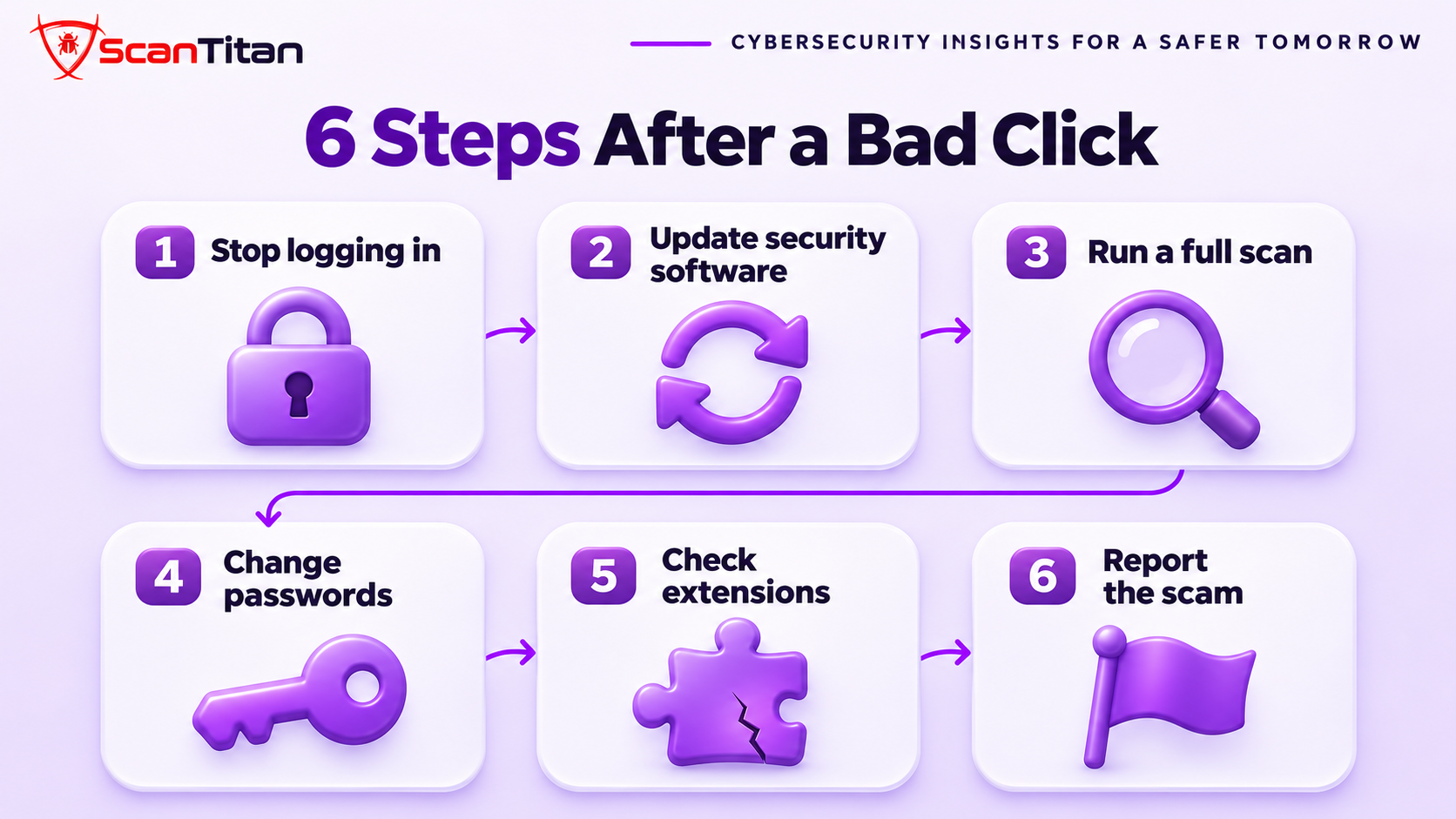
If you clicked a link or approved a prompt and something feels wrong, act in this order. The steps follow guidance from the US Federal Trade Commission.
- Stop logging in to accounts, especially shopping and banking, until you have scanned the device.
- Update your security software so it has the latest protections.
- Run a full security scan and remove what it finds.
- Change your passwords from a clean device and turn on two-factor authentication.
- Check your browser for toolbars or extensions you did not install, and remove them.
- Report the scam site or ad at ReportFraud.ftc.gov if someone tried to scam you.
The FTC warns that malware can go undetected even with security software, so repeat the scan if the symptoms continue. Symptoms include a slow device, a changed home page, pop-ups on sites that should not show them and redirects you did not choose. If the device still behaves oddly, ask a technician you trust to look at it.
How to Tell a Website Is Dangerous Before You Visit
No single sign proves a site is unsafe, but several together are a strong warning. A browser warning is the clearest sign, and the red “Deceptive site ahead” page explains itself in our guide to the Deceptive Site Ahead warning. Other signs include redirects you did not click, a page that demands you update something or run a command, and a download offered where you expected an article. You can also look up a site in the Site Status tool in the Google Transparency Report, which Safe Browsing publishes to show whether a site currently has dangerous content. To check a website you run or plan to visit, scan its address with the ScanTitan website malware scan.
If You Own the Website
Your own site can be the source of a visitor infection, and you may be the last to know. A Google Safe Browsing warning can then stop visitors from reaching the site at all, so the damage is both the infection and the lost traffic. Signs include a Google warning, visitors who report redirects that you never see, and spam pages in search results. Start with the checks in our guide to the signs of website malware, then follow what to do when a website is hacked if you find something. If you cannot find the entry point, or the site handles logins or payments, ScanTitan’s website malware removal service finds it and removes it.
Can You Get a Virus From a Website FAQ
Can you get a virus from just visiting a website?
Yes, but it is rare. A hacked page can run code that exploits an unpatched browser, plugin or operating system, and Chrome’s own documentation assumes attackers will sometimes find such flaws. In an updated browser, simply loading a normal page almost never infects you. The larger risk is a prompt that asks you to run something.
Can you get a virus from clicking a link?
Yes, if the link opens a page that exploits a flaw or asks you to download or run something. The click alone is rarely the infection. Stop at the page, close it if it asks you to update, install or paste a command, and run a scan if you already did.
Can you get a virus without downloading anything?
Yes. A drive-by download installs malware without a download prompt, but it needs an unpatched flaw. A fake CAPTCHA that tells you to paste a command needs no download either, because you run the command yourself. Updates stop the first kind and refusing the prompt stops the second.
Does incognito mode protect you from website viruses?
No. Incognito mode stops your browser from saving history and cookies on that device. It does not change how the browser handles exploits, ads, downloads or fake prompts, so the same risks apply, and the same updates and habits protect you.
Can a phone or iPad get a virus from a website?
It is possible but rare. Mobile systems sandbox apps and browsers, and the common mobile risks are scam sites, malicious apps installed from outside the official stores and phishing. Keep the system updated, install apps only from the official store, and treat prompts that ask for a profile or permission as suspicious.
Will antivirus software stop a virus from a website?
It helps, but it is not complete. The FTC notes that malware can go undetected even when you use security software, so combine it with updates and cautious clicking. A phishing page or card skimmer also leaves no file on your device, so a file scan will not find it.