
Why Plugin Safety Matters: Plugins Cause Most WordPress Hacks
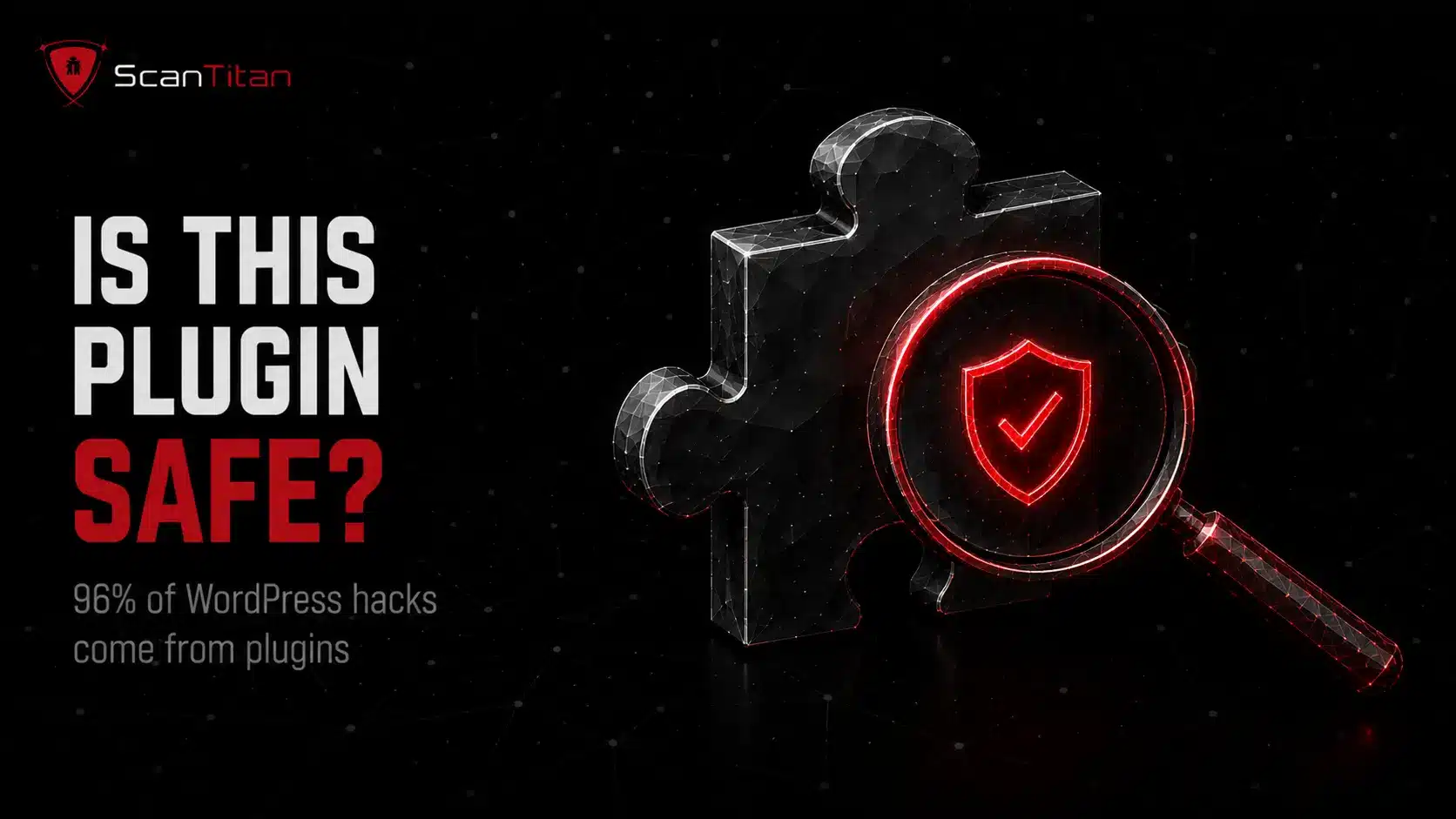
WordPress powers about 43% of all websites, and that dominance makes it a constant target. The weak point is rarely the core software, which a large team audits closely; it is the plugins. In its 2024 analysis of the ecosystem, security firm Patchstack attributed 96% of new WordPress vulnerabilities to plugins, with only 4% in themes and a handful in core, out of nearly 8,000 flaws catalogued that year. Every plugin you install runs with access to your site and often your database, so one bad choice can expose customer data or hand an attacker a foothold. Vetting a plugin before it goes live is the cheapest security control you have, and plugin flaws are among the highest-impact vulnerabilities in cyber security to get ahead of.
The number that should change how you install plugins96% of WordPress vulnerabilities disclosed in 2024 were in plugins, not the core software. The plugin you add today is statistically the most likely way your site gets compromised.
How to Check If a WordPress Plugin Is Safe? (Before You Install)
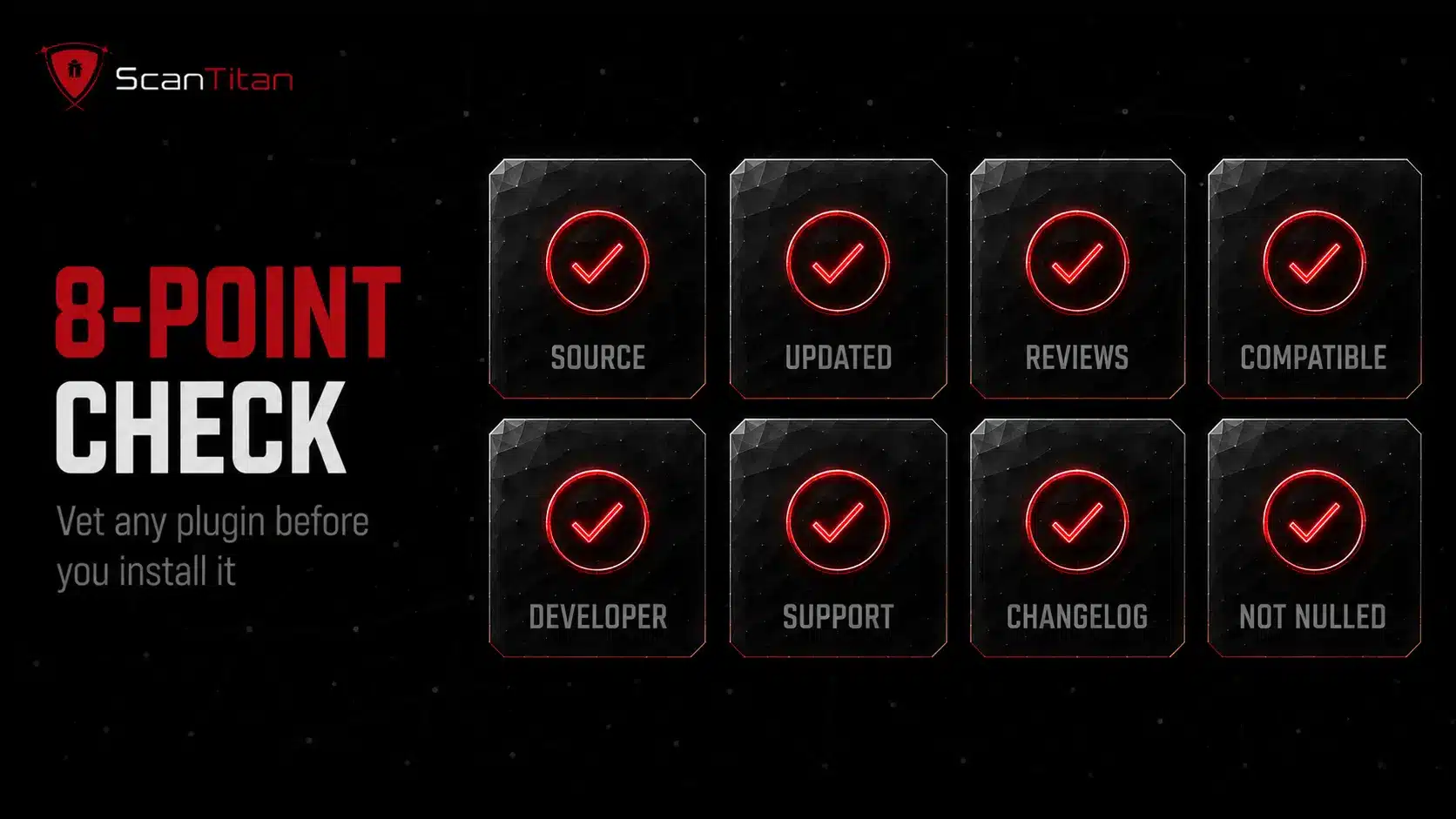
Run through these eight checks on the plugin’s page before you click install. None takes more than a minute, and together they filter out the large majority of risky plugins.
Download only from the official WordPress.org repository
Every plugin in the official WordPress.org directory passes a code review before it is listed, which filters out the most blatant malware. Plugins pulled from random third-party sites skip that check entirely and are one of the most common infection routes. Here is a useful tell: if you search for a niche feature and the top results are unfamiliar developer sites selling a plugin, with no clear company behind them and only a generic contact email, treat that as a warning. Stick to WordPress.org, a reputable plugin marketplace, or the verified website of a developer you can actually identify. And never take a premium plugin offered free on an unofficial site, which gets its own check below.
Check the last-updated date
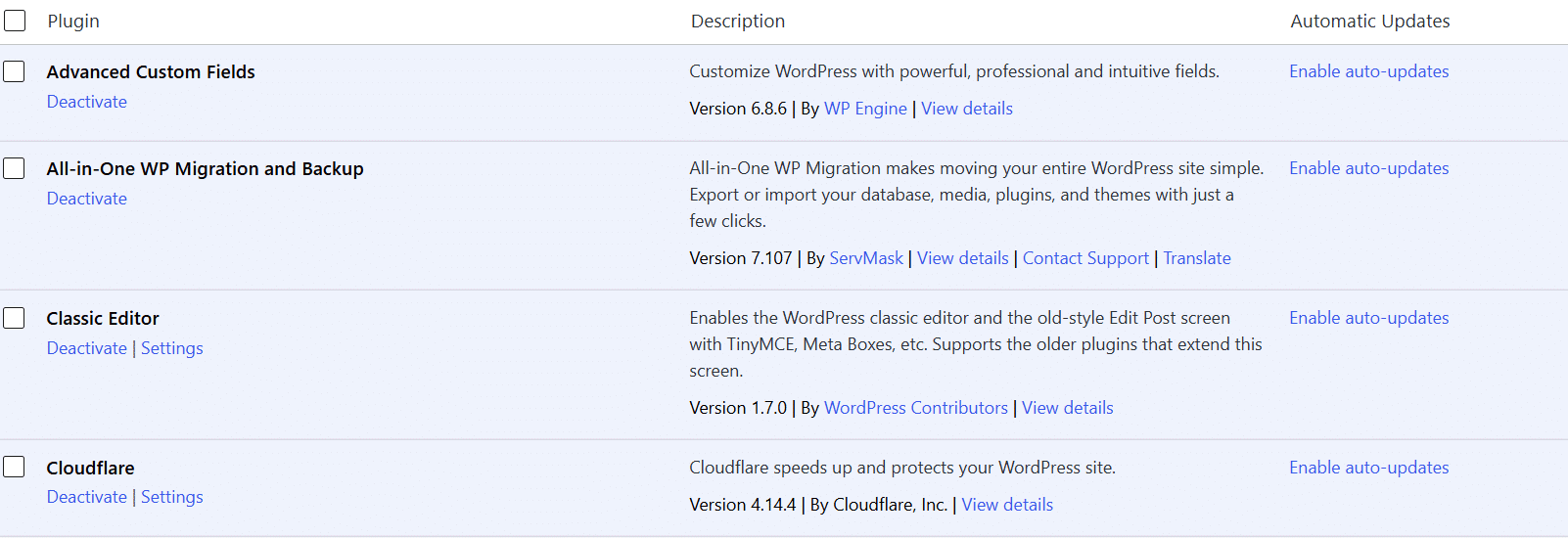
An actively maintained plugin receives security fixes; an abandoned one silently rots. On the plugin page, find the last-updated date and apply a simple rule of thumb: within the last three months is healthy, around six months warrants caution, and twelve months or more usually means the developer has moved on. A handful of very simple plugins genuinely need few updates, but anything that touches forms, payments, users, or data must be current, because new vulnerabilities in those areas surface constantly. When a plugin has not been touched in a year, assume any flaw discovered since then is still wide open on every site running it.
Review ratings, reviews, and active installs
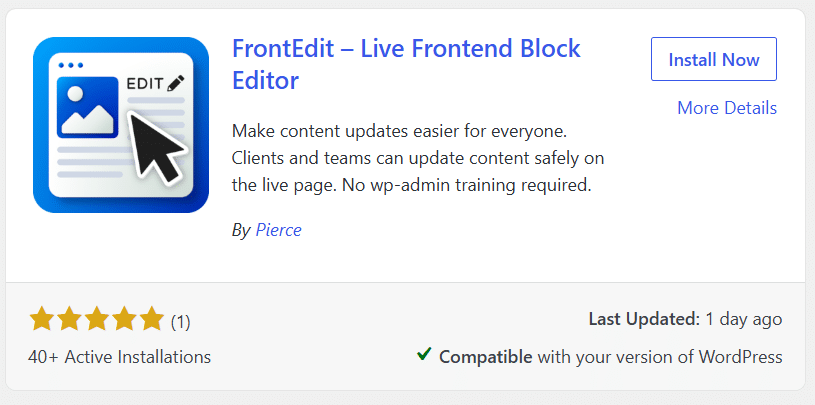
This is the check worth slowing down for, because it combines three signals. First, look at active installs, which counts sites currently running the plugin, not lifetime downloads; under roughly a thousand active installs means the plugin has had little community scrutiny, so aim higher. Second, check the average rating, ideally four stars or better. Third, and most important, read the actual reviews instead of trusting the star average. Sort for recent and negative ones, note their dates (old complaints about a since-fixed issue matter less), and be wary of a flood of short, generic five-star entries, a classic sign of planted reviews. Read how the developer responds to criticism, too, since a team that offers real fixes is one you can trust. Any review mentioning a security problem is a stop, no exceptions.
Confirm WordPress version compatibility
WordPress plugin pages show two version fields, and both matter. “Requires WordPress version” is the oldest core the plugin supports, though you should never be running an old core anyway. “Tested up to” is the one to focus on: it names the most recent WordPress version the developer has actually verified. If that field lags well behind your current core, the developer may have stopped keeping pace, and an untested plugin can break your site or open a gap. Give a brand-new core release a week or two of grace, since even responsible developers need a moment to test. But a gap of several versions, or a visible “untested with your version” warning on the install screen, is a reason to wait or pick something else.
Assess the developer’s reputation
Look hard at who is actually behind the plugin. A developer with a professional website, a portfolio of other well-rated plugins, and a visible history is far safer than an anonymous new author. Two specific checks pay off. First, run the developer’s or company’s name through a search engine; results like “do not trust” or “fraud,” or no results at all for a supposedly established developer, are both bad signs. Second, and increasingly common, watch for a plugin that recently changed ownership. Attackers buy a popular, trusted plugin precisely to push a malicious update to its existing user base. If a long-standing plugin suddenly has a new, unknown owner and an unusual update, slow down and verify before you install or accept that update.
Check support-forum responsiveness
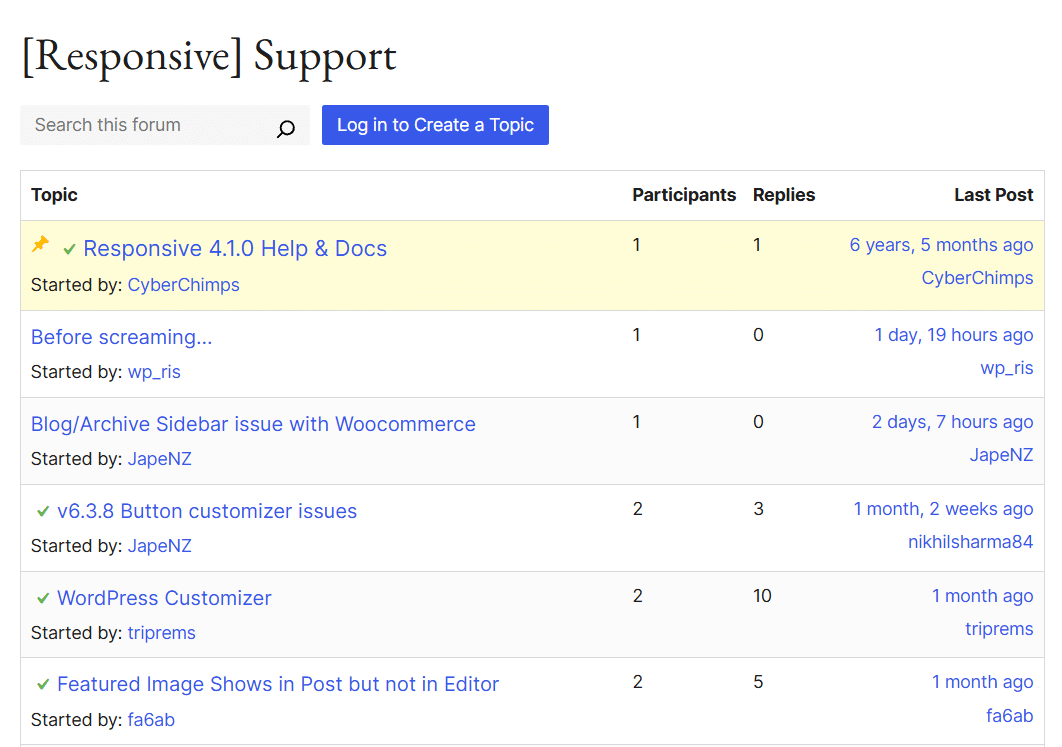
A developer who answers support requests will patch security issues; one who has gone silent will not. On the plugin’s support tab, check three things. Look at the resolved ratio, meaning how many recent threads were actually closed out rather than left hanging. Open a few threads and read the developer’s replies to judge whether they are genuinely helpful or copy-paste brush-offs. Then scan the dates: if there has been no developer response to any thread in the last three months, treat the plugin as effectively unsupported. Consistent, recent, substantive answers are one of the strongest signals that a plugin is genuinely looked after and will be fixed fast when something breaks.
Read the changelog for a security track record
The changelog is the plugin’s honesty test. Frequent, specific entries that mention security fixes show a developer who takes vulnerabilities seriously and ships patches quickly; vague entries, or long silences on a complex plugin, suggest the opposite. How a team handled past flaws is the best predictor of how it will handle the next one. Pair the changelog with a fast reputation search: put the plugin’s name into a search engine next to words like “vulnerability,” “hacked,” or “compromised.” If reputable results surface real, unresolved security concerns, walk away no matter how good the feature looks. A clean changelog plus a clean search is far more reassuring than a polished marketing page.
Never install nulled or pirated plugins
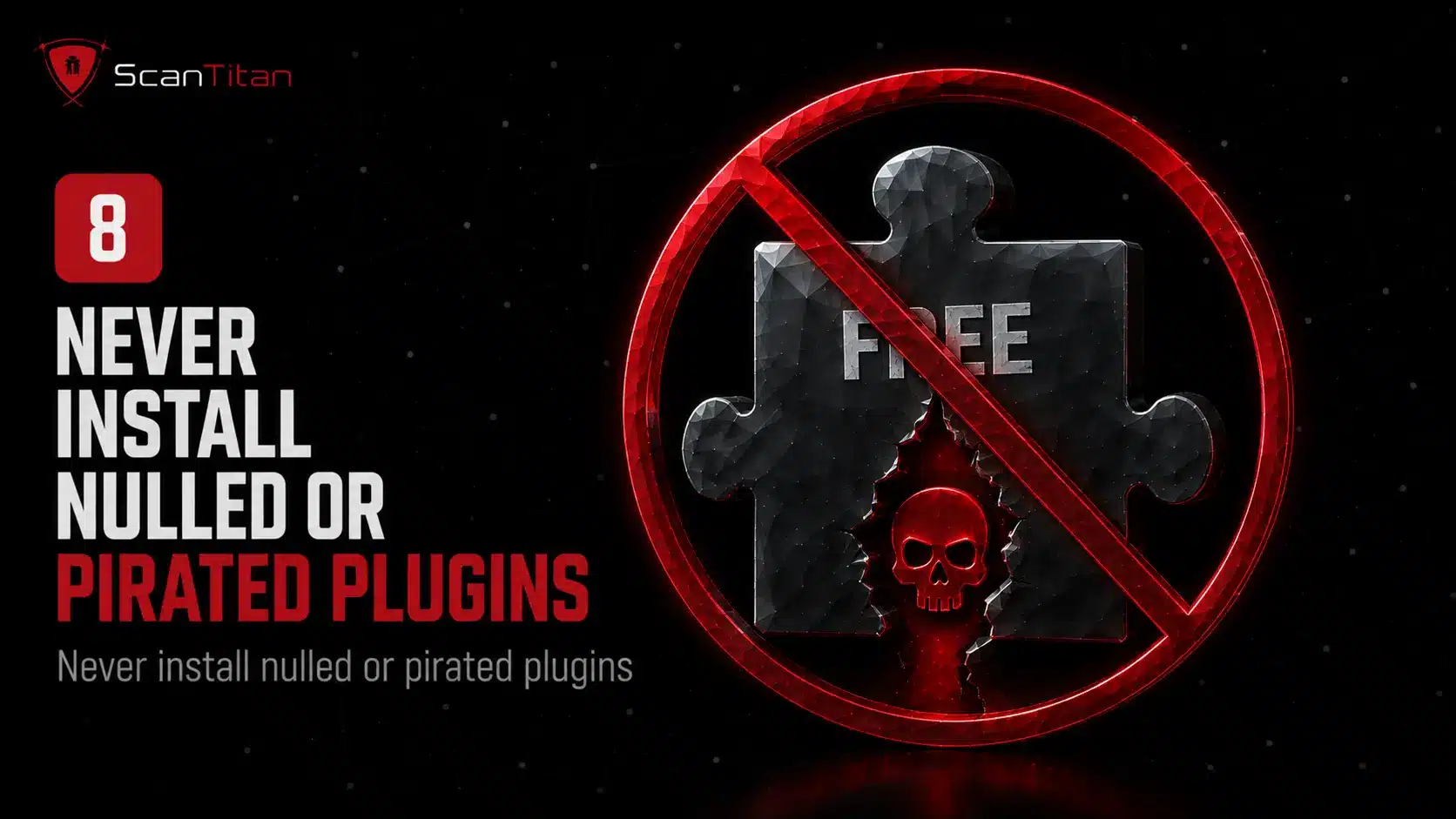
Nulled plugins are cracked copies of premium plugins offered free on shady sites. They are one of the most reliable ways to infect a WordPress site, because the crack almost always hides a backdoor or malware. Whatever you save on the license, you pay for many times over in cleanup. Buy the legitimate version or use a free alternative, One possible post-compromise outcome is SEO spam. If an infected site begins showing pharmaceutical keywords, hidden drug pages, or unfamiliar Google results, investigate whether it has developed a WordPress pharma hack rather than assuming the problem is limited to the plugin itself.
Check the Plugin Against WordPress Vulnerability Databases
Before you trust a plugin, search its name in the WordPress vulnerability databases. Two keep the most complete records: the WPScan vulnerability database and Patchstack, both of which log known plugin flaws with dates and severity. A quick search tells you whether the plugin has a history of vulnerabilities and, just as important, whether the developer patched them quickly. Pay attention to the type of flaw as well, because many plugin vulnerabilities are SQL injection or cross-site scripting introduced by insecure code; if you build or audit plugins yourself, our guide on how to test for SQL injection shows how those are found. One patched issue from two years ago is normal. A pattern of repeated, slowly patched flaws is a reason to walk away.
Red Flags That Mean “Do Not Install”
Green flags tell you a plugin is probably fine; red flags tell you to stop. One alone is not always fatal, but two or more together is a clear signal to find an alternative. The table lists the warning signs that most often come before a compromise.
| Red flag | Why it is risky | What to do instead |
|---|---|---|
| Downloaded from outside WordPress.org | Skips the official review process and is a common malware route | Install only from the official repository or a known developer |
| No update in 12+ months | Likely abandoned, so new flaws never get patched | Choose an actively maintained alternative |
| Very low active installs | Too little community scrutiny to surface problems | Prefer a plugin with a proven install base |
| No recent support replies | Signals the developer has walked away from the plugin | Pick a plugin with responsive, recent support |
| Few or generic reviews | Ratings may be padded or the plugin unproven | Read recent, detailed reviews before trusting it |
| Not tested with your WordPress version | May break or expose your site on the current core | Wait for an update or choose a compatible plugin |
| Nulled or pirated version | Frequently laced with backdoors and malware | Buy the legitimate license or use a free alternative |
| Listed with unpatched flaws in a vuln database | A known, exploitable weakness with no available fix | Avoid until patched, or choose another plugin |
| On your web host’s banned-plugin list | Hosts ban plugins with known security or performance problems | Check your host’s disallowed list before installing |
| Unusually large file size or heavy resource use | Bloat slows the site and can conceal hidden malicious code | Prefer a lean, well-optimized alternative |
How to Test a New Plugin Safely on a Staging Site
Even a plugin that passes every check can conflict with your theme or another plugin. Never let a new plugin’s first run be on your live site. Test it on a staging copy first.
Clone your site to staging
Most quality hosts offer one-click staging, or you can use a staging plugin. Work on an exact copy of your live site so any problem stays contained and never touches real visitors or data.
Install and activate the plugin there
Add the plugin on staging and turn it on. Configure it the way you would in production, so the test reflects how the plugin will actually behave once it is live.
Watch for errors, conflicts, and slowdowns
Click through your key pages and admin screens. Look for broken layouts, error messages, a white screen, or a noticeable drop in speed. Check the error logs, and confirm nothing else on the site stopped working.
Scan, then promote to live
Run a security scan against staging to confirm the plugin introduced no new issues. Only once it is clean and stable should you install it on your live site, ideally during a quiet traffic window.
After You Install: Baseline Your Site, Then Monitor It
Vetting ends at install; safety does not. The best way to catch a plugin that turns bad is to know what your site looked like before it went in, then keep an eye on it.
Take a website security scan immediately after installing a new plugin. That baseline is what lets you attribute any new finding to the plugin rather than guessing.
Baseline with Site Health first, opening Tools then Site Health in your WordPress dashboard and noting the current status before you install, so any new warning afterward points straight at the plugin you just added.
Watch performance and logs after activating, tracking page load times, traffic analytics, and the server error logs for anything unusual, which is the earliest sign a plugin is misbehaving or has been compromised.
Run a reputable security or firewall plugin that can flag malicious traffic and known vulnerabilities and alert you the moment a plugin you already use is disclosed as vulnerable.
Enable prompt updates by turning on notifications, and auto-updates for the plugins you trust, so a security patch lands on your site before attackers arrive to exploit the flaw it fixes.
Manual checks reduce pre-install risk, but ScanTitan’s WordPress Vulnerability Scanner continuously checks your installed plugins, themes, and core for newly disclosed vulnerabilities and shows which components need attention first.
What to Do If a Plugin You Already Use Becomes Vulnerable
Even a well-vetted plugin can turn risky when a new vulnerability is disclosed. When that happens, act quickly, because public disclosure often triggers a wave of automated attacks.
Update immediately, applying the patched version the moment the developer releases it, since the window between disclosure and mass exploitation is often measured in days.
Deactivate and remove the plugin if no patch exists, deleting its files as well, because leaving a known hole open is far riskier than losing the feature.
Shield the site with a web application firewall, which can virtually patch a known plugin flaw and buy you time until a real fix ships.
Monitor for signs of compromise, scanning for injected code, unexpected admin users, and new files, the usual evidence that a plugin flaw was already exploited.
Plugins are only one entry point. The same site can carry server-level issues like an SSL vulnerability or the POODLE vulnerability, which is why plugin vetting works best inside a broader program of vulnerability and exposure management.
How ScanTitan Detects Vulnerable WordPress Plugins
ScanTitan checks your live WordPress site for the plugin risks this guide describes, without you searching databases by hand. It fingerprints the plugins and versions actually installed, matches them against known-vulnerability data, and flags anything outdated, abandoned, or carrying a disclosed flaw, with a CVSS severity score and a clear next step. It also scans the wider site for the SQL injection, cross-site scripting, and misconfigurations that insecure plugins introduce. Because scanning runs continuously rather than once, a plugin that was safe when you installed it but picks up a vulnerability next month shows up in the next scan, so you learn about the risk before an attacker does.
WordPress Plugin Safety FAQ
How do I know if a WordPress plugin is safe?
Check it before installing: download only from the official WordPress.org repository, confirm it was updated recently and tested with your WordPress version, review its ratings and active installs, look at the developer’s reputation and support responsiveness, read the changelog for security fixes, and search its name in the WPScan and Patchstack vulnerability databases. Never use nulled or pirated plugins.
How can I tell which plugins are installed and active on a WordPress site?
In your WordPress dashboard, go to Plugins, All Plugins to see everything installed, with active plugins highlighted. For a site you do not control, browser tools and online technology scanners can often fingerprint some plugins from the page source, though not always reliably. A security scanner gives the most complete and accurate inventory of what is actually running.
How do I secure a WordPress plugin?
Keep it updated to the latest version, remove any plugin you no longer use, and only run plugins from reputable, actively maintained sources. Add defense in depth with a web application firewall, least-privilege user accounts, and regular backups, then scan continuously so a newly disclosed plugin flaw is caught fast. The safest plugin is one that is current, needed, and monitored.
How can I tell if my WordPress site has been hacked?
Common signs include unexpected admin users, unfamiliar files or modified core files, redirects to spam sites, a sudden drop in performance, and browser or search-engine warnings that the site is unsafe. Run a malware and vulnerability scan to confirm. If a scan finds injected code or a known-vulnerable plugin, treat the site as compromised and clean it before restoring normal operation.
Why does WordPress get hacked so often?
Its popularity makes it a large target, but the real reason is the plugin ecosystem: 96% of WordPress vulnerabilities in 2024 were in plugins, not the core. Sites accumulate plugins, skip updates, and sometimes install nulled versions, and any one weak or outdated plugin can be enough. WordPress core itself is well maintained; the risk lives in what you add to it.
Is it safe to use nulled WordPress plugins?
No. Nulled plugins are cracked copies of paid plugins distributed on untrusted sites, and they very frequently hide backdoors, malware, or spam code. Installing one gives an attacker a direct route into your site, and the cleanup cost dwarfs the license you avoided. Always buy the legitimate version or choose a reputable free alternative.
How often should I check my plugins for vulnerabilities?
Continuously, not once a year. New plugin vulnerabilities are disclosed daily, so a plugin that was safe last month can become risky overnight. Apply updates promptly, review your plugin list regularly to remove what you no longer need, and use continuous scanning so a freshly disclosed flaw on a plugin you already run is flagged within days rather than at your next manual review.
Resources and References
Work from official and independent sources when you vet a plugin. These non-commercial references sit behind this guide.
- WordPress.org Plugin Directory, the official repository where every listed plugin passes a review.
- SecurityWeek: 8,000 new WordPress vulnerabilities in 2024, the source of the 96%-in-plugins figure.
- CVE.org, the source of record for Common Vulnerabilities and Exposures identifiers.
- NIST National Vulnerability Database, for CVE details and CVSS severity scores.
Scan Every Plugin Before It Becomes a Problem
The safest plugin is the one you vetted before installing and kept watching afterward. Run the 8-point check, search the vulnerability databases, avoid the red flags, and test on staging, and you will filter out almost every risky plugin before it reaches your live site. To catch the ones that go bad after you install them, you need ongoing visibility. ScanTitan fingerprints your WordPress plugins, flags outdated and vulnerable ones with CVSS-scored findings, and re-checks continuously, so a lean team keeps its site safe without auditing every plugin by hand.